
Create a WhatsApp System User access token
Use a System User credential for the ongoing WhatsApp connection. The token offered in Meta's test screen is temporary and should not be mistaken for the operational credential. A token configured without scheduled expiry, when Meta offers that choice, can still be revoked or lose asset access.
1. Prepare the app and WhatsApp account
Complete app creation and the WhatsApp use-case setup. Confirm the app and WhatsApp Business Account belong to or are accessible from the intended portfolio. Have the portfolio administrator perform the System User steps.
2. Create or select the integration identity
- Open Meta Business Suite → Settings → Users → System users.
- Select an existing appropriate integration identity or click Add.
- For a new identity, use a descriptive name such as “Customer Messaging Integration”, select the appropriate role, and complete creation.
- Assign the intended app and WhatsApp Business Account through the asset-assignment controls. Confirm both in Assigned assets.
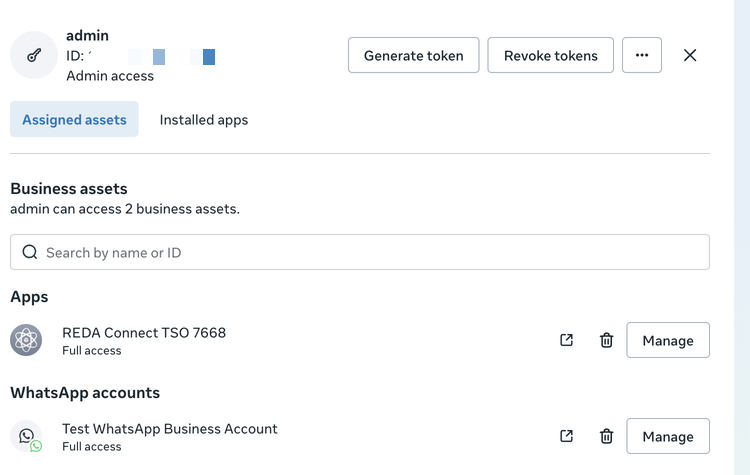
If either asset is missing, inspect Accounts → Apps or Accounts → WhatsApp accounts in Business settings and grant the required integration access. Do not select an unrelated WABA merely because its name is similar.
3. Generate the token for the correct app
- Click Generate token on the System User.
- Select app: choose your WhatsApp app, then Next.
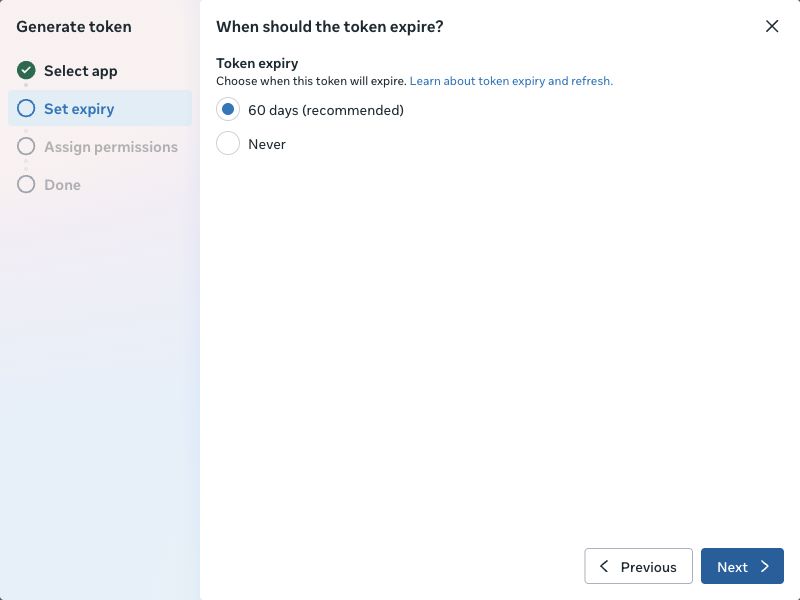
- Set expiry: choose from the lifetimes Meta offers. The current screen shows 60 days (recommended) and Never. Use your business's rotation policy and record the replacement date when applicable.
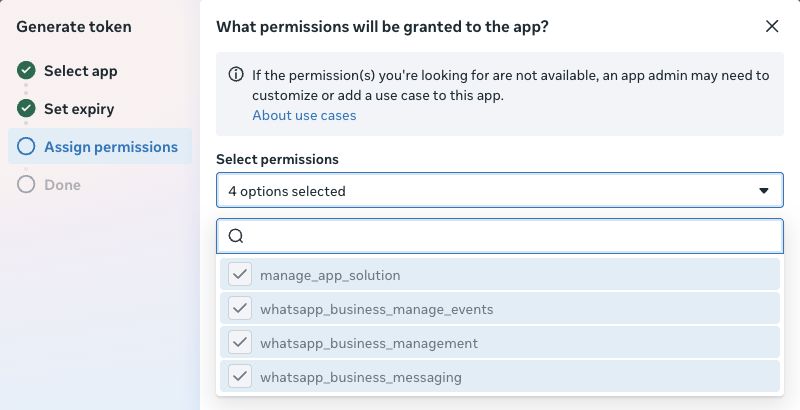
- Assign permissions: confirm
whatsapp_business_messagingandwhatsapp_business_management. The current use case may bundle/preselect additional permissions. Resolve missing required permissions in the app's use-case settings before continuing. - Generate and copy the token to your approved credential store. Do not rely on being able to redisplay it after closing the dialog.
Expected result: a credential for this app and its assigned WhatsApp account. A token generated for another app is not corrected by copying a different App ID into Salesforce.
4. Save through the Salesforce setup action
- Create and save the Connect Account with its WhatsApp number/account identifiers. Leave the channel unselected until setup is ready.
- Click Set Up WhatsApp.
- Paste the credential into WhatsApp Auth Token and click Save Token.
- Read the result and use Check again. Continue with webhook connection and the actual conversation test.
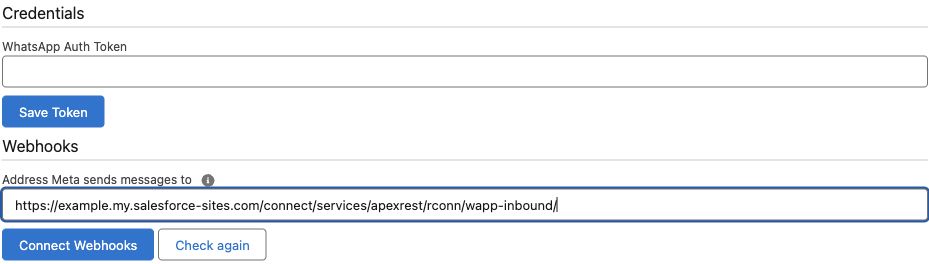
Do not paste the real token directly into WhatsApp Token on the record. The setup action handles encrypted storage. No placeholder token is needed to save a new account with messaging channels unselected.
5. Maintain the credential
Keep the app/asset owner and rotation information in your administration record, without storing the secret in a description. If Meta rejects a previously working token, inspect its expiry, revocation and asset access before replacing it. Use the same Set Up WhatsApp → Save Token action, then repeat inbound/reply tests.
Before revoking a System User's tokens, check what other integrations use that identity; the revocation control may affect more than this account. The broader token guide explains User, System User and Page tokens across all three Meta channels.
If you cannot complete the token flow
- No System users menu: confirm the correct portfolio and administrator access.
- App absent from the selector: confirm portfolio ownership/access and app assignment to the System User.
- WhatsApp permissions absent: configure the WhatsApp use case on that same app.
- Save succeeds but a later check fails: read the check's specific result, inspect the WABA/number and token access, and use the troubleshooting guide.