
What you need before connecting WhatsApp
Prepare the Meta business assets and Salesforce access before creating the WhatsApp connection. For the relationship between the portfolio, app, WhatsApp Business Account and Connect Account, read the Meta setup map. This sequence supports REDA Connect Winter 2026, version 1.94000.
1. Select the business portfolio
Sign in to Meta Business Suite with the Facebook account that administers your business assets. Select the intended portfolio and open Settings → Business info. Check the business name and ownership before creating another portfolio; your marketing or operations team may already have the correct one.
The portfolio holds the business's apps, people, System Users and WhatsApp accounts. The WhatsApp Business Account (WABA) contains the business phone numbers and templates. It is different from the portfolio and from the app.
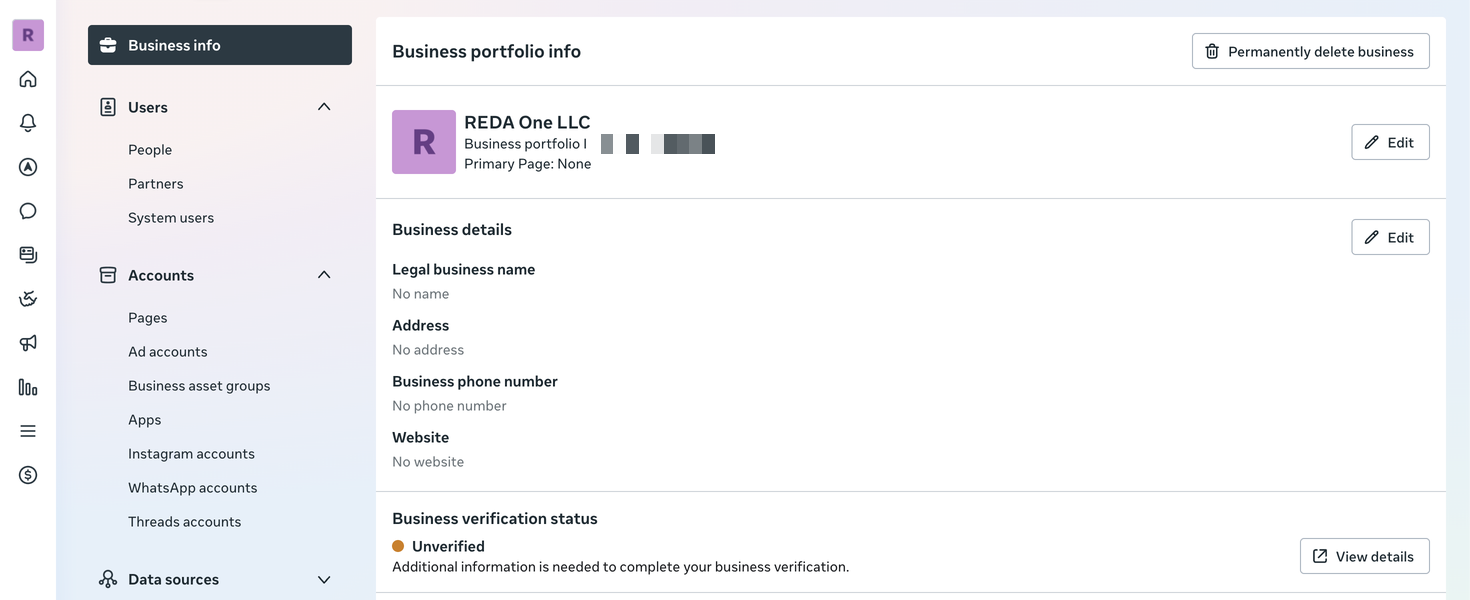
2. Confirm administrator access
In Settings → Users → People, confirm that the person doing setup can administer the relevant portfolio and assets. Creating/assigning a System User and completing business verification may require the portfolio administrator. In Accounts → Apps and Accounts → WhatsApp accounts, check the app and WABA you intend to use.
Expected result: the administrator can select the app and account, assign the integration identity and manage the number. Missing assets are an access/ownership question to resolve with their owner before generating credentials.
3. Choose the test and production numbers
Meta's WhatsApp use case provides a test-number flow for initial setup. You can begin with that and its permitted test recipients before moving to your business number. At production registration, use a number your business controls and can verify by the method Meta offers.
Check its current registration before changing anything. A number used by another provider needs an agreed migration. Meta also offers coexistence in eligible onboarding flows, but this guide does not implement that separate flow. Do not delete an existing WhatsApp account or assume mobile-app coexistence merely to follow these standard Cloud API instructions. Agree the supported migration/onboarding route first.
Keep the visible telephone number separate from its numeric Phone Number ID. Salesforce needs both. The WABA ID is a third value.
4. Review Meta's production requirements early
Open the app's WhatsApp Step 3. Business verification and the portfolio's verification area to see the requirements for your business. Prepare the legal business details and any documents Meta requests. Review the current number status, messaging limits and billing setup in WhatsApp Manager. Requirements and review time vary; do not schedule customer launch solely around a successful test-number send.
The current WhatsApp production screen warns that real webhook data is not delivered while the app is unpublished. Publishing and the account's business/number readiness are separate checks. Follow the production sequence.
5. Prepare Salesforce
- Install the released REDA Connect package and assign REDA Connect Admin to the administrator.
- Create or confirm the active public Site for incoming messages.
- Confirm the relevant Remote Site Settings are Active. The package retains Active settings; newly added settings delivered by push upgrade require subscriber activation.
- Decide which object matches an incoming telephone number and which object to create for an unknown sender. Reuse your existing Contact/Lead configuration where appropriate; custom objects are also configured through Connect Account Config.