
Configure the Salesforce account and sender matching
Once the Meta app and business assets are ready, configure how REDA Connect receives the messages and which Salesforce records they belong to. This guide covers Messenger and Instagram in version 1.94000. For the channel-specific WhatsApp fields, use the WhatsApp account guide.
Custom objects are supported. REDA Connect is not limited to Lead and Contact. Those objects receive ready-made packaged fields; any custom object can be configured through Connect Account Config using its own suitable identity, name and account fields. The examples below show both approaches.
1. Prepare Salesforce access and the public Site
- Confirm the installed REDA Connect version in Setup → Installed Packages.
- Assign the administrator the existing REDA Connect Admin permission set. Agents normally use REDA Connect User; the REDA Connect User - Read Only tier is for viewing.
- Complete Creating the public Site. Confirm it is active and has the prescribed incoming-message access.
- For a custom Connect Account layout, add the relevant Meta fields and setup actions from the packaged administrator layout. A missing button can be a layout or access issue; do not create a replacement field.
The incoming Meta address is the public Site's HTTPS address followed by /services/apexrest/rconn/wapp-inbound/. Preserve the Site path prefix. It is not the Salesforce Lightning URL used by signed-in agents.
2. Create and save the Connect Account first
Open REDA Connect → Connect Accounts → New. Use a name that identifies the business/Page. Complete the following fields and save with Messaging Channels unselected while setup is underway.
| Field | What to enter | Expected result |
|---|---|---|
| Meta App Id | The App ID from App settings → Basic | Identifies the app used for this account's Meta channels |
| Meta Page Id | The Facebook Page ID | Identifies the Page used for Messenger and the linked Instagram account |
| Meta Graph API Endpoint | The versioned Graph URL, including the trailing slash; new records default to https://graph.facebook.com/v26.0/ | Shared by this account's WhatsApp, Messenger and Instagram channels; upgrades do not replace an existing value |
| Connect Account Verification Token | Retain an existing valid value. Setup generates one if it is blank. | Used when Meta verifies the callback URL |
| Is Active / Messaging Channels | Activate the account and select the intended channels after credentials and routing are ready | Allows messages for the configured assets to be processed |
| Allow Document Sharing | Enable if agents should send supported files | Offers the relevant attachment controls |
| Opt Out Keywords / Opt In Keywords | Your intended customer keywords, following the keyword guide | Uses the existing consent workflow for the channel |
Meta Page Token and Meta App Secret are stored by the setup action. Instagram Account Id is discovered from the Page. Do not paste plaintext credentials into the encrypted record fields or enter an Instagram username in the ID field.
3. Run the setup action
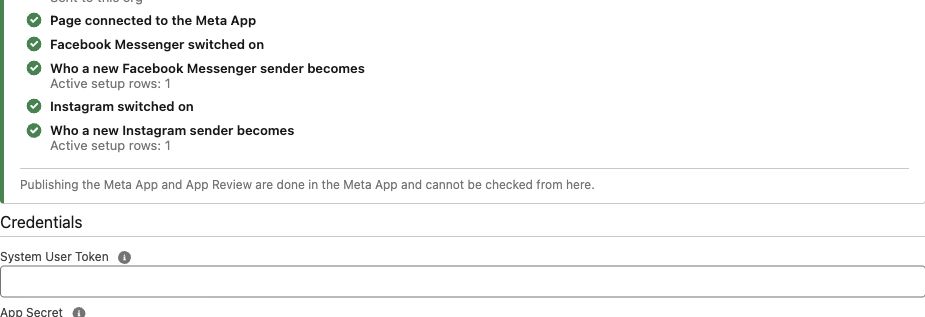
- Open the saved record and click Set Up Messenger and Instagram.
- In System User Token, enter the supported User/System User token from the credential guide.
- Enter the same Meta app's App Secret and click Verify and Save.
- Read the messages and checklist. Confirm the Page is the one intended and, for Instagram, the linked professional account is correct.
4. Add a configuration row for each object and channel
In the account's Connect Account Configs related list, click New. A row tells REDA Connect which object to search, which field contains the sender's identity, and whether to create a record when no match exists. Use separate rows for Facebook Messenger and Instagram.
| Configuration field | Messenger Lead example | Instagram Lead example |
|---|---|---|
| Connect Account | The account you just configured | |
| Communication Channel | Facebook Messenger | |
| Object API Name | Lead | Lead |
| Channel Identity Field | rconn__Facebook_PSID__c | rconn__Instagram_ID__c |
| Name Field API Name | Name | Name |
| OwnerId Field API Name | OwnerId | OwnerId |
| Is Active | Selected | Selected |
| Is Default New Record | Select the intended creation row for that account/channel; avoid multiple competing defaults | |
| Priority Order | Set the intended matching order when more than one object is configured | |
The packaged Contact fields have the same identity API names. To search Contacts as well, create the corresponding Contact rows. Decide which object should be created for an unknown sender; searching both objects does not mean both should be defaults.
The displayed label Channel Identity Field replaces the old phone-only wording. Its underlying configuration API field remains Phone_Field_API_Name__c. For WhatsApp/SMS it points to a phone field; for Messenger/Instagram it points to the scoped identity field. Reuse the existing field.
Custom-object example
For a custom object, use the same configuration process. The following is an example for an existing Enquiry__c object; replace the illustrative field names with fields from your own object's Fields & Relationships list. These names are not additional packaged fields and you do not need to create this example object.
| Configuration field | Messenger example | Instagram example |
|---|---|---|
| Object API Name | Enquiry__c | |
| Name Field API Name | Name, or the text field you use for display | |
| Channel Identity Field | Messenger_Sender_Id__c | Instagram_Sender_Id__c |
| OwnerId Field API Name | OwnerId where the object has a record owner; otherwise use the applicable configured owner field | |
| New Record Default Values | Map the object's required fields and the relevant sender identity, if this row creates new records | |
Use a suitable existing text field for each social identity. Keep Messenger and Instagram identities separate. For an object whose Name is an editable text field, an illustrative Messenger default mapping is:
Name:{{profile}}
Messenger_Sender_Id__c:{{phone}}
If Name is an auto-number, omit the Name assignment and map the profile to an appropriate existing text field if needed. For Instagram, use the Instagram identity field in the mapping. Include required relationship fields and other defaults required by your object's business rules. Set matching priority, activation and the default creation row just as for Lead/Contact.
Give agents access to the object and fields and add Connect Feed to its record page. Add mapped fields to the customer-assigned layout using the custom-object layout checklist. Configure the object's existing consent process as appropriate; the packaged Lead/Contact opt-out fields are not automatically installed on custom objects.
5. Configure new-sender defaults
Enter one FieldAPIName:value mapping per line in New Record Default Values. Include the object's required fields and the channel identity. For a Messenger Lead:
LastName:{{profile}}
Company:Messenger enquiry
rconn__Facebook_PSID__c:{{phone}}
For an Instagram Lead:
LastName:{{profile}}
Company:Instagram enquiry
rconn__Instagram_ID__c:{{phone}}
These Company values are examples; use your organization's agreed values and any other defaults required by its validation rules. For Contacts, use the Contact fields required by your own configuration rather than copying the Lead Company mapping.
| Placeholder | Messenger | |
|---|---|---|
{{phone}} | Page-scoped sender ID | Instagram-scoped sender ID |
{{profile}} | Available profile name, otherwise a channel fallback | Available name, then username, otherwise a channel fallback |
{{username}} | Empty | Username when available |
{{profile_url}} | Empty; a PSID is not a public profile link | https://www.instagram.com/{username}/ when a username is available |
Map username or profile URL only to appropriate fields already available in your org; these placeholders do not require new packaged fields. For example, an administrator may choose the existing Lead Website field for {{profile_url}} if that fits the organization's use of Website. The setup does not infer email addresses or telephone numbers from a social profile.
For a new unmatched sender, REDA Connect attempts the profile lookup before creation. An unavailable profile or permission does not by itself block the message. The feed can display the available profile name. A scoped ID from another Page must not be treated as the same Messenger identity.
Placeholder values are substituted as literal text, preserving characters such as $ and \. Mapping lines split at the first colon, so a URL can contain https:. This shared correction also affects WhatsApp/SMS: mappings containing extra colons that were previously ignored now apply. Review any such old mappings before rollout.
6. Choose the account used by the record
If records already contain a field that identifies their Connect Account, put that field's API name into Connect Account Field API Name Facebook or Connect Account Field API Name Instagram on the configuration row. Enter the field name, not a record ID. If it is blank, the configuration row's Connect Account is used.
These are account-routing mappings, separate from the sender identity field. Existing WhatsApp/SMS account mappings retain their purpose. For messaging on related objects, use the existing related-record mapping and verify the relationship path against your object.
7. Connect webhooks, enable channels and give agents access
- Use Connect Webhooks in the setup action; confirm the callback and any destination conflict.
- Activate the account and enable the intended channels.
- Click Check again. Resolve the specific attention item if a channel or active configuration row is missing.
- Assign the agent permission set and add Connect Feed to the record page, or use the global Connect Feed tab.
- Use the field and action layout checklist to expose the relevant identities and preferences on the actual Lead, Contact or custom-object layouts used by your team.
- Run the inbound/reply verification using the actual agent workflow.
Channel controls depend on the account and record setup. Sending also checks the current customer reply window and opt-out state. Do not diagnose a setup problem solely from a button's presence or absence.