
Emoji categories and incoming file types
Two of REDA Connect's three settings areas control small but visible things: which emoji your agents can pick in the Connect Feed's composer, and what file extension an incoming WhatsApp attachment gets when it is saved in Salesforce. Both live in Custom Metadata Types — a Salesforce mechanism for configuration records that install with an app and can be edited by an administrator in Setup — and both are org-wide: any change applies to every user immediately.
- You need permission to manage Setup (the System Administrator profile, or the Customize Application permission).
- Incoming WhatsApp files also depend on a one-time org setting — see The Remote Site Setting WhatsApp media needs. Without it, no incoming file arrives at all, whatever the mappings below say.
Part 1 — Emoji palette categories
When an agent clicks the smiley icon in the Connect Feed composer, the picker shows one tab per active emoji category. Categories are records in the REDA Connect Emoji Setup area.
Open the settings
- Click the gear icon and choose Setup.
- In the Quick Find box, type
Custom Metadata Typesand click Custom Metadata Types. - Click Manage Records next to REDA Connect Emoji Setup.
Expected result: two shipped records — Smileys (137 emoji) and Gestures (43 emoji), both active. Tabs in the picker appear in alphabetical order of the record label.
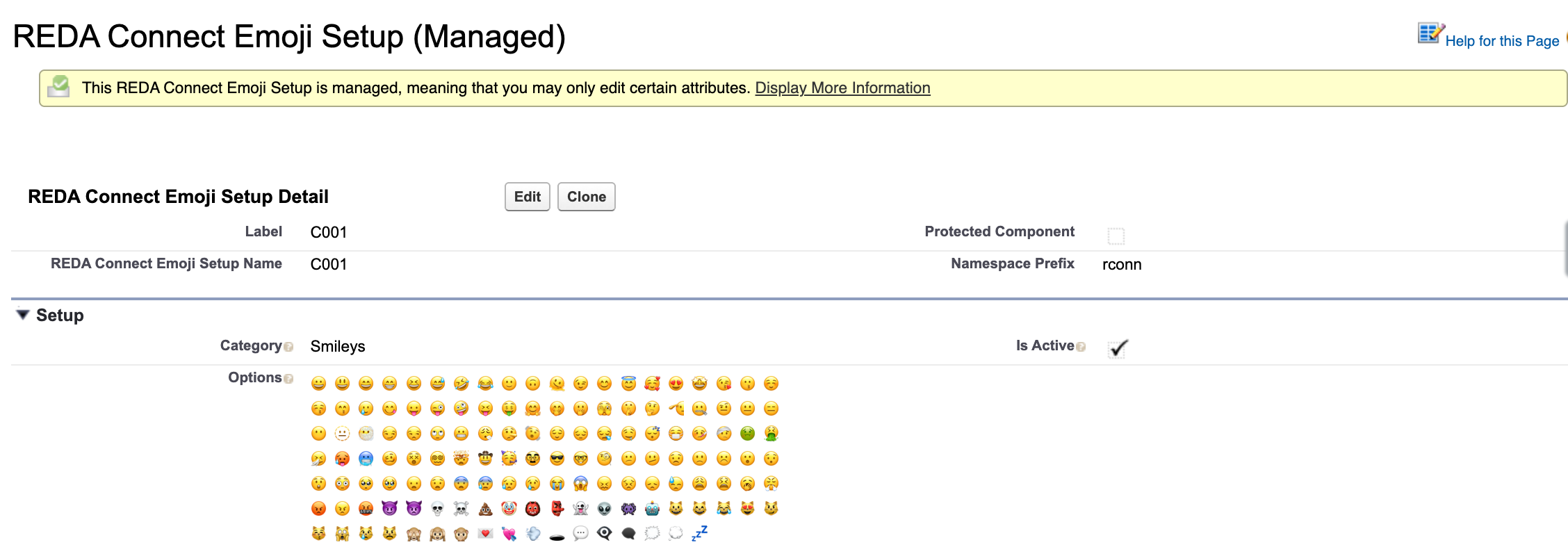
Each record has three fields:
| Field | What it holds |
|---|---|
| Category | The tab name agents see (must be unique). Help text: "Provide category for emojis." |
| Options | The emoji themselves. Help text: "Provide options for Emojis. Each value should be separated by a space character." |
| Is Active | Help text: "Only active setup values are available for selection." Unticked categories disappear from the picker. |
Add a category — worked example
Your property-management agents want travel and building emoji:
- On the REDA Connect Emoji Setup record list, click New.
- Label:
Places. Let the name auto-fill from the label. - Category:
Places. - Options: paste the emoji separated by single spaces, for example:
🏠 🏢 🏨 🔑 🛏️ 🚗 ✈️ 📍 - Tick Is Active and click Save.
Expected result: the next time an agent opens the emoji picker, a Places tab appears alongside Smileys and Gestures. Clicking an emoji appends it to the message being typed.
To retire a category, edit the record and untick Is Active — no need to delete it. If no category is active, the emoji button disappears from the composer entirely.
Part 2 — Incoming file-type mapping
When a customer sends a file on WhatsApp, the provider describes it by its MIME type — an internet-standard label like application/pdf or image/jpeg. When the customer's app does not supply a filename, REDA Connect names the saved file itself and uses the REDA Connect Mime-Type Mapping records to pick the file extension for that MIME type.
Open the settings
- Setup → Custom Metadata Types, then click Manage Records next to REDA Connect Mime-Type Mapping.
Expected result: five shipped mappings:
| MIME type | File extension |
|---|---|
application/pdf | .pdf |
audio/ogg; codecs=opus | .ogg |
image/jpeg | .jpeg |
image/webp | .webp |
video/mp4 | .mp4 |
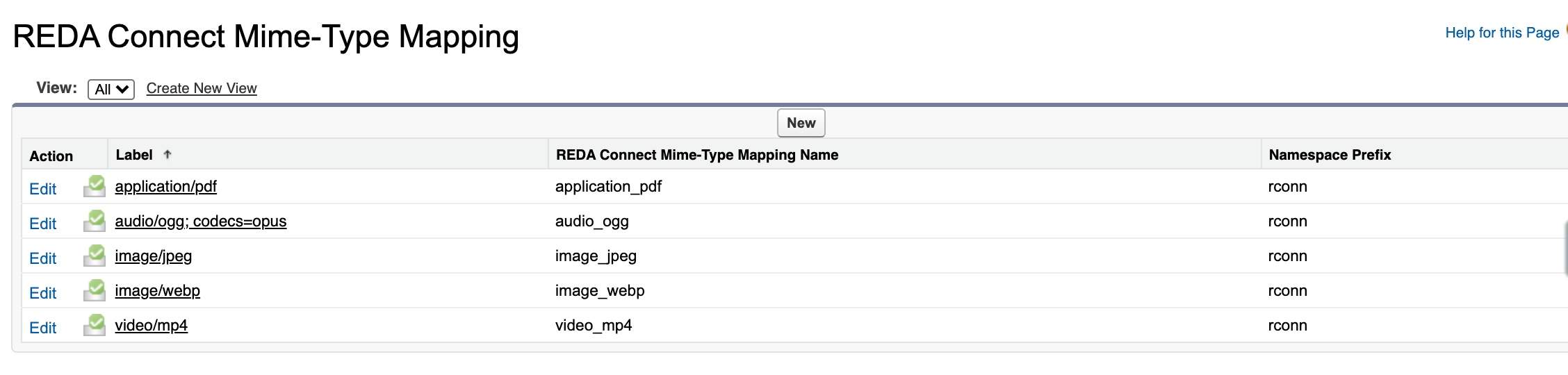
These cover the formats WhatsApp itself most commonly delivers: PDFs, voice notes, photos, sticker-style images and videos.
What happens for an unmapped type
The file still arrives and attaches to the message — but it is saved without a file extension. Users then see a file that Salesforce and their computer cannot immediately associate with an app; it can still be downloaded and renamed by hand, but that is the symptom to recognise: files arriving with no extension mean a MIME type with no mapping record.
Add a mapping — worked example
Customers start sending MP3 audio files, and the files arrive with no extension:
- On the REDA Connect Mime-Type Mapping record list, click New.
- Label:
audio/mpeg(using the MIME type as the label keeps the list self-explanatory — the shipped records follow this convention). Adjust the auto-filled name if Salesforce rejects the characters. - In the Mime Type field, enter exactly
audio/mpeg. - In the File Extension field, enter
.mp3— include the leading dot, matching the shipped records. - Click Save.
Expected result: from the next incoming MP3 onward, files without a provider-supplied filename are saved ending in .mp3. Files that already arrived keep their old names.
To find the right MIME type for a new format, check the sending format's documentation or any standard MIME-type reference — common ones include image/png → .png, audio/mpeg → .mp3 and text/csv → .csv.
Troubleshooting
| Symptom | Cause | Fix |
|---|---|---|
| The emoji button is missing from the composer | No active emoji category exists | Activate at least one REDA Connect Emoji Setup record |
| A new category doesn't show its emoji properly | Options not separated by single spaces | Re-edit Options so every emoji is separated by one space |
| Incoming files arrive with no extension | The file's MIME type has no mapping record | Add a mapping as shown above |
| No incoming files arrive at all | The required Remote Site Setting is missing — not a mapping problem | See The Remote Site Setting WhatsApp media needs |
FAQ
No — like everything in the three REDA Connect settings areas, both are org-wide. Every agent sees the same emoji categories, and every incoming file uses the same mappings.
Yes. Open the record and edit Options — add, remove or reorder emoji (space-separated). Your changes survive package upgrades.
No. Mappings only name incoming files. Outgoing files keep the name of the file your agent uploaded. Also note SMS is unaffected either way — incoming SMS media is not supported; see Limits and considerations.
No. Mappings apply at the moment a file is received. Existing files keep their names, though you can rename them manually in Salesforce Files.
Where to go next
- Files your customers send — the agent-side view of incoming files.
- The Remote Site Setting WhatsApp media needs — the org setting incoming files depend on.
- Global settings — the third settings area, REDA Connect Config.