
An incoming message didn't arrive
A customer says they replied, but nothing shows in Salesforce. Incoming messages travel a chain: the customer's phone → WhatsApp (Meta) or Twilio → your org's public Site address → REDA Connect matches the message to a Connect Account and then to a record. A break at any link makes the message vanish — usually silently. This checklist walks the chain in order; run it from the top, because each step depends on the ones before it.
- You need admin access (Setup) for steps 1–2, and the REDA Connect app for the rest.
- Know which Connect Account (which WhatsApp/SMS number) the customer wrote to.
- Ask the customer roughly when they sent the message — timestamps help at every step.
Step 1 — Is the public Site up, with the two endpoint classes granted?
Incoming messages enter through your public Salesforce Site. If the Site is inactive, or the guest user has lost access to the two REDA Connect endpoint classes, WhatsApp and Twilio get an error page instead of a mailbox — and nothing arrives, on any channel.
- Go to Setup → Sites and confirm your REDA Connect Site shows Active.
- Open the Site, click Public Access Settings, and confirm Enabled Apex Class Access still lists the two REDA Connect endpoint classes.
The exact recipe (including the class names to look for) is in Creating the public Site for incoming messages.
Expected result: Site Active, both endpoints granted. Test a new incoming message after the correction. Earlier messages depend on the provider's delivery attempts; do not assume every message will be recovered after the repair.
Step 2 — Is the webhook still registered at Meta / Twilio?
The provider only delivers to your org if your webhook address is (still) registered on their side. Webhooks get lost when someone edits the Meta app or the Twilio number settings.
- WhatsApp: in the Meta app dashboard, confirm the callback URL and subscription are intact — walkthrough in Connecting the WhatsApp webhook.
- SMS: in the Twilio console, confirm the number's incoming-message webhook points at your Site address — walkthrough in Connecting the Twilio webhooks.
Expected result: the webhook URLs on the provider side match your Site address exactly, including the trailing /.
Step 3 — Does the receiving number belong to an active Connect Account?
REDA Connect identifies which Connect Account an incoming message belongs to from the provider's identifiers. If they don't match any account, the message is dropped and a Connect Log is written.
- Open the Connect Accounts tab and the account for the number the customer wrote to.
- Confirm Is Active is ticked.
- WhatsApp: confirm WhatsApp Number Id and WhatsApp Account Id hold the values from your Meta app — see Creating the WhatsApp Connect Account.
- SMS: confirm SMS Account Id holds your Twilio Account SID and SMS From Number is your Twilio number in digits-only international format — see Creating the SMS Connect Account.
Expected result: an active account whose identifiers match the provider's. The tell-tale log entries for this failure read No active connect account found for received Whatsapp message. or No active connect account found for received Twilio message.
Step 4 — Is the customer's phone number stored in the exact matching format?
The message arrived but landed on no record? REDA Connect matches the sender's number against your records with an exact, character-for-character comparison. The only format that matches is the full international number, digits only — no +, no spaces, no dashes, no leading zeros. 14155550123 matches; +1 (415) 555-0123 never will.
- Open the record you expected the message on.
- Check the phone field your object configuration uses (step 5) holds the digits-only format.
Full rules and fix-up guidance: How to enter phone numbers.
Step 5 — Does a matching object configuration exist?
REDA Connect only searches the objects you've configured for that Connect Account and channel. No active configuration for the object → no match, even with a perfect phone number.
- Open the Connect Account and its Connect Account Configs related list.
- Confirm an active config exists for the channel and the object you expected, pointing at the right phone field.
How matching works, priority order included: How incoming messages find their record.
The message exists — it's just not on any record
If steps 1–3 pass, the message probably did arrive and simply matched no record. Such messages have no record link, so they appear only in the global feed, not on any record page. To find them:
- Open the Connect Feed tab (the global inbox) and look for a conversation under the sender's phone number — see The Connect Feed tab.
- Or open the Connect Messages tab → All Inbound Messages list view, sort by Created Date, and look for rows where Record Name is blank around the time the customer wrote. The packaged list view does not include that column — add it first with the gear icon → Select Fields to Display → move Record Name into Visible Fields. The field exists on every Connect Message; it is simply not one of the shipped view’s columns.
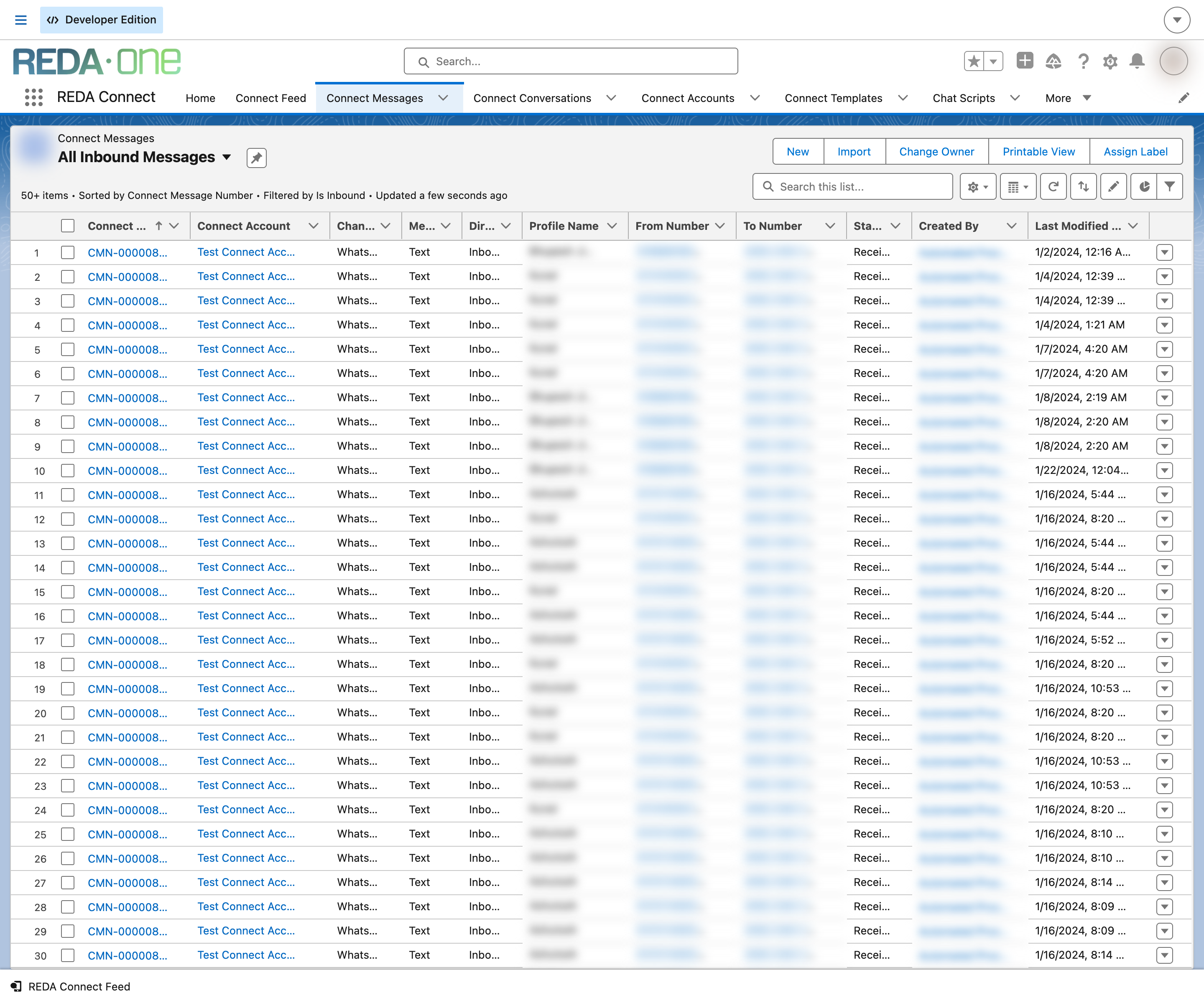
Fix the phone format (step 4) or the configuration (step 5), then ask the customer to send one more message — the next message will match. You can also have REDA Connect create a record automatically for unknown numbers: Auto-creating records from incoming messages.
Still nothing? Check the Connect Logs
Every processing failure on the inbound path writes a Connect Log. Open the Connect Logs tab, sort by Created Date, and look for entries around the time the message was sent — the Process field names the inbound handling step, and Exception carries the reason. Quote both to REDA support if you can't resolve it.
FAQ
Usually yes — delivery receipts arrive through the same Site and webhooks as incoming messages, so steps 1–2 fix both. For SMS specifically, also confirm the status callback URL ends with a trailing / — see Creating the public Site for incoming messages.
Depends where the chain broke. If the Site or webhook was down (steps 1–2), the messages generally never reached Salesforce; WhatsApp and Twilio only retry for a limited time, so treat them as lost and ask the customer to resend. If the message shows in the global feed (unmatched), nothing was lost — it just needs a record to live on.
That's a different, media-specific problem — see Files and images aren't coming through.
Matching found a different record than you expected — see How incoming messages find their record and Messaging through related records.
Where to go next
- Creating the public Site for incoming messages — the full Site + guest access recipe from step 1.
- How incoming messages find their record — matching order, priorities and tie-breaks.
- Troubleshooting index — all symptoms in one table.