
Files your customers send
When a customer sends supported media on WhatsApp, Messenger or Instagram, REDA Connect receives the message and fetches the attachment separately into Salesforce Files. Check both the message and the resulting file. The WhatsApp filename and SMS notes below explain the existing channel-specific behavior.
- Check the packaged Remote Site Settings are active for the required Meta hosts. New settings delivered by a push upgrade need subscriber activation. Follow Remote Site Settings; this release includes the Meta file-server setting.
- Incoming messages in general require the public Site — Creating the public Site for incoming messages.
What happens when media arrives
- The message appears in the feed like any incoming message.
- The attachment is retrieved in a separate step and linked to the Connect Message as a Salesforce File. A successful message receipt alone does not prove that download completed. For an incomplete Messenger/Instagram file, follow attachment recovery using the retained Connect Log.
- From then on the file lives in your org: it stays available even after WhatsApp's own copy expires.
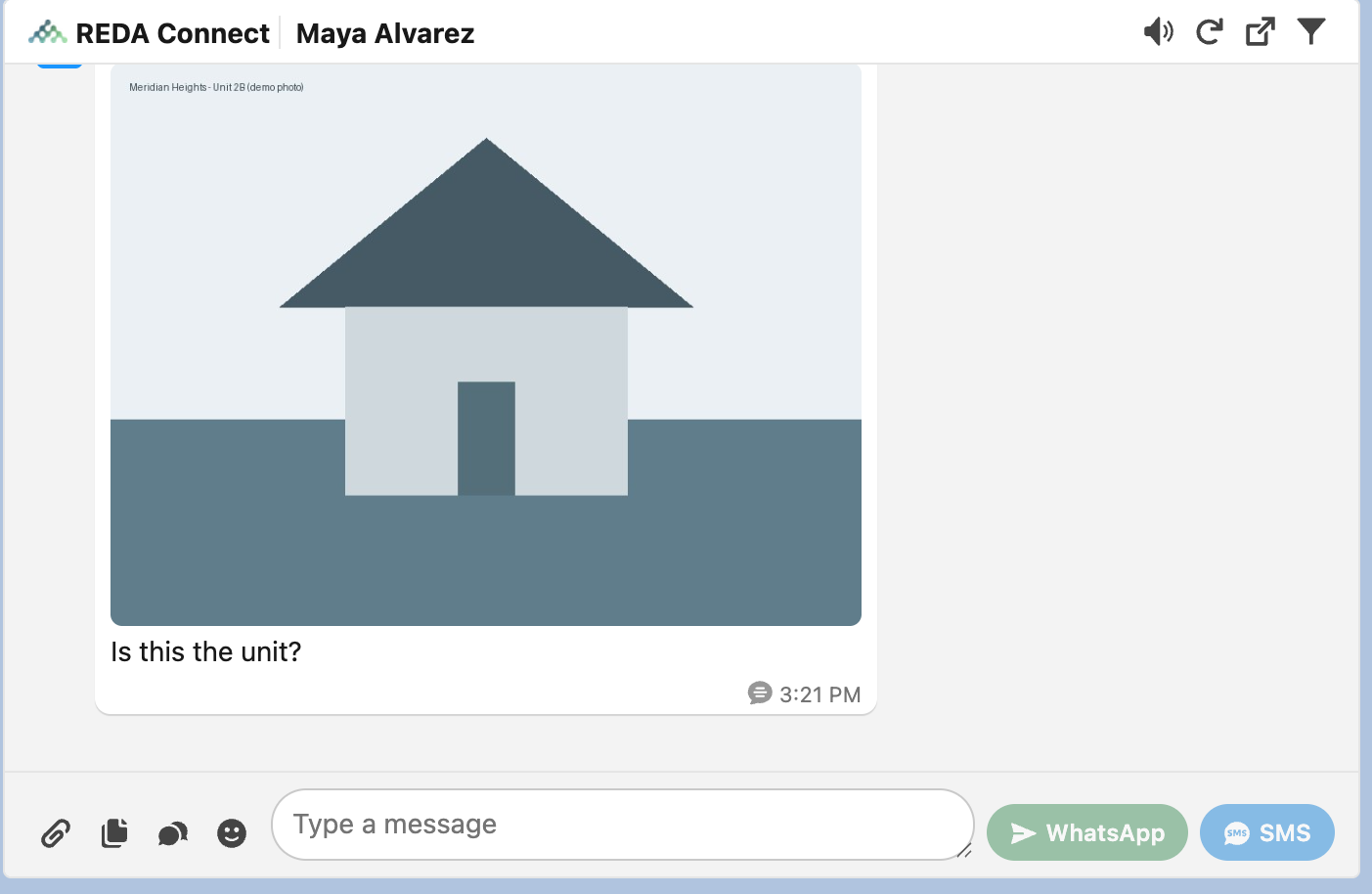
In the stream: images show inline, videos and voice notes play inline, and documents appear as a file card with the file's name and type. Click any of them to open Salesforce's file preview overlay — you stay in the feed — and use the Download link to save a copy.
The file is attached to the Connect Message record itself — not to the matched record's (say, the Contact's) Files list. Open the message (click the small channel icon on the bubble) to see it under the record's Files, or simply open it from the conversation. If you want the file on the Contact or Lead itself, share or attach it there manually — it's a standard Salesforce File, so the usual sharing options apply.
File names and the missing-extension case
Received files keep the name the sender's app provided. When WhatsApp supplies no filename (common for photos taken in-app, voice notes and stickers), REDA Connect generates one and adds a file extension by looking up the file's type in its file-type mapping — a small, editable table your administrator can extend. The package ships mappings for the common WhatsApp types (JPEG and WebP images, MP4 video, OGG voice notes, PDF); a type outside the table produces a file without an extension, which some computers then won't open with a double-click. The fix is a one-line mapping — see Emoji and file types.
SMS: there is no incoming media
SMS in REDA Connect carries no media in either direction. When a customer sends a picture by text message (an MMS), what you receive is a message stored with a failed marker and this exact error: "Inbound media messages are not supported currently for Twilio." The customer's photo is not in Salesforce and cannot be retrieved — ask them to resend it on WhatsApp, or by email. The full channel comparison is in What you can send on each channel.
Troubleshooting
| Symptom | Cause | Fix |
|---|---|---|
| Media messages arrive but pictures never appear | The Remote Site Setting is missing | Set it up — this is the classic silent failure |
| A received file has no extension and won't open | File type not in the mapping table | Add the mapping — Emoji and file types; meanwhile, rename the downloaded file with the right extension |
| A text-message photo shows as a failed message | MMS — SMS media is not supported | Expected behaviour; ask for the file on WhatsApp |
| Media stopped downloading for everyone at once | Remote Site Setting deactivated or removed | Re-check it, then see Problems with pictures and files |
FAQ
WhatsApp applies its own per-type size limits before transmission. REDA Connect then retrieves the file into Salesforce Files. Retrieval and storage still depend on Salesforce technical limits, permissions and available storage; a file accepted by WhatsApp is not a guarantee of successful storage.
Yes — voice notes (and videos) play inline right in the feed; no download needed.
Yes — they are ordinary Salesforce Files and use file storage like any other upload.
That points at the incoming pipeline rather than media handling — start with An incoming message didn't arrive.
Where to go next
- The Remote Site Setting WhatsApp media needs — the prerequisite, if you haven't done it.
- Emoji and file types — extend the file-type mapping.
- Sending files, images and video — the sending half.