
Configuring Contacts and Leads for messaging
Contacts and Leads are the two objects almost every org messages first, and REDA Connect ships ready for them — it links messages to them automatically and carries their opt-out fields. What it does not ship is the configuration record that tells it where each object keeps its phone number and name. This article creates those records: one object configuration per object per channel, under your Connect Account. When you finish, agents can open any Contact or Lead, see the Connect Feed, and send a message — and replies come back to the same record.
- An active Connect Account with your channel (WhatsApp and/or SMS) working — you should already have sent a test WhatsApp message or test SMS at the account level.
- Permission to edit Connect Accounts (the REDA Connect admin permission set — see Giving your team access).
- Phone numbers on your Contacts and Leads stored in the format REDA Connect matches on: full international number, digits only, no + and no separators (for example
14155550123, never+1 (415) 555-0123). This matters for both sending and receiving — see How to enter phone numbers before you go live.
Decide which phone field to use
Each configuration names exactly one phone field. On Contacts and Leads the usual candidates are:
| Field label on the record | Name you enter in the configuration | Use it when |
|---|---|---|
| Mobile | MobilePhone | WhatsApp, and SMS to mobiles — the usual choice for both channels |
| Phone | Phone | Your org stores the messageable number in Phone instead |
WhatsApp in practice always means a mobile number, so MobilePhone is the safe default. Whichever field you pick, remember: matching is exact — the value stored in that field must be the digits-only international number, or incoming messages will not find the record.
Step 1 — Open your Connect Account
- Open the REDA Connect app (App Launcher → search
REDA Connect). - Go to the Connect Accounts tab and open your account.
- Find the Connect Account Configs related list and click New.
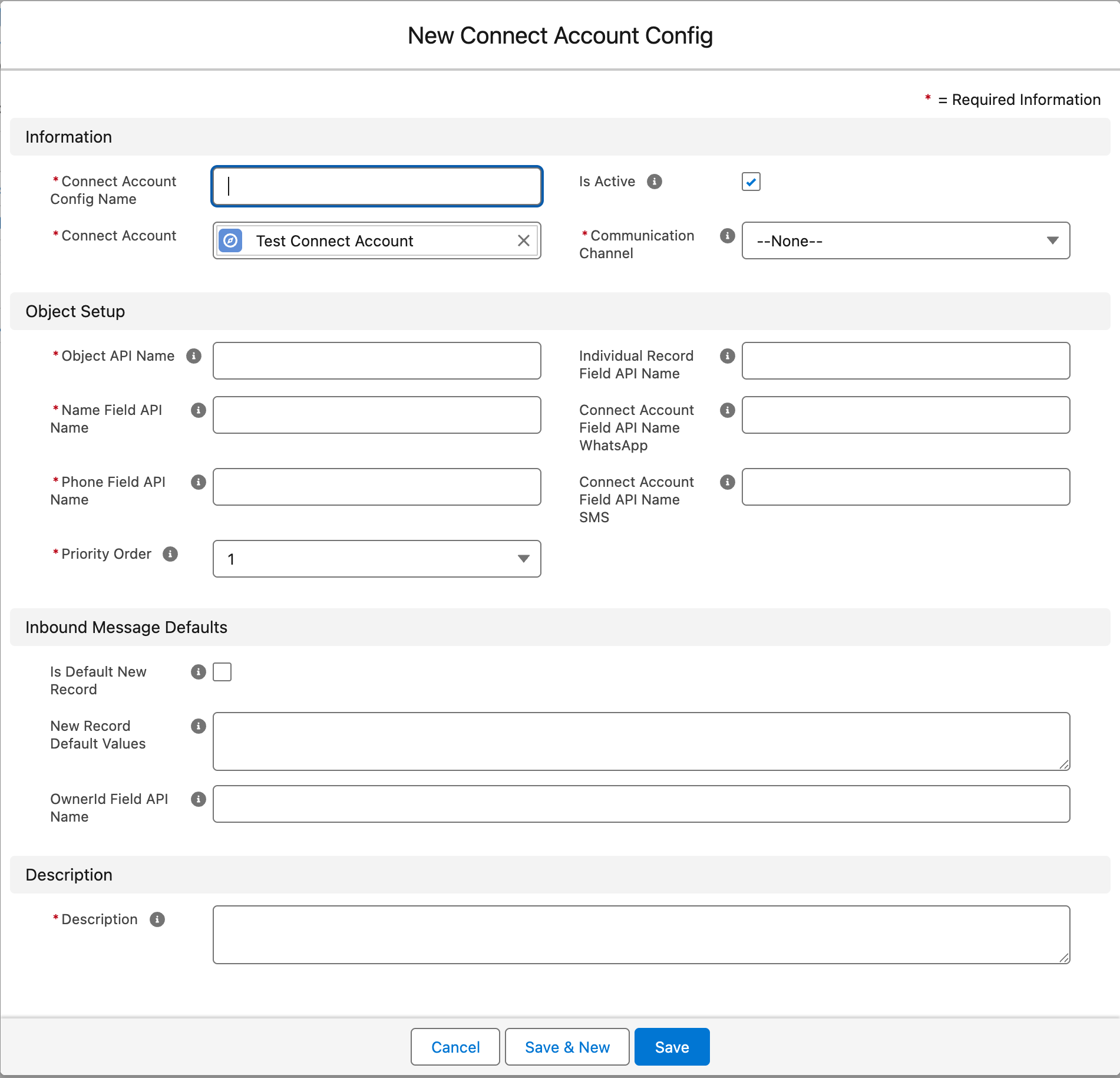
Expected result: the new Connect Account Config form opens, with Connect Account already set to your account.
Step 2 — Create the Contact configuration (WhatsApp)
Fill in the form as follows. Fields not listed here stay blank — they serve the advanced scenarios linked at the end.
| Field | Enter | Why |
|---|---|---|
| Connect Account Config Name | Contact - WhatsApp | Any name works; naming it <Object> - <Channel> keeps the related list readable |
| Communication Channel | One configuration serves exactly one channel | |
| Description | e.g. Contacts on WhatsApp via MobilePhone | Required field — the product asks for setup notes here |
| Object API Name | Contact | The object this configuration is for. The product's guidance: "You must define only one setup for one type of sObject for a communication channel." |
| Name Field API Name | Name | The field whose value the feed shows as the person's name |
| Channel Identity Field | MobilePhone | The field REDA Connect reads when sending, and searches when a message comes in |
| Priority Order | 1 | "1" is the highest priority — Contacts are searched first for incoming messages (see below) |
| Is Active | Leave ticked | Only active configurations are used |
Leave blank: Connect Account Field API Name WhatsApp, Connect Account Field API Name SMS (only needed when you run multiple accounts), Individual Record Field API Name (for related-record setups), Is Default New Record and New Record Default Values (for auto-creating records), and OwnerId Field API Name (for message ownership — worth adding once the basics work).
Click Save.
Expected result: the configuration appears in the Connect Account Configs related list with Is Active ticked.
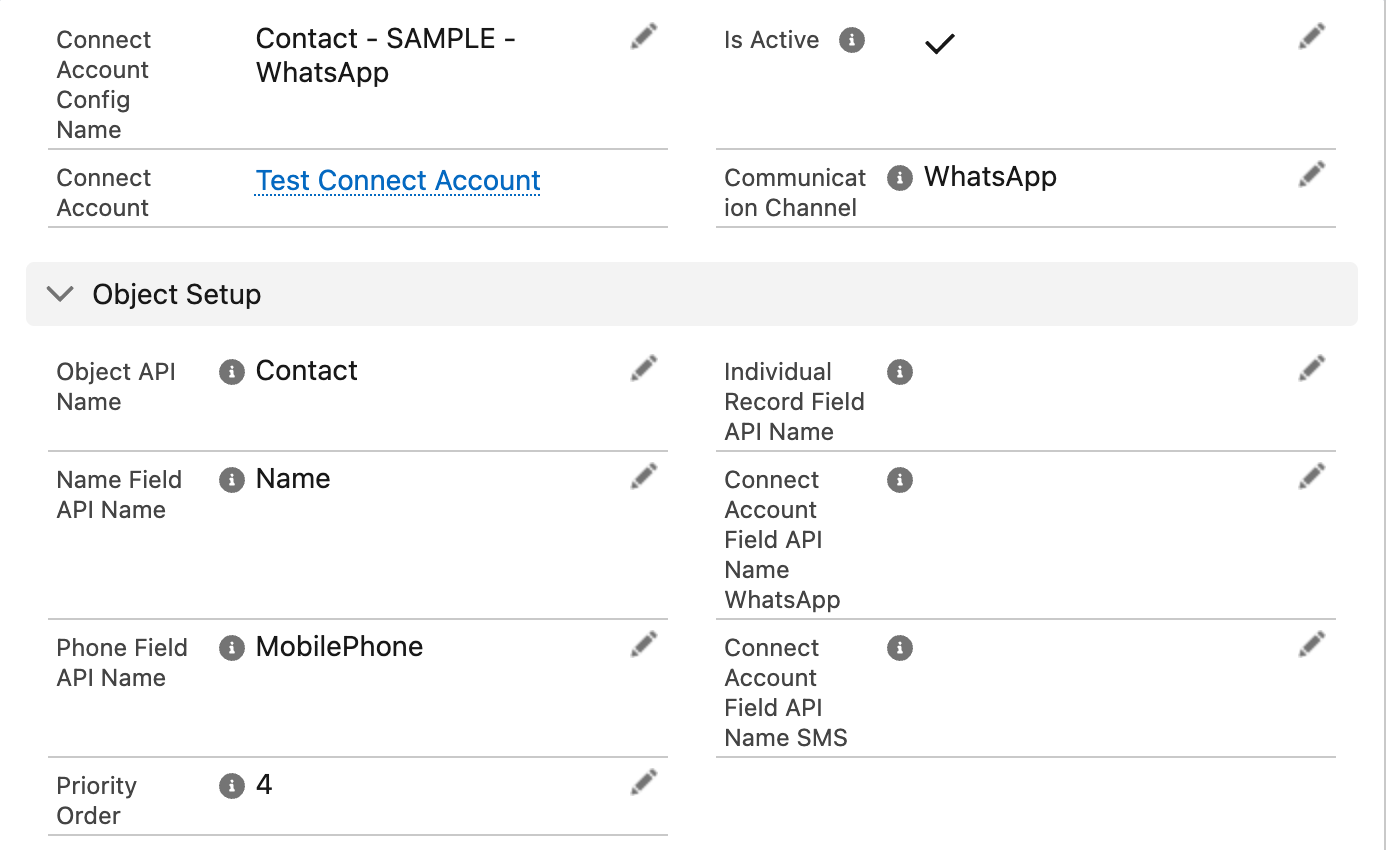
Contact, Channel Identity Field MobilePhone, and its Priority Order. The two "Connect Account Field API Name" fields only matter when one org runs several Connect Accounts.Step 3 — Create the Lead configuration (WhatsApp)
Repeat Step 2 with these differences:
| Field | Enter |
|---|---|
| Connect Account Config Name | Lead - WhatsApp |
| Object API Name | Lead |
| Priority Order | 2 |
Everything else is identical — Leads also have Name and MobilePhone fields.
Why Contact = 1 and Lead = 2? When a message comes in, configurations are tried in priority order and the first match wins. Putting Contacts first means that if the same phone number exists on both a Contact and a Lead (common after conversion), the conversation lands on the Contact — usually the record your team actually works. Choose the opposite order if Leads are your primary workspace. What matters is that you choose deliberately; the full logic is in How incoming messages find their record.
Step 4 — Repeat for SMS (if you use it)
If your Connect Account also has the SMS channel, create two more configurations exactly as above, changing only:
- Communication Channel → SMS
- Connect Account Config Name →
Contact - SMS/Lead - SMS
Expected result: the related list now shows up to four rows — one per object per channel.
Step 5 — Put the feed on the record pages
Configurations make messaging possible; agents still need to see the conversation. Add the Connect Feed component to the Contact and Lead record pages — Adding the feed to a record page walks through it.
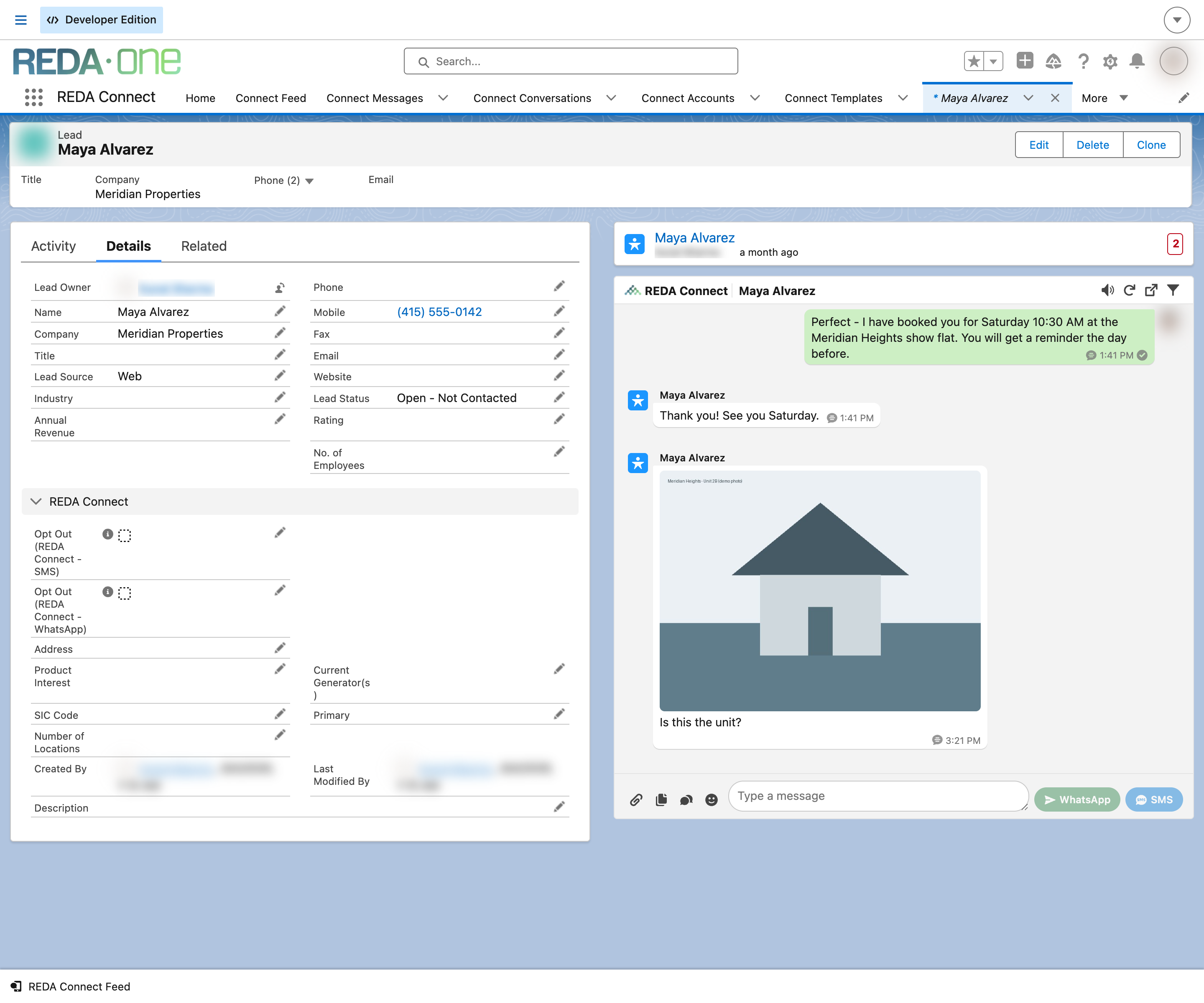
Step 6 — Verify with a real round trip
- Open a Contact whose Mobile field holds your own phone number in digits-only international format (e.g.
14155550123). - In the Connect Feed on the record, send a short message — Sending your first message if the composer is new to you.
- Expected result: the message arrives on your phone, and its status in the feed moves beyond Queued/Sent.
- Reply from your phone.
- Expected result: your reply appears in the same feed on the same Contact within a few seconds. That proves the whole loop: the configuration found your number on the way out, and matched your reply back to the record on the way in.
Troubleshooting
| Symptom | Cause | Fix |
|---|---|---|
| Feed shows "Sobject setup is not found." or "No setup found for sending messages." | No active configuration for this object + channel under the account | Check the configuration exists, Is Active is ticked, and Object API Name is exactly Contact / Lead |
| Outbound works, but the reply doesn't appear on the record | The stored phone number isn't in digits-only international format, so the exact match fails | Fix the field value per phone number formats; the message itself is not lost — see inbound record matching |
| Reply landed on a different record than expected | Another record shares the number, or a higher-priority configuration matched first | See the tie-break and priority rules in inbound record matching |
| Feed component isn't on the page at all | Component not added in Lightning App Builder | Add the feed to the record page |
FAQ
Yes. Communication Channel takes one value, so Contact/WhatsApp and Contact/SMS are two records. They can (and usually do) both point at MobilePhone.
Yes — enter that field's system name in Channel Identity Field. Find it under Setup → Object Manager → Contact → Fields & Relationships in the Field Name column. The digits-only format rule applies to whatever field you choose.
A configuration reads exactly one field. Standardise on one field for messaging — a simple flow or data cleanup that copies numbers into your chosen field works well.
No. Configurations are pure wiring — nothing is sent until a person (or an automation you build) sends a message.
Where to go next
- Adding the feed to a record page — make the conversation visible to agents.
- How incoming messages find their record — what those priority numbers really do.
- Assigning incoming messages to record owners — one more field on these same records routes replies to the right agent.
- Auto-creating records from incoming messages — capture unknown senders as new Leads.