
Sending files, images and video
Send pictures and documents from the paper-clip in the Connect Feed on WhatsApp, Facebook Messenger and Instagram. SMS is text only. The file is sent as soon as its upload finishes, without a confirmation step or caption. Check the selected channel and file before uploading.
- The record must have a working configuration for the intended channel. For Messenger and Instagram, the customer must have messaged the business within the previous 24 hours.
- Enable Allow Document Sharing on the Connect Account for that channel. The paper-clip appears when at least one configured channel allows attachments.
Sending an attachment
- Open the conversation and click the paper-clip in the composer.
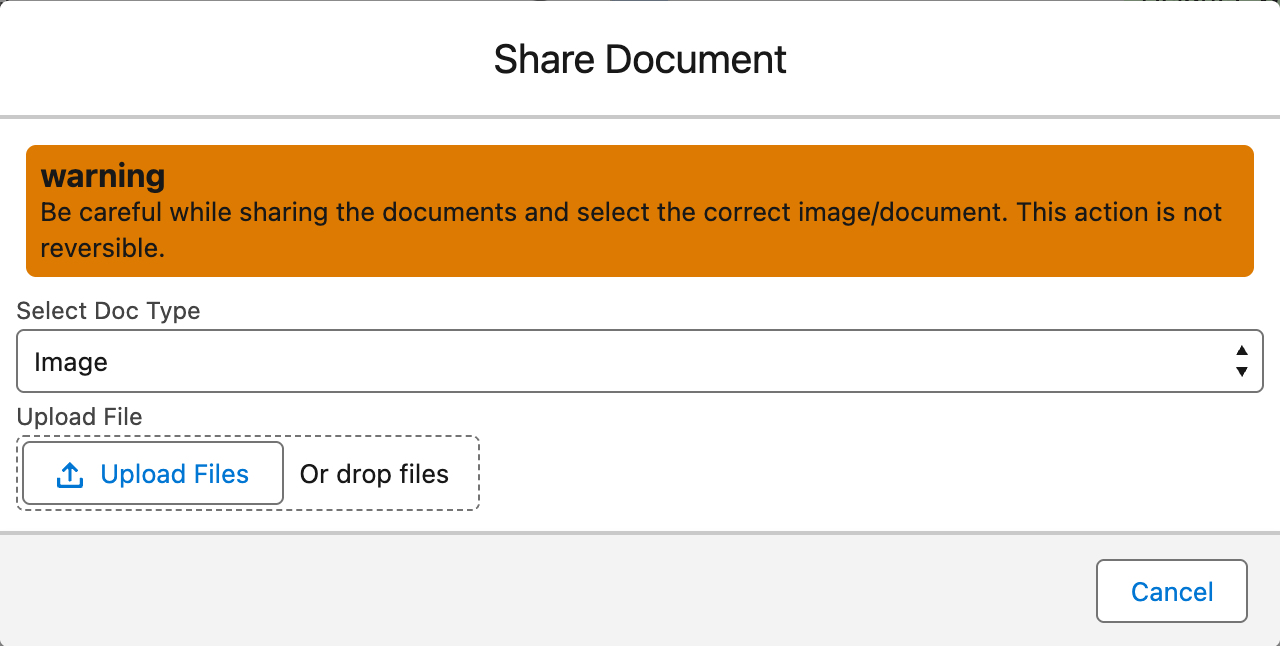
- The attach panel opens. Read the warning it carries — it means exactly what it says: "The file is sent as soon as the upload finishes. There is no confirmation step."
- If several channels allow files, select the destination channel first. Then choose Image or Document. The accepted extensions are shown in the panel.
- Click the upload control and pick the file (or drop it on the control).
Expected result: upload completion starts the send on the selected channel. The file card appears in the feed. Check its final status; an upload completing is not proof of delivery to the customer. A failed send shows an error.
Because there is no undo, check you have the right file before you pick it. Sent is sent.
Accepted file types
WhatsApp and Messenger use the following picker extensions. Instagram offers .jpg, .jpeg, .png for images and .pdf for documents. For Messenger and Instagram, keep files at or below 4.4 MB. Confirm delivery of the file types your team needs during setup; provider acceptance still applies.
| Kind | Extensions |
|---|---|
| Image | .jpg .jpeg .png .webp |
| Document | .docx .xlsx .pptx .doc .xls .ppt .pdf .txt |
Video is not sent through the paper-clip. On WhatsApp, use a video-type template. WhatsApp also applies its own media-size limits; a rejected file produces a failed message with the provider’s reason.
How delivery works — the transparency note
To deliver your file, WhatsApp's servers have to fetch it from somewhere they can reach. REDA Connect therefore makes the outgoing file available through a public link — a web address that does not require a Salesforce login — which WhatsApp uses to collect the file. This is how Salesforce-native WhatsApp file sending works, and it has a practical consequence worth stating plainly: treat every attachment as leaving your org. Don't send anything through the feed that you wouldn't email to an external address — for genuinely sensitive documents, use a secure delivery channel and message the customer a reference instead.
Messenger and Instagram upload the file to Meta through their attachment send path. In every channel, the attachment is being shared outside Salesforce. Enable Allow Document Sharing only for accounts where your team should send files.
FAQ
Check the record’s channel configuration and Allow Document Sharing on its Connect Account. At least one available channel must allow files. SMS-only records do not offer the paper-clip.
No — attachments send without a caption. Send the picture, then send the explanatory text as a normal message right after; in the conversation they read together.
Send them one at a time — each upload dispatches as its own message the moment it finishes.
No. The send happens when the upload completes, with no confirmation step (the panel's warning is literal). Follow up in the conversation to tell the recipient to disregard it.
SMS in REDA Connect is text only, both directions — see What you can send on each channel.
Where to go next
- Files your customers send — the receiving half of media.
- What you can send on each channel — the full channel comparison, including video via templates.
- Understanding delivery statuses — reading the ticks on your sent file.