
Running a chat script
Your script template is built and active — time to run it with a customer. This article starts a script from the Connect Feed, follows the conversation as it advances, and covers the most common configuration error you'll meet.
- An active chat script template for the record's object — see Building a chat script.
- The record must be messageable: its object configured for messaging and a phone number present — see Object configuration overview.
- Feed basics help: Using the Connect Feed.
Step 1 — Start the script from the feed composer
- Open the customer's record (or select the conversation in the Connect Feed) so the message composer is showing.
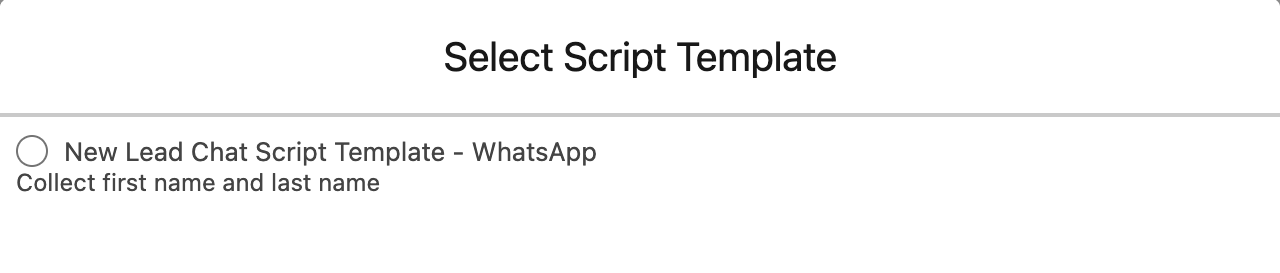
- In the composer's toolbar, click the chat scripts button (the speech-bubbles icon). A picker opens listing the available scripts.
-
Find your script in the list. The picker shows active script templates whose Applicable Object matches this record's object — each row also shows the script's channel.
- A row is disabled (greyed out) when its channel isn't available for this record — hovering shows a note that the channel is not available for this record. Typical causes: the record has no phone number for that channel, or no matching Connect Account is available.
- If no scripts exist for this object, the picker reads:
No chat scripts for this record.
- Click the script.
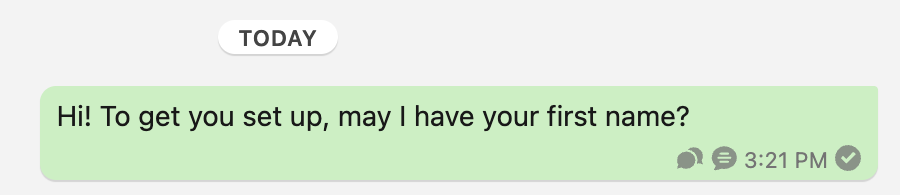
Expected result: the first step's message appears in the feed as an outbound message, and REDA Connect creates the running conversation — a copy of the template named <New Chat Script Name> : <message number>, with all steps and actions cloned. From here the conversation advances by itself as the customer replies (see What are chat scripts?).
Step 2 — Monitor the running conversation
Watch progress in two places:
In the feed: the whole exchange plays out as normal messages. Outbound messages sent by the script carry a small script icon; hovering shows the script's name. Customer replies appear inbound like any other message — an agent can join the conversation at any moment.
On the records: open the running conversation (find it via the Chat Scripts tab — the list views there separate templates from running scripts, including a Today's Chat Scripts view — or from the script link on any of its messages). On it you can read:
| What to check | Where |
|---|---|
| How far the customer got | Each step's Is Responded and Response |
| The answers being saved | Each step's actions — Is Completed / Error Message; and the target fields on the record itself |
| Whether replies still advance it | Is Active Session / Session Active Till — see Chat script sessions |
| Whether it finished | Completed Date Time — stamped the moment the customer answers the last step |
| Whether it halted on an error | The running conversation's Error Message |
Common failure: template missing its first step
If a script does not start correctly, check its First Step. The reference may be absent or point outside the copied template steps. Verify that First Step belongs to this template. The product defines this Error Message diagnostic for a missing copied step:
Bad Chat Script Template Configuration [ Missing First Step ].
Fix: open the script template, set First Step to an existing step (deactivate and reactivate if needed — remember activation requires a first step), and start the script again. This diagnostic text is defined by the product, but later send processing can replace it before it is saved. Its absence does not prove that the script instance or first-step link was created correctly; inspect those records too.
Troubleshooting
| Symptom | Cause | Fix |
|---|---|---|
| Script missing from the picker | Not active, not marked Is Template, or Applicable Object doesn't exactly match this record's object (unlike templates, scripts are never offered object-less) | Check all three on the script record |
| Script row greyed out | The script's channel isn't available for this record | Add the phone number for that channel, or check the object's configuration and Connect Accounts |
Bad Chat Script Template Configuration [ Missing First Step ]. | Template's First Step reference is broken | See above |
| First question sent, replies recorded, but the script never advances | Session expired — or session length blank on the template | Chat script sessions |
| First message itself failed to send | An ordinary send failure is possible, but script creation can also fail after the provider accepted the first message. Check both the provider result and Salesforce messages/instances before retrying; a later Salesforce error does not prove nothing was sent. | A message didn't send |
FAQ
Yes — an outbound Connect Message created with the Chat Script Template field set starts the script when it sends. The reference must be an active template on the same channel, or the save fails with: You must select an active chat script template and have the same messaging channel.
Avoid it. Replies are matched to the most recent unanswered script message on the record and channel, so parallel scripts on the same conversation will fight over the answers.
The documented feed has no stop button. Letting a session expire prevents new response progression under that timer; writing manually in the feed does not itself stop the script. Deactivating the template removes it from new choices but does not guarantee that existing instances stop. Arrange a controlled recovery if needed.
It's ordinary messaging — normal WhatsApp/SMS provider charges apply per message, nothing extra for the script.
Where to go next
- Chat script sessions — why a conversation stops advancing.
- Chat script actions — check the answers landing on the record.
- Using the Connect Feed — everything else the composer can do.