
Building a chat script
This article creates a chat script template — the reusable design that every scripted conversation is cloned from. By the end you'll have an active script ready to start from the Connect Feed.
- Understand the template-vs-conversation model — see What are chat scripts?
- Decide the channel (WhatsApp or SMS — SMS steps are text-only) and the object the script will run against (Contact, Lead, or any configured object).
- If steps will send templates rather than typed text, have those templates tested and active first — see Testing and activating a template.
Please provide the First Step prior activating the Chat Script.
Step 1 — Create the script record (inactive)
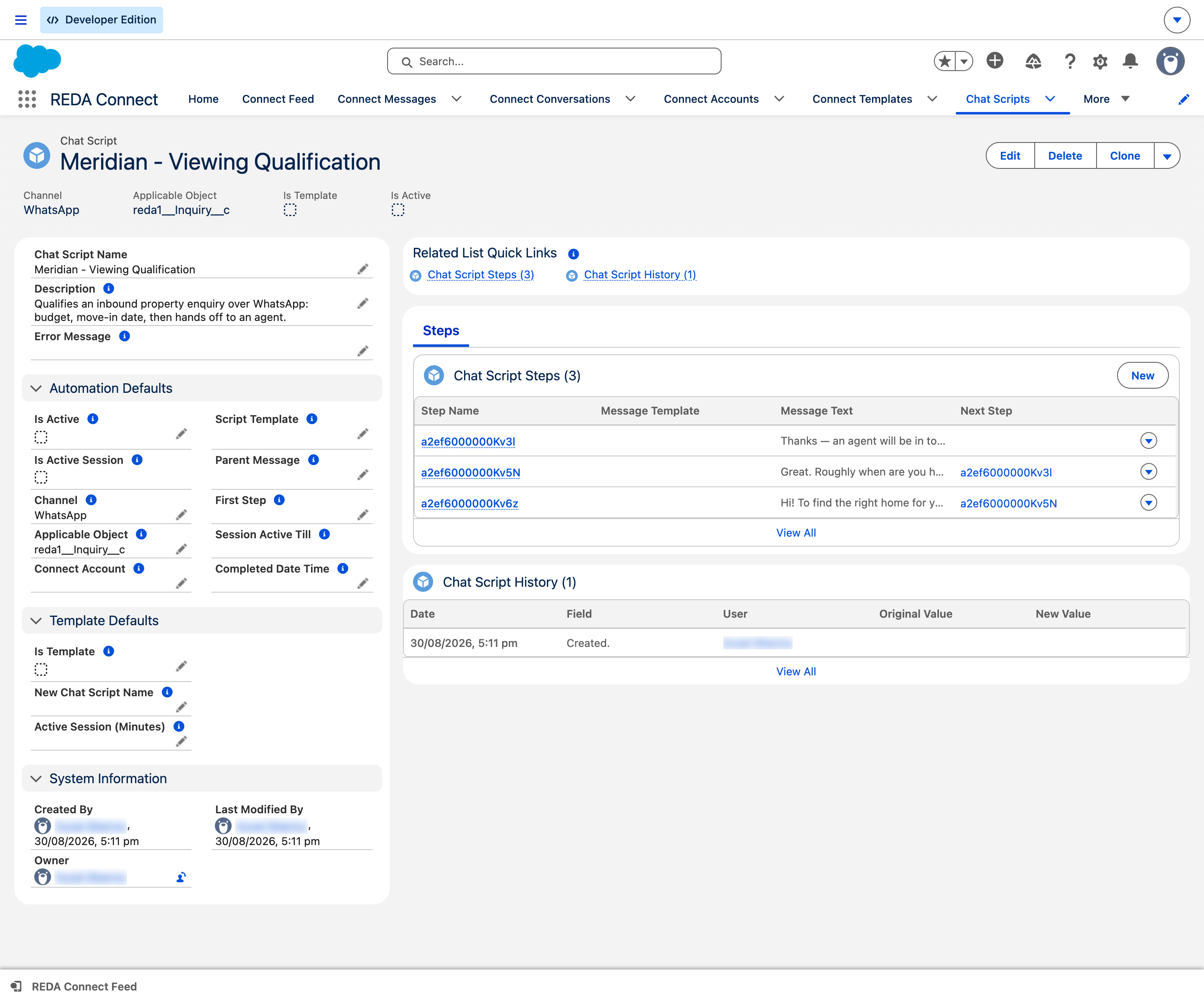
- Click the App Launcher, open the REDA Connect app, and click the Chat Scripts tab in its navigation bar.
- Click New and fill in the fields:
| Field | Required | What to enter |
|---|---|---|
| Chat Script Name | Yes | A design-time name — e.g. Viewing Feedback Survey. This is the name you see in lists and in the feed's script picker. |
| Is Template | Tick it | Marks this record as a reusable template. Only templates appear in the feed's script picker. |
| New Chat Script Name | Yes for templates | The name given to each running conversation cloned from this template (the conversation is named <this value> : <message number>). Leaving it blank fails the save with: Please provide New Chat Script Name for Template Chat Scripts. |
| Channel | Yes | WhatsApp or SMS. Each script serves exactly one channel; build one script per channel if you need both. |
| Applicable Object | Yes | The API name (exact value) of the object this script runs against — e.g. Contact or Booking__c. Find it under Setup → Object Manager. The feed offers the script only on records of exactly this object. |
| Active Session (Minutes) | See callout below | How many minutes, from the start of each conversation, replies keep advancing the script. |
| Connect Account | No | Set it only to restrict the script to one Connect Account; leave blank to allow any account on the channel. |
| First Step | Leave blank for now | Filled in pass two, after the steps exist. |
| Is Active | Leave unticked for now | Activated in pass two. |
| Description | No | What the script does, for your team. |
Leave the system-managed fields alone: Completed Date Time, Error Message, Parent Message (must stay blank on a template — filling it fails with: Parent Message must be blank for Chat Script Templates.), Script Template, Session Active Till, and Is Active Session are all populated by REDA Connect on running conversations, not by you.
1440 (24 hours — matching WhatsApp's own reply window); for a quick two-question SMS survey, something like 120. Full timer semantics: Chat script sessions.
- Click Save.
Expected result: the script record saves with Is Active unticked.
Step 2 — Add the steps
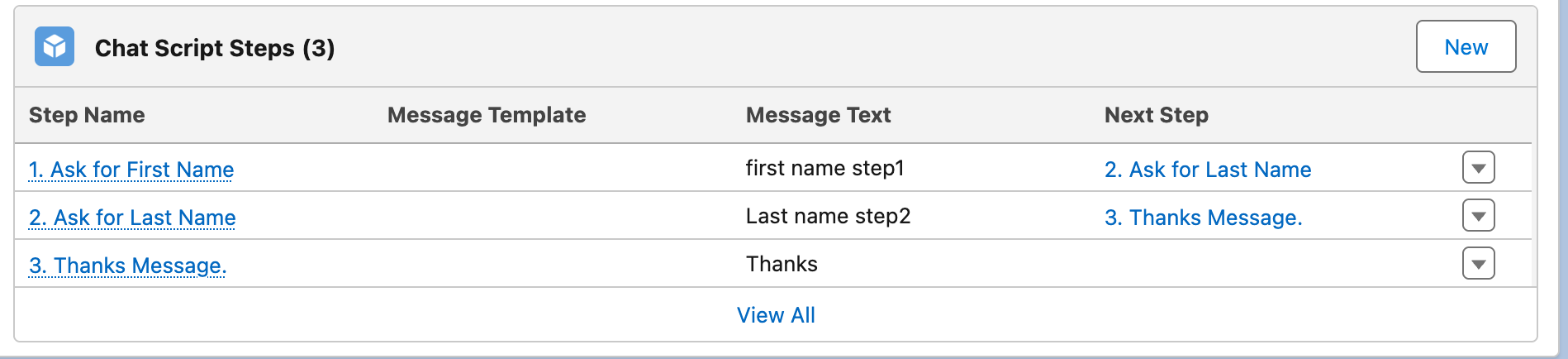
Create the steps from the script's Chat Script Steps related list — one step per message you want sent, chained together with Next Step. The full walkthrough, including the one-or-the-other rule for step content, is in Chat script steps. Come back here when the chain is complete.
Step 3 — Set the First Step and activate
- Edit the script record.
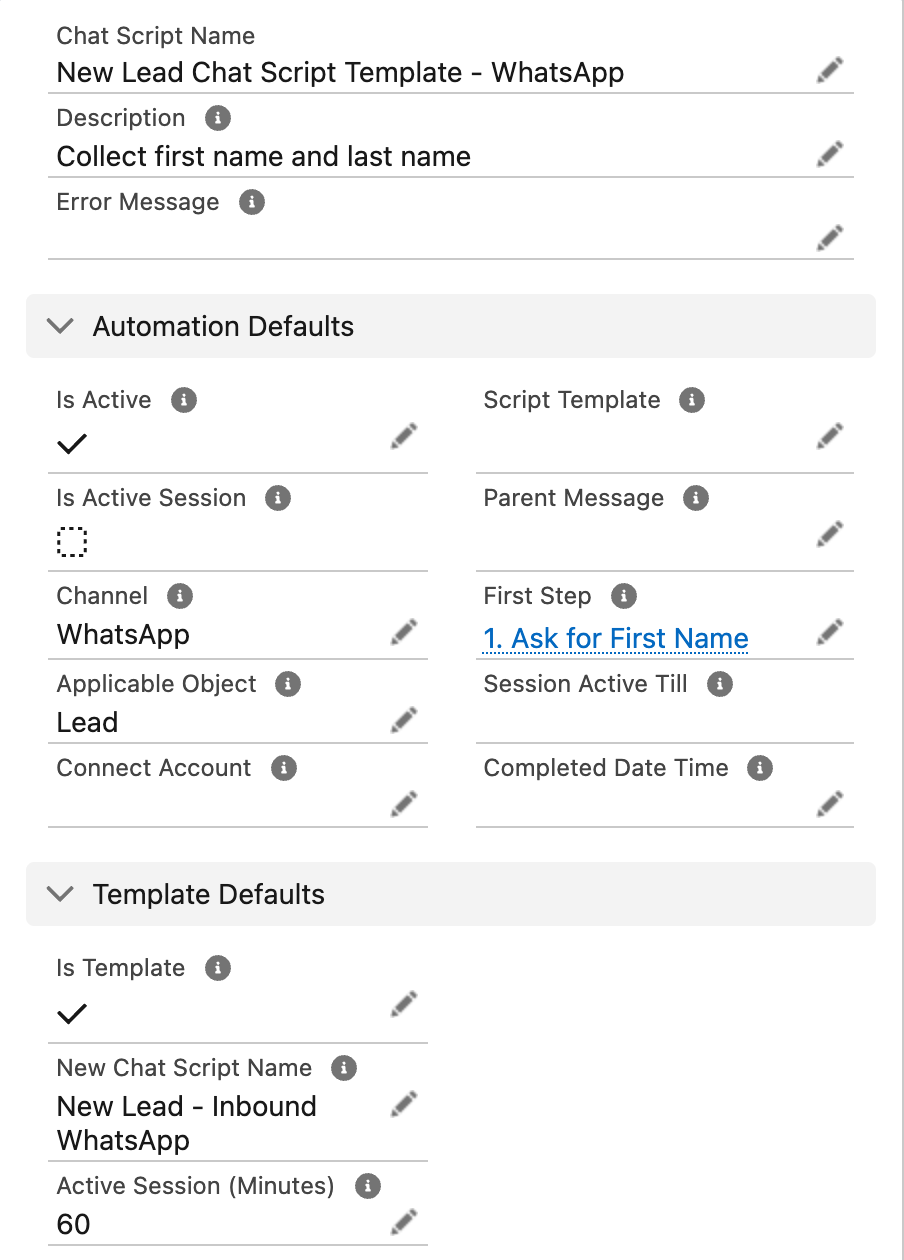
- In First Step, select the step the conversation should open with (your "step 1").
- Tick Is Active and click Save.
Expected result: the record saves. The script now appears in the Connect Feed's script picker on records of the Applicable Object.
Troubleshooting
| Symptom | Cause | Fix |
|---|---|---|
Please provide the First Step prior activating the Chat Script. | Activating before First Step is set | Add the steps, set First Step, then activate |
Please provide New Chat Script Name for Template Chat Scripts. | Is Template ticked without New Chat Script Name | Provide the name running conversations should carry |
Parent Message must be blank for Chat Script Templates. | A value crept into the system field Parent Message | Clear it — it belongs to running conversations only |
| Script doesn't appear in the feed's picker | Not active, not a template, or Applicable Object doesn't exactly match the record's object | Check all three — see Running a chat script |
| Conversations start but never move past the first question | Active Session (Minutes) is blank on the template | Set a session length — see the callout above |
FAQ
Yes — copied steps remain independent, so changes to those template steps affect future instances. However, Active Session (Minutes) is read from the template and changes existing deadlines too; referenced Connect Templates also remain shared. Review Chat script sessions before changing a design in use.
No — Channel is single-valued. Clone the design as a second script for the other channel (and remember SMS steps allow Text templates only).
No. Leave Connect Account blank and the script runs on whatever account the conversation uses. Set it only when a script must be locked to one number.
There's no fixed cap — but every step is one outbound message and one customer reply, and the whole exchange must fit inside the session window. Three to five steps is the practical sweet spot.
Where to go next
- Chat script steps — build the message chain (pass two, step 2 above).
- Chat script actions — save the answers to fields on the record.
- Running a chat script — start the script with a real customer.