
Adding the feed to a record page
The most useful place for the Connect Feed is on the record page where your team already works — the Contact, Lead, Case or any custom object record. Placed there, the feed opens scoped to that record: the person's full conversation, with the composer ready. You place it with the Lightning App Builder, Salesforce's drag-and-drop page editor, and it works on any object's record page — standard or custom. This article walks through the placement, the three configuration properties, and a custom-object example end to end.
- You need permission to edit Lightning pages (the Customize Application permission, included in System Administrator).
- The object needs an object configuration first. The feed displays messages on any record, but the composer only activates when an active configuration tells REDA Connect which field holds the phone number and which Connect Account to send from — see Configuring messaging for any object. Without it, users see the feed but cannot send (the exact message is quoted below).
- Users need a REDA Connect permission set to use the feed — Giving your team access.
Step 1 — Open the page in the Lightning App Builder
Two routes to the same editor — use whichever you prefer:
- From a record: open any record of the object, click the gear icon (top right) and choose Edit Page.
- From Setup: go to Setup → Object Manager, click the object, click Lightning Record Pages, then open the page and click Edit (or click New if the object has no custom record page yet).
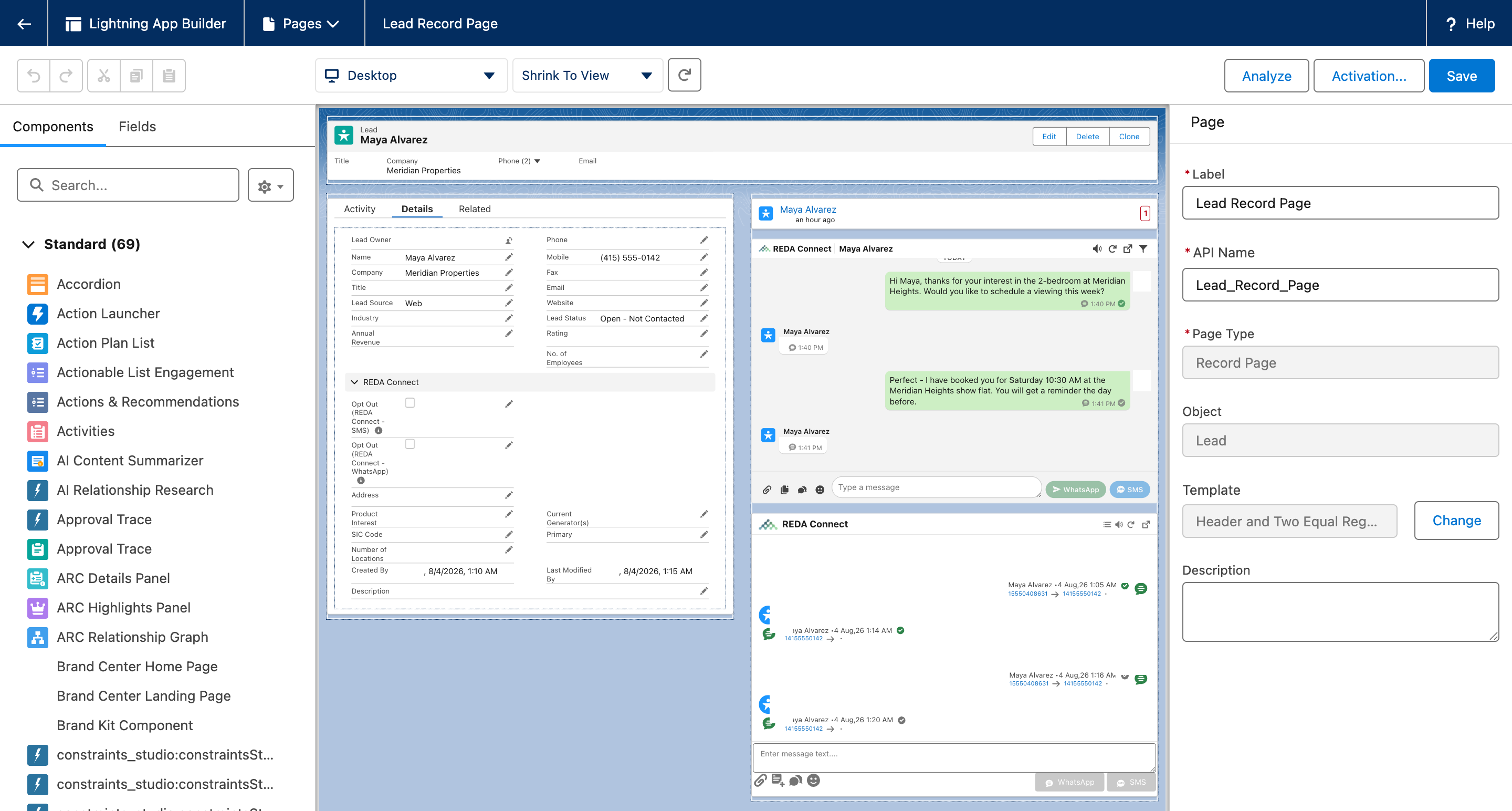
Expected result: the Lightning App Builder opens, showing the page layout in the middle and a list of components on the left.
Step 2 — Drag the REDA Connect Feed onto the page
- In the components panel on the left, scroll to the Custom (or Custom – Managed) section, or type
REDAin the search box. - Find REDA Connect Feed — described as "WhatsApp-style messaging feed for REDA Connect."
- Drag it onto the layout where you want it — a wide column or a dedicated tab within the page both work well.
Expected result: the feed appears on the canvas, and its three properties show in the panel on the right.
Step 3 — Set the three properties
| Property | Default on a record page | What it does |
|---|---|---|
| Hide conversation list | On | "Normally on for a record page - the feed is already scoped to that record." |
| Use a fixed height | On | "Leave on unless the surrounding page manages height itself." Off = the feed stretches to fill the available space |
| Fixed height (px) | 350 (allowed 200–2000) | "Used only when Use a fixed height is on." |
Two things worth knowing:
- On a record page the conversation list is always hidden, whatever you set — the feed is already scoped to the one record, so there is nothing to list. The Hide conversation list switch matters on App pages and tabs (where the same component can show the full two-pane layout); on record pages you can leave it as is.
- A fixed height of 350 px suits a sidebar column; give it 500–700 px if the feed is the main content of its own tab on the page. When space is tight, users get a pop-out icon in the feed header that opens the conversation full-page in the Connect Feed tab.
Step 4 — Save and activate the page
- Click Save (top right).
- If this is a new page, Salesforce prompts you to Activate it. Choose the scope: Org Default (everyone), or assign by App, or by App, Record Type, and Profile.
- Click Save on the activation dialog.
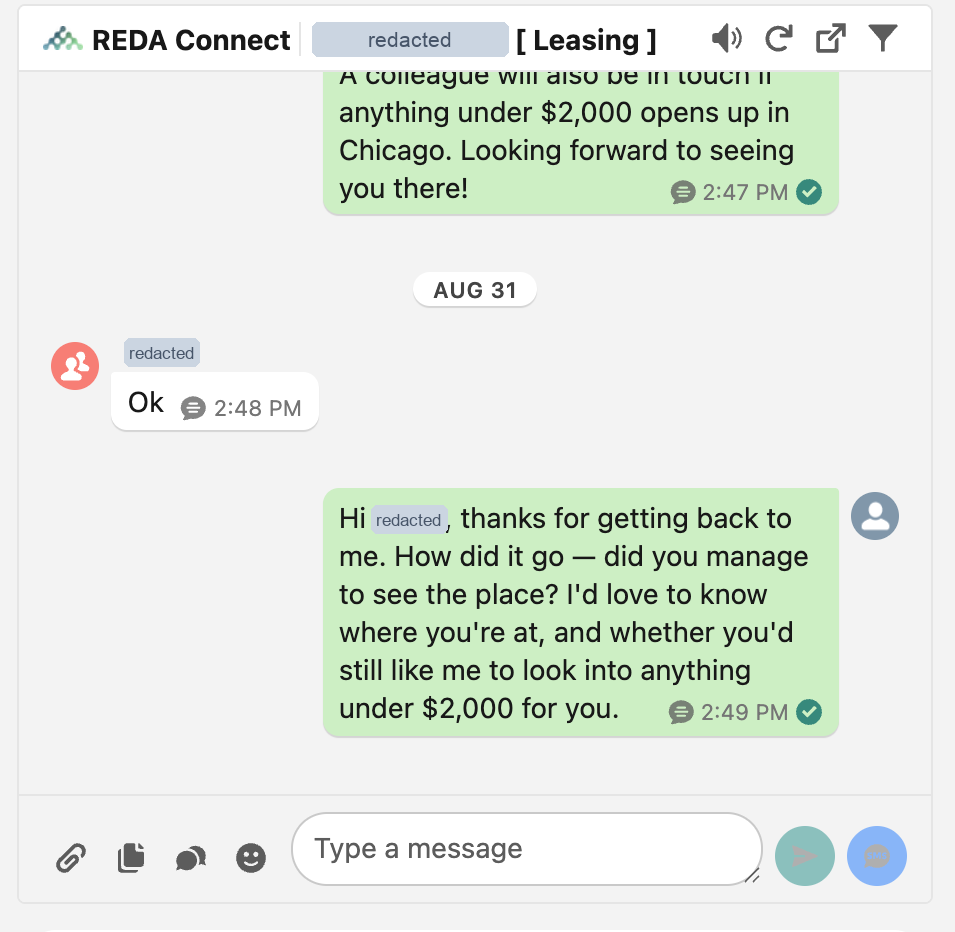
Expected result: open a record of the object — the feed is there, showing the record's messages, with the composer active at the bottom.
Worked example — a custom object end to end
Suppose you manage rentals with a custom Booking object, and each Booking has a Tenant lookup to Contact, where the phone number lives.
- Configuration first: create an object configuration for
Booking__cper Configuring messaging for any object, pointing the phone field through the Tenant relationship (this related-record pattern is detailed in Messaging through a related record). - Open any Booking record → gear icon → Edit Page.
- Drag REDA Connect Feed into the right-hand column. Keep the defaults (Use a fixed height on, 350 px).
- Save, activate as Org Default.
- Open a Booking whose tenant has messaged in — the conversation is there, and sending from the Booking reaches the tenant's WhatsApp.
What users see when the object is NOT configured
Placement always succeeds — the gap only shows at use:
- Messages already linked to the record still display.
- Instead of the send box, the composer area shows: "Sobject setup is not found." That exact sentence means the object has no active configuration — create one and the composer appears.
- If a configuration exists but no phone number or active Connect Account can be resolved for the record, the composer area shows: "No active connect account is found."
Troubleshooting
| Symptom | Cause | Fix |
|---|---|---|
| "Sobject setup is not found." instead of a send box | No active object configuration for this object | Configure the object |
| "No active connect account is found." | Configuration exists but the record's phone field is empty, or no active Connect Account resolves | Check the record's phone value and the account chain in Default accounts and routing order |
| Two "REDA Connect Feed" components in the palette | Upgraded org — one is the previous feed | Use the one without "(Deprecated)" |
| The conversation list won't show on the record page | By design — always hidden on record pages | Use the Connect Feed tab for the two-pane view |
| The feed is cut off or too short | Fixed height too small for the column | Raise Fixed height (px) (up to 2000), or turn Use a fixed height off |
FAQ
Yes — any object's record page, custom or standard. The only per-object requirement is the object configuration that powers sending.
No. The feed can be placed on record pages, App pages, its own tab and the utility bar — not on Home pages. For an always-available feed, use the utility bar.
On record pages the list is suppressed unconditionally — the feed is already scoped to that one record. The switch takes effect on App pages and tabs.
Just one of the three REDA Connect permission sets. Users without one see an error instead of the feed — see Giving your team access.
Where to go next
- Configuring messaging for any object — the prerequisite that turns the composer on.
- The feed in the utility bar — the other placement admins set up.
- Using the Connect Feed — hand this to the users who'll work in it.