
Verify Meta webhooks, test and go live
A webhook delivers incoming messages and delivery updates from Meta to your Salesforce public Site. REDA Connect's setup action connects the webhook and displays its current checks. Use this guide after preparing the channel credentials and Salesforce matching configuration.
Connect through REDA Connect first
- Open the saved Connect Account.
- Choose Set Up Messenger and Instagram or Set Up WhatsApp.
- Check Address Meta sends messages to. It must point to this org's active public Site, ending in
/services/apexrest/rconn/wapp-inbound/. If several Sites exist, confirm the selected Site is the one configured for Connect. - Click Connect Webhooks. The setup uses the account's verification token, creating one when missing, and connects the relevant app/business asset subscription.
- Read the result. Enable the intended channel on the account when ready and click Check again.
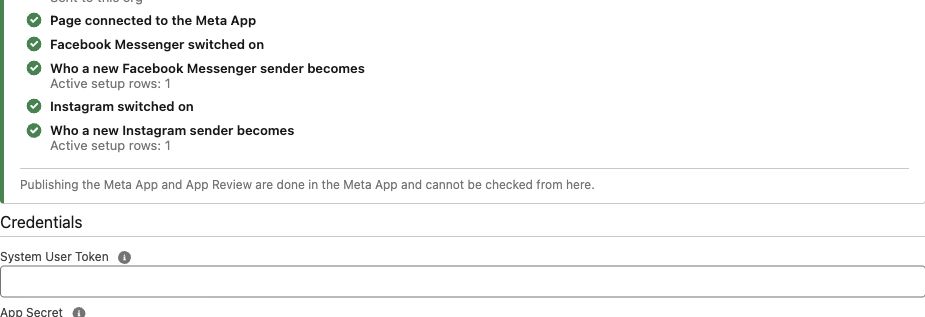
Read the checklist correctly
| Checklist item | What it tells you | What to do if it needs attention |
|---|---|---|
| App Secret / Facebook Page / Instagram account | Credential and asset information available from Meta | Check the app/secret pair, token access, Page ID and Instagram link, then save the corrected credentials |
| Messenger webhook / Instagram webhook / WhatsApp webhook | Whether the inspected callback is directed to this org and the expected subscription is available | Confirm the URL and use Connect Webhooks; inspect a conflicting destination before replacing it |
| Page or Meta App connected to business account | The app is subscribed to the relevant business asset | Check asset assignment and subscription through the setup action |
| Channel switched on | The account has that messaging channel enabled | Edit Messaging Channels after setup is ready |
| Who a new sender becomes | Active configuration rows exist for that account/channel | Review the identity mapping, default creation row and required values; a row count alone does not validate your business rules |
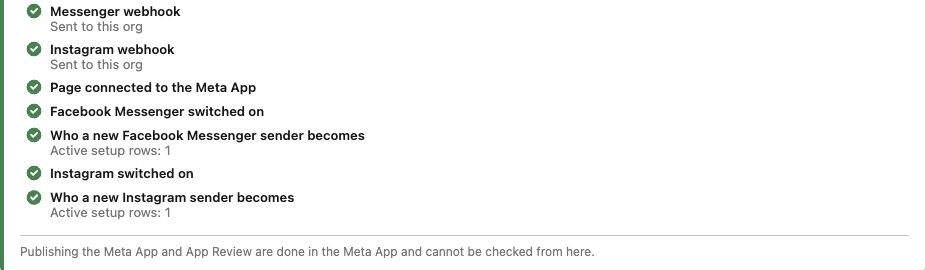
Check again does not send a customer message. A green checklist does not replace the inbound-and-reply test, nor does it prove App Review/publishing is complete.
When the callback points to another org
Meta app webhook objects have a callback destination. If a sandbox and production org share the same app, changing that destination can redirect the other org's messages. The setup reports the existing destination before replacement.
- Messenger/Instagram: compare the existing and intended callback. Choose Replace only when this org should receive events for that app/object. Plan separate app routing where both environments must operate independently.
- WhatsApp: the setup supports a WhatsApp Business Account callback override. This lets that WABA use its designated callback without blindly replacing the app's shared callback. The override applies to the account, not a separate Salesforce destination for every number in the same WABA.
After an intentional replacement, check the affected channel in the intended org with a real inbound test. Avoid changing the app-level WhatsApp callback manually merely because another org appears there; inspect the effective account/number routing first.
Inspect the Meta dashboard when needed
The normal path is the REDA setup action. Use these screens to diagnose a mismatch or confirm what is registered:
- Open the same app identified on the Connect Account.
- For Messenger, open Use cases → Messenger from Meta → Messenger API Settings and expand Configure webhooks. Inspect the Page connection/subscriptions too.
- For Instagram with Facebook login, inspect the app's Webhooks page with the Instagram object selected. If it is not shown in the left menu, the app-specific address is
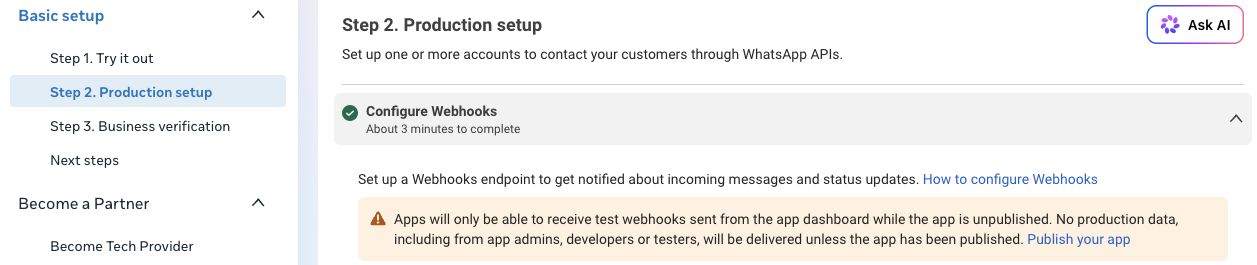
https://developers.facebook.com/apps/YOUR_APP_ID/webhooks/. Replace YOUR_APP_ID with your Meta App Id. Do not use the separate Instagram-login product webhook. - For WhatsApp, open Use cases → Connect on WhatsApp → Basic setup → Step 2. Production setup → Configure Webhooks. Remember that the displayed app callback may differ from an effective WABA override.
- Compare the callback URL and the subscribed event fields below. If completing manual verification, use the Connect Account Verification Token value from Salesforce, not an access token.
| Webhook object | Events used by this release |
|---|---|
| Page — Messenger | messages, messaging_postbacks, message_deliveries, message_reads, message_reactions, messaging_referrals |
| Instagram — Facebook-login route | messages, messaging_postbacks, message_reactions, messaging_seen, messaging_referral |
| WhatsApp Business Account | messages for messages and their status updates |
Page and Instagram event names differ. For example, Instagram uses messaging_seen and singular messaging_referral; these must not be copied into the Page list.
Test each channel end to end
- Incoming text: the agreed participant messages the business number, Page or professional Instagram account. Find that channel in the Connect Feed and confirm the expected record and text.
- Reply: send a brief reply from Salesforce. For Messenger/Instagram, do this within 24 hours of the customer's message. Confirm the actual reply in the customer's app, not just a Salesforce status.
- Delivery/read: inspect the message status after delivery and opening, where Meta supplies that receipt. A status update can arrive after the initial send.
- New and known senders: confirm an unknown sender creates the intended object with required defaults, then send another message and check that it matches the same record.
- Files: test the file types your team will use in both directions. Confirm that the file opens from Salesforce and from the customer app. For Messenger/Instagram, keep files within 4.4 MB; Instagram's picker offers JPEG/PNG and PDF.
- Consent: with an agreed test participant, exercise the configured opt-out and opt-in keywords and verify the corresponding channel's opt-out field on Lead/Contact, or the consent process configured for your custom object.
Use Connect Logs when the expected message or file is absent. Messenger/Instagram inbound receipts are recorded as Meta Inbound Receipt. After correcting a configuration or file issue, an administrator can use Replay Meta Webhook on a retained receipt; this also retries attachment work that has not completed. Verify the result in the feed rather than assuming replay succeeded.
Move from development testing to customers
| Channel | Development/testing distinction | Before customer use |
|---|---|---|
| The current production-setup screen warns that unpublished apps receive dashboard test webhooks only; production data is withheld, including for app-role users. | Complete the app's publication requirements, number registration and applicable business/billing requirements; follow WhatsApp go-live. | |
| Messenger | Meta permits messaging with app administrators, developers and testers during development. | Complete App Review/required access and publish before serving people outside those roles. |
| Use the test access appropriate to the Facebook-login app; a random personal account is not proof of an eligible development test. | Complete the Instagram permission review/access requirements and publish. Confirm messages from an agreed user outside development roles. |
In the Meta app, review Testing, Permissions and features, and Publish (or the review route shown by that app). Complete the requested app details, privacy policy/data-handling information, reviewer instructions and demonstrations. Request the permissions actually used by the integration. Meta decides the applicable business verification, access verification and review requirements; follow the app's displayed requirements rather than treating them as identical for every business.
When providing an app that accesses assets owned by other businesses, review Meta's Tech Provider requirements. This is different from configuring your own business's assets. After approval/publication, repeat the actual inbound/reply workflow with a participant outside the app roles before your team announces availability.
If a check fails
Use Meta setup troubleshooting. Record the channel, time, business asset, expected result and visible error for support. Keep tokens, App Secrets and customer message content out of shared screenshots unless specifically needed through an approved support channel.