
Set up Facebook Messenger
Connect a Facebook Page to REDA Connect so customers can message the Page and your team can answer from Salesforce. Start with the Meta setup map if you are setting up a Meta integration for the first time. These instructions use the Meta dashboard checked on 10 October 2026 and REDA Connect 1.94000.
Before you start
- A Facebook Page for the business. Messenger here means messages sent to that Page, not a personal Facebook inbox.
- A Facebook login with the appropriate Page tasks/access, including messaging, and access to the intended Meta app and business portfolio.
- A Salesforce administrator with REDA Connect Admin access, and an active public Site.
- A test participant with an accepted administrator, developer or tester role on the app when testing in development mode.
In Meta Business Suite → Settings, select the correct portfolio, then inspect Accounts → Pages and Accounts → Apps. Confirm that the intended Page and app are available to the administrator. If they are missing, have the portfolio owner grant access to those specific assets before continuing.
1. Add the Messenger use case
- Open Meta for Developers → My Apps.
- Create an app using the app-creation guide, or open the app you intend to use.
- For a new app, choose Business messaging → Engage with customers on Messenger from Meta. For an existing app, use Add use cases where available.
- Open Use cases, customize the Messenger use case and select Messenger API Settings. The page heading is Messenger API Setup.
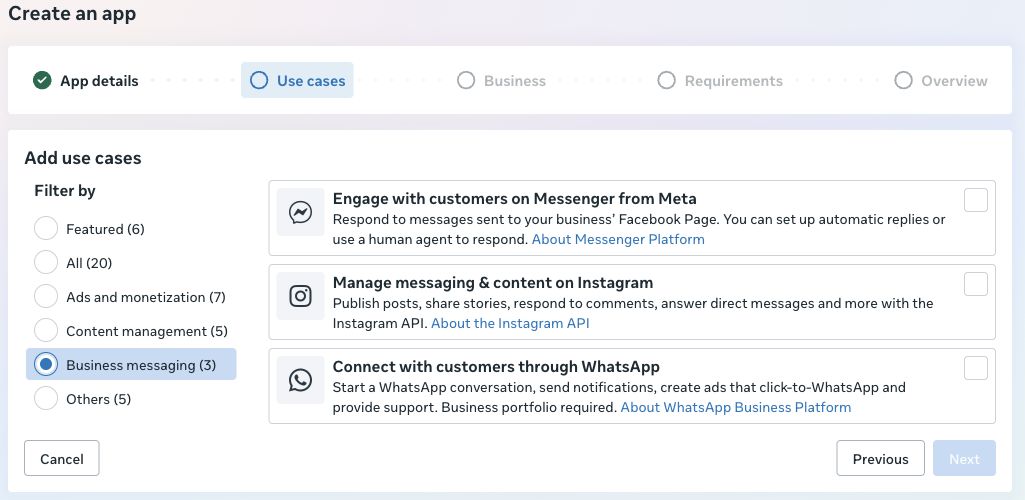
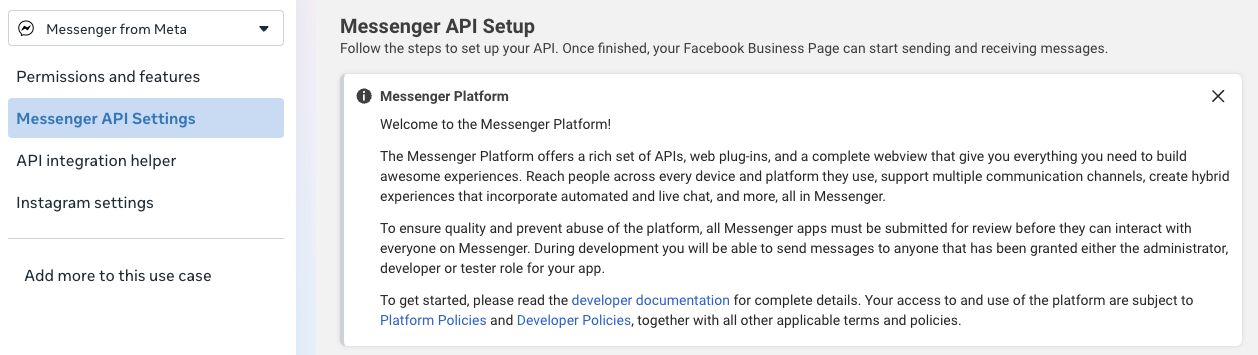
Expected result: the Messenger setup page contains sections for webhooks, access tokens and App Review. If only Instagram-login credentials are shown, return to the use-case selector and choose Messenger from Meta.
2. Enable the permissions and assign the Page
Open Permissions and features within the use case. The messaging connection needs pages_messaging, and Page webhook subscription needs pages_manage_metadata. Page discovery uses pages_show_list; Page information and the supported combined Instagram flow use pages_read_engagement. Follow the permission and asset table when generating the token. Business portfolio management may also require business_management.
For sender names, review Business Asset User Profile Access where Meta requires it. A customer's scoped ID is received with the message; a profile name is a separate lookup and may be unavailable. REDA Connect uses a channel fallback when it cannot obtain a name.
Make sure the person or System User generating the token has the intended Page and app assigned. Selecting permissions in a token dialog does not grant access to an unassigned Page. If a permission is missing from the dialog, return to this app's use case and permissions, rather than generating a token for a different app.
3. Collect the App ID, App Secret and Page ID
- In the app, open App settings → Basic. Copy App ID. Use Show beside App Secret when you are ready to enter it into the Salesforce setup action.
- In Meta Business Suite → Settings → Accounts → Pages, select the intended Page and copy its numeric ID. Match the Page name, not just an ID from an old document.
- Obtain the app's User or System User access token through the credential guide. Use credentials belonging to the same app you recorded in step 1.
Expected result: you have an App ID, its App Secret, a Page ID, and a token with access to that Page. The App ID and Page ID are not interchangeable. The token that REDA Connect saves for sending is derived from the Page; the administrator supplies the User/System User token to the setup action.
4. Create the Salesforce account and save credentials
- Open REDA Connect → Connect Accounts → New. Give it a meaningful business name.
- Enter Meta App Id, Meta Page Id and the Meta Graph API Endpoint. Keep the installed default for a new configuration unless your implementation has an agreed, tested version. Do not change an existing working endpoint just because Meta's dashboard displays a different version.
- Save the record with Messaging Channels still unselected.
- Click Set Up Messenger and Instagram. Paste your User/System User token into System User Token and the app's secret into App Secret. Click Verify and Save.
- Read the result. The action derives the Meta Page Token, stores credentials encrypted, and discovers the linked Instagram account if one exists. Do not paste plaintext credentials directly into the encrypted record fields.
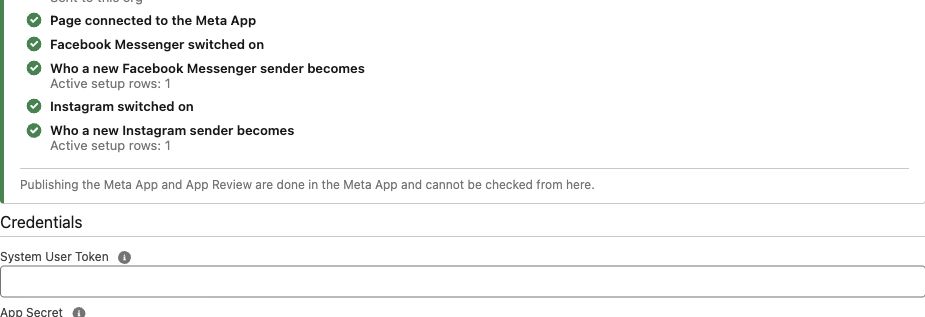
Continue with Salesforce account configuration and record matching. Add an active Facebook Messenger configuration row and choose which object receives a new sender before enabling the channel.
5. Connect incoming messages
- Reopen Set Up Messenger and Instagram.
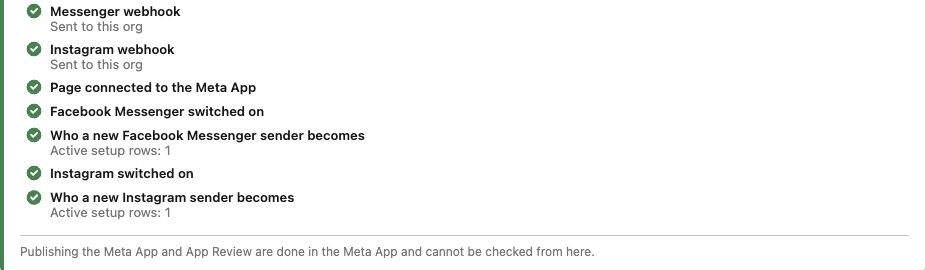
- Check Address Meta sends messages to. It must be your active public Site address ending in
/services/apexrest/rconn/wapp-inbound/. - Click Connect Webhooks. REDA Connect configures the app subscription and connects the Page.
- If the screen reports another callback destination, identify which org uses it before choosing Replace. Replacing changes where that app's webhook object sends events; it can affect another org using the app.
- On the account, set Is Active and add Facebook Messenger to Messaging Channels. Return to setup and click Check again.
6. Test the actual customer journey
- From an appropriate separate test Facebook account, open the business Page and send a short message, such as “Messenger setup test”. The customer initiates the conversation.
- In Salesforce, open the Connect Feed and filter to Facebook Messenger. Confirm the incoming text appears against the expected record.
- Reply from the feed within 24 hours of the customer's message. Confirm Sent and the actual reply in Messenger. Open/read it from the test account and check the resulting receipt where delivered by Meta.
- If files are part of your workflow, enable Allow Document Sharing and test a small supported file in each required direction. See sending files.
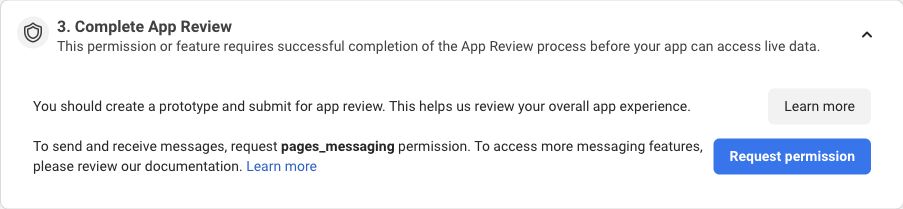
In development mode, Meta's Messenger setup screen permits messaging with app administrators, developers and testers. To serve people outside those roles, complete the required review/access steps and publish the app. A successful role-based test does not establish customer availability. Continue with verification and go-live.
Add Instagram or resolve a setup problem
The same Page can provide the foundation for Instagram with Facebook login. If Messenger does not work, use the symptom-based checklist before changing credentials or webhook destinations.
Official reference: Meta: get started with Messenger and the Messenger app use case.