
WhatsApp template approval and synchronization
WhatsApp requires an approved template for business-initiated messages outside the customer-service window. Create and obtain approval at Meta, then use Sync WhatsApp Templates on the correct Connect Account to bring approved templates into REDA Connect. Synchronization was introduced in patch 1.93002 and is included in Winter 2026.
Understand the customer-service window
A customer's inbound message opens a 24-hour service window for supported free-form replies. Outside that window, use an approved WhatsApp template. The customer can reply to that template, opening a new service window. Meta approval and the Salesforce template's activation status are separate requirements.
1. Open the correct Meta template library
- In the Meta app, open the WhatsApp use case.
- Under Other tools → Tools, use the message-template management link to open WhatsApp Manager.
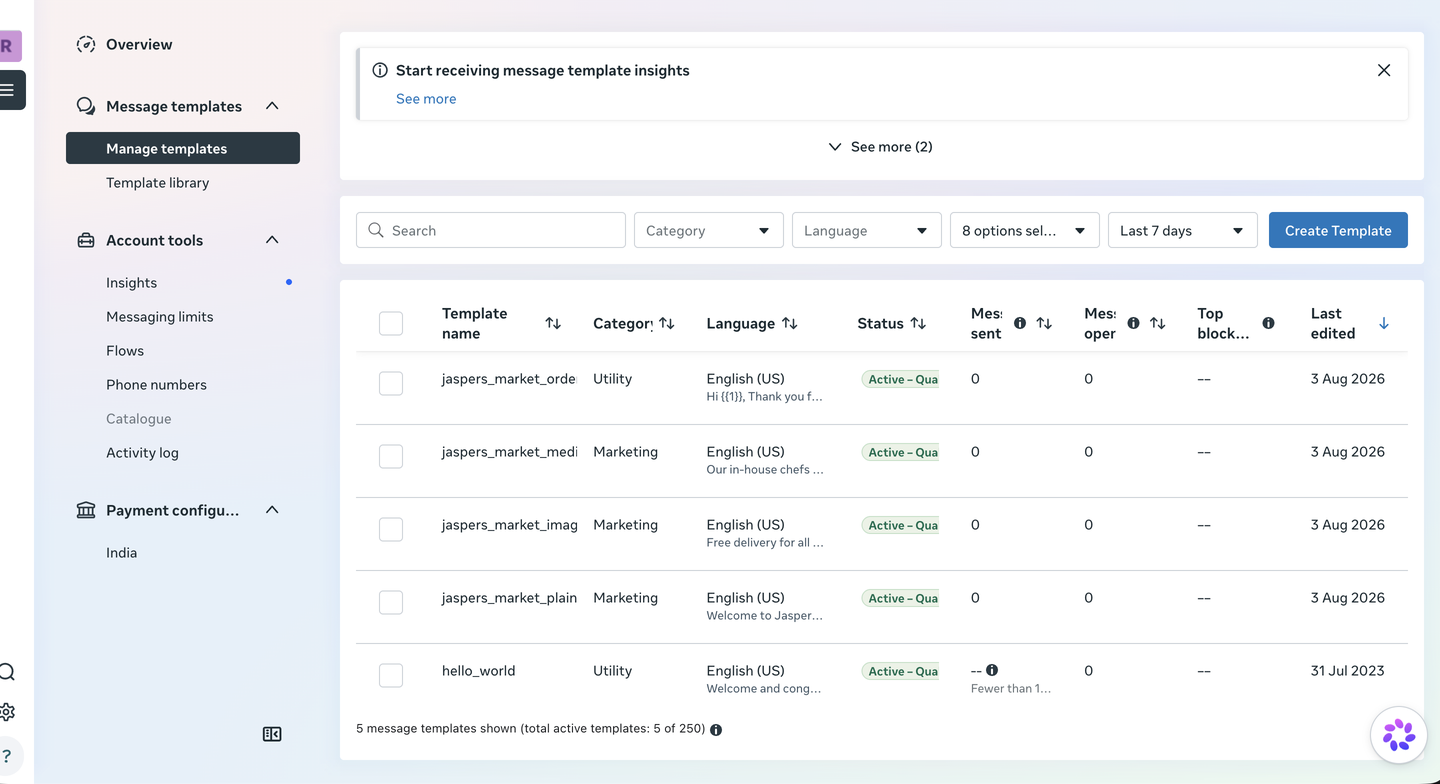
- Confirm the intended WhatsApp Business Account, then open Message templates → Manage templates.
- Choose Create Template.
2. Create and submit the template
Select the category that matches the message's purpose: Utility, Marketing or Authentication. Enter the name, language, message text and any header, variable or button elements needed for the use case. Supply realistic sample values requested by Meta, then submit for review.
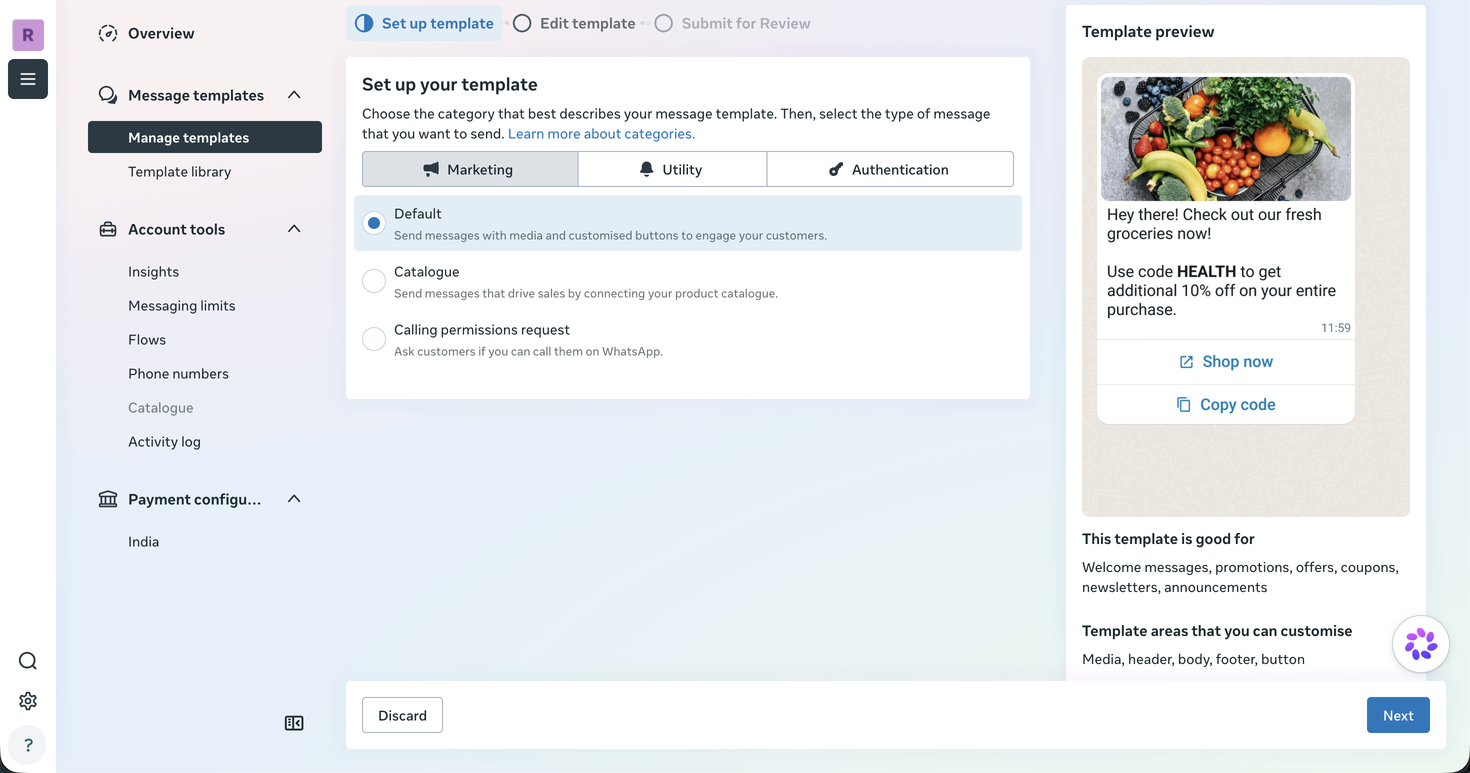
Expected result: Meta displays a review status. Wait for approval before sending. If rejected or recategorized, read Meta's reason and correct the content/category there. Check the current status rather than relying on an assumed approval time.
3. Synchronize from the Salesforce Connect Account
- Open the Connect Account for that WABA and confirm WhatsApp credentials and WhatsApp Account Id.
- Click Sync WhatsApp Templates. If absent, add the packaged action to the administrator's assigned layout.
- Read the action's introduction, then run the synchronization.
- Review the counts and per-template notes for records created, updated, deactivated or skipped.
- Open the synchronized Connect Templates associated with this Connect Account.
Synchronization is not activation. Review the results and follow the next steps shown by the action. A template's Meta approval status, stored Meta body and account association help you identify the correct approved source; they do not replace the recipient-specific send parameters.
4. Review, test and activate the Salesforce template
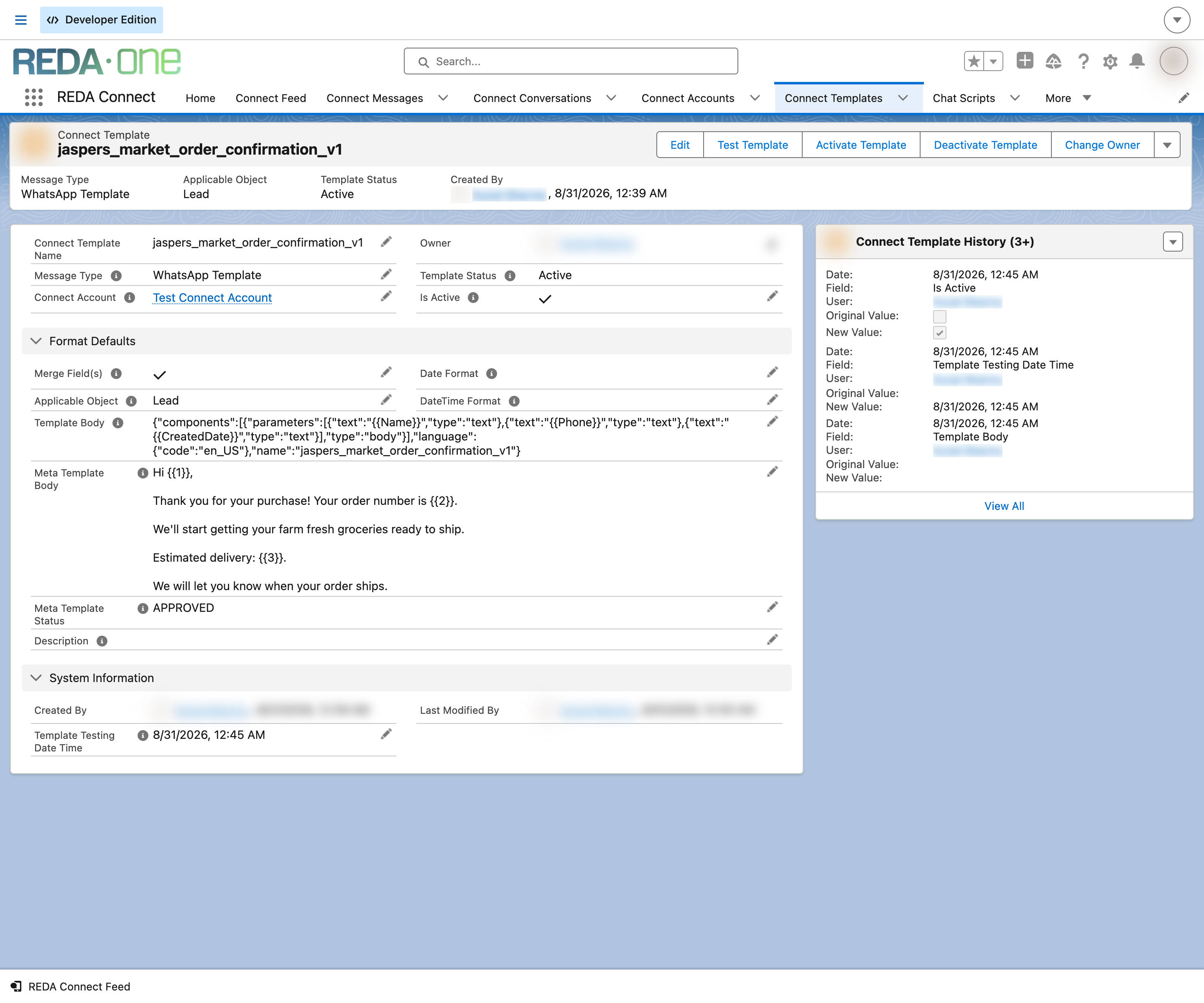
- Confirm Connect Account, Message Type = WhatsApp Template and Meta Template Status.
- Compare Meta Template Body with the intended approved content.
- Set the Applicable Object and review the send body/parameters, replacing example values with the intended values or merge fields. Keep the approved name and language exact.
- Use Test Template with a representative record and inspect the resolved values.
- Complete the normal activation flow before offering the template to agents.
- Send an agreed end-to-end test and verify the customer's actual WhatsApp message.
Account-scoped templates prevent choosing a template from an unrelated account. If you maintain custom layouts, add the account association and Meta status/body fields using the layout checklist.
When reviewing the send body
The template must identify the approved Meta name/language and supply the expected parameters. For a simple two-variable body, the template portion follows this shape:
{
  "name": "your_approved_template_name",
  "language": { "code": "en_US" },
  "components": [{
    "type": "body",
    "parameters": [
      { "type": "text", "text": "{{FirstName}}" },
      { "type": "text", "text": "Your second value" }
    ]
  }]
}
This is an example, not a universal replacement for every template. Use the actual approved language and parameter structure. Headers/buttons and other template formats need their corresponding supported values. See merge fields and testing and activation.
If a template does not send or appear
- Missing from the picker: check Active status, Applicable Object and Connect Account association.
- Approved at Meta but send fails: compare the error with the template name, language, parameter values and account used.
- Sync skipped or deactivated a template: read the action's per-template note before changing the record.
- Template sends but free-form text fails: check whether the customer's service window is open.
Messenger and Instagram text templates are separate: this release does not extend WhatsApp's approved structured-template format to those channels.