
The Connect Feed tab (global inbox)
The Connect Feed tab is the team's global inbox: every conversation your users can see, in one full-page view — conversation list on the left, message stream on the right. It is the place to triage incoming messages across all records, as opposed to the record page and utility bar placements, which serve one record or one agent's flow. This article covers where the tab lives, who can see it, and the one thing upgraded orgs must know: there are two tabs with similar names, and only one of them is current.
- Users need one of the three REDA Connect permission sets — Giving your team access.
Opening the tab
- Click the App Launcher (nine-dot grid, top left) and open the REDA Connect app.
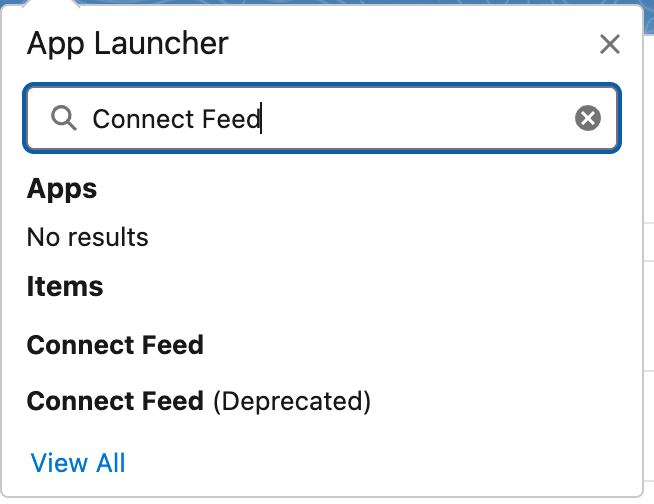
- Click Connect Feed in the navigation bar. (In any other app: open the App Launcher, type
Connect Feed, and click the item — take the one without "(Deprecated)".)
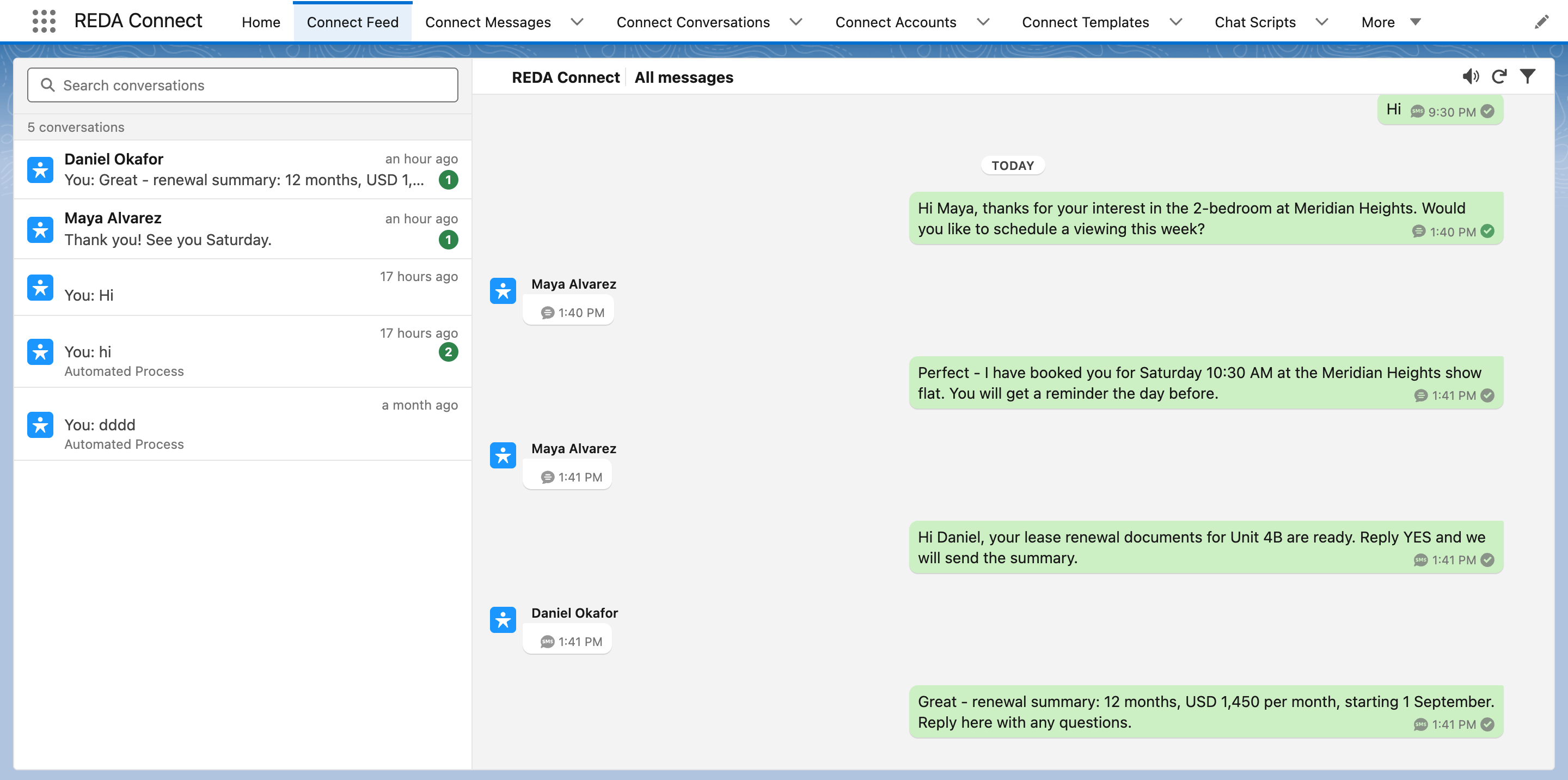
Expected result: the full-page feed opens titled All messages, with the conversation list on the left. Everything on this screen is described in Using the Connect Feed.

Note for upgraded orgs — two tabs, use the plain one
If your org ran a REDA Connect version before 1.93, the App Launcher lists two similar items:
| Tab | What it is | Use it? |
|---|---|---|
| Connect Feed | The current feed — this article | Yes |
| Connect Feed (Deprecated) | The previous Connect Feed, kept only so old bookmarks and links keep working | No |
The deprecated tab is not in the REDA Connect app's navigation bar — it is reachable only through the App Launcher or an old bookmark. If a user reports that "the feed looks different" or is missing newer behaviour, the first thing to check is which tab they opened. Encourage everyone to re-bookmark the plain Connect Feed tab; an administrator can also hide the deprecated tab per profile (Setup → Profiles → profile → Tab Settings) once nobody depends on old links.
Adding the tab to other apps
The tab is already in the REDA Connect app's navigation. If your team lives in another app (Sales, Service, a custom app), add it there:
- Go to Setup → App Manager, click the app's dropdown arrow and choose Edit.
- Click Navigation Items, move Connect Feed from Available to Selected, and Save.
Users can also add it just for themselves: click the pencil icon at the right end of the navigation bar, then Add More Items, and search for Connect Feed.
Note that installing or upgrading the package never inserts tabs into navigation bars you have customised — adding it is always a deliberate step.
Who can see the tab
Tab visibility comes with the packaged permission sets: REDA Connect Admin, REDA Connect User and REDA Connect User - Read Only all make the Connect Feed tab visible. No separate tab-visibility setup is needed — if a user has one of the three sets and still cannot find the tab, they are usually in an app whose navigation doesn't include it yet (use the App Launcher, or add it as above).
FAQ
Bookmarks saved before the upgrade point at the previous feed and will land on the Connect Feed (Deprecated) tab. They keep working — that's why the tab exists — but re-bookmark the plain Connect Feed tab to get the current experience.
It cannot be deleted (it is part of the installed package), but you can hide it per profile under Tab Settings so it no longer appears in the App Launcher for your users.
Every message the signed-in user's Salesforce sharing settings let them read — the feed never shows records a user couldn't otherwise access. To narrow the view to your own messages, use the filters — see Finding messages.
Same feed, different scope: the tab shows all conversations with the two-pane layout; a record page shows one record's conversation with the list hidden. See Adding the feed to a record page.
Where to go next
- Using the Connect Feed — the tour of everything on this screen.
- Finding messages — filters that make a busy global inbox manageable.
- Giving your team access — the permission sets behind tab visibility.