
Creating the WhatsApp Connect Account
Create the Salesforce account with the number and identifiers collected from Meta, then save the credential through Set Up WhatsApp. In REDA Connect 1.94000 you can save the record before selecting a messaging channel, so the previous temporary-token workaround is no longer needed.
Before you start
Have the number and WABA identifiers, the System User token, and an active public Site. Use REDA Connect Admin access. If updating an existing account, retain its working SMS and other channel configuration.
1. Create and save the account
- Open App Launcher → REDA Connect → Connect Accounts → New.
- Enter a recognizable Connect Account Name and the fields below.
- For a new account, leave Messaging Channels unselected until credentials and routing are ready. Save.
| Field | Value and source |
|---|---|
| Meta App Id | App settings → Basic → App ID |
| Meta Graph API Endpoint | The versioned Graph endpoint. New records default to https://graph.facebook.com/v26.0/; an upgrade does not change an existing account's value. |
| WhatsApp Number | The actual number, country code plus digits, without + or separators; use the Meta test number during test setup |
| WhatsApp Number Id | The matching Phone Number ID from Meta |
| WhatsApp Account Id | The WABA / Messaging account ID containing that number |
| Connect Account Verification Token | Retain an existing value; setup generates one when blank |
| Allow Document Sharing | Select when agents should send supported files |
| WhatsApp Setup Description | Useful ownership/maintenance notes, without credentials |
Expected result: the saved record exposes Set Up WhatsApp. On a custom page layout, add the existing fields and action if absent. The field now labelled Meta Graph API Endpoint is shared by this account's Meta channels.
2. Save the token through the action
- Click Set Up WhatsApp.
- Enter the token in WhatsApp Auth Token.
- Click Save Token and read the result. Stored credentials are encrypted and are not redisplayed in the input.
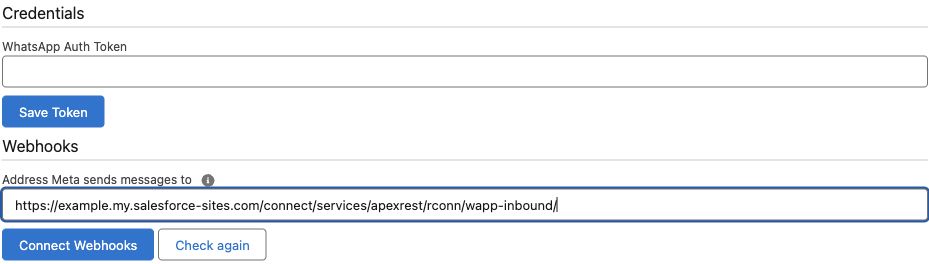
Do not paste the real token directly into the record's encrypted WhatsApp Token field. Do not enter “pending” merely to satisfy the older save sequence; new records can now be saved without an enabled channel.
3. Configure who receives an incoming message
In the Connect Account Configs related list, create or confirm active WhatsApp rows for the intended objects. Channel Identity Field points to the relevant telephone field, such as MobilePhone on a Lead. Choose the intended default new-record row and supply required values in New Record Default Values.
For example, an agreed Lead creation mapping could use:
LastName:{{profile}}
Company:WhatsApp enquiry
MobilePhone:{{phone}}
Adapt required fields and Company to your own process. Review Contact and Lead configuration, new-record defaults and account routing. The first-colon/literal-placeholder corrections in Winter 2026 also apply to existing WhatsApp mappings.
4. Connect the webhook
In Set Up WhatsApp, confirm Address Meta sends messages to, then click Connect Webhooks. Inspect any destination conflict before replacing it. Follow the full webhook guide, including the account-specific override when an app serves multiple orgs.
5. Enable and verify
- Set Is Active and add WhatsApp to Messaging Channels.
- Return to the setup action and click Check again.
- Confirm the number, app-to-WABA connection, effective webhook, channel activation and active configuration rows.
- Complete the relevant Meta publication/number requirements and test inbound messages and replies.
Worked example
For an example test account, WhatsApp Number might be 15550001234. Its WhatsApp Number Id and WhatsApp Account Id must come from that number's Meta screen; do not invent them or substitute the visible phone number. The App ID belongs to the app selected during token generation. The token goes through Save Token, and setup supplies the verification token if none exists.
If setup fails
A save validation usually means a selected channel is missing required configuration. For a new account, complete setup before enabling it. A token or number error should be checked against the exact Meta asset and permission; a callback error should be checked against the Site and existing routing. Use the symptom-based guide rather than replacing unrelated settings.