
Giving your team access
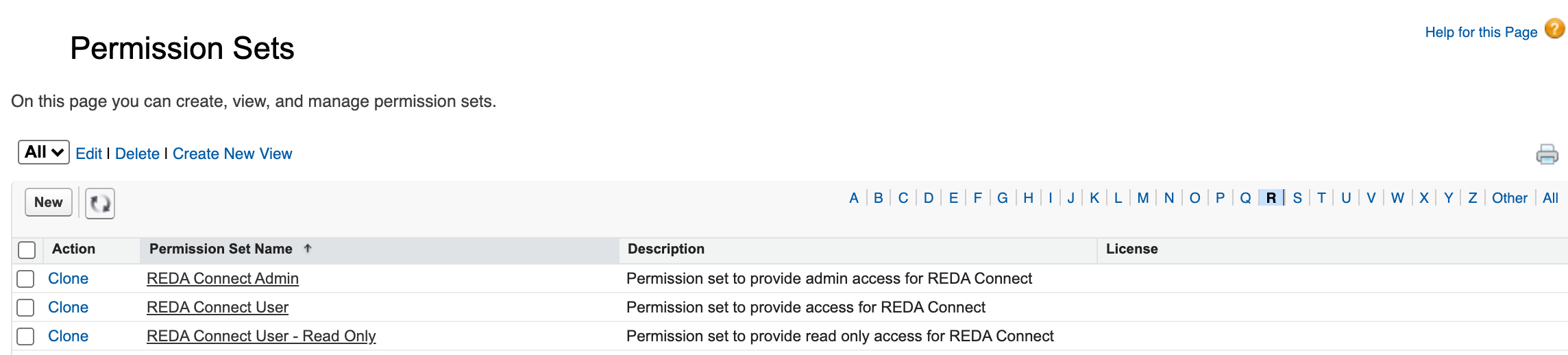
REDA Connect grants access through three packaged permission sets — bundles of permissions you assign to individual users on top of their profile, without editing the profile itself. Every person who will touch REDA Connect needs exactly one of the three: administrators get REDA Connect Admin, agents who send and receive messages get REDA Connect User, and people who only need to see conversations get REDA Connect User - Read Only. Assigning a set takes under a minute per group of users.
- REDA Connect must be installed — see Installing REDA Connect.
- You need permission to assign permission sets (the Manage Users permission, included in the System Administrator profile).
The three permission sets
| What the person can do | REDA Connect Admin | REDA Connect User | REDA Connect User - Read Only |
|---|---|---|---|
| Open the REDA Connect app and all its tabs | ✔ | ✔ | ✔ |
| Read messages and conversations in the Connect Feed | ✔ | ✔ | ✔ |
| Send and receive messages, mark messages responded | ✔ | ✔ | ✘ |
| Run chat scripts and use templates in the feed | ✔ | ✔ | ✘ |
| Create and manage Connect Accounts, object configurations and templates | ✔ | ✘ (view only) | ✘ (view only) |
| Delete messages | ✔ | ✘ | ✘ |
| Run the packaged reports | ✔ | ✔ | ✔ |
In practice:
- REDA Connect Admin is for the people doing the setup in this documentation — creating Connect Accounts, entering credentials, wiring up object configurations, building and activating templates and chat scripts.
- REDA Connect User is the everyday agent set: full two-way messaging, but the setup objects (accounts, configurations, templates) are read-only — an agent can use a template but not change it.
- REDA Connect User - Read Only opens everything for viewing. If a read-only user tries an action anyway — sending, marking a message responded, changing the tone setting — the action is refused with an error beginning "Insufficient Access", so nothing happens silently.
Step 1 — Assign a permission set
- In Salesforce, click the gear icon (top right) and choose Setup.
- In the Quick Find box, type
Permission Setsand click Permission Sets under Users. - Click the permission set label — for example REDA Connect User.
- Click Manage Assignments, then Add Assignment.
- Tick every user who should have this level of access and click Next, then Assign (leave the expiration option empty — access should not expire).
Expected result: the Assigned Users list shows everyone you selected. Repeat for the other two permission sets with their respective users. Give each user one REDA Connect set — the higher set already includes everything the lower ones allow.
Step 2 — Find the app
- Ask an assigned user to click the App Launcher (the nine-dot grid, top left) and search for
REDA Connect. - Click the REDA Connect app.
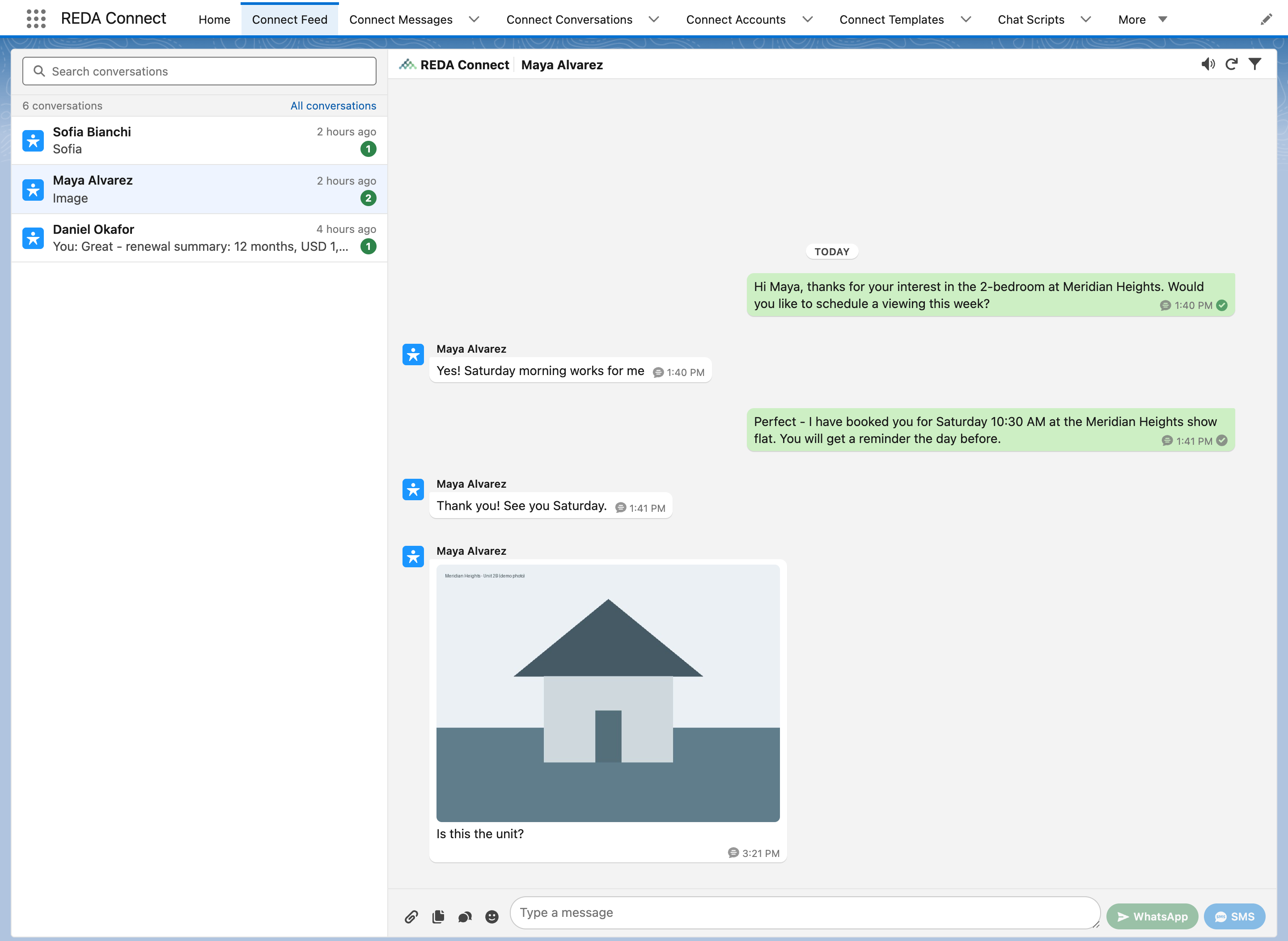
Expected result: the app opens with its navigation bar: Home, Connect Feed, Connect Messages, Connect Conversations, Connect Accounts, Connect Templates, Chat Scripts, Connect Logs, Reports and Dashboards. All REDA Connect tabs are visible with any of the three permission sets — what differs is what a user can do on them, per the table above.
What the permission sets do NOT control
Which records a user sees. The permission sets grant access to the REDA Connect objects, but record visibility follows your org's normal sharing setup (organization-wide defaults, roles, sharing rules). The package contains no "view all" or "modify all" grants — REDA Connect never shows a user a message that Salesforce sharing would hide from them. If agents report that the feed seems to be missing conversations that exist, review your sharing settings for the Connect Message object rather than the permission sets.
Troubleshooting
| Symptom | Cause | Fix |
|---|---|---|
| User can't find the REDA Connect app in the App Launcher | No REDA Connect permission set assigned | Assign one of the three sets (Step 1) |
| User opens the feed but sending fails with a message starting "Insufficient Access" | The user has REDA Connect User - Read Only | Assign REDA Connect User instead |
| Agent can see templates but not edit them | Working as designed — templates are managed by admins | Assign REDA Connect Admin to template maintainers only |
| Two users see different conversations in the same feed | Record visibility follows org sharing | Review sharing settings for Connect Message — this is not a permission-set issue |
FAQ
The Manage Assignments screen works on users, but you can select many at once. If your org uses permission set groups, the REDA Connect sets can be included in them like any other permission set.
They need a Salesforce license like any user, but REDA Connect adds no per-user cost mechanics of its own inside the org.
No — "seeing everything" is a sharing question, not a permission-set question. Give managers REDA Connect User (or Read Only) and solve visibility with your org's sharing setup.
No. The Site guest user must NOT be given any REDA Connect permission set — it needs only the narrow access described in Creating the public Site.
Where to go next
- Setup roadmap — install to first message — see where access assignment sits in the overall sequence.
- Creating the public Site for incoming messages — the next setup step after your admins have access.
- Using the Connect Feed — what your agents will see once a channel is live.