
Winter 2026: add fields and actions to your layouts
After installing REDA Connect 1.94000, review the page layouts your administrators and agents actually use. A packaged field can exist in Salesforce without appearing on a customer's customized layout. This checklist shows the recommended sections, the new fields and the setup actions to add before using Messenger and Instagram.
1. Find the layout your users actually see
- Open Setup → Object Manager and search for the object, such as Connect Account, Lead, Contact or your custom object.
- Select Page Layouts → Page Layout Assignment. Identify the layouts used by the relevant profiles and record types. An administrator and an agent may use different layouts.
- Return to Page Layouts and open the assigned layout. Keep the customer's existing sections, required fields and business-specific arrangement.
- In the editor's Fields palette, search for the field label. Drag it into the recommended section below. To make a section, drag Section into the layout and give it a clear name.
- Use the field's properties to make display-only identifiers read-only where appropriate. Credentials should be managed through the supplied setup actions.
- Save the layout. Repeat for each assigned layout that needs the fields.
- Open a record using the intended user access and confirm the fields are visible. A field on a layout still requires field access; a permission set does not place it on the layout.
If the Lightning record page uses Dynamic Forms, add the corresponding fields to that page's field sections in Lightning App Builder as well. If actions are managed through Dynamic Actions, review the action list and visibility rules there. If the page uses the standard Record Detail component, its fields come from the assigned page layout.
2. Connect Account: administrator sections
Use Connect Account Layout - Admin as the reference for an administrator's customized layout. The agent layout does not need the credential sections. Keep the existing Information fields, including Messaging Channels, Is Active and Connect Account Verification Token.
| Recommended section | Field | Placement and use |
|---|---|---|
| Meta App (WhatsApp, Facebook Messenger, Instagram) | Meta App Secret — new | Alongside existing Meta App Id and Meta Graph API Endpoint. Use Set Up Messenger and Instagram to save the secret; do not type plaintext into the stored field. |
| Facebook Messenger and Instagram Setup | Meta Page Id — new | The Page identifier used by Messenger and the linked Instagram account. |
| Facebook Messenger and Instagram Setup | Instagram Account Id — new | The linked professional account identifier discovered by setup; not the username. |
| Facebook Messenger and Instagram Setup | Meta Page Token — new | Stored by the setup action. Keep credential administration with the administrators. |
| WhatsApp Setup | Existing WhatsApp Number, WhatsApp Account Id, WhatsApp Number Id, WhatsApp Token and Allow Document Sharing | Retain the WhatsApp section when that channel is used. Meta Graph API Endpoint is shared by the account's Meta channels. |


Meta Graph API Endpoint is the updated label of the existing API endpoint field. Meta App Id also already exists. Do not create duplicate fields for either.
3. Connect Account Config: object setup
In Connect Account Config → Page Layouts, add the following two fields to Object Setup, beside the existing WhatsApp and SMS account field mappings.
| New field | Purpose |
|---|---|
| Connect Account Field API Name Facebook | The API name of the field on the configured object that selects its Messenger Connect Account, when using a record-specific account. |
| Connect Account Field API Name Instagram | The corresponding field mapping for the record's Instagram Connect Account. |
Keep Object API Name, Name Field API Name, Channel Identity Field and Priority Order together. Keep Is Default New Record, New Record Default Values and OwnerId Field API Name in Inbound Message Defaults. Channel Identity Field is the existing configuration field with an updated label; it accepts a phone field for WhatsApp/SMS or an identity field for Messenger/Instagram.
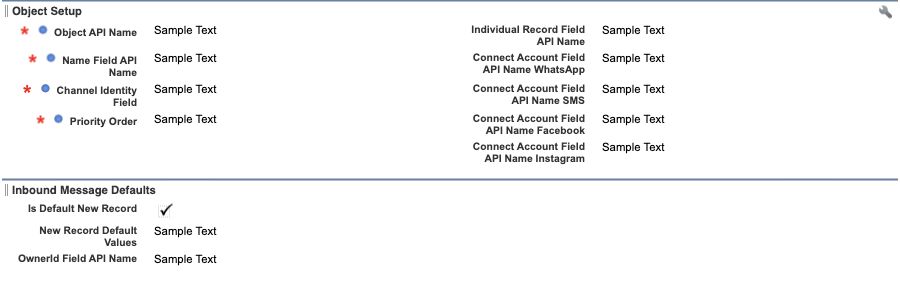
For the values to enter, including a custom-object example, follow Configure the Salesforce account and sender matching.
4. Lead and Contact: identity and opt-out fields
Edit the customer-assigned Lead and Contact layouts separately. In a section named REDA Connect, place the two new opt-out checkboxes with the existing SMS and WhatsApp preferences. Place the two social identity fields in the adjacent column or immediately below them.
| Field on each object | API name for configuration | How it is used |
|---|---|---|
| Facebook Messenger ID (REDA Connect) | rconn__Facebook_PSID__c | Matches a Messenger sender for the configured Page. Normally populated through inbound sender matching/defaults. |
| Instagram ID (REDA Connect) | rconn__Instagram_ID__c | Matches an Instagram sender. It is a scoped identifier, not an @username. |
| Opt Out (REDA Connect - Messenger) | rconn__Opt_Out_Facebook_Messenger__c | Messenger preference, independent of the other channel preferences. |
| Opt Out (REDA Connect - Instagram) | rconn__Opt_Out_Instagram__c | Instagram preference, independent of the other channel preferences. |

There are four new fields on Lead and four on Contact. Use the packaged fields already present in Object Manager; do not create duplicates. Ensure agents who manage preferences can access the intended preference fields.
5. Custom objects: expose the fields you map
REDA Connect supports all custom objects through the appropriate Connect Account Config. The packaged Lead/Contact fields are a starting convenience, not a requirement to use those objects.
- Open your custom object's Fields & Relationships. Identify the existing fields chosen for channel identity, display name and, where used, record owner and Connect Account selection.
- Use those exact API names in the object's channel-specific Connect Account Config rows. Reuse suitable existing fields. A custom object does not automatically receive the packaged fields installed on Lead and Contact.
- Add the mapped identity and account selection fields to the appropriate custom-object layout section. Include any preference fields used by your organization's consent process.
- If unknown senders should create this object, configure defaults for its required fields. Do not copy Lead's Company or LastName mappings onto an object that does not have those fields.
- Add Connect Feed to the intended Lightning record page and grant users access to the object and mapped fields. Verify the workflow on that object.
See the custom-object configuration example. The standard Lead/Contact opt-out fields do not automatically become custom-object fields or define that object's consent automation.
6. Connect Conversation: show the channel identity
On the assigned Connect Conversation layout, place Channel and Channel User Id in Information, alongside Connect Account and the existing expiration fields. These two fields are newly included in this package release. They help administrators distinguish conversations across channels; normal messaging maintains their values.
The full new packaged field set is 16 fields: four on Connect Account, two on Connect Account Config, two on Connect Conversation, four on Lead and four on Contact. Custom-object configuration reuses the customer's selected fields.
7. Add the setup and recovery actions
- In the relevant page layout editor, choose Mobile & Lightning Actions.
- In Salesforce Mobile and Lightning Experience Actions, override the predefined actions only if Salesforce prompts you and you intend to manage that layout's list.
- For administrator Connect Account layouts, add Set Up Messenger and Instagram. Retain Set Up WhatsApp and Set Up SMS for the channels used, and add Sync WhatsApp Templates when adopting template synchronization.
- For administrator Connect Log layouts, add Replay Meta Webhook. Keep the existing attention, additional-details and exception fields visible for troubleshooting.
- Save and check the actions on an actual record, including the overflow menu. Review Dynamic Actions if the record page manages its actions there.

The replay action applies to retained Meta inbound receipts. Follow the recovery instructions; it is not an action for retrying every type of outbound message.
8. If upgrading from the earlier main release
Winter 2026 includes the 1.93001 and 1.93002 updates. If you have not adopted their layout changes, also review:
- Connect Template: add Connect Account to Information. Show Meta Template Body and Meta Template Status as read-only beside the existing template body so administrators can compare synchronized Meta content.
- User: expose Connect Error Notifications on the appropriate administrator-managed User layout if you want selected users to receive Connect error notifications. It is an opt-in setting.
9. Finish with the actual agent view
Confirm the selected channels, configuration rows, user permissions and record-page placement using an intended agent. A visible field is not proof of a working connection, and a working setup action is not proof that the agent's customized page contains the required controls. Complete the inbound, reply and attachment checklist for each channel and configured object your team will use.
Return to Winter 2026 release and upgrade guide.