
Creating a template
This article walks through creating a Connect Template from a blank record to a saved draft, explaining every field on the way. When you finish, your template will sit in Pending Test status — the follow-up article, Testing and activating a template, takes it live.
- You need edit access to Connect Templates — see Giving your team access.
- Know which channel the template is for. SMS supports Text only; the other message types are WhatsApp features.
- If the template will contain merge fields, read Using merge fields first — one checkbox there decides whether your customers see real values or raw
{{...}}text.
Step 1 — Open Connect Templates and start a new record
- Click the App Launcher (the grid of dots, top left), open the REDA Connect app, and click the Connect Templates tab in its navigation bar.
- Click New.
Expected result: the new Connect Template form opens.
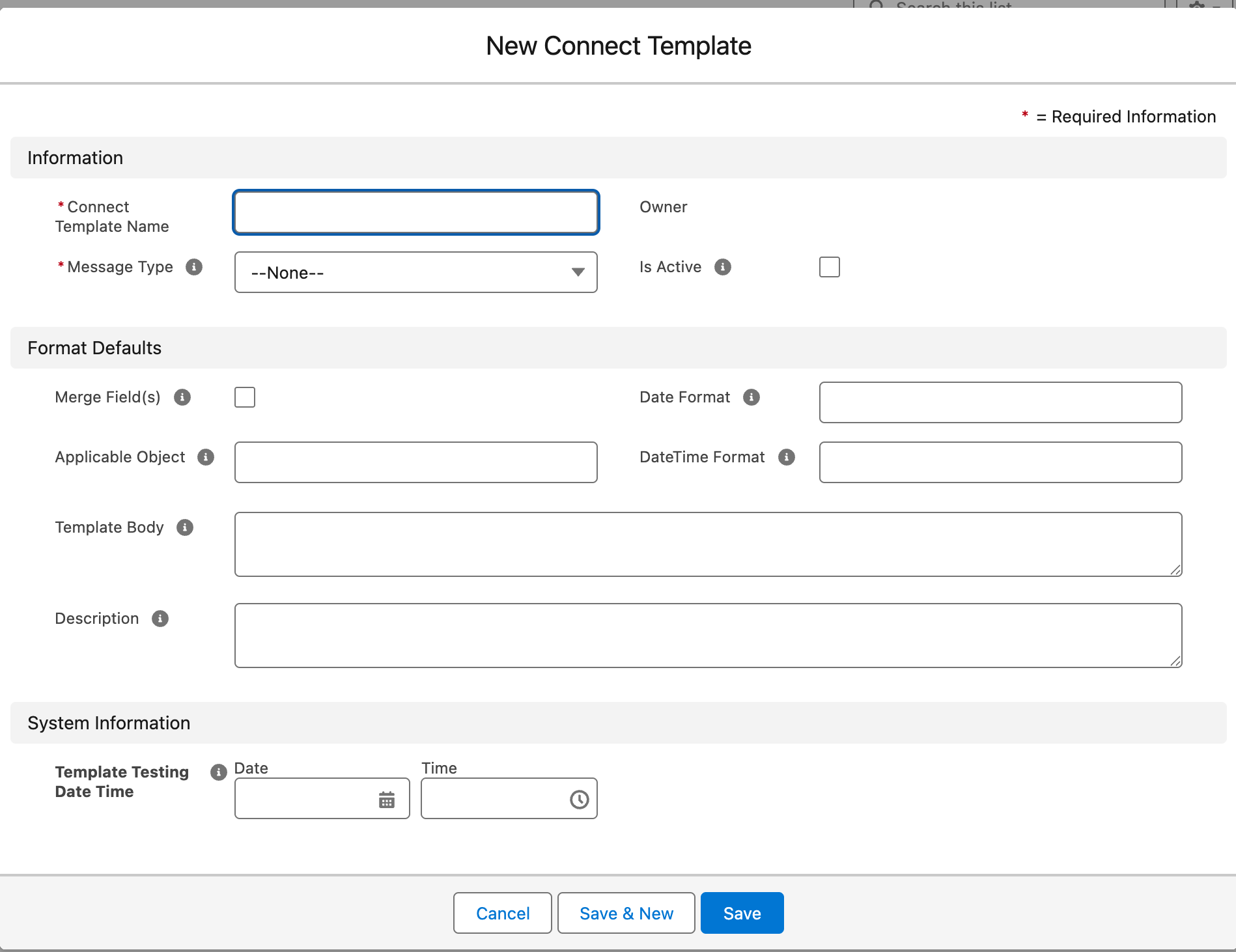
Step 2 — Fill in the fields
| Field | Required | What to enter |
|---|---|---|
| Connect Template Name | Yes | A name your team will recognise in pickers — e.g. Viewing Confirmation - EN. |
| Message Type | Yes | What kind of message this template produces — see the channel table below. For an everyday text message, choose Text. |
| Template Body | Yes (enforced on save) | The message text. Merge fields go in double curly braces as field paths on the Applicable Object — {{FirstName}} for the object's own field, {{Owner.Name}} for a related record's field. Do not prefix the object's own name ({{Lead.FirstName}} fails testing) — see Using merge fields. For Document, Image, or Video templates, the body is not text at all: it carries the public web address of the file to send. Leaving the body empty fails the save with: Template Body - Please provide value. |
| Applicable Object | Only if the body has merge fields | The API name (exact value) of the object the merge fields belong to — e.g. Contact, Lead, or Booking__c for a custom object. Find API names under Setup → Object Manager. Also controls where the template is offered: the feed's template picker shows a template only on records of this object (templates with a blank Applicable Object appear everywhere). |
| Merge Field(s) | Tick it if the body contains merge fields | A manual checkbox — REDA Connect does not detect merge fields on its own. Ticked without an Applicable Object, the save fails with: If merge fields are provided in the template body the "Applicable Object" must be provided. Left unticked while the body has {{...}}, the raw braces are sent to customers — see the trap explained. |
| Date Format | No | How merge fields of type Date are printed, as a Java SimpleDateFormat pattern — e.g. d MMM yyyy renders 5 Aug 2026. Blank = your org's default from REDA Connect settings (shipped default: EEE, d MMM,yy). |
| DateTime Format | No | The same, for Date/Time merge fields. Blank = the org default (shipped default: d MMM,yy h:mm aaa). See Global settings. |
| Description | No | What the template is for and when to use it — shown to agents browsing templates. |
| Is Active | Leave unticked | You cannot activate an untested template anyway; activation is done later with the Activate Template action, not by hand. |
Leave Template Testing Date Time alone — it is system-managed and stamped by a successful test.
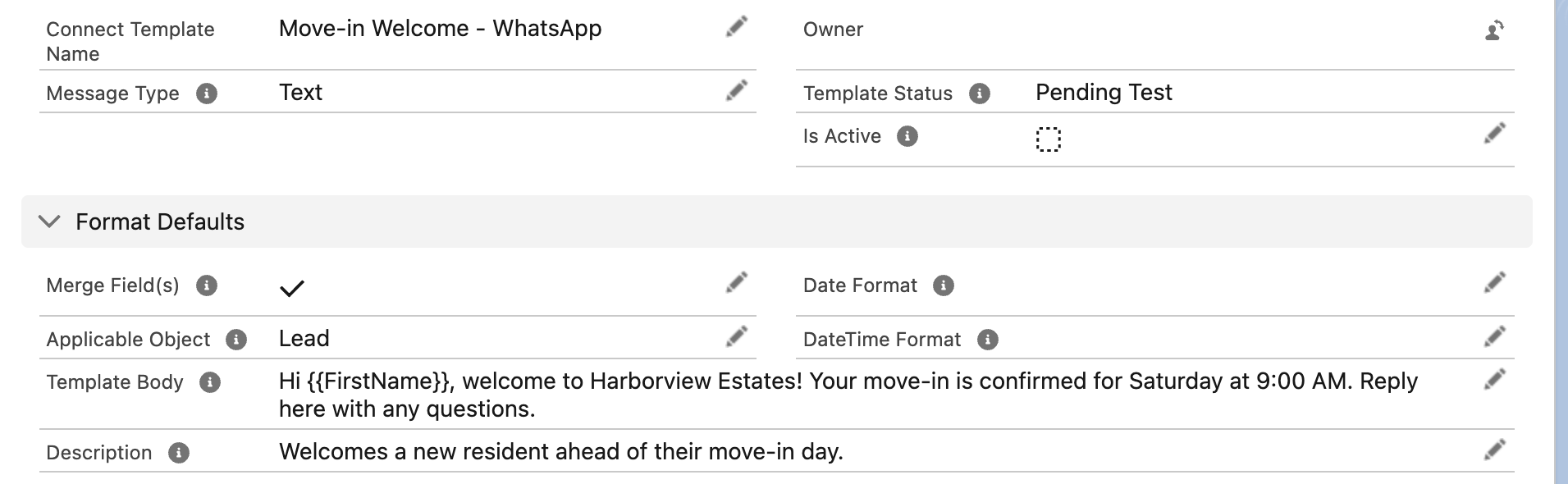
{{FirstName}} — the field's own API name, with no object prefix — and Applicable Object names the object those fields resolve against.Which message types work on which channel
The Message Type picklist shows more values than you can actually send, because the same list also classifies incoming messages. For templates, choose from these:
| Message Type | SMS | Template Body carries | |
|---|---|---|---|
| Text | ✔ | ✔ (the only SMS type) | The message text, merge fields allowed |
| Image | ✔ | ✘ | The public web address of the image file |
| Document | ✔ | ✘ | The public web address of the document file |
| Video | ✔ | ✘ | The public web address of the video file |
| Location | ✔ | ✘ | Location payload |
| Interactive - Button | ✔ | ✘ | The question plus tappable button choices |
| Interactive - List | ✔ | ✘ | The question plus a tappable list of options |
| WhatsApp Template | ✔ | ✘ | A reference to a Meta-approved template — see WhatsApp message templates and Meta approval |
Do not build templates with the remaining picklist values (Voice, Audio, Sticker, Reaction) — those exist to label incoming messages and cannot be sent as templates. A non-Text template attached to an SMS send fails with 4. Message type not supported for SMS.
Step 3 — Save
Click Save.
Expected result: the record saves and Template Status shows Pending Test.

Worked example
A text template for confirming property viewings to Contacts:
- Connect Template Name:
Viewing Confirmation - EN - Message Type:
Text - Applicable Object:
Contact - Merge Field(s): ticked
- Template Body:
Dear {{FirstName}}, your viewing with {{Owner.Name}} is confirmed. Reply here if you need to reschedule.
After a successful test and activation, an agent sending it to the contact Maria Silva (owner Alex Chen) delivers:
Dear Maria, your viewing with Alex Chen is confirmed. Reply here if you need to reschedule.
Troubleshooting
| Symptom | Cause | Fix |
|---|---|---|
Template Body - Please provide value. on save | Body left empty | Enter the message text (or the file's public web address for media types) |
If merge fields are provided in the template body the "Applicable Object" must be provided. | Merge Field(s) ticked with no Applicable Object | Enter the object's API name exactly as it appears in Setup → Object Manager |
Only inactive templates can be updated. Please use the "Deactivate Template" button to deactivate the template prior to making any changes. | Editing an Active template | Deactivate first — see Testing and activating a template |
Sent message shows Bad Request - Unable to generate request body. in its Error Message | The template uses a message type that cannot be sent outbound | Rebuild the template with a supported type from the table above |
FAQ
Yes — open it and use Salesforce's standard Clone if your admin has exposed it, or create a new record and paste the body. The clone starts untested (test and activate it separately).
The field accepts up to 12,000 characters. Practical limits are lower: an SMS over 160 characters is split into multiple segments by your SMS provider, and WhatsApp has its own per-type limits.
Yes — the body is free text, emoji included. Create one template per language and put the language in the name (Viewing Confirmation - PT).
The same Message Type list labels incoming messages, which can be stickers or reactions. Those types can't be composed as templates.
Where to go next
- Using merge fields — the syntax, the Applicable Object rule, and the checkbox trap.
- Testing and activating a template — take this draft live.