
The feed in the utility bar
The utility bar is the strip along the bottom of a Lightning app — click an item there and a small panel pops up over whatever you're doing, without leaving the page. Putting the Connect Feed in the utility bar gives agents a messaging panel that is one click away on every screen of the app: they can work a Case, an Opportunity, anything, and still watch conversations. The REDA Connect app ships with the feed already docked; this article shows how it behaves there and how to add it to any other app.
- To edit an app's utility bar you need the Customize Application permission (included in System Administrator).
- Users need a REDA Connect permission set — Giving your team access.
- The utility bar is a desktop feature; in the Salesforce mobile app, use the Connect Feed tab instead.
What you get out of the box
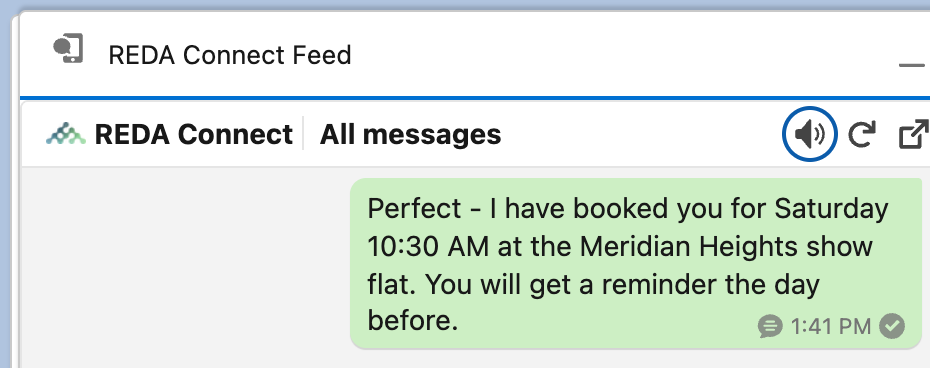
In the REDA Connect app the utility bar already contains an item labelled REDA Connect Feed. Clicking it opens a docked panel (about 500 pixels wide and 550 tall) with the feed inside. The panel does not load in the background — the feed starts the first time the user clicks the item, which keeps the app fast for users who don't message.
Adding the feed to another app's utility bar
- Go to Setup, type
App Managerin the Quick Find box, and click App Manager. - Find your app (for example your Sales or Service app), click the row's dropdown arrow (far right) and choose Edit.
- In the app settings navigation, click Utility Items (Desktop Only).
- Click Add Utility Item and pick REDA Connect Feed from the list (search for
REDA). If your org upgraded from an earlier version you may also see a REDA Connect Feed Utility Bar (Deprecated) entry — that is the previous Connect Feed; pick the one without "(Deprecated)". - Set the utility item properties: the Label users see on the bar, an icon, and the Panel Width / Panel Height. A width around 500 and height around 550 matches the packaged setup and works well.
- Click Save.
Expected result: users of that app see the item on the utility bar at the bottom; clicking it opens the feed panel.
How the feed behaves in the docked panel
The panel is deliberately compact, so the feed adapts:
- Single pane. In a narrow panel the feed works like it does on a phone: one pane at a time, with a back chevron in the header to move between the conversation list and an open conversation.
- One configuration property. In the utility bar the feed exposes a single App Builder-style property: Hide conversation list. It ships on, so the panel opens straight into the all-messages stream. Turn it off (in the utility item's component properties) if you want agents to navigate list-first inside the panel. There are no height properties here — the feed simply fills the panel you sized in Step 5.
- Not scoped to the open record. The docked panel shows the global feed — it does not follow the record the agent happens to have open. For a record-scoped feed, place it on the record page.
- Pop-out. Compact placements show a pop-out icon in the feed header; it opens the selected conversation full-page in the Connect Feed tab.
- Live updates work the same. The feed refreshes itself every few seconds while the browser tab is visible — including while the panel is docked. The incoming-message tone follows the user's toggle as everywhere else.
Troubleshooting
| Symptom | Cause | Fix |
|---|---|---|
| The utility item is missing for some users | They're not using the app you edited, or lack a REDA Connect permission set | Confirm the app and assign a permission set |
| The panel opens empty on first click, then fills | The feed loads on first open by design | Expected — it takes a moment the first time |
| Two feed-like utility components to choose from | Upgraded org — one is the previous feed | Add the plain REDA Connect Feed, not the "(Deprecated)" one |
| No utility bar on mobile | Utility bars are desktop-only in Salesforce | Use the Connect Feed tab in the mobile app |
FAQ
The utility panel is a global feed — it doesn't track the record behind it. Agents pick the conversation from the list (or your admin places the feed on the record page for that behaviour).
The packaged item loads on first click. When adding the feed to your own app you can tick the utility item's background-load option in App Manager if you prefer it warmed up — the trade-off is app start-up work for every user, messaging or not.
The docked feed keeps refreshing while the browser tab is visible, whether the panel is popped open or collapsed — so yes, with the tone turned on, agents hear new inbound messages arrive. See Receiving and replying.
Where to go next
- Adding the feed to a record page — the record-scoped placement.
- The Connect Feed tab — the full-page global inbox the pop-out opens into.
- Using the Connect Feed — the guided tour for your agents.