
Configuring messaging on any object
Nothing about REDA Connect is limited to Contacts and Leads. Any object whose records relate to a person you can text — a custom Booking, Property Inquiry, Case, or anything else — can carry a Connect Feed and its own conversations. The recipe is the same one used for Contacts and Leads: create one object configuration per channel under your Connect Account, pointing at the object's phone and name fields. The only new work is looking up your object's system name first.
This walkthrough uses a realistic example: a custom Booking object where each booking record stores the guest's name in Guest Name and their mobile number in Guest Phone.
- An active Connect Account with a verified channel.
- The Contacts-and-Leads walkthrough is worth reading first even if you skip the setup — it explains each field in depth: Configuring Contacts and Leads.
- Phone values on the object stored digits-only in full international format — see How to enter phone numbers.
Step 1 — Find the object's API name
The configuration identifies your object by its API name — simply the object's system name, which for custom objects differs from its display label (it ends in __c). This is admin-facing information Salesforce shows you directly:
- Click the gear icon (top right) and choose Setup.
- Open Object Manager (the tab next to Home in Setup).
- Find your object in the list — the API Name column shows the value you need. For our example, the label Booking has the API name
Booking__c.
Expected result: you have the exact API name noted, including the __c ending and any prefix.
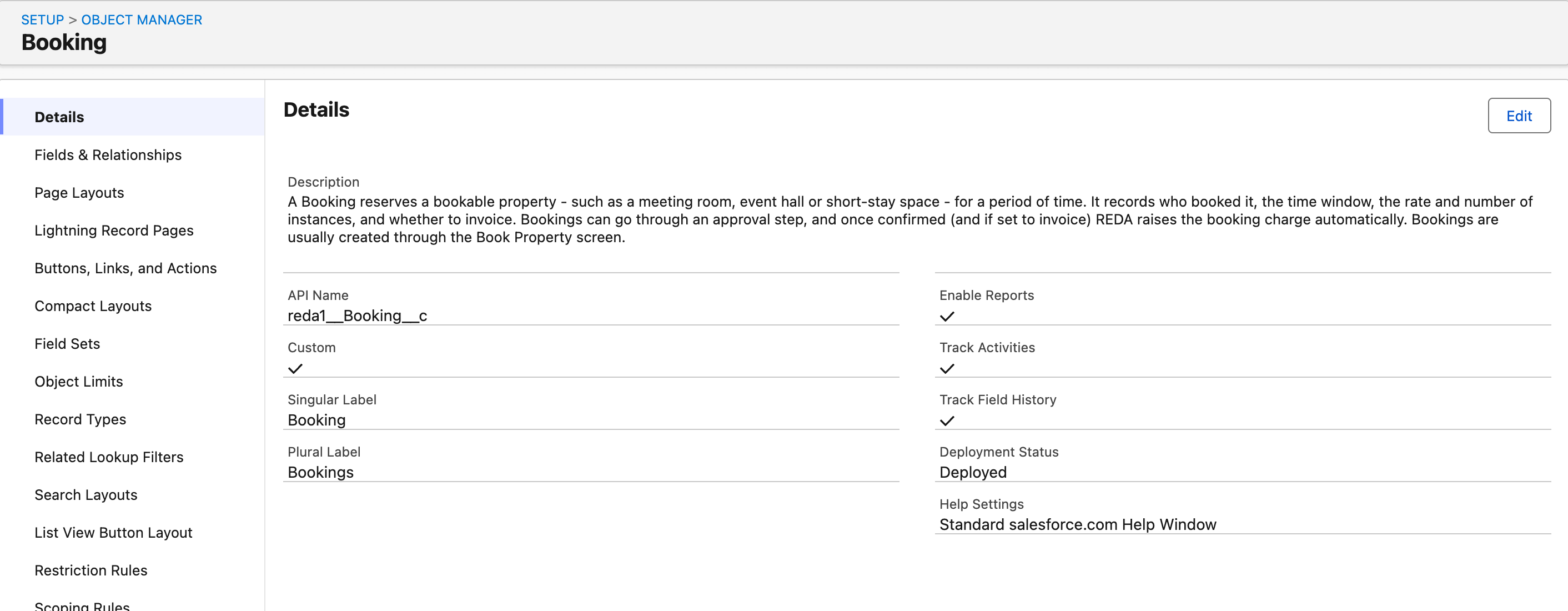
Booking) and the API Name (reda1__Booking__c) together — the object configuration needs the API name, not the label.Step 2 — Find the phone and name field API names
Still in Object Manager:
- Click your object, then Fields & Relationships.
- Note the Field Name (the API name) of the field that holds the phone number — for our example, Guest Phone is
Guest_Phone__c. - Note the API name of the field that should appear as the person's name in the feed — Guest Name is
Guest_Name__c. If your object's standard Name field is the right label, useName.
What if the object has no phone field? Two options:
- The phone number genuinely belongs on this object (e.g. the guest's number is entered per booking) → create a Phone-type field on the object, then continue here.
- The phone number really lives on a related record — for example the Booking looks up to a Contact who owns the number → don't duplicate the number. Use the related-record setup instead: Messaging through related records.
Step 3 — Create the configuration
- Open the REDA Connect app → Connect Accounts tab → your account.
- In the Connect Account Configs related list, click New.
- Fill in:
| Field | Enter (example) | Notes |
|---|---|---|
| Connect Account Config Name | Booking - WhatsApp | <Object> - <Channel> keeps things readable |
| Communication Channel | One channel per configuration | |
| Description | Bookings on WhatsApp via Guest Phone | Required field |
| Object API Name | Booking__c | From Step 1 — exact, including __c |
| Name Field API Name | Guest_Name__c | From Step 2 |
| Channel Identity Field | Guest_Phone__c | From Step 2 |
| Priority Order | 3 | Where this object sits in the incoming-message search order — "1" is the highest priority. See inbound record matching before picking |
| Is Active | Ticked | Default |
- Click Save, then repeat for SMS if the object should message on that channel too.
Expected result: the configuration is listed under the account. Remember the product's rule for the Object API Name field: "You must define only one setup for one type of sObject for a communication channel" — exactly one configuration per object per channel.
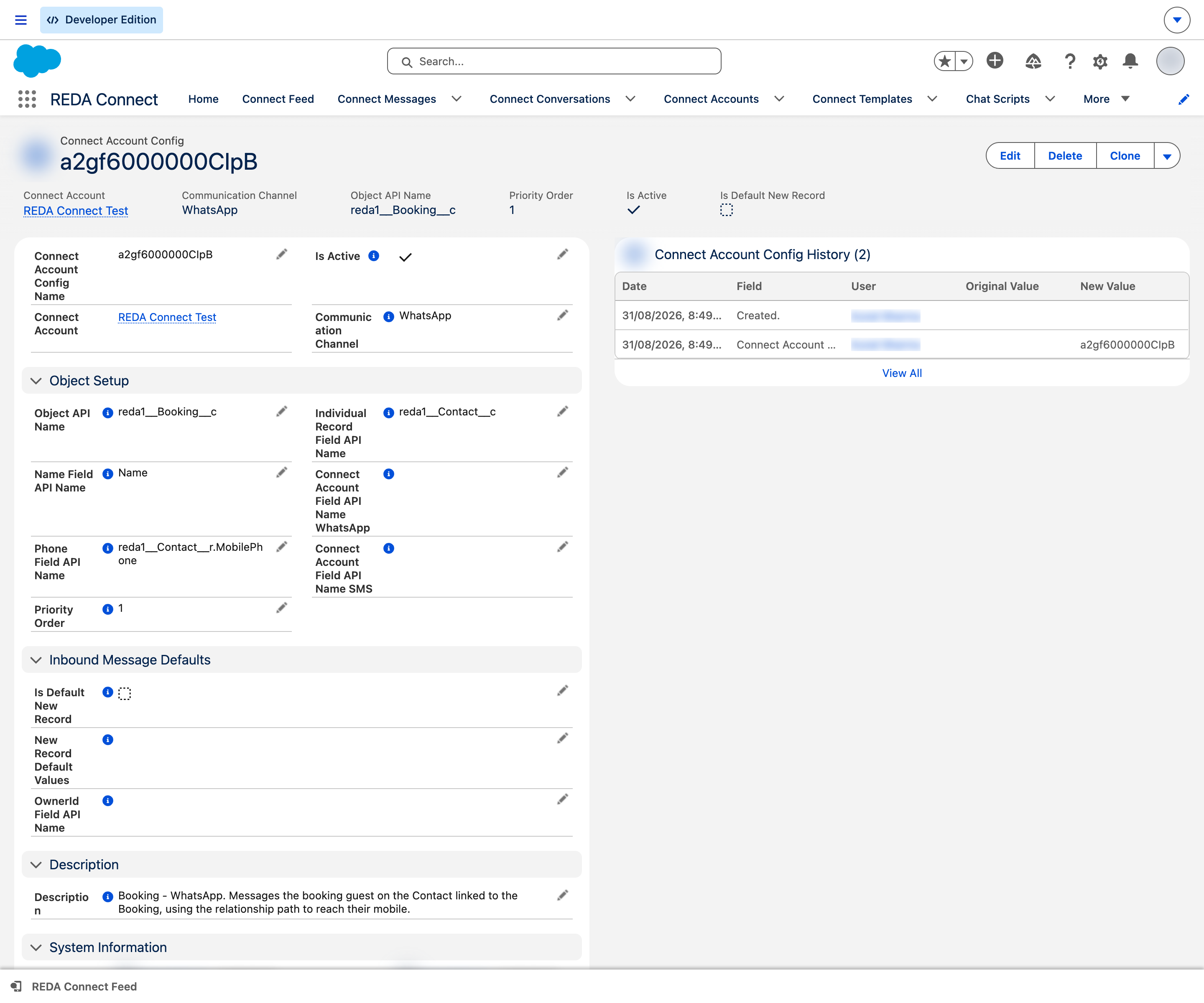
Step 4 — Add the feed to the object's record page
The configuration alone doesn't change the object's page. Add the Connect Feed component to the Booking record page in Lightning App Builder — the click-by-click is in Adding the feed to a record page, and it works the same for custom objects as for standard ones.
Step 5 — Verify
- Open a Booking record whose Guest Phone holds your own number, digits-only international.
- Send a message from its Connect Feed. Expected result: it arrives on your phone.
- Reply from your phone. Expected result: the reply appears in the same Booking's feed — provided the Booking's priority position means it wins the match for that number (details in inbound record matching).
Troubleshooting
| Symptom | Cause | Fix |
|---|---|---|
| Feed shows "Sobject setup is not found." | Object API Name doesn't exactly match the object's API name, or the configuration is inactive | Re-copy the API name from Object Manager; confirm Is Active |
| Feed sends but shows no name in the conversation header | Name Field API Name points at a wrong or empty field | Verify the field API name and that records hold a value |
| Replies land on a Contact instead of the Booking | A higher-priority configuration (e.g. Contact at priority 1) matched the same number first | Deliberate priority design — see inbound record matching; or use the related-record setup if the Contact relationship is intentional |
| Record has no phone field and you can't add one | Number lives on a related record | Use Messaging through related records |
FAQ
Yes — the recipe is identical. Standard objects' API names don't end in __c (Case is just Case). Note that Case and Opportunity usually have no phone field of their own, which makes them the classic candidates for the related-record setup.
There's no fixed cap, but every active configuration adds one search step to every incoming message on that account and channel. Keep the list to the handful of objects you genuinely message on.
When a message is filed against a Contact or Lead (directly or via the related-record setup), REDA Connect links it to that Contact/Lead record. Messages filed purely against other objects don't get those links — one consequence is that the built-in opt-out fields, which live on Contact and Lead, don't apply to them. See Messaging compliance.
The picklist lets you, but don't — give every configuration on an account/channel a distinct priority so the incoming-message search order is unambiguous.
Where to go next
- Adding the feed to a record page — the other half of putting messaging on your object.
- Messaging through related records — when the phone number lives one lookup away.
- How incoming messages find their record — choose priorities with the full picture.