
Receiving and replying
When a customer messages you, the message lands in Salesforce and appears in the Connect Feed — usually within a few seconds of arriving. This article covers the receiving side of the feed: how new messages show up, the unresponded indicator that keeps the team honest about what's been handled, the optional notification tone, and how each incoming message finds the right record.
- Incoming messages require the one-time public Site setup — see Creating the public Site for incoming messages. If customers' messages never arrive at all, start there.
How incoming messages appear
While the feed is open and its browser tab visible, it checks for new messages every few seconds. A new incoming message:
- appears at the bottom of the conversation's stream (the view scrolls down for you if you were already reading at the bottom — it never yanks you away from older messages you're reading),
- moves the conversation to the top of the conversation list, with the preview updated,
- adds to the conversation's unresponded badge (below),
- plays a tone, if you have it turned on (below).
If your browser tab was hidden — you were in another tab or app — the feed pauses and catches up the moment you return. Messages arrive in Salesforce regardless; the feed just shows them when you're looking. See Using the Connect Feed for the refresh behaviour in full.
The unresponded indicator
Every incoming message starts as unresponded. Two places show it:
- On the conversation row: a badge with the count of incoming messages nobody has responded to. No badge means nothing is waiting.
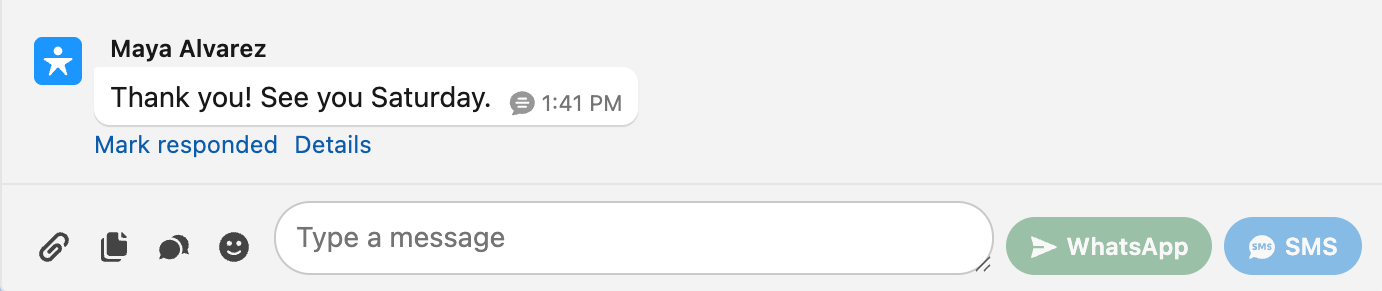
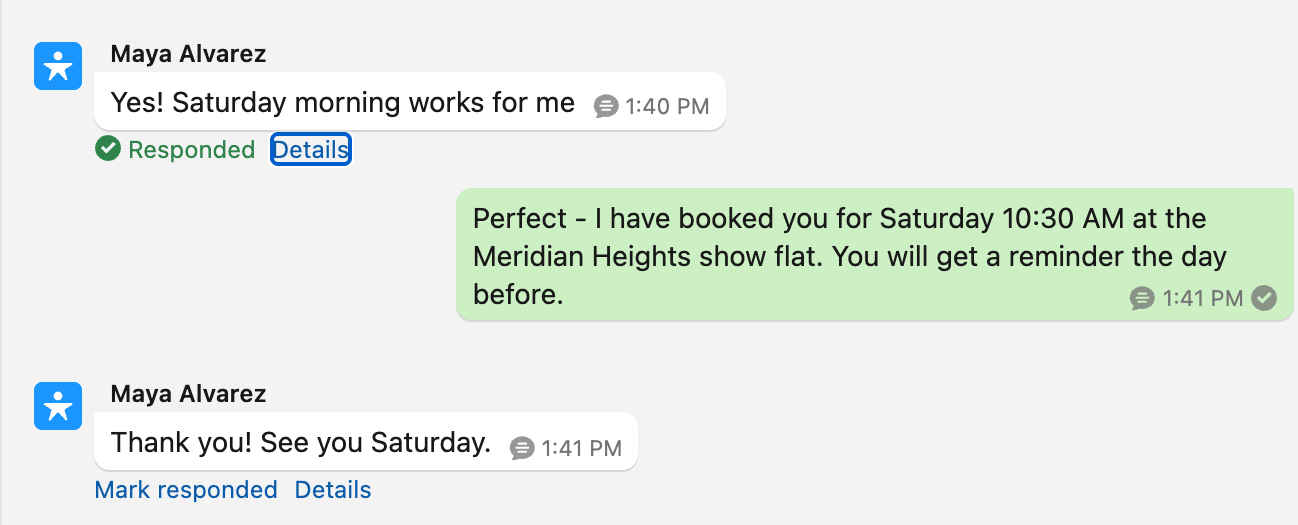
- Under each incoming bubble: a Mark responded button. Once handled, it becomes a green Responded indicator.
There are two ways a message becomes responded:
- Reply to it. Sending a message on the same channel to the same record automatically marks the earlier incoming messages on that record as responded. Note it is channel-specific: a WhatsApp reply clears WhatsApp unresponded messages, not SMS ones (and the other way around) — if a customer uses both channels, each channel's thread is tracked separately.
- Click "Mark responded". For messages that need no reply (a "thanks!", an opt-out confirmation), click the button under the bubble. It takes effect immediately.
Filtering the whole feed down to just the waiting items is one toggle — Show Unresponded Messages Only in the filter panel; see Finding messages.
The incoming-message tone
The feed can play a short tone when a new incoming message arrives. It is a per-user setting with a one-click toggle: the volume icon in the feed header. Click it to switch the tone on or off — the choice is saved immediately as your default, on every feed placement, with no further confirmation. Hover the icon to check the current state ("Inbound message tone is on. Click to mute." / "Inbound message tone is off. Click to unmute.").
Details worth knowing:
- The tone plays only for new incoming messages that arrive while the feed is open — opening a busy conversation does not fire a burst of sounds for old messages.
- Browsers block sound from pages you haven't interacted with yet. If the very first message after opening the page is silent, click anywhere in the feed once — that is standard browser behaviour, not a fault.
- Nothing plays while the browser tab is hidden (the feed is paused then).
Landing on the right record
You never file incoming messages by hand. REDA Connect matches the sender's phone number against the objects and fields your administrator configured, and attaches the message to the matching record — that's why the conversation appears on the right Contact, Lead, Booking or other record. When no record matches, the message still arrives and is visible in the global feed (the Connect Feed tab), just without a record behind it — or, if configured, a new record is created automatically for the unknown number.
How matching works, in what order, and the rules phone numbers must follow are covered in How inbound messages find their record and Automatically creating records.
FAQ
Typically within a few seconds while the feed is open and visible. The feed checks on a short cycle rather than being pushed instantly — see Using the Connect Feed.
No — responded tracking is per channel. A WhatsApp reply marks the record's WhatsApp inbound messages responded; SMS messages need an SMS reply or a manual Mark responded.
No — once responded (by reply or by click), the indicator stays. Use it as "someone has dealt with this".
Check, in order: the volume icon in the header (is the tone on?), whether the browser tab was hidden at the time, and whether you had interacted with the page since opening it (browser autoplay rules). If messages themselves are missing, that's a different problem — see An incoming message didn't arrive.
Where to go next
- How inbound messages find their record — the matching rules behind the routing.
- Files your customers send — pictures, documents and voice notes on the receiving side.
- Finding messages — work the queue with the unresponded filter.