
Tuning the Connect Feed for busy orgs
As messaging volume grows, the Connect Feed's defaults may load more history than your team needs — or less than they want. The current Connect Feed reads exactly four org-wide settings, all in the REDA Connect Config area of Setup: the conversation-list window, the message load batch size, the conversation load batch size, and the timestamp display format. This article explains what each one really changes, gives sensible values by volume, and — just as important — names the settings that look like feed knobs but only affect the previous (deprecated) Connect Feed.
- You need permission to manage Setup (the System Administrator profile, or the Customize Application permission).
- Read Global settings first if you have never opened the REDA Connect Config area — it explains what Custom Metadata is and how to edit a record.
- All values here are org-wide and take effect immediately for every user.
Where these settings live
Go to Setup → Custom Metadata Types → REDA Connect Config → Manage Records. Identify each record by its Key field, click it, click Edit, change the Value, and Save.
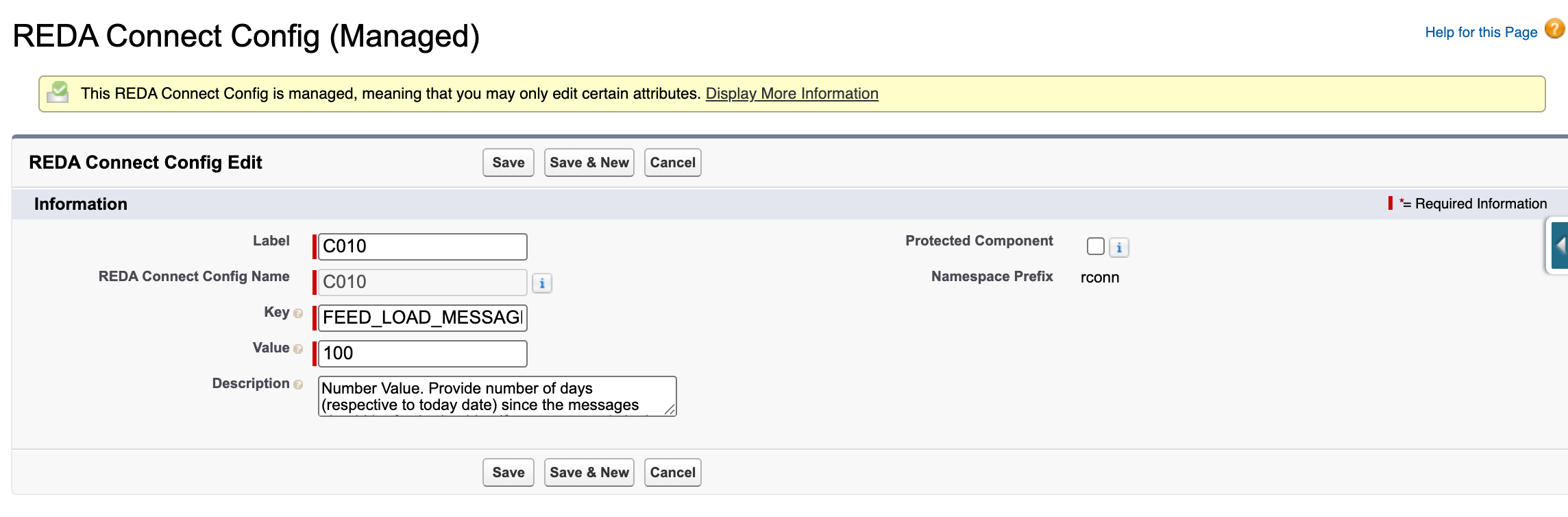
The four settings the current feed reads
FEED_LOAD_MESSAGE_DAYS — the conversation-list window (shipped value: 100)
How many days back the feed looks when building the conversation list — the left-hand list of people and records. A conversation whose most recent message is older than this many days drops off the list.
Two things this setting does not do:
- It does not delete or hide the messages themselves. Opening the record's own page (or a saved link to the conversation) still shows the full history.
- It does not limit how far back a user can scroll inside an open conversation — scrolling loads older messages regardless of the window.
When a user's filters land on an empty view because everything is older than the window, the feed says so explicitly: "Nothing in the current time range", with a note that an administrator can widen the range in REDA Connect settings — this is the setting it means.
FEED_MESSAGES_LOAD_INCREMENT — messages per batch (shipped value: 10)
How many messages the feed loads at a time: the first screenful of a conversation, and each additional batch as the user scrolls back through history. Minimum 10. Values above 100 are treated as 100.
Larger values mean fewer loads while reading history but a slightly heavier initial open; smaller values open conversations fastest.
PARENT_RECORDS_MAX_LOAD — conversations per batch (shipped value: 100)
How many conversations the list loads at a time; the Load more conversations button fetches the next batch. Values above 200 are treated as 200.
DEFAULT_DATETIME_FORMAT — timestamp display (shipped value: d MMM,yy h:mm aaa)
Not a performance setting, but the fourth value the feed reads: the format used for the timestamps in a message's Details panel whenever the Connect Account has no Default Date Time Format of its own. It uses Java-style date patterns; see Global settings for the pattern notation and a worked example.
Recommended values by volume
These are starting points, not rules — adjust to what your team actually reads.
| Setting | Low volume (a few conversations a day) | Medium (busy team) | High (large team, thousands of messages) |
|---|---|---|---|
FEED_LOAD_MESSAGE_DAYS | 180–365 — keep slow-moving conversations visible | 100 (shipped) | 30–60 — keep the list focused on live conversations |
FEED_MESSAGES_LOAD_INCREMENT | 10 (shipped) | 25 | 25–50 — fewer round trips when agents review long threads |
PARENT_RECORDS_MAX_LOAD | 50 | 100 (shipped) | 100–200 |
The general trade-off: a wider window and bigger batches show more at once but make each load heavier; a narrower window and smaller batches keep every load snappy at the cost of more "load more" clicks. For high-volume orgs, narrowing FEED_LOAD_MESSAGE_DAYS is the change users feel most, because it directly shrinks the work of building the conversation list.
Settings that do NOT affect the current feed
The REDA Connect Config list contains four older feed settings — GLOBAL_FEED_MESSAGE_LIMIT, RECORD_FEED_MESSAGE_LIMIT, FILTERED_FEED_MESSAGE_LIMIT and FEED_LOAD_RECORD_PANE_ONLY. They apply only to the previous Connect Feed (the one now labelled "Connect Feed (Deprecated)") and have no effect on the current feed. If the feed feels slow, changing them will change nothing — tune the four settings above instead.
How the feed refreshes — what an admin should know
There is nothing to configure for live updates, and no streaming or connection setup — the current Connect Feed keeps itself up to date automatically:
- The feed checks for new messages every few seconds. With a conversation open, new inbound messages typically appear within about 3 seconds; on the all-messages view, within about 10 seconds. During quiet spells it checks less often (up to roughly half a minute between checks) and speeds back up as soon as something arrives.
- Hidden browser tabs pause entirely. A feed in a background tab stops checking, and catches up the moment the user returns to the tab. This is deliberate — it saves load — but it means "the feed didn't update" reports from users who tabbed away are expected behaviour, not a fault. The alert tone (see User preferences) also only plays when a check delivers a new inbound message.
- The Refresh button in the feed header forces an immediate check, and a message an agent sends appears in the stream instantly without waiting for one.
Troubleshooting
| Symptom | Cause | Fix |
|---|---|---|
| "Nothing in the current time range" in the feed | All messages in that view are older than FEED_LOAD_MESSAGE_DAYS | Widen the window, or open the conversation from the record's page |
| I set a big number and the feed ignores it | Batch sizes have upper bounds: 100 messages, 200 conversations per batch | Use values at or below the bounds |
| Feed didn't update while I was in another tab | Refresh pauses in hidden browser tabs by design | Return to the tab — it catches up immediately — or click Refresh |
| Tuning the "…Feed Message Limit" settings changed nothing | Those apply only to the previous (deprecated) Connect Feed | Tune the four settings in this article instead |
FAQ
No deployment is needed. The next time a user opens or reloads the feed, the new values are in effect.
No — these settings are org-wide. There is no per-profile or per-user override for feed tuning; the only per-user settings are the four preference fields in User preferences.
No. Only the conversation list is windowed. The messages stay on the records and remain fully visible on the record's page feed, in reports, and in the Connect Messages list views.
No. The current feed refreshes itself on the cadence described above, on every surface it runs on (full tab, record page, utility bar, and the Salesforce mobile app), with no connection settings to maintain.
Where to go next
- Global settings — the full REDA Connect Config record list, including the date formats.
- Using the Connect Feed — the feed from the agent's point of view.
- Adding the feed to a record page — placement and per-page height options, which are set in Lightning App Builder rather than here.