
Finding messages
A busy feed needs narrowing. The Connect Feed gives you two tools: the filter panel (the funnel icon in the header) with seven filters over the message stream, and the Search conversations box above the conversation list. This article covers both — including the honest fine print about what each search actually looks through, so you're never surprised by a "missing" result.
The filter panel — seven filters
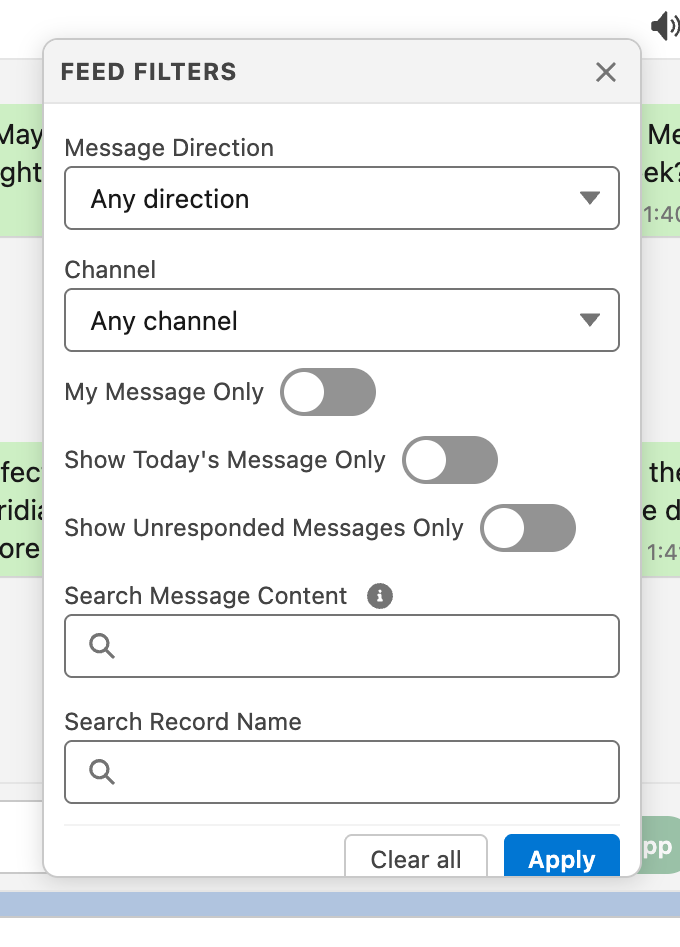
Click the funnel icon in the feed header. A panel opens with:
| Filter | Options / input | What it narrows to |
|---|---|---|
| Direction | Any direction / Inbound / Outbound | Messages received, or sent |
| Channel | Any channel / WhatsApp / SMS / Facebook Messenger / Instagram | One channel only |
| My Message Only | toggle | Messages owned by you |
| Show Today's Message Only | toggle | Messages created today |
| Show Unresponded Messages Only | toggle | Incoming messages nobody has responded to — the work-the-queue filter |
| Search Message Content | text | Messages whose text contains your words (fine print below) |
| Search Record Name | text | Messages whose record name — or the sender's WhatsApp profile name — contains your words |
Nothing changes while you tick and type — the stream updates when you click Apply. Clear all resets the panel. The funnel icon stays highlighted whenever any filter is active, so a "where did my messages go?" moment is usually a leftover filter.
Filter chips — remove one at a time
Applied filters appear as chips under the header, one per filter. Click a chip's X to remove exactly that filter — the feed re-fetches immediately with the rest still applied. You don't need to reopen the panel to unwind filters one by one.

What "Search Message Content" actually searches
The filter panel says it plainly: "Searches the readable message text and interactive reply titles. Captions inside media payloads are not searchable." In practice:
- It finds words in ordinary text messages and in the option a customer chose from your buttons or lists.
- It does not find text that travelled inside a media message — a caption on a photo the customer sent, or text inside a document. Search for the conversation instead and scroll.
- The match is case-insensitive and matches anywhere in the text.
Searching conversations
The Search conversations box sits above the conversation list and narrows the list (not the messages) by record name as you type.
One behaviour to know: the search matches the conversations currently loaded — the list loads in pages, newest activity first. If the conversation you want is older than what's loaded, click Load more conversations and the search keeps matching as further pages load. So a no-result moment on a search you're sure about usually means "not loaded yet", not "not there" — load more, or use the Search Record Name filter, which searches messages server-side across the whole window.
Also remember the list only covers the recent time window (100 days unless your administrator changed it) — see Using the Connect Feed.
A note on "My Messages" as a default
Your user preference can pre-apply a my-messages-only view when the feed first opens (see User preferences). That default applies to the initial view only — no chip is shown for it, and as soon as you apply any filter, open a conversation or refresh, you are back to the unfiltered view unless you set My Message Only in the filter panel yourself. If you work exclusively from your own messages, set the filter explicitly.
FAQ
Check the funnel icon — if it's highlighted, filters are active. The feed also says so: "No matches" with "Try clearing or widening the filters." Click Clear all.
Captions travel inside the media message and are not searchable — the filter panel's help text states this. Open the conversation and scroll instead.
The box above the list narrows the conversation list and only matches what's currently loaded; Search Record Name in the filter panel searches messages across the whole feed window, including by the sender's profile name.
No — filters reset when the feed reloads. The only carry-over is the My Messages initial-view preference described above.
Where to go next
- Receiving and replying — pair the unresponded filter with the responded workflow.
- User preferences — the My Messages default and the tone setting.
- Using the Connect Feed — the time window that bounds the conversation list.