
Moving WhatsApp from testing to production
Move to your intended business number only after the Meta and Salesforce connection has been tested. Production readiness includes the number, business account, credentials, app publication, customer messaging rules and the team's real workflow.
1. Confirm the number's onboarding route
Choose a number the business controls and can verify through Meta's offered method. If it is already used by another provider or WhatsApp app, agree the supported migration/onboarding route with the owner first. The standard Cloud API setup described here is not a separate coexistence onboarding implementation. Do not delete an existing account or interrupt a working number simply to make a test wizard continue.
2. Register and verify the production number
- Open the correct Meta app's WhatsApp use case → Basic setup → Step 2. Production setup.
- Expand Register your WhatsApp phone number and follow the current account/number registration steps.
- Supply the business/display information and complete number ownership verification as prompted.
- Confirm the production number's status in WhatsApp Manager. Record its visible number, Phone Number ID and WABA ID.
- Review Add payment to send business-initiated messages and complete the billing setup required for your use.
Expected result: the intended business number is registered to the correct WhatsApp account and is ready for the intended messaging use. A pending display-name or account review should be read in Meta's own status screen.
3. Complete applicable business verification
Use Step 3. Business verification in the WhatsApp use case and the portfolio's verification area. Enter the legal business details and documents Meta requests. Check the status rather than assuming verification is complete because a test message worked.
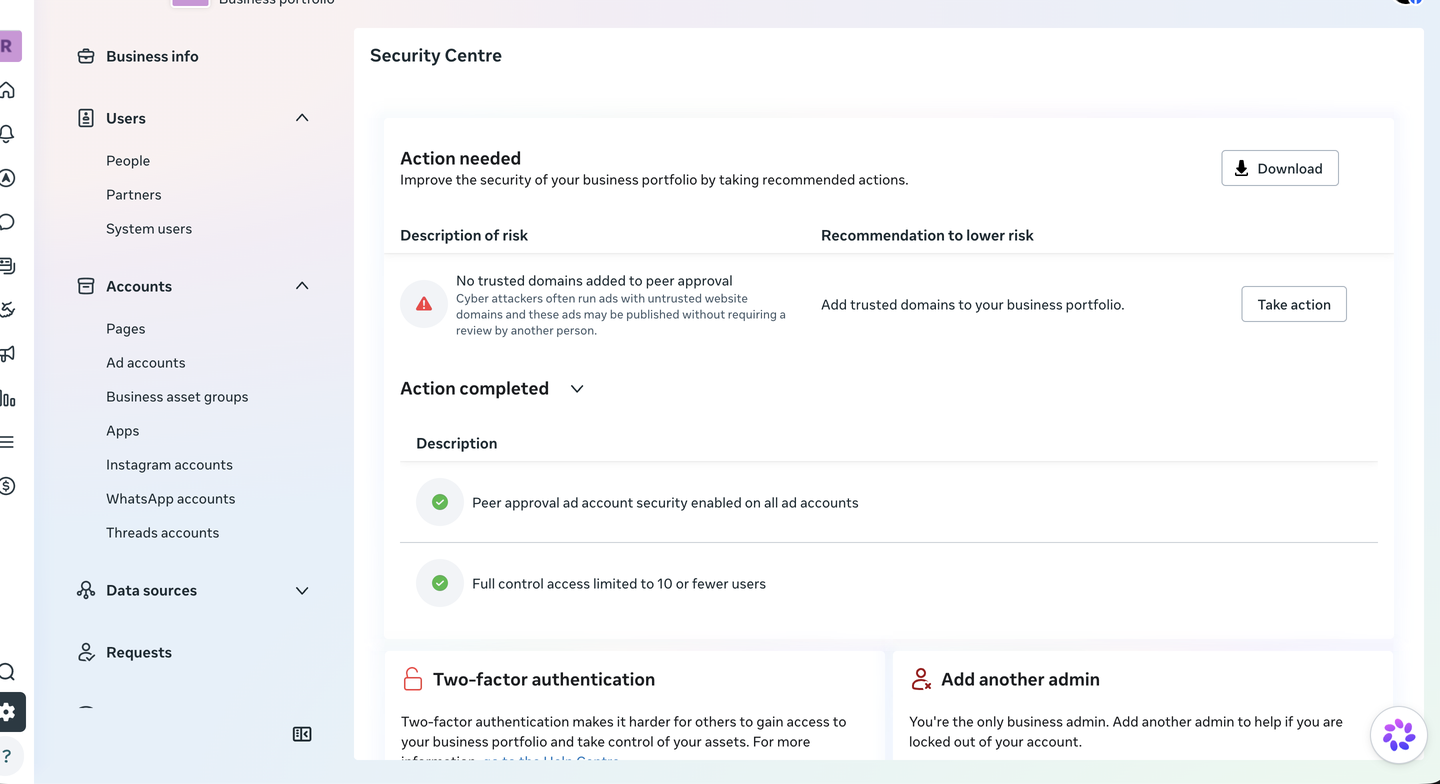
Review messaging limits, quality status and current pricing in WhatsApp Manager and Meta's pricing guidance. Do not treat a test-number allowance or an old published limit as your production entitlement.
4. Publish the app when its requirements are complete
In Meta for Developers, open Publish and complete the displayed requirements. Supply the requested app details, policy links, business verification and review evidence where applicable. The requirements depend on the app's use cases and whether it accesses assets belonging to other businesses.
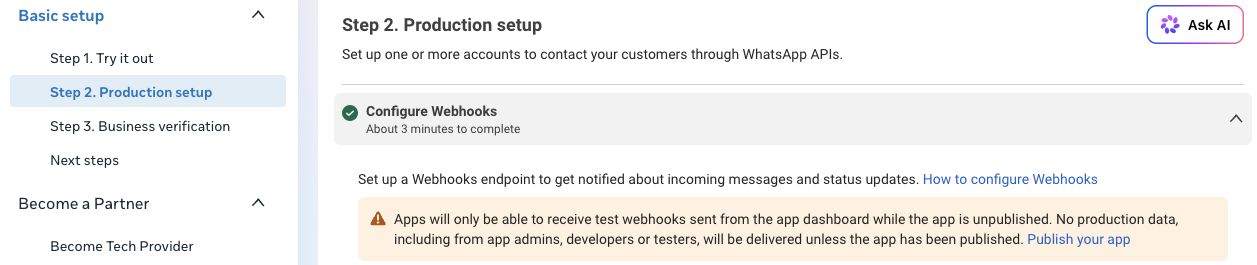
Do not generalize Messenger's development-role testing behavior to WhatsApp. Meta's current WhatsApp warning explicitly includes app administrators, developers and testers among the production data withheld while unpublished.
5. Configure the production Salesforce account
- Use the intended production Connect Account. A separate test account can be retained where your environment/routing design needs it.
- Enter the production number and its matching Number ID/WABA ID; confirm the correct Meta App Id.
- Use Set Up WhatsApp → Save Token with the credential that has access to the production WABA.
- Confirm the public Site destination and use Connect Webhooks. Review any existing destination or WABA override before replacement.
- Confirm the account's active WhatsApp configuration rows, default record creation, opt-in/out keywords and intended file setting.
- Activate the account/channel and click Check again.
Do not assume an upgrade places the new fields/actions on every customer layout. Use the field and layout checklist.
6. Prepare approved templates
For messages initiated outside the customer-service window, create and obtain Meta approval for the needed templates. Use Sync WhatsApp Templates on the correct Connect Account, review the synchronized records, supply recipient-specific parameters, test and activate them. Follow the complete template guide.
7. Run the production acceptance test
With agreed participants, repeat incoming text, Salesforce reply, receipts and required file checks on the production number. Use an actual agent role and the intended page/feed, and verify the expected record matching and consent workflow. Check at least one intended approved template from the correct account.
Keep the test results, account owner and credential-maintenance responsibilities with your implementation records. Resolve a concrete failed step through the troubleshooting guide before announcing that channel as available.