
Winter 2026 release and upgrade guide
REDA Connect 1.94000 — Winter 2026, released on 10 October 2026, adds Facebook Messenger and Instagram to the existing WhatsApp and SMS workspace. This guide explains what changes for your team and what an administrator should configure after installation.
Messenger and Instagram in Connect Feed
Receive customer messages and reply from Connect Feed, with channel labels and filters that help agents distinguish conversations. REDA Connect supports custom objects through Connect Account Config. Lead and Contact include ready-made social identity and opt-out fields; they are not the only objects you can configure.
For a new sender, the account's configuration determines where to create the record and how to store the scoped channel identity and available profile information. Instagram also provides username and profile URL placeholders when that information is available. A profile lookup that cannot return a name uses the channel fallback.
Messenger and Instagram text replies follow Meta's 24-hour customer reply window. Outgoing results show Sent or Failed, with the error when a send is refused. The existing Allow Document Sharing account setting enables supported file controls. These two channels have a 4.4 MB application limit; the Instagram picker offers JPEG/PNG and PDF. Check the final result of an attachment send and verify the types your team intends to use with Meta.
Text-only templates and chat-script steps can be used within the reply window. This release does not add Meta bulk messaging, structured templates or media chat-script steps.
Start with the complete Meta setup journey, then follow Messenger setup or Instagram setup.
Setup actions with connection checklists
Connect Accounts provide Set Up Messenger and Instagram, Set Up WhatsApp and Set Up SMS. The Meta and WhatsApp actions explain the current setup checks, save the appropriate credentials and help connect the incoming-message address.
You can save a new Connect Account before selecting its messaging channels, complete the credentials and record-matching configuration, then activate the intended channels. If a webhook points elsewhere, review the displayed destination before choosing replacement. WhatsApp account-specific routing is explained in the webhook guide.
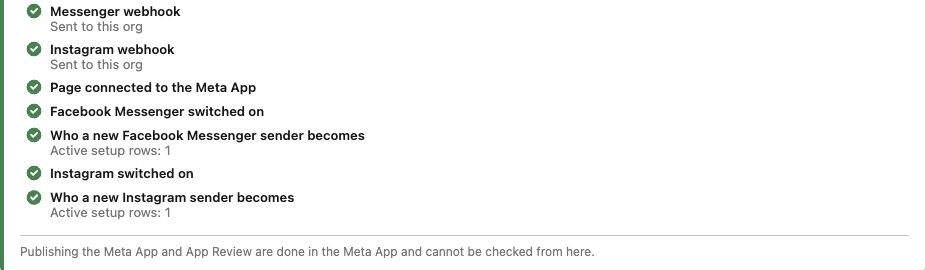
The expanded guides explain Meta Business portfolios, apps, Pages, professional Instagram accounts, WhatsApp business accounts, user/System User/Page tokens and the corresponding Salesforce values. Begin with the overview even if you already use WhatsApp; it explains which setup is shared and which is channel-specific.
Messaging and record-creation improvements
- WhatsApp quick replies: customer taps on template quick-reply buttons are handled as inbound replies.
- Names and merge values: dollar signs and backslashes in sender names and template merge values are treated as literal text.
- Default field mappings: values can contain colons, such as an Instagram profile URL. Review any old WhatsApp/SMS default mapping that contains an additional colon: lines previously ignored by the parser now apply.
- Meta receipt recovery: administrators can replay a retained inbound receipt after correcting the cause, including retrying attachment work that has not completed. See attachment recovery.
Included improvements since the previous main release
Winter 2026 also includes the improvements already delivered in patches 1.93001 and 1.93002:
- Opt-in Connect error notifications for selected users.
- Duplicate inbound WhatsApp prevention, whole-word opt-in/opt-out keyword matching and feed live-update fixes.
- Synchronization of approved WhatsApp templates, association of templates with a Connect Account, and corrected WhatsApp template sending.
- Improved feed image sending, attachment-panel behavior and consistent spacing.
For template setup, use WhatsApp templates: approval and synchronization. Retain your existing configuration when it already meets your business needs.
Administrator upgrade checklist
- Confirm the installed version. In Setup → Installed Packages, check REDA Connect 1.94000. Obtain installation access through REDA support.
- Review assigned layouts. Add the relevant new fields and actions to the layouts your administrators and agents use. Follow the illustrated field-by-field layout checklist; upgrading a package does not ensure the new fields appear on every customized layout.
- Check access. Use the existing REDA Connect Admin, REDA Connect User or REDA Connect User - Read Only tier as appropriate. Review access to any custom object and its mapped fields. Agents do not need credential administration to reply.
- Prepare Meta and credentials. Complete the appropriate app use cases, asset associations and permissions. Follow the token and permission guide.
- Configure the account and objects. Save the Connect Account, run the setup action and add the channel-specific Connect Account Config rows. Set identity fields, matching order and new-record defaults for Lead, Contact or your custom object.
- Connect incoming messages. Verify the public Salesforce Site and use Connect Webhooks. Review any existing destination before replacing it.
- Add the new channel values. Salesforce does not add new picklist values to your org during an upgrade. Add Facebook Messenger, Instagram and Shared Content yourself and check the two channel dependencies, as described in Add the new picklist values below. This step is required in every upgraded org.
- Check Remote Site Settings. The packaged settings are Active. If this version reaches your org through a push upgrade, activate newly delivered Remote Site Settings as Salesforce requires. Do not deactivate the existing settings.
- Complete earlier optional setup. Add Sync WhatsApp Templates and the template fields if adopting synchronization. Opt the intended users into Connect Error Notifications if using those alerts.
- Verify the real workflow. Use agreed test participants for each channel and configured object. Confirm inbound text, the correct record, a reply received in the customer app, and the supported files your team will use. Follow the testing and go-live checklist.
Add the new picklist values
An upgrade installs the new fields, but Salesforce does not add new values to a picklist value set your org already has. REDA Connect 1.94000 needs three new values. Until they exist, Salesforce rejects the Messenger and Instagram messages that use them, because these picklists accept only their defined values. Complete both steps in every org that upgraded to 1.94000. A new installation already includes the values.
| Value set | Label | API name (type it exactly) |
|---|---|---|
| Messaging Channels | Facebook Messenger | Facebook_Messenger |
| Messaging Channels | Instagram | |
| Message Type | Shared Content | Shared_Content |
Step 1: Add any missing value
- In Setup, enter Picklist Value Sets in Quick Find, then select Picklist Value Sets.
- Open Messaging Channels. In the Values list, look for each API name from the table. Skip any value that is already listed.
- Click New. Type each missing API name on its own line, exactly as shown, for example
Facebook_Messenger. Salesforce uses each line as both the label and the API name, and REDA Connect recognises the value by its API name. - Select Add the new picklist values to all Record Types that use this Global Value Set, then click Save.
- Click Edit next to each value you added. Change only the Label to the label in the table, for example Facebook Messenger. Leave the API Name unchanged, then click Save.
- Return to Picklist Value Sets, open Message Type and repeat steps 2 to 5 for
Shared_Content.
Step 2: Check the channel dependencies
On a Connect Message, the Message Type and Status fields offer only the values allowed for the selected Channel. Check that both new channels allow the values below.
- In Setup, open Object Manager, select Connect Message, then Fields & Relationships, then the Channel field.
- Scroll to the Field Dependencies section. It lists Message Type and Status.
- Click Edit next to Message Type. In the Facebook Messenger and Instagram columns, include every value from the table below, then save. Repeat for Status.
| Dependent field | Facebook Messenger | |
|---|---|---|
| Message Type | Text, Image, Document, Location, Interactive - Button, Interactive - List, Audio, Video, Sticker, Reaction, Shared Content | Text, Image, Document, Interactive - Button, Audio, Video, Sticker, Reaction, Shared Content |
| Status | Sent, Delivered, Read, Failed, Received | Sent, Read, Failed, Received |
To confirm, open Picklist Value Sets again: Messaging Channels lists Facebook Messenger and Instagram, and Message Type lists Shared Content. If a value is missing, the Messenger and Instagram messages that need it are not saved.