
Using the Connect Feed
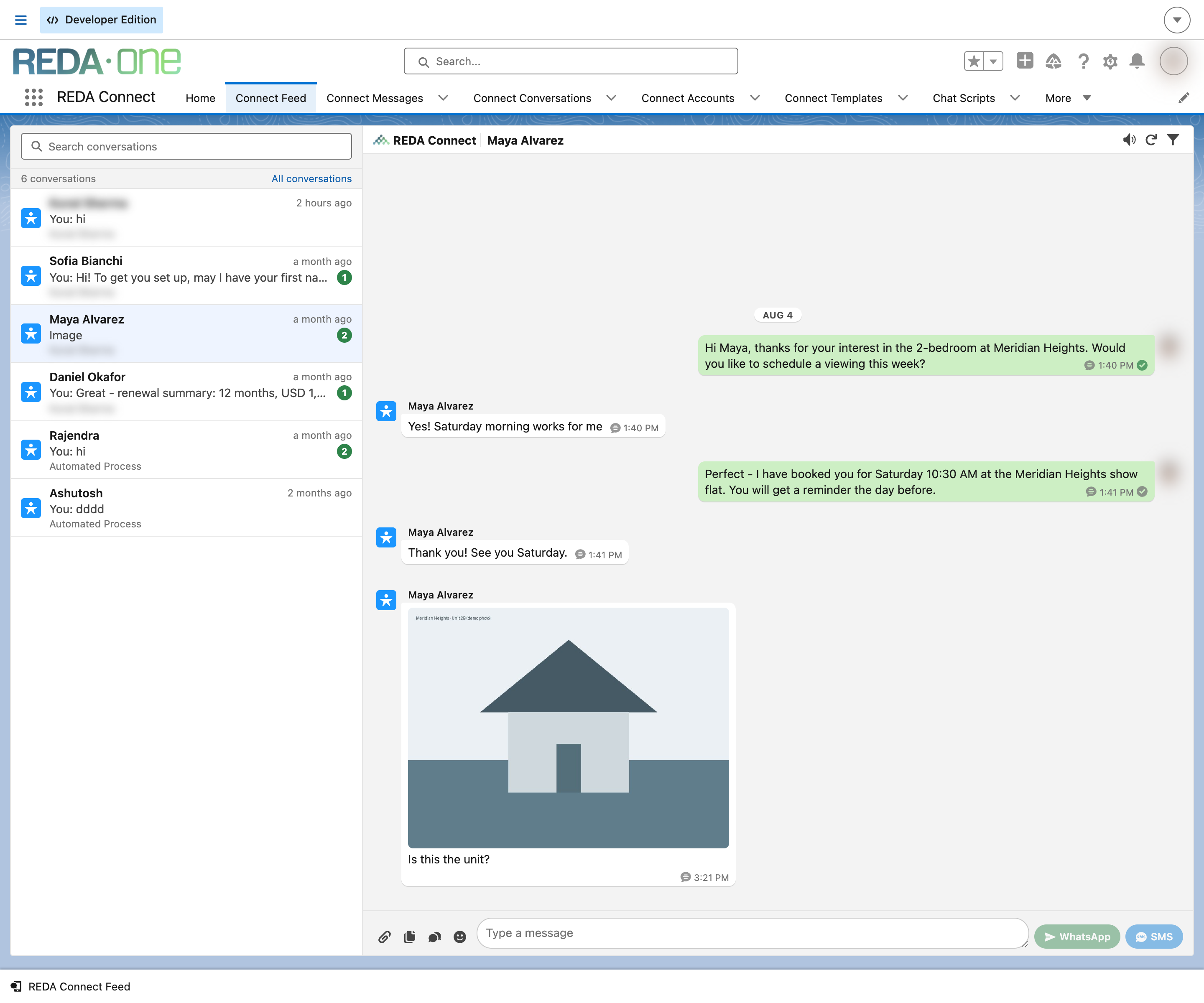
The Connect Feed is where your team reads and answers WhatsApp and SMS conversations inside Salesforce. It looks and works like a familiar messaging app: a list of conversations on the left, the selected conversation's messages on the right, and a box at the bottom to type a reply. This article is the tour — what each part of the screen does and what updates by itself. The details of each activity (sending, receiving, filtering, statuses) live in the sibling articles linked throughout; read this one first.
- You need one of the three REDA Connect permission sets — see Giving your team access.
- To send from the feed, the record's object must be set up for messaging — see Configuring messaging for any object. You can read the feed without that.
Opening the feed
- Click the App Launcher (the nine-dot grid, top left) and open the REDA Connect app.
- Click the Connect Feed tab in the navigation bar.
Expected result: the feed opens with the conversation list on the left and the message stream on the right, titled All messages until you pick a conversation.
If you upgraded from an earlier version you may also see a tab called Connect Feed (Deprecated) in the App Launcher — that is the previous Connect Feed. Always use the plain Connect Feed tab; see The Connect Feed tab.
The feed also appears on record pages and in the utility bar if your administrator has placed it there — same feed, different framing. See Adding the feed to a record page and The feed in the utility bar.
The conversation list
The left pane shows one row per record that has messages — sent or received — within a recent time window. The window is controlled by your administrator and covers the last 100 days unless changed (see Feed performance settings). Conversations older than the window drop off the list, but their messages are still there — open the record's page to see them.
Each row shows:
- an icon and the record's name — the name is a link that opens the record in a new tab (clicking the name does not switch conversations; click elsewhere on the row for that),
- when the last message happened (for example "5 minutes ago"),
- a one-line preview of the last message, prefixed "You: " when your side sent it,
- a badge with a count when the conversation has incoming messages nobody has responded to — see Receiving and replying.
Above the rows: a Search conversations box (it searches the conversations currently loaded — see Finding messages) and an All conversations entry that takes you back to the everything-view. At the bottom, Load more conversations fetches older rows.
Click a row to open that conversation. Click the same row again to close it and return to the all-messages view. You can also drag the divider between the two panes to resize the list — the feed remembers your chosen width on this browser.
The message stream
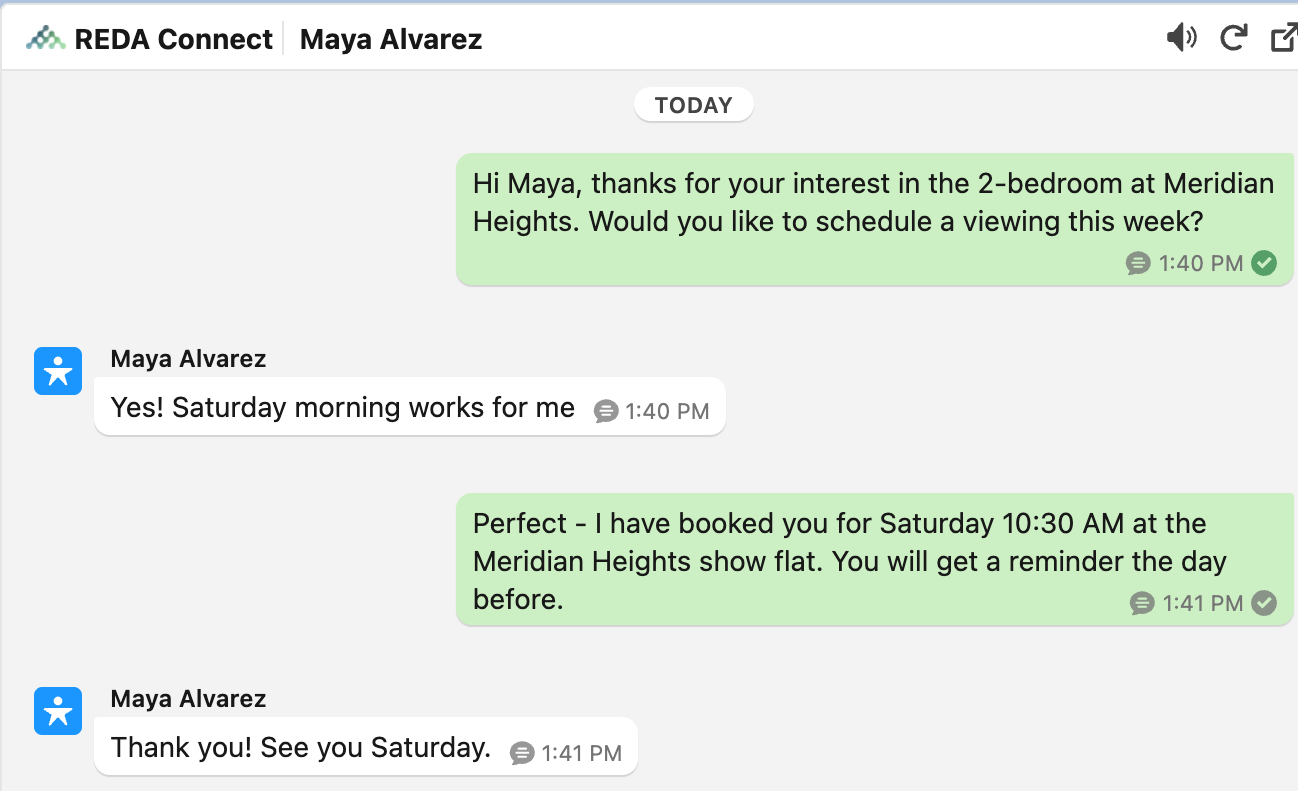
The right pane shows messages oldest-first, newest at the bottom — scroll up and earlier messages load automatically (a "Loading earlier messages..." spinner appears briefly). Messages are grouped under date separators (Today, Yesterday, then dates), and consecutive messages from the same side sit together in a tight run.
Each incoming bubble carries the sender; each outgoing bubble carries a small status icon (clock, check, delivered, read — decoded in Understanding delivery statuses). Click Details under any bubble for the full picture: sender, numbers, timestamps and the delivery timeline. Pictures show inline, videos and voice notes play inline, and documents appear as file cards — see Files your customers send.
If the stream is empty, the feed tells you why: "No messages yet" (nothing has ever been sent or received here), "Nothing in the current time range" (the conversations shown are limited to the recent window), or "No matches" (your filters are hiding everything — "Try clearing or widening the filters.").
The composer
Once a conversation is open (or the feed sits on a record page), the box at the bottom is where you type. You get one send button per channel available for that person — WhatsApp and/or SMS — plus buttons for emoji, message templates and chat scripts where configured. Pressing Enter starts a new line; only the send button sends. The full walkthrough is Sending your first message.
The header tools
Left to right above the stream:
| Tool | What it does |
|---|---|
| Title | The open record's name, or All messages when nothing is selected |
| Volume icon | Turns the incoming-message tone on or off — one click, saved as your default (see Receiving and replying) |
| Refresh | Reloads the messages and conversations immediately |
| Pop-out icon | Shown in compact placements (record pages, utility bar) — opens the conversation full-page in the Connect Feed tab |
| Funnel icon | Opens the Filters panel; the icon stays highlighted while any filter is active (see Finding messages) |

What updates automatically
The feed keeps itself current — you do not need to reload the page. While you have a conversation open it checks for new messages every few seconds; on the all-messages view slightly less often; and after a quiet period it slows down to roughly every half minute until something happens. New incoming messages appear in the stream, conversations jump to the top of the list, and delivery ticks update on your sent messages.
One thing to know: the feed pauses while its browser tab is hidden. If you switch to another tab or another app, nothing updates until you come back — and the moment you return, the feed catches up immediately. Messages are never lost; they were arriving in Salesforce all along, the feed just waits for you to look. The same applies to the notification tone: it only plays while the feed is actually open and visible.
FAQ
Near enough for conversation: new messages typically appear within a few seconds while the feed is open and visible. It is not push-instant — the feed checks on a short cycle — so a one-to-three second delay is normal.
The list only covers the recent time window (100 days unless your administrator changed it). Open the record's own page — if the feed is placed there, the full history is available. An administrator can widen the window in the REDA Connect settings.
Yes — in the Salesforce mobile app the feed runs single-pane, like a phone messaging app: the conversation list first, tap a conversation to open it, and a back chevron to return.
The conversation-list width is remembered per browser, not on your user record. Each browser you use starts at the default width once.
Where to go next
- Sending your first message — the composer in detail, and what can block a send.
- Receiving and replying — the unresponded indicator, the tone, and replies.
- Finding messages — the seven filters and both search boxes.
- Adding the feed to a record page — for administrators: put the feed where the work happens.