
Meta tokens, permissions and identifiers
The right token depends on both the app and the business asset. A token for one app, Page or WhatsApp account is not a general Meta password. This guide explains what to collect and where to enter it for REDA Connect 1.94000. Screens were checked on 10 October 2026.
Which token goes where?
| Type | Purpose | REDA Connect use |
|---|---|---|
| User access token | Represents a person who granted the app specific permissions and asset access | Can be supplied to Set Up Messenger and Instagram. Useful for an administrator's initial setup/testing; its lifetime and access depend on how it was issued. |
| System User access token | Represents a portfolio integration identity with assigned business assets | Use the intended app's token in the relevant setup action. It avoids tying the integration solely to a person's short-lived testing token. |
| Page access token | Represents a Facebook Page | Messenger/Instagram setup derives it from the supplied token and Page ID, then stores it encrypted as Meta Page Token. |
| WhatsApp test token | Temporary access offered in the app's WhatsApp testing screen | Suitable for the initial test flow. Replace it with the intended ongoing credential before operational use. |
| App Secret | Credential belonging to the Meta app | Enter it separately in Set Up Messenger and Instagram. It is not an access token. |
| Webhook verification token | A shared verification value for connecting the callback | Stored as Connect Account Verification Token; generated by setup if absent. Do not use an access token in its place. |
Permissions and assets by channel
Permissions describe what the token can do. Asset assignments determine which Page, account or app it can do it for. Both must be correct.
| Channel/task | Permission or feature | Assigned assets |
|---|---|---|
| Messenger messages | pages_messaging | The business Page, including its messaging task/access |
| Page discovery/information | pages_show_list, pages_read_engagement as required by the selected flow | The intended Page |
| Page webhook subscription | pages_manage_metadata | The intended Page and app |
| Instagram with Facebook login | instagram_basic, instagram_manage_messages, plus the Page permissions above | The Page and its linked professional Instagram account |
| Business portfolio access | business_management where required by the business/asset setup flow | The relevant portfolio and assets; it does not replace channel permissions |
| Messenger sender profile | Business Asset User Profile Access where required by Meta | The business asset the customer contacted |
| WhatsApp messages | whatsapp_business_messaging | The WhatsApp Business Account containing the number |
| WhatsApp account management, templates and setup | whatsapp_business_management | The same WhatsApp Business Account |
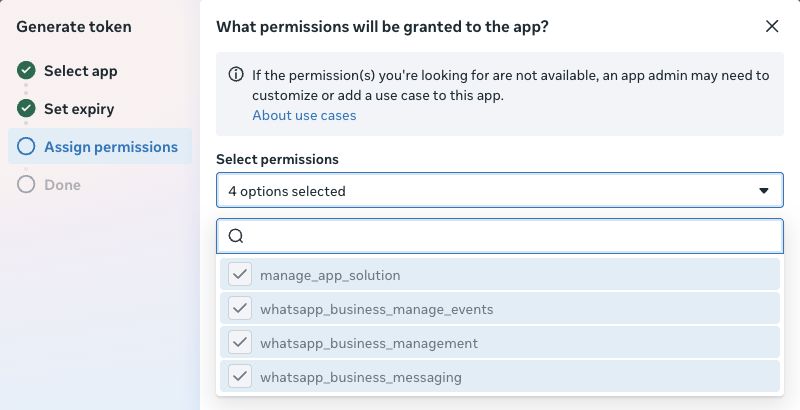
Meta may display additional permissions bundled with a use case. The current WhatsApp token dialog can preselect them. Do not enable advertising, content publishing or extended messaging features merely because they appear in the menu; they are not part of this messaging setup. If the required permission is unavailable, customize the correct app's use case and resolve its access requirements first.
Create a System User and assign assets
- Open Meta Business Suite, choose the intended business portfolio and open Settings.
- Under Users → System users, select an existing integration identity or click Add. Give a new identity a clear name, such as “Customer Messaging Integration”. Select the role appropriate to your administration model and create it.
- Assign the integration's assets. In the System User's Assigned assets area, use the available asset-assignment control. Alternatively, select the asset under Accounts → Apps / Pages / Instagram accounts / WhatsApp accounts and assign the System User there.
- Assign the chosen app with permission to manage/use it. Assign the intended Page with messaging and management access for the setup operations. For Instagram, include its linked professional account. For WhatsApp, assign the WABA that contains the number.
- Return to the System User and confirm those assets appear under Assigned assets. Having only the app assigned is not sufficient to access an unrelated Page or WABA.
Expected result: the System User can access the app and the exact business assets you are connecting. If an asset cannot be selected, check the portfolio's ownership/access and the administrator's ability to assign it.
Generate the System User token
- With the System User selected, click Generate token.
- Select app: choose the same app whose App ID will be on the Salesforce Connect Account. Click Next.
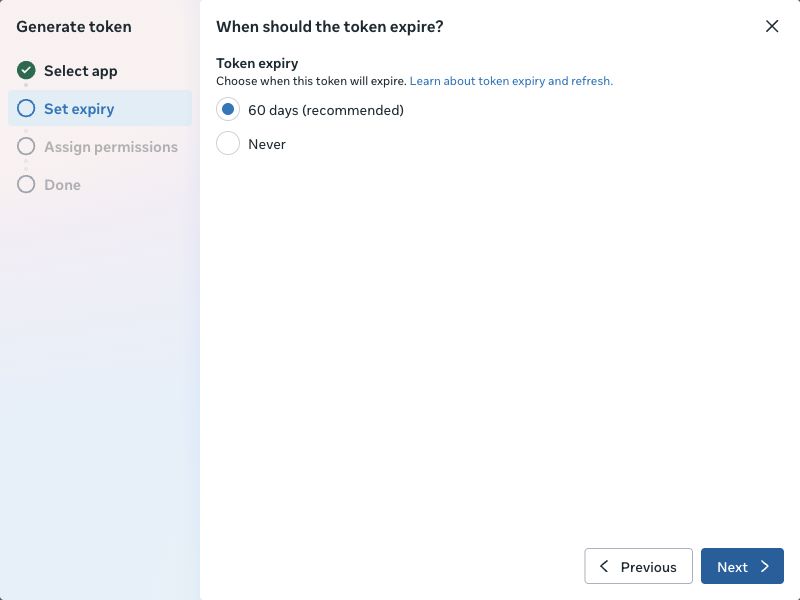
- Set expiry: choose the lifetime offered by Meta. The screen checked for this guide offered 60 days (recommended) and Never. Follow your organization's credential-rotation practice.
- Assign permissions: select or review the relevant channel permissions from the table above. Some use cases preselect the applicable set.
- Generate the token, copy it into your approved credential store, then use it in the Salesforce setup action. Do not place the token in a record description, support screenshot or shared setup worksheet.
Expected result: one token tied to the selected app, permissions and assigned assets. “Never” does not mean it can never stop working: revocation, removed assets or changed app/business access can invalidate the connection.
Obtain a User token for initial setup
If you are using a User token for the first Messenger/Instagram connection, Meta's Graph API Explorer provides a visible way to request it:
- In Meta for Developers, open Tools → Graph API Explorer.
- Select your app in the app selector. Confirm it is the app whose ID and secret you collected.
- Select the User-token option, add the permissions needed for the intended channels, and choose Generate Access Token.
- Complete Facebook login with the administrator who can access the business assets. Select the intended portfolio/Page/accounts when Meta asks which assets to authorize, and review the requested permissions.
- Copy the resulting token into the Salesforce setup action's System User Token field. That field also accepts the supported User-token input.
Meta's Messenger quick start shows User-token acquisition and Page discovery. REDA Connect performs the Page-token derivation, so normal setup does not require manually copying a customer's scoped ID from the API.
Inspect the token's app, permissions, expiry and asset access using Tools → Access Token Debugger when diagnosing a mismatch. Keep the token private. A successful token inspection does not confirm the Salesforce webhook or record-matching configuration.
Collect the identifiers alongside the token
| Source screen | Copy | Salesforce destination |
|---|---|---|
| Meta app → App settings → Basic | App ID; App Secret via Show | Meta App Id; App Secret in Set Up Messenger and Instagram |
| Business settings → Accounts → Pages → intended Page | Page ID | Meta Page Id |
| WhatsApp use case → Step 1. Try it out / number details | Phone Number ID and Messaging account ID / WABA ID | WhatsApp Number Id and WhatsApp Account Id respectively |
| WhatsApp account's phone number details | Actual business telephone number | WhatsApp Number, using the documented international format |
| Salesforce setup action after successful Page lookup | Linked Instagram account discovered automatically | Instagram Account Id |
Replace an expiring or revoked token
- Confirm the correct app and asset assignments, then obtain the replacement credential through the same approved route.
- Open the existing Connect Account. For WhatsApp, use Set Up WhatsApp → WhatsApp Auth Token → Save Token. For Messenger/Instagram, use Set Up Messenger and Instagram → Verify and Save.
- Read the result and click Check again. Reconnect webhooks only when the checklist indicates that is needed.
- Repeat a short inbound-and-reply test for each affected channel. If the Page or linked Instagram account changed, review routing and configuration too.
Do not replace an account's IDs just to make a token from a different app pass. Correct the credential source instead. Continue with Salesforce account setup or the WhatsApp-specific token guide.