
Creating a Connect Account
This article walks through creating the Connect Account record itself — the container for one messaging identity — and explains every behaviour field in plain language. It deliberately stops short of the channel-specific values (Meta IDs, Twilio credentials, webhook URLs): those are completed step by step in the WhatsApp and SMS walkthroughs, which pick up exactly where this article ends. The one thing to understand before you start: the Messaging Channels field drives everything — the channels you select decide which other fields Salesforce requires before the record will save.
- REDA Connect must be installed and your user needs access to the app — see Giving your team access.
- Know which channel(s) this account will serve. If you don't have your Meta or Twilio details yet, that's fine — you can still create the record and return to it from Creating the WhatsApp Connect Account or Creating the SMS Connect Account.
- Never plan to type API tokens into fields by hand — tokens are entered through dedicated actions. Read Updating your API tokens safely before you handle any credential.
Step 1 — Open the Connect Accounts tab
- Click the App Launcher (the nine-dot grid, top left of any Salesforce page).
- Search for
REDA Connectand open the REDA Connect app. - In the app's navigation bar, click the Connect Accounts tab.
Expected result: a list view of Connect Accounts. In a new org the list is empty; the packaged views Active Connect Accounts and All are available in the view picker.

Step 2 — Click New and name the account
- Click New (top right of the list view).
- Enter a Connect Account Name your team will recognise — for example
Acme Rentals - Leasing WhatsApp. - Optionally add a Description of what this account is for.
Expected result: the new-record form is open with your name entered. Don't save yet — the next two steps decide whether the save succeeds.
Step 3 — Choose the Messaging Channels
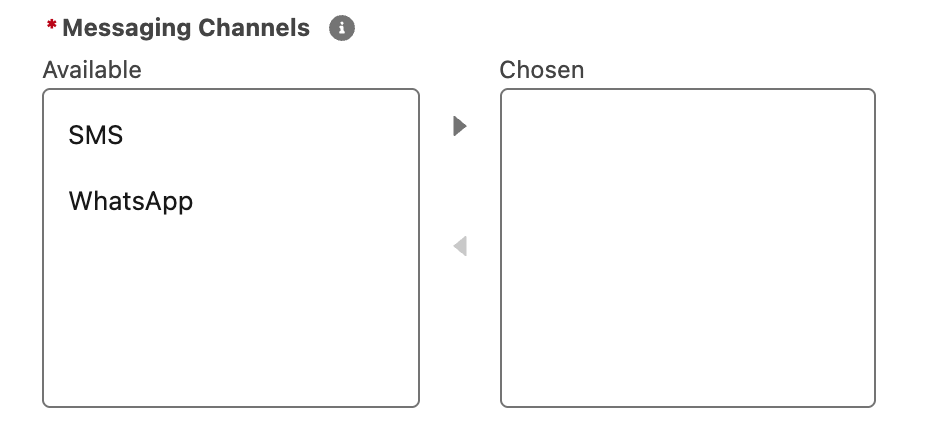
In Messaging Channels, move the channel(s) this account serves — WhatsApp, SMS, or both — into the chosen list. The field is required.
This choice is what makes fields mandatory: the moment a channel is selected, saving the record requires that channel's connection fields to be filled in. If they aren't, Salesforce blocks the save with one of these two errors — quoted here exactly as they appear, so you recognise them:
With SMS selected and any SMS connection field still blank:
You must provide value to the following fields:
SMS API Endpoint,
SMS API Key,
SMS API Secret,
SMS Provider,
SMS From Number
With WhatsApp selected and any WhatsApp connection field still blank:
You must provide value to the following fields:
WhatsApp API Endpoint,
WhatsApp Auth Token,
WhatsApp Number,
Two spelling quirks to be aware of when you map these messages to the form (the messages name the fields slightly differently from their on-screen labels): "SMS API Endpoint" is the field labelled SMS Production API Endpoint, and "WhatsApp Auth Token" is the field labelled WhatsApp Token. The trailing comma in the WhatsApp message is part of the shipped text.
The channel walkthroughs take you through filling these fields in the right order — Creating the WhatsApp Connect Account and Creating the SMS Connect Account.
- On the new-record form, enter a short temporary value such as
TEMPin each required credential field. This only exists to satisfy the required-fields check. - Save the record.
- Immediately run the credential action(s) on the saved record — Update WhatsApp Auth Token and/or Update SMS API Tokens — and enter the real credentials there. The action stores them securely and overwrites your temporary value. See Updating your API tokens safely.
The account is not able to send or receive until step 3 is done.
Step 4 — Understand and set the behaviour fields
These fields apply to the account regardless of channel. Set them now or return to them later — none of them blocks the save.
| Field | What it does | Guidance |
|---|---|---|
| Is Active | The master switch — "Only active accounts can be used to send and receive messages." | Leave unticked while you configure the channel and store its credentials; then tick it before your controlled send-and-receive test |
| Is Default | Makes this the org-wide fallback account for its channels when nothing more specific applies | Keep exactly one default per channel — see Default accounts and routing order |
| Allow Document Sharing | Allows document and image sharing on WhatsApp from this account | Untick it to remove the attach option for this account's WhatsApp conversations |
| Default Date Time Format | Overrides how dates and times are displayed for this account, using Java SimpleDateFormat patterns (for example d MMM,yy h:mm aaa) | Leave blank to use the org-wide default from the REDA Connect settings |
| Opt In Keywords | The reply keywords that opt a customer back in — pick from START and UNBLOCK | Select the ones you will publish to customers |
| Opt Out Keywords | The reply keywords that opt a customer out — pick from STOP and BLOCK | Select at least STOP if you message the US — carrier rules expect it |
| Language Code | Nothing — the help text reads "Not used currently." | Leave blank |
| Connect Account Verification Token | A token of your choosing that Meta echoes back when verifying your WhatsApp webhook; must be unique across accounts | You will set and use it during Connecting the WhatsApp webhook |
The keyword picklists are fixed — you choose from the shipped values; new keywords cannot be added. How keyword replies are matched, and the record fields they update, are covered in the consent and opt-out category.
Step 5 — Save and continue to the channel setup
- Click Save.
- If the save is blocked, match the error text against Step 3 and complete the named fields via the channel walkthrough.
Expected result: the Connect Account record page opens. From here, continue with the channel setup:
- WhatsApp: Creating the WhatsApp Connect Account — every WhatsApp field, where each value comes from in the Meta console, and the token action.
- SMS: Creating the SMS Connect Account — every SMS field, where each value comes from in the Twilio console, and the token action.
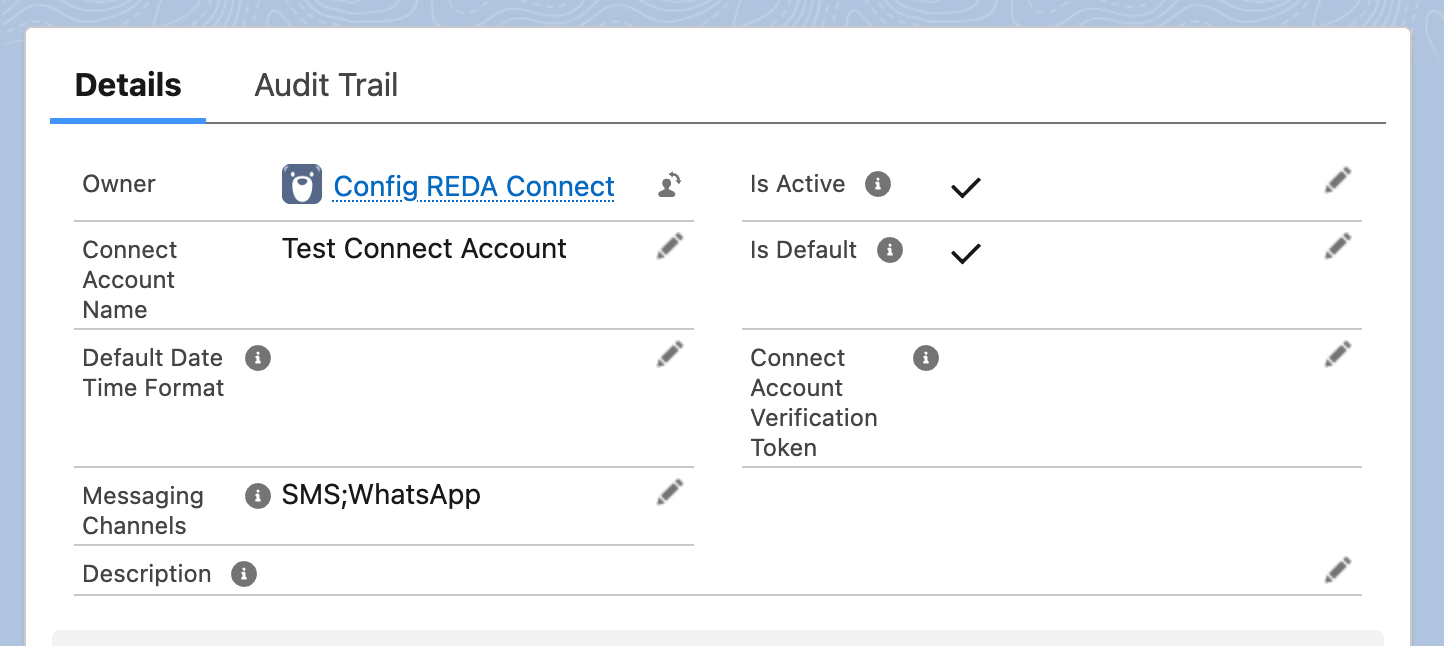
SMS;WhatsApp is what makes both send buttons appear in the feed — the credential fields live in separate sections below and never need to be read back.Troubleshooting
| Symptom | Cause | Fix |
|---|---|---|
| Save blocked with "You must provide value to the following fields: SMS API Endpoint, …" | SMS is selected in Messaging Channels but an SMS connection field is blank | Complete the fields per Creating the SMS Connect Account; remember "SMS API Endpoint" means the SMS Production API Endpoint field |
| Save blocked with "You must provide value to the following fields: WhatsApp API Endpoint, …" | WhatsApp is selected but a WhatsApp connection field is blank | Complete the fields per Creating the WhatsApp Connect Account; "WhatsApp Auth Token" means the WhatsApp Token field |
| The account saves but messages fail with errors on the message record | The record is complete but a value is wrong (token, number format, endpoint) | See A message won't send |
| Two near-identical SMS key fields appear on the page layout | Older orgs also show SMS API Key [DEPRECATED] / SMS API Secret [DEPRECATED] | Only the fields labelled plainly SMS API Key / SMS API Secret are used — see Updating your API tokens safely |
FAQ
You can open and name it, but saving with a channel selected requires that channel's connection fields. If your provider details aren't ready, gather them first via What you need before connecting WhatsApp or What you need before connecting SMS.
Country code + number, digits only — no +, spaces, dashes, or brackets. For a US number 2223334444 you enter 12223334444. This single rule matters more than any other setting: How to enter phone numbers.
No. Keep the account inactive while configuring it and entering credentials. Activate it before a controlled send-and-receive test. Deactivation does not replace provider webhook changes or guarantee that every incoming notification stops. Verify the test before routine use.
No — Opt In Keywords and Opt Out Keywords are fixed picklists (START/UNBLOCK and STOP/BLOCK). You choose which of the shipped values apply; new values cannot be added.
Where to go next
- Creating the WhatsApp Connect Account — complete the WhatsApp side of this record.
- Creating the SMS Connect Account — complete the SMS side of this record.
- Updating your API tokens safely — how tokens get into the record without ever being typed into a field.