
A message isn't sending
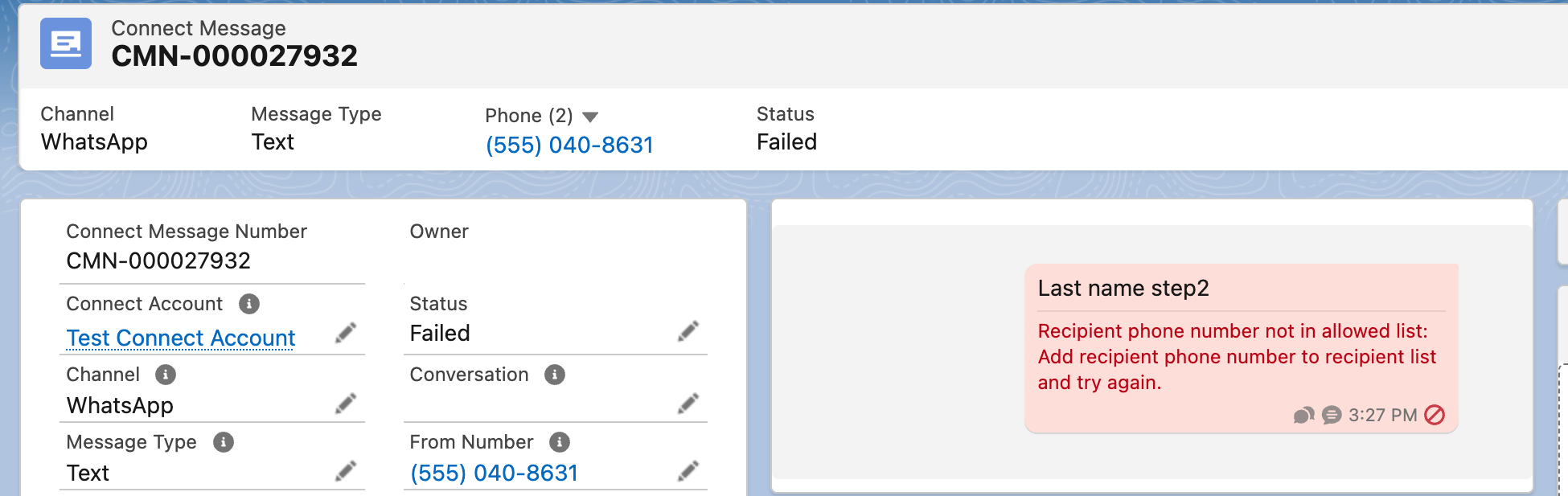
Every outbound message in REDA Connect is a Connect Message record, and that record tells you exactly what happened to it: the Status field shows how far it got, and the Error Message field says why it stopped. This article works symptom by symptom — find yours, run the check, apply the fix. Error texts below are quoted exactly as they appear on screen, so you can match them letter for letter.
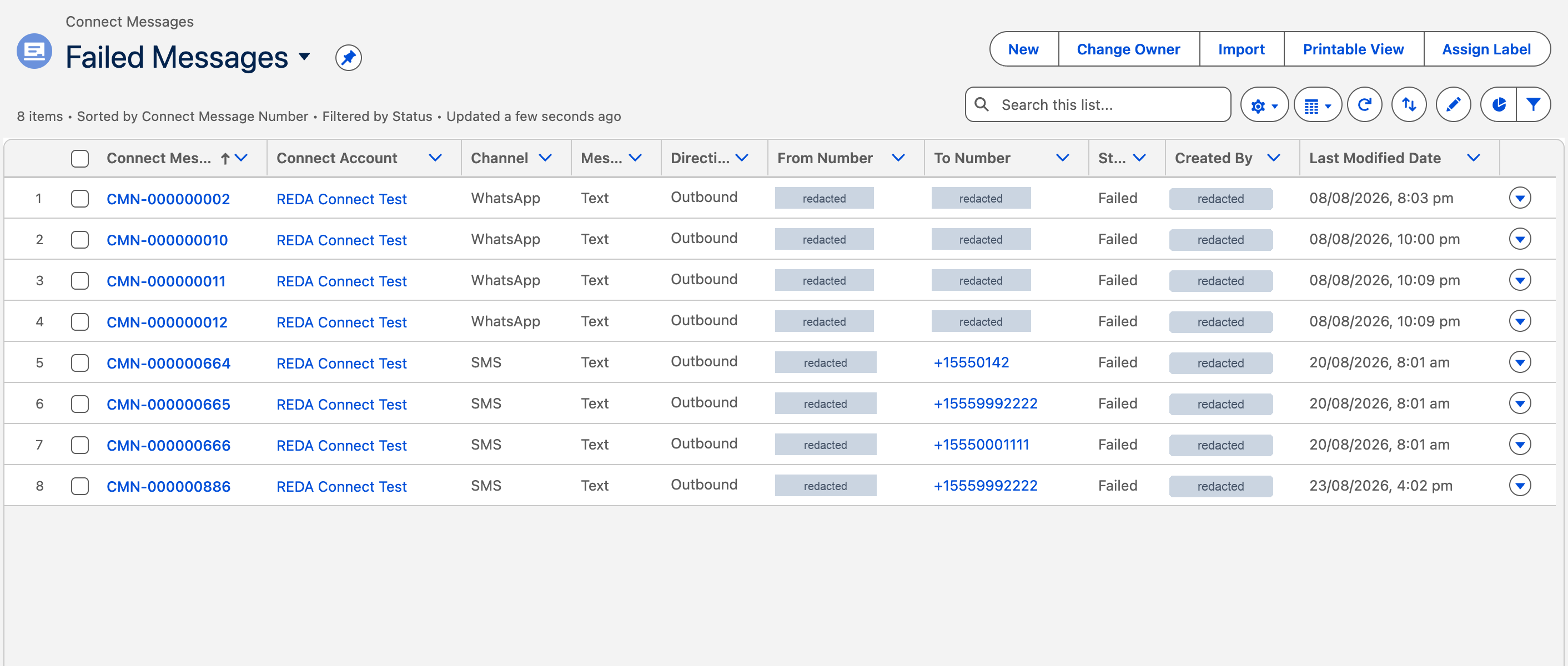
- Open the message record: find it in the Connect Feed and click the channel icon next to the message time, or open the Connect Messages tab (App Launcher →
Connect Messages) and use the All Outbound Messages or Failed Messages list view. - Have the record's Status, Error Message, and Send Message fields visible. If you don't see them, ask your admin — field access comes with the REDA Connect permission sets (Giving your team access).
Symptom 1 — The message is stuck: Status is blank and nothing happens
A message with a blank Status was created but never handed to WhatsApp or Twilio. REDA Connect only dispatches a record-created message when its Send Message checkbox is ticked (the field's help text: "Once checked system automation will try to send message as per selected channel"). Messages sent from the Connect Feed don't use this checkbox — they dispatch immediately — so a stuck blank-status message almost always came from a record you or an automation created directly.
| Check | What you find | Fix |
|---|---|---|
| Is Send Message unticked? | The message was saved without the send instruction | Edit the message and tick Send Message — REDA Connect dispatches it right away (this works only while Status is still blank) |
| Is Schedule Date Time set to a future time? | It's a scheduled message, waiting on purpose | Nothing to fix — it sends at the scheduled time. See Scheduling messages |
| Send Message is ticked but Status stays blank | The background send job hit a system problem | Check the Connect Logs tab for a log created around the same time |
Expected result: within a minute of ticking Send Message, Status changes — to Sent (WhatsApp) or Queued/Accepted (SMS) on success, or to Failed with an Error Message you can look up below.
Symptom 2 — Status is Failed and Error Message starts with CONNECT_API ->
An Error Message beginning CONNECT_API -> identifies an exception reported by the Connect sending path. Setup and content errors are common causes, but the prefix alone does not prove that no provider call occurred. Read the underlying reason inside the error:
| Text inside the error | Cause | Fix |
|---|---|---|
Bad Connect Account Setup. | The Connect Account can't send on this channel: Is Active is unticked, a required field is missing (for WhatsApp: the API endpoint, token, or WhatsApp number; for SMS: the API endpoint, from-number, or credentials), or the channel isn't selected in Messaging Channels | Open the Connect Account, tick Is Active, complete the channel's fields, and make sure Messaging Channels includes the channel — see Creating a Connect Account |
3. Bad Request - Provide either the message body or connect template. | The message has no usable body and no template. The documented direct-record workflow, including scheduled messages, uses a Connect Template; the feed builds the body from your input. | Add an active Connect Template to the message, or send from the feed. See Scheduling messages |
4. Bad Request - File is not found. | No usable file link was found for this Image or Document send without a template | Attach the file to the message, or resend from the feed with the file — see Sending files, images and video |
4. Message type not supported for SMS. | SMS can only carry Text — the message's type is something else | Change Message Type to Text, or use WhatsApp for media — see What you can send on each channel |
5. Template Error: followed by Input parameters provided are invalid. | A merge-field template was sent without a valid record of the template's object to merge from | Make sure the message carries a record of the template's Applicable Object — see Merge fields |
Bad Request - Unable to generate request body. | The message type isn't one REDA Connect can send outbound on this channel | Recreate the message with a supported type — see What you can send on each channel |
Symptom 3 — Status is Failed and Error Message is plain text (no CONNECT_API ->)
Without the CONNECT_API -> prefix, the text may be a response from the provider. To confirm why the message was rejected, read Error Message and the available response details. The text format alone is not enough to prove the delivery path.
| What the provider text suggests | Fix |
|---|---|
| Authentication, authorisation, token expired or invalid credentials | Your stored token or API keys are wrong or expired. Update them the safe way — see Updating your API tokens safely |
| An invalid, unverified or incapable recipient number | Check the recipient's number is a real mobile number in the digits-only international format — see How to enter phone numbers |
| Template, messaging-window or policy restrictions (WhatsApp) | Outside the 24-hour service window WhatsApp only accepts approved templates — see WhatsApp message templates and Meta approval |
| Anything you can't interpret | Copy the exact text into the provider's error-code documentation search (Meta or Twilio both publish theirs), or contact REDA support with the Connect Message number |
The Response Body field on the message keeps the provider's full raw reply for debugging — useful when you contact support.
Symptom 4 — Salesforce won't even let the message be created
These errors appear immediately when saving (or as an on-screen error during a send), because a rule blocks the message before anything is dispatched:
| Exact error text | Cause | Fix |
|---|---|---|
Recipient has opted out of receiving SMS Messages. | The linked Lead or Contact has the SMS opt-out box ticked | Respect it, or — with the customer's renewed consent — see Opt-out fields on records |
Recipient has opted out of receiving WhatsApp Messages. | Same, for WhatsApp | Same as above |
Value of the target phone number must be provided for outbound messages. | The message has no recipient number — usually the record's phone field is empty or not wired up | Fill the record's phone field in the correct format (How to enter phone numbers); check the object's configuration points at the right field (Object configuration overview) |
Note for bulk sends: one opted-out recipient in the selection blocks the whole batch with the opt-out error — see Tracking a bulk send.
Worked example
A message shows Status Failed with Error Message CONNECT_API -> Bad Connect Account Setup. -> Line Number: …. The wrapper says REDA Connect stopped it; the embedded phrase names the account setup. You open the Connect Account and find Is Active was unticked during last week's token rotation. You tick it, return to the message — but its status is already stamped, so you send a fresh message from the feed instead. It goes out with Status Sent.
FAQ
Not the same record — once Status is stamped, that record won't dispatch again. Fix the cause, then send a new message (from the feed, or a new record with Send Message ticked).
Queued, Sending, Accepted, Sent, Delivered, Read, Failed, Undelivered, Receiving, Received — the full lifecycle is explained in Understanding delivery statuses.
Sent means the provider accepted it. If it never advances to Delivered, the problem is downstream (recipient's phone off, number unreachable, or delivery receipts not arriving — for SMS receipts, see the trailing-slash note in Creating the public Site for incoming messages).
The Failed Messages list view on the Connect Messages tab, or build a report — see Reports and dashboards and Getting notified about errors.
Where to go next
- Troubleshooting index — every symptom in one searchable table.
- An incoming message didn't arrive — the mirror problem, inbound.
- Updating your API tokens safely — fix credential-related provider rejections without breaking encryption.