
Files and images aren't coming through
Photos, documents, videos and voice notes behave differently from plain text: an incoming WhatsApp file is downloaded from Meta in a second step after the message arrives, and an outgoing file is fetched by WhatsApp from a link your org publishes. Each of those extra steps has its own failure modes — and SMS has none of this, because SMS in REDA Connect carries no files at all. This article covers every media symptom in one place.
- If plain text messages aren't arriving either, fix that first — see An incoming message didn't arrive. This article assumes text flows fine and only files misbehave.
Incoming WhatsApp: the text arrives, the file never appears
The classic symptom: the customer's message shows in the feed, but where the photo should be there's nothing — and it never fills in. The download step failed. Two causes, in order of likelihood:
Cause 1 — The Remote Site Setting is missing
Salesforce blocks callouts to any internet address an admin hasn't approved. Meta serves WhatsApp media files from a dedicated file server, and REDA Connect cannot download from it until your org has a Remote Site Setting for that address. The package cannot create it for you — it's a required one-time manual step that is easy to miss, and without it every incoming file fails silently.
- Check whether the setting exists: Setup → Remote Site Settings — look for an entry for Meta's file server (
lookaside.fbsbx.com). - If it's missing, create it following The Remote Site Setting WhatsApp media needs.
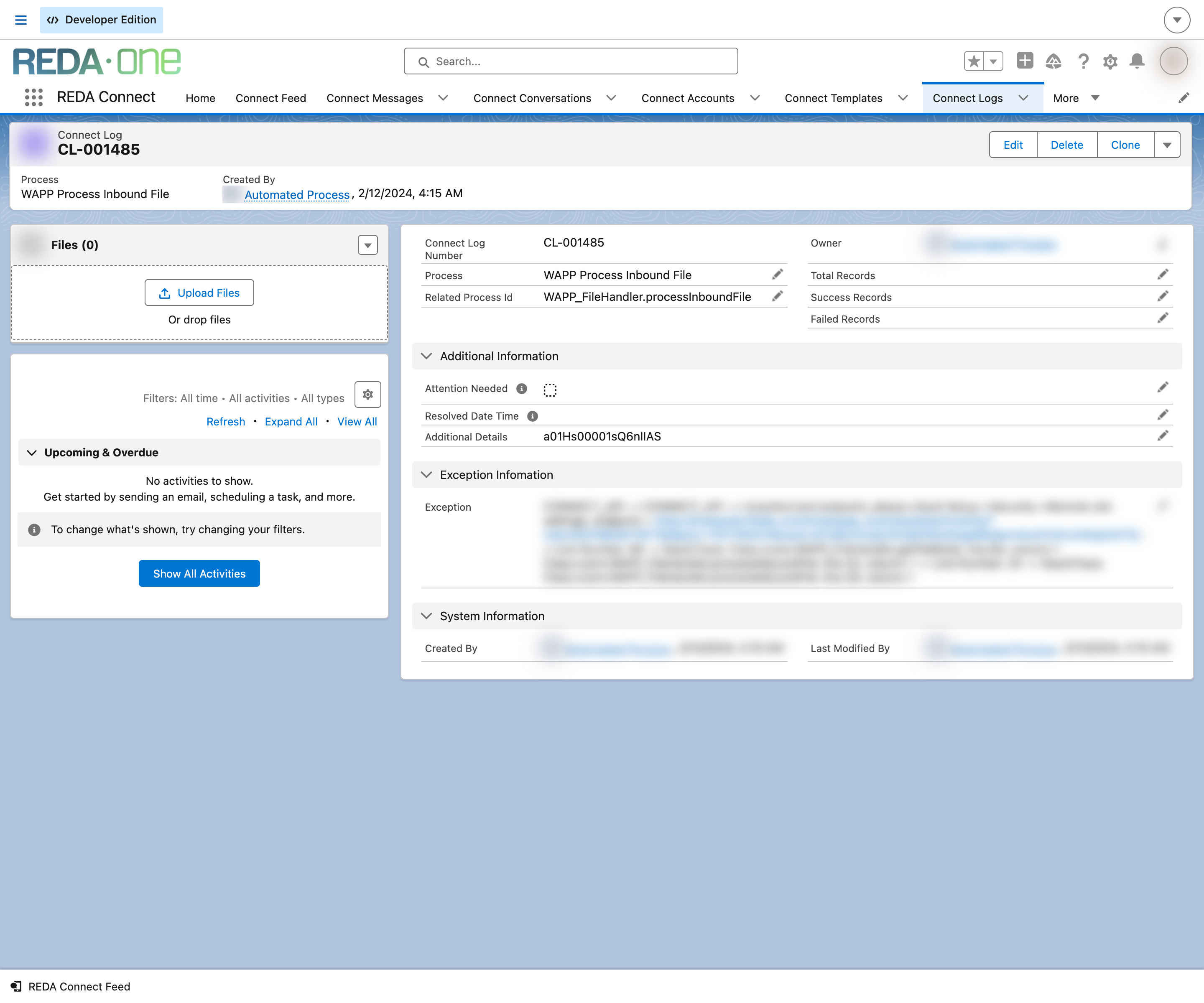
- Confirm the failure trail: each failed download writes a Connect Log — look for entries whose Process names the inbound file step.
Expected result: after the setting exists, ask the customer to resend the file — it should appear within a minute. Files that failed earlier are not retried automatically (and may have expired, next section).
Cause 2 — The media expired at Meta before it was downloaded
Meta keeps a received file available for download only for a limited time. If the download couldn't run while the file was still available — because the Remote Site Setting was missing, or a system problem delayed the job — the file is gone from Meta's side and can never be fetched. The message stays, the file doesn't.
Fix: none retroactively. Ask the customer to resend the file. Prevent recurrence by keeping the Remote Site Setting in place and watching Connect Logs (Getting notified about errors).
The file arrived, but has no file extension
A file appears in Salesforce but its name has no ending (voicemessage instead of voicemessage.ogg), so double-clicking may not open it in the right app. This happens when the file's type wasn't recognised: REDA Connect names incoming files using a file-type mapping table, and the package ships mappings for the common WhatsApp types — PDF documents, JPEG and WebP images, MP4 video, and OGG voice notes. A type outside that list arrives without an extension.
Fix: add a mapping for the missing type. The mapping table lives with the other administration settings — see Emoji options and file-type mappings. Already-received files can simply be renamed with the right extension.
Outgoing files: how they actually travel — and why that matters
When you send a file on WhatsApp, REDA Connect doesn't upload it to Meta. It creates a public link to the file — a web address that works without logging in — and sends WhatsApp that link to fetch the file from. Understand the consequences before you share sensitive documents:
- Anyone who obtains the link can download the file; the link is hard to guess but not access-controlled, and it does not expire.
- The composer warns you for a reason: sharing is immediate and not reversible.
Details, prerequisites (the account's Allow Document Sharing box) and step-by-step sending: Sending files, images and video.
If outgoing files fail to send, check the message's Error Message field. 4. Bad Request - File is not found. means no usable file link was found for this send without a template. Check the attachment and its public link, then see A message isn't sending for the rest.
SMS: no media, in either direction
REDA Connect's SMS channel is text only, both ways:
- Outgoing: anything other than a text message fails with
4. Message type not supported for SMS. - Incoming: if a customer texts a picture (MMS), the message is recorded as Failed with the error
Inbound media messages are not supported currently for Twilio.— the text portion is not preserved either; ask the customer to resend as plain text.
If your customers routinely send pictures, move those conversations to WhatsApp — see What you can send on each channel.
Worked example
A property agent reports: "Tenants' WhatsApp photos stopped appearing yesterday." Text messages arrive fine. You open Connect Logs and find a cluster of inbound-file entries since yesterday afternoon. Setup → Remote Site Settings shows a colleague deactivated the Meta file-server entry during a security review. You reactivate it, and new photos flow again. Yesterday's photos are past Meta's availability window, so the agent asks the tenants to resend the important ones.
FAQ
No. The whole message is recorded as Failed with the error quoted above. Nothing usable arrives, so the customer must resend as plain text — or use WhatsApp.
As Salesforce Files, linked to the Connect Message. They open in Salesforce's file preview from the feed; they are not automatically attached to the Contact's or Lead's Files. See Files your customers send.
Not with the shipped behaviour — WhatsApp needs to fetch the file from a link that works without authentication. Treat every file you send as public once sent, and keep genuinely sensitive documents out of messaging channels.
Check the file got its .ogg extension (see the extension section above). If the extension is right, download the file and play it locally — browser codec support varies.
Where to go next
- The Remote Site Setting WhatsApp media needs — the five-minute fix for the most common media failure.
- Sending files, images and video — the outgoing side, including the public-link behaviour and per-account permission.
- Troubleshooting index — every symptom in one table.