
Reading and working with Connect Logs
Most of REDA Connect's work happens in the background: receiving messages from WhatsApp and Twilio, downloading incoming files, sending bulk and scheduled messages, and running chat-script actions. When one of those background processes hits a problem, it writes a Connect Log record — your org's error journal for REDA Connect. If a message failed to send, the error usually sits on the message itself (see A message isn't sending); Connect Logs cover everything that goes wrong around messages, where there may be no single message record to look at.
- You need the REDA Connect Admin permission set (users with REDA Connect User can see and create logs but the triage workflow below assumes admin access) — see Giving your team access.
- Nothing needs configuring — logging is built in and always on.
Where to find Connect Logs
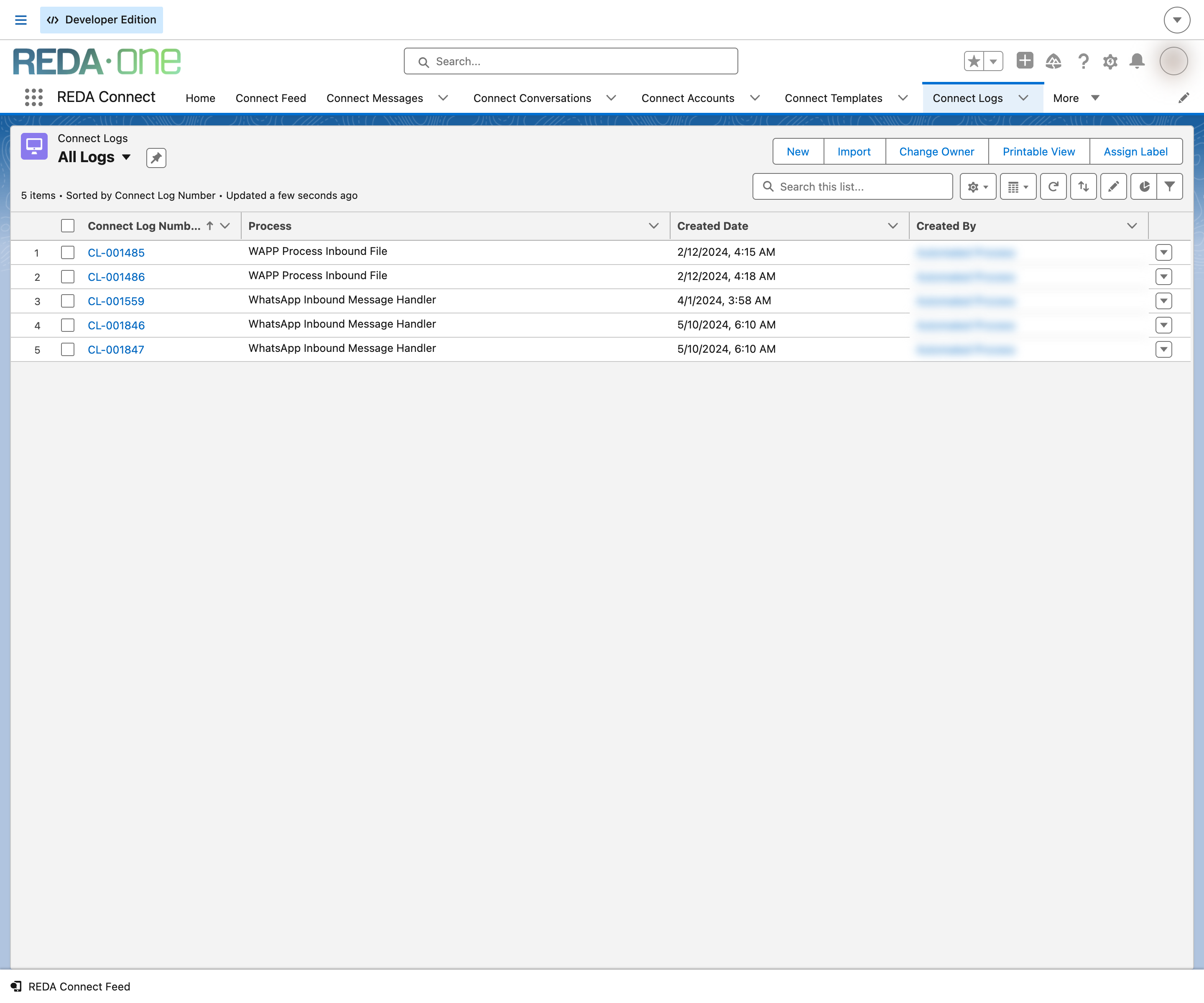
- Click the App Launcher (the nine-dot grid, top left), search for
Connect Logs, and open the Connect Logs tab. - Switch the list view using the dropdown next to the list name. The package ships four views: All, All Logs, Attention Needed, and Created Today.
Expected result: a list of log records with auto-numbered names like CL-000042.
What gets logged
A Connect Log is written when a background process fails or partially fails. Typical sources:
- Incoming-message handling — an incoming WhatsApp or SMS message could not be processed (for example, no Connect Account matched the receiving number).
- Incoming file downloads — an incoming WhatsApp photo or document could not be fetched from Meta (see Files and images aren't coming through).
- Bulk and scheduled sending — a batch job hit a system-level problem. The log carries the batch's summary counters, and the technical details of each failure are attached to the log as a text file (open the log record and check its Files / Notes & Attachments section).
- Unrecognised callbacks — WhatsApp sent the org a callback REDA Connect didn't recognise; the log's exception reads
Unknown WhatsApp Callback.
Individual message failures (a customer's number rejected the message, a template didn't parse) are stamped on the Connect Message record itself, not logged here.
Every field, in plain language
| Field label | What it tells you |
|---|---|
| Connect Log Number | Automatic reference number (CL-000001, CL-000002, …). |
| Process | A short technical name for the background process that wrote the log — your first clue to what was running. Logs about incoming files, for example, name the inbound file process. |
| Related Process Id | The identifier of the related background job or record, useful when raising a support case. |
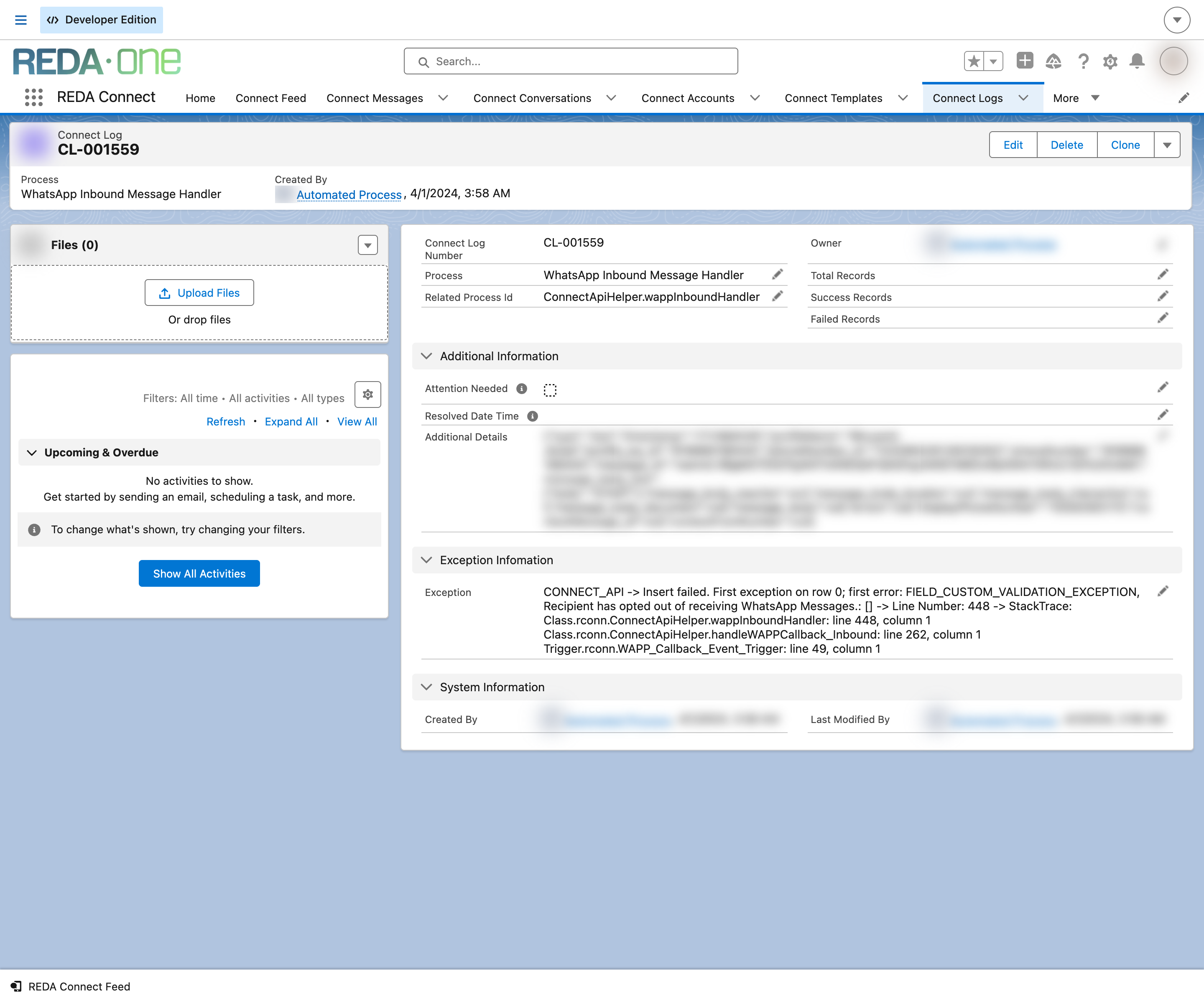
| Exception | The technical error text. This is the field to read first — and to quote when contacting REDA support. |
| Additional Details | Extra technical context, when the process recorded any. Can be long. |
| Total Records | For batch processes: how many records the batch attempted. |
| Success Records | For batch processes: how many succeeded. |
| Failed Records | For batch processes: how many failed. |
| Attention Needed | A checkbox flagging logs "where attention is needed to fix the errors" (its on-screen help text). See the next section for how it actually behaves. |
| Resolved Date Time | Blank until you resolve the problem. Its help text: "For any failed or partially failed system automation, when resolved provide a resolution date time." |
How the "Attention Needed" flag behaves
In version 1.94000, REDA Connect evaluates Attention Needed when a log is created or updated. An Exception or a Failed Records count above zero sets it; otherwise it is cleared. Resolved Date Time remains the separate record of your team’s triage. New qualifying logs can email selected users; enable error notifications. Messenger/Instagram also retain webhook receipts in Connect Logs; inspect the process and result before treating every row as an error.
The triage workflow: Resolved Date Time
Treat every Connect Log as an open item until someone has looked at it:
- Open the log, read Exception (and the attached text file, for batch logs).
- Fix the underlying cause — the Troubleshooting index maps the common exceptions to their fixes.
- Edit the log and set Resolved Date Time to now. Add a note in Additional Details if your team wants a record of what was done.
Expected result: the log drops out of your "unresolved" list view (next section), and the list view becomes a live to-do list rather than a history.
Build an "Unresolved Connect Logs" list view
- On the Connect Logs tab, click the gear icon above the list and choose New.
- Name it
Unresolved Connect Logs, choose who can see it, and click Save. - In the Filters panel, click Add Filter: Field Resolved Date Time, Operator equals, Value left blank. Click Done, then Save.
- Optional: click Select Fields to Display (under the gear icon) and show Connect Log Number, Process, Exception, Failed Records, Attention Needed, and Created Date. Sort by Created Date, newest first.
Expected result: a view listing every log nobody has resolved yet — new entries appear at the top as they are created.
Worked example
Monday morning, the Unresolved Connect Logs view shows one new row. Process names the inbound file process, Exception describes a failed download. That combination means an incoming WhatsApp file could not be fetched — the usual causes are the missing Remote Site Setting or media that expired before download (see Files and images aren't coming through). You add the Remote Site Setting, ask the customer to resend the photo, confirm it arrives, then set Resolved Date Time on the log. The view is empty again — done.
FAQ
No. Logs are written when something fails or partially fails. A quiet Connect Logs tab is good news. For activity reporting, use the packaged reports instead — see Reports and dashboards.
Yes, for qualifying new logs when active recipients have Connect Error Notifications selected on their User records and notifications are enabled. See Getting notified about errors for setup. This is separate from a scheduled report subscription.
Users with the REDA Connect Admin permission set can delete them. A safer habit is to set Resolved Date Time and keep them — they are your history when a problem recurs. If volume becomes an issue, archive before deleting.
All three REDA Connect permission sets can read logs. Admins have full edit rights; standard users can create and read but the triage editing is an admin task in practice. See Giving your team access.
The Connect Log Number, the full Exception text, the Process and Related Process Id values, and (for batch logs) the attached text file. Together they let support trace the job without needing access to your org.
Where to go next
- Getting notified about errors — turn the unresolved-logs view into a monitoring routine with a subscribed report.
- Troubleshooting index — map an exception text to its cause and fix.
- A message isn't sending — when the problem is one specific message rather than a background process.