
Connecting the WhatsApp webhook
Connect incoming WhatsApp messages and status updates to the Salesforce public Site. In REDA Connect 1.94000, start from Set Up WhatsApp on the Connect Account. The manual Meta dashboard remains useful for inspecting configuration, but the setup action is the normal registration route.
1. Confirm the public callback address
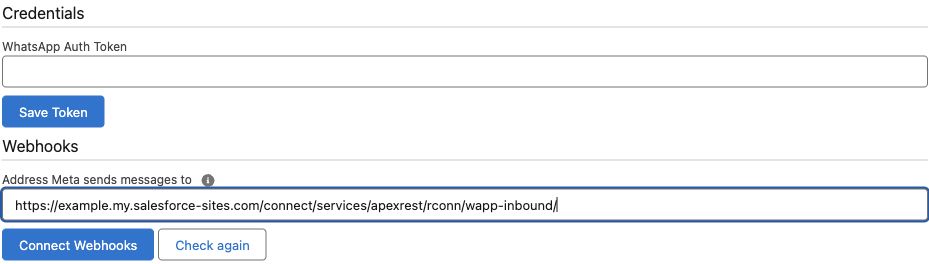
Complete the public Site setup. Its HTTPS address, including any path prefix, must end with /services/apexrest/rconn/wapp-inbound/. For example:
https://example.my.salesforce-sites.com/connect/services/apexrest/rconn/wapp-inbound/This is an illustrative address. Use your own active Site, not your signed-in Lightning domain. If more than one Site exists, verify the address suggested by the setup screen.
2. Connect from the Salesforce account
- Open the saved WhatsApp Connect Account and choose Set Up WhatsApp.
- Confirm credentials have been saved and the WhatsApp number/account IDs are correct.
- Review Address Meta sends messages to and click Connect Webhooks.
- If another destination is reported, inspect the conflict before choosing Replace.
- Enable WhatsApp on the active account when ready, then click Check again.
Expected result: the checklist identifies the WhatsApp number, the Meta app's connection to the WABA, the effective webhook destination, the enabled channel and active sender-configuration rows.
3. Understand the account override
The same Meta app can be involved in more than one Salesforce environment. Its app-level callback may already serve another org. REDA Connect's WhatsApp setup uses the WhatsApp Business Account-specific callback override where applicable, rather than blindly replacing the shared app callback.
The override applies to that WABA. It does not provide a separate org destination for every phone number inside the same WABA. If the effective callback is elsewhere, identify its current use before redirecting it. The checklist is the starting point for comparing the actual routing.
4. Inspect Meta's configuration if necessary
- Open the correct app in Meta for Developers.
- Go to Use cases → Connect on WhatsApp → Basic setup → Step 2. Production setup.
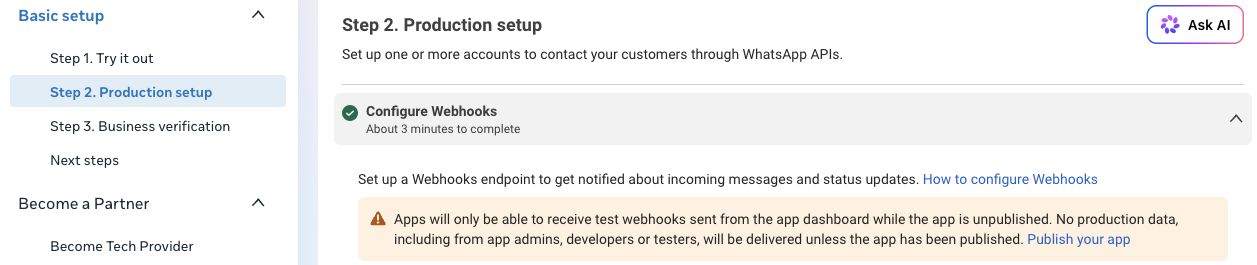
- Expand Configure Webhooks. Inspect the callback and subscription fields.
- The messages field carries incoming messages and status updates. Confirm it is subscribed.
- For manual verification, use the Connect Account's Connect Account Verification Token as the Verify token. The access token and App Secret are different values.
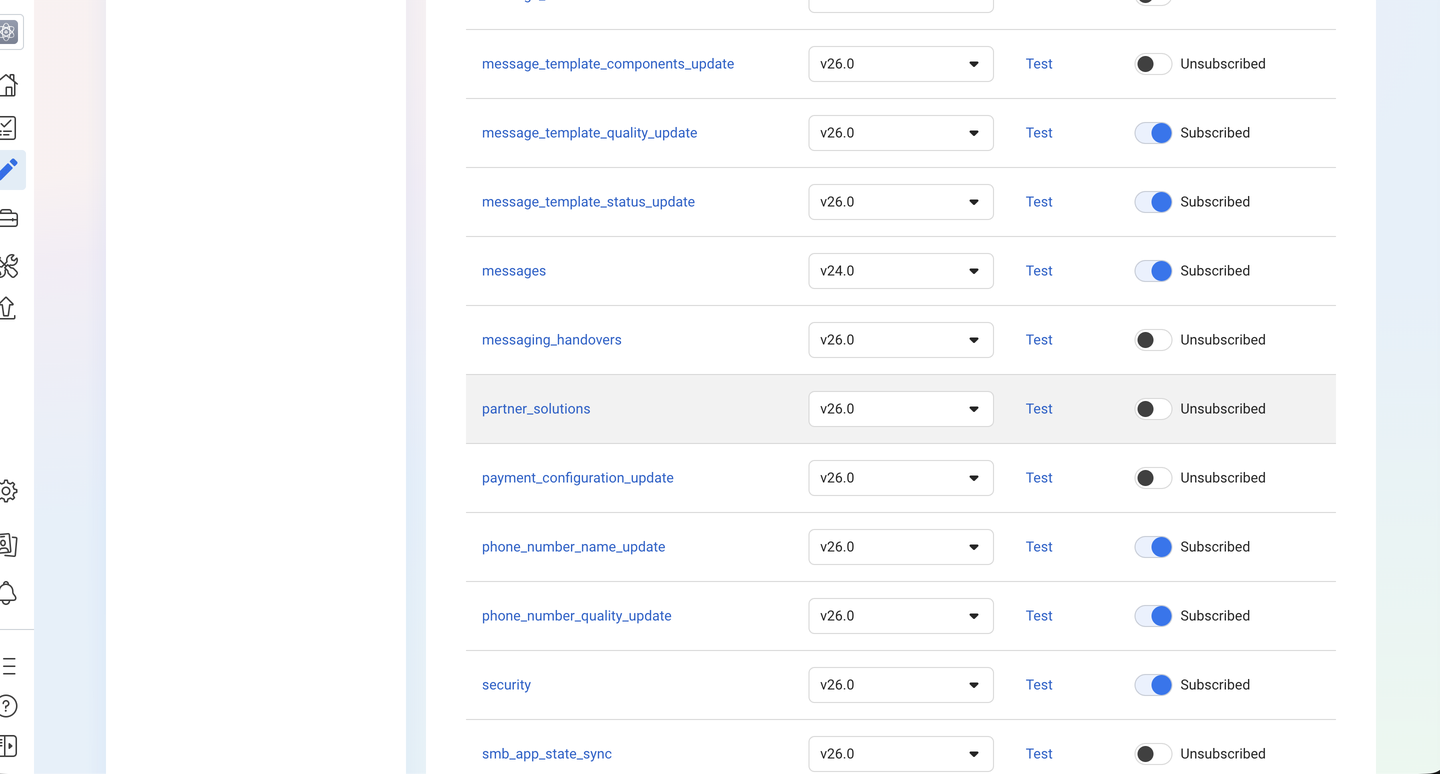
The setup creates the Connect Account Verification Token when missing. If configuring manually, copy that exact account value. A successful challenge verifies the connection step; it does not prove a real customer message has been processed.
5. Check publication and test the conversation
Meta's current WhatsApp production screen warns that unpublished apps receive dashboard test webhooks only; production data, including app-role users' data, is withheld until publication. Complete the relevant publication and number requirements before expecting a real inbound test.
Then follow Verifying your WhatsApp connection. Confirm both incoming text and the actual reply on the phone. For a failure, inspect the exact error and Connect Logs.
Common checks
- Verify/save fails: inspect the HTTPS Site address, path prefix, active Site setup and exact verification token.
- Webhook appears connected but nothing arrives: inspect publication, messages subscription, effective WABA/number routing and the business number used by the participant.
- Receipt arrives but cannot match a record: check active WhatsApp configuration rows and the telephone identity mapping.
- Text works but media does not: inspect the file error and relevant Active Remote Site Settings.