
Connecting the Twilio webhooks
Your Connect Account can now send SMS — but when a customer replies, Twilio has to know where to deliver that reply. You tell it once, in the Twilio console, by setting your phone number's incoming-message webhook to your Salesforce Site address. This is a five-minute step and the last piece of configuration before two-way SMS works end to end.
- The public Site exists and you know your SMS webhook address — Step 4 of Creating the public Site for incoming messages.
- The SMS Connect Account is saved and Is Active is ticked — see Creating the SMS Connect Account.
- You can log in to the Twilio console for the account that owns the phone number.
The two directions — what goes where
Two kinds of traffic flow from Twilio into your org, and they use the same address but are configured in different places:
| Direction | Configured where | What it carries |
|---|---|---|
| Incoming SMS (customer texts you) | The phone number's "A message comes in" webhook in the Twilio console — this article | Each new customer message |
| Delivery receipts (Queued → Sent → Delivered ticks) | The SMS Status Callback URL field on your Connect Account — already done in the previous article | Status updates for each message you send |
REDA Connect sends the callback address to Twilio with every outgoing message, so there is nothing to configure at Twilio for delivery receipts — the number's webhook below is only for incoming messages.
Step 1 — Have your webhook address ready
It is your Site address plus the fixed SMS path, exactly as written down when you created the Site — including the trailing slash:
https://<your-site-domain>/services/apexrest/rconn/twilio-inbound/or, if your Site has a path suffix (for example reda):
https://<your-site-domain>/reda/services/apexrest/rconn/twilio-inbound/This is the same address you entered in the SMS Status Callback URL field — one address serves both directions.
Step 2 — Set the webhook on the phone number
- Log in at console.twilio.com.
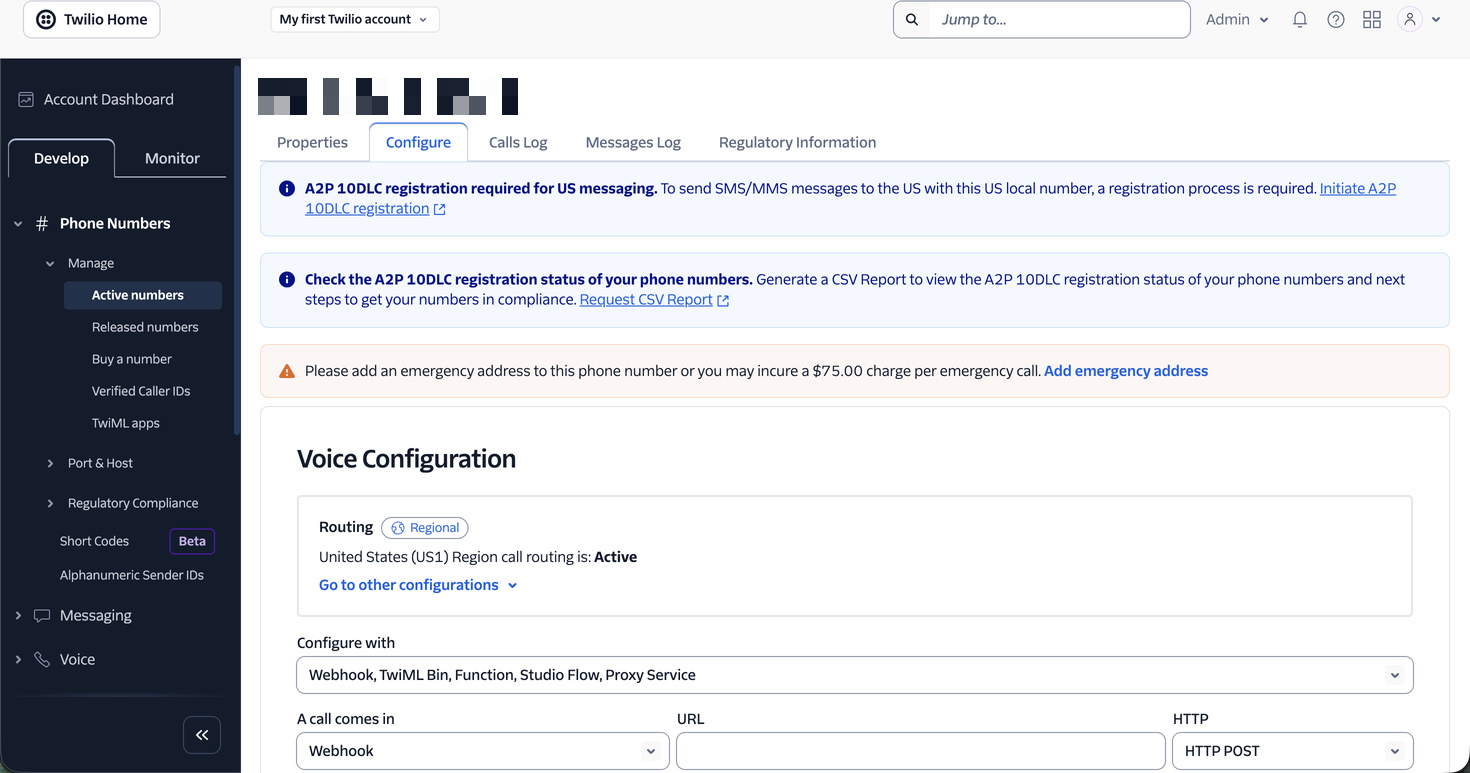
- Go to Twilio Console → Phone Numbers → Manage → Active numbers and click your SMS number.
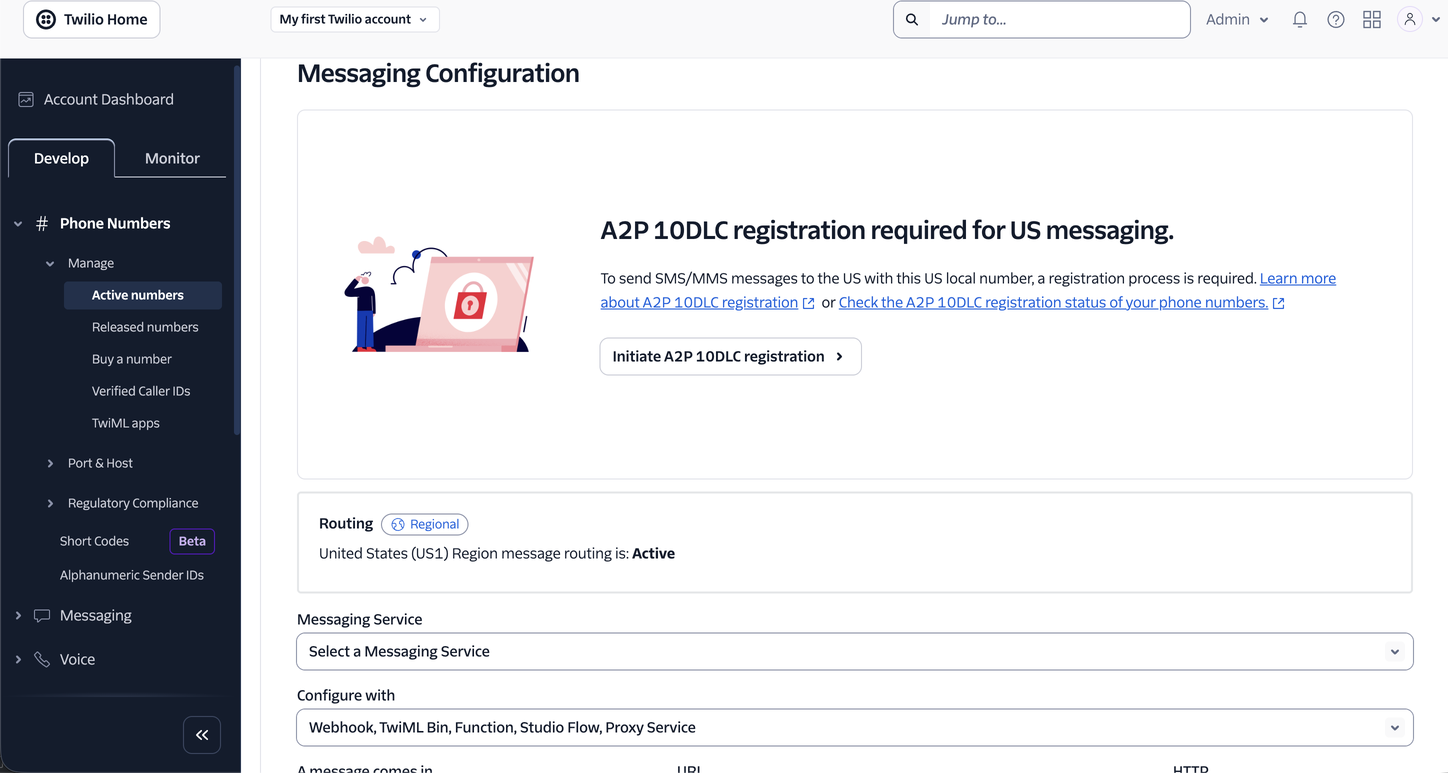
- Open the number's configuration view and find the Messaging section.
- Under A message comes in, set the first drop-down to Webhook.
- In the URL box, paste your webhook address from Step 1 — check the trailing
/survived the paste. - Set the HTTP method drop-down to HTTP POST.
- Click Save configuration.
Expected result: the number's configuration shows your Site address as the incoming-message webhook with method POST.
Step 3 — Verify with a real message
- From your phone (on a trial account: a verified phone — see What you need before connecting SMS), send any SMS to your Twilio number.
- In Salesforce, open the Connect Messages tab (App Launcher → Connect Messages) and the All Inbound Messages list view.
Expected result: within a few seconds, a new Connect Message appears with your text, status Received. If your phone number matches a record in your org (per your object configuration), the message is also linked to that record and appears in its Connect Feed.

A message arriving unlinked (no record) is still success for THIS article — record matching is its own topic (Inbound record matching).
Troubleshooting
| Symptom | Cause | Fix |
|---|---|---|
| The test message never arrives in Salesforce | Wrong webhook URL, Site inactive, or the Site's guest user isn't granted the endpoint | Re-check the URL character by character against Step 1; then re-verify Steps 2–3 of Creating the public Site |
| Message arrives in Twilio's log but Salesforce shows nothing | Webhook points somewhere else (old demo URL, missing path suffix) or method isn't POST | Fix the URL/method in Step 2; the path must end /services/apexrest/rconn/twilio-inbound/ |
| Message arrives but shows Failed with "Inbound media messages are not supported currently for Twilio." | The test message included a picture or attachment | Expected behaviour — REDA Connect supports text-only SMS. Send a plain text |
| Message arrives but no Connect Message is created; you find "No active connect account found for received Twilio message." in the logs | The Connect Account is inactive, or SMS Account Id / SMS From Number don't match the Twilio account and number that received the SMS | Tick Is Active; confirm the Account SID and the digits-only From number on the Connect Account |
| Sent messages never progress past Queued/Sent (ticks don't update) | SMS Status Callback URL missing the trailing / — receipts arrive but aren't recognised | Re-enter the field ending in / per Step 5 of Creating the SMS Connect Account |
Deeper diagnosis lives in An incoming message didn't arrive.
FAQ
No. REDA Connect passes the callback address with every message it sends, using your SMS Status Callback URL field. The console step in this article covers only incoming messages.
The address must be public so Twilio can call it without an interactive Salesforce login. Use the limited guest configuration described in Creating the public Site. Public reachability and limited guest permissions do not by themselves prove the origin of every incoming request.
Leave it empty. It is Twilio's backup if the primary webhook fails, and REDA Connect doesn't need one.
Yes — every number in your Twilio account can use the same Site address. REDA Connect works out which Connect Account each message belongs to from the Twilio account and the receiving number.
Where to go next
- Verifying your SMS connection — run the full two-way test with a checklist for each stage.
- Using a Twilio Messaging Service — optional, for sender pools and advanced compliance features.