
Verifying your WhatsApp connection
Test the complete customer conversation after the Connect Account and webhook are ready. A Meta dashboard send alone does not prove messages reach the correct Salesforce record.
1. Prepare the participant and record
- Use an agreed test participant and, for Meta's test number, a permitted test recipient.
- Confirm the WhatsApp account is active, its channel is enabled, and Check again shows the intended connection.
- Confirm the app's relevant publication requirements. The current Meta WhatsApp screen warns that an unpublished app does not deliver real production webhook data.
- For a known-record test, create or use the agreed Lead, Contact or configured object and put the participant's number in the configured telephone field, with country code and digits in the required format.
- Give the agent the appropriate REDA Connect permission set and feed access.
2. Start from the customer's phone
- From the participant's WhatsApp account, send a short message to the connected business/test number.
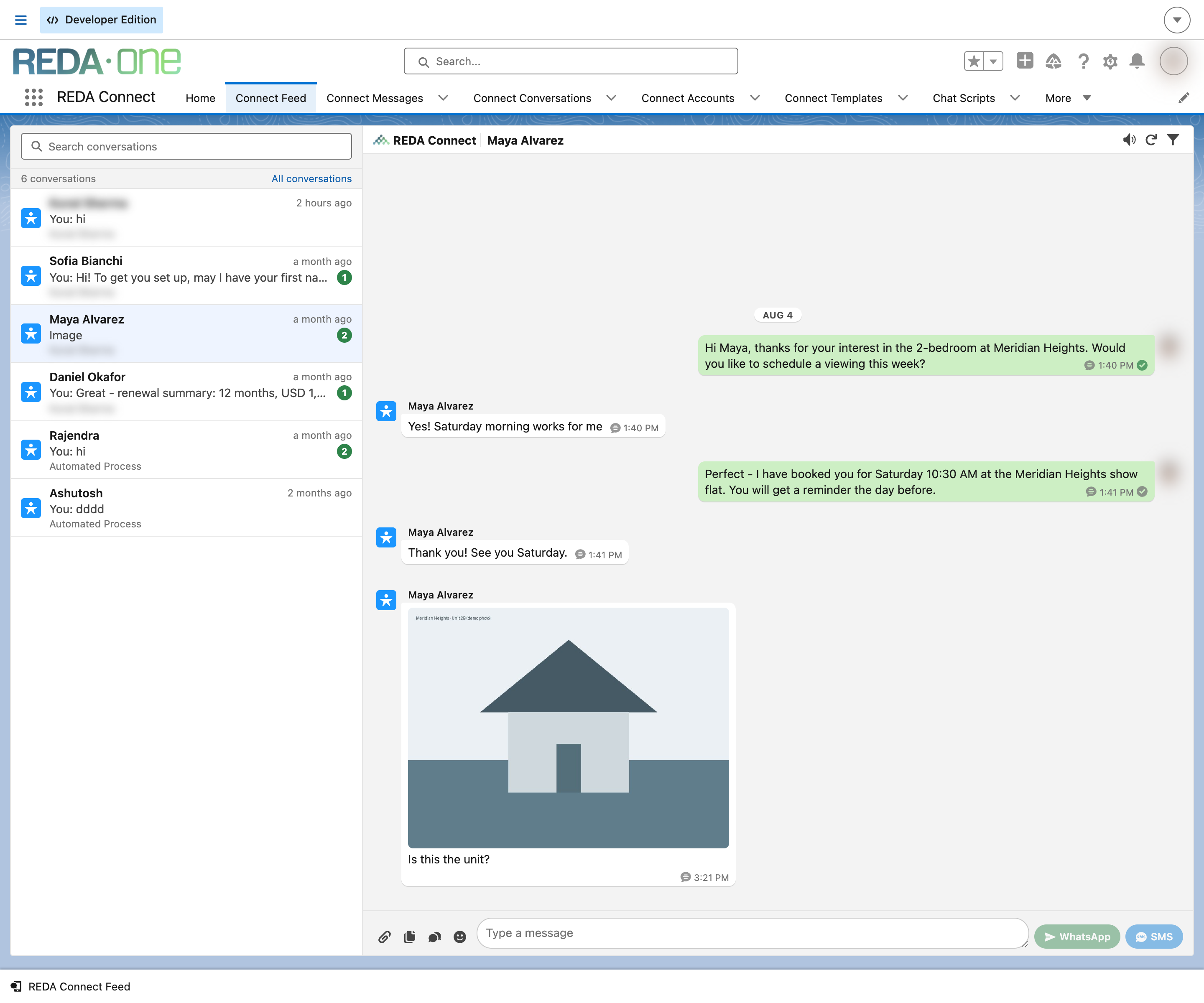
- Open the Salesforce Connect Feed and filter to WhatsApp if needed.
- Confirm the text appears against the expected Lead/Contact or configured object.
Expected result: one inbound message linked to the intended record. For a new sender, confirm the default configuration creates the intended object with the required values. If there is no message, inspect the callback, publication and logs before changing record defaults.
3. Reply from Salesforce
While the customer-service window is open, compose a short reply from the feed. Confirm the actual reply on the participant's phone. Inspect the send result; then check delivery/read updates when Meta provides them and the participant opens the message.
An inbound customer message opens the 24-hour service window. Outside that window, WhatsApp requires an approved template for business-initiated messaging. A template send does not itself substitute for the customer's reply when opening a free-form conversation. See approved WhatsApp templates.
4. Check the files your team will use
If the workflow includes files, confirm Allow Document Sharing and test a small supported image/document in each direction. Open the inbound Salesforce File and the outbound attachment on the phone. Text success alone does not confirm media download/upload access. Use the media troubleshooting guide for a specific failure.
5. Record the result
- Customer text reached the intended Salesforce record.
- The Salesforce reply reached the customer's WhatsApp app.
- Available delivery/read updates appeared as expected.
- A repeated message from the same sender matched the existing record.
- The file types and consent behavior needed by your team worked in the agreed test.
Record the actual outcomes and any remaining cases. A successful text test is not a claim that every file type, agent role or language has been tested.
If a step fails
| Observed result | First check |
|---|---|
| Meta sample send fails | Selected token, test recipient and Meta error |
| Sample send works but Salesforce receives nothing | Publication, messages subscription and effective callback/WABA routing |
| Inbound receipt exists but record is wrong | Account Config identity field, matching order and default creation row |
| Reply fails | The message's error, token, opt-out and current window; use an approved template where required |
| Text works but file fails | File type/size, provider error and relevant Active Remote Site Settings |
Continue with production setup or detailed troubleshooting.