
Applying Disbursements
Applying is the act of telling REDA Financials which bills a payment settles. It's what turns "we sent Apex Construction $10,000" into "the renovation invoice is now half-paid." This article covers the three ways applications happen — automatic, manual, and at-creation — plus partial payments, one-payment-many-bills, and how to undo a wrong application.
Access you'll need. Applications create and change subledger records, so they require the Accounts Payable v2 permission set or Accounting Admin v2 (system administrators). The Accounting Controller v2, Accounts Receivable v2, and Read Only v2 sets can review applications but not make or remove them.
Route 1 — Automatic (the default)
Every payment form carries an Auto Apply Disbursement checkbox, ticked by default. Leave it on, and the moment the payment posts, REDA Financials applies it for you:
- Paying from an invoice's New Disbursement button? That invoice is settled first.
- Any remainder spreads across the vendor's other open invoices, oldest first — unless an invoice carries an Application Priority, which jumps the queue.
- The engine respects your books' guardrails: closed AP periods are skipped, and if Enforce Dimension Match On Apply is ticked, only invoices with matching cost dimensions are considered.
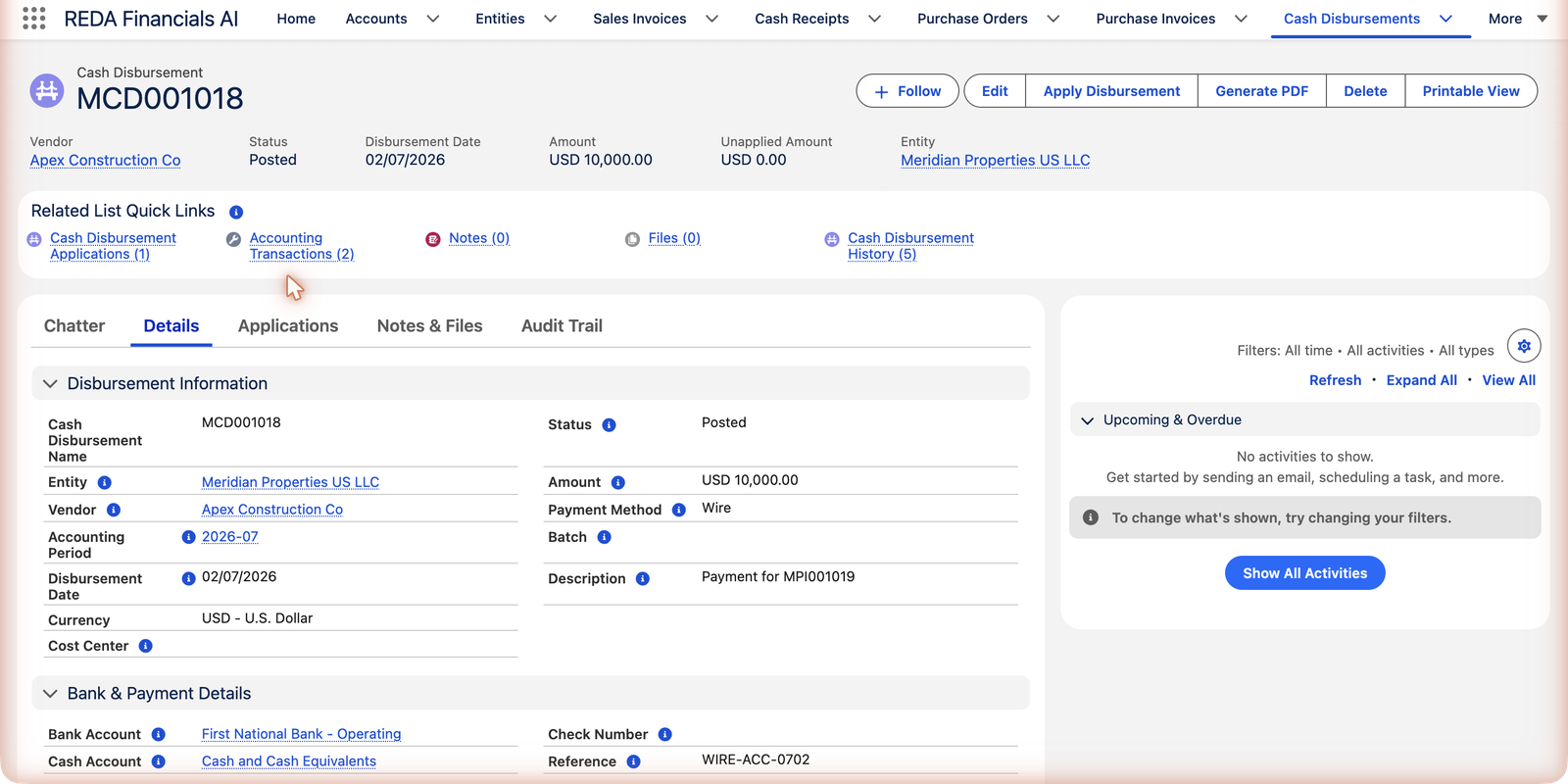
Here's Meridian's $10,000 progress payment to Apex Construction right after posting — applied without a single extra click:
Route 2 — Manual (you choose the matching)
Untick auto-apply when you want control — or when the payment arrived as an advance and the bills came later. Then, on the posted payment, click Apply Disbursement:
Review the vendor's open invoices
The application screen lists every posted invoice of this vendor with a balance due and an invoice date that has already arrived — with dates, references and amounts, so you can match against the vendor's remittance advice.
Enter the amounts to apply
Type how much of the payment goes to each invoice. Apply the full balance, or less for a partial settlement — the running total keeps you inside the payment's unapplied amount.
Confirm
Each application takes effect immediately: invoice balances fall, aging updates, and the payment's Unapplied Amount shrinks. In your books, the applied money moves from Supplier Prepayments to clear Accounts Payable.
Route 3 — At creation, from the invoice
The everyday case you've likely already used: click New Disbursement on the unpaid invoice, and the payment form arrives pre-linked to it with auto-apply on. Post once; paid and applied. The walkthrough is in Creating a Cash Disbursement.
What an application records
However it's created, each application is a small record with four facts:
| Field | Required? | What it does |
|---|---|---|
| Applied Amount | Yes | How much of the payment settles this invoice — capped by the payment's unapplied amount on one side and the invoice's balance due on the other |
| Discount Amount | No | An early-payment discount taken alongside — the invoice clears for applied + discount while only the applied cash was spent; the discount posts to your Purchase Discounts account (details) |
| Application Date | Yes | The accounting date of the settlement — normally the payment date |
| Accounting Period | Yes (derived) | Which period the settlement lands in, derived from the Application Date |
And in the books, each application moves the money from the holding account onto the vendor's payable — for the $10,000 Apex application:
| Account | Debit | Credit |
|---|---|---|
| Accounts Payable — Trade | $10,000.00 | |
| Supplier Prepayments | $10,000.00 |
(Organizations that balance their ledger by cost center see an extra pair of Dimension Clearing lines keeping each dimension's payable in balance — automatic.)
The scenarios that used to be hard
| Scenario | How it works |
|---|---|
| Partial payment | Apply less than the invoice's balance. The invoice stays open for the remainder and keeps aging on it. Meridian's $48,000 renovation bill was settled in two wires — $24,000, then $10,000 — and shows $14,000 due. |
| One payment, many bills | Add one application per invoice until the payment is used up. Typical for monthly vendor runs. |
| Advance / deposit | Post the payment with auto-apply off and no applications. It stays 100% unapplied — a prepayment asset — until bills arrive and you apply it. |
| Early-payment discount | Record the discount on the application — you pay less cash and the invoice still clears in full. Details in Settlement Discounts & Terms. |
The matching rules
The application screen only offers what the rules allow, so you rarely collide with them — but they explain why an invoice is missing from the list:
| The rule | What it means |
|---|---|
| Both documents must be posted | A draft payment holds no money; a draft invoice has no balance to settle. |
| Same vendor | CityClean's money can never pay Summit's bill — a payment applies only to its own vendor's invoices. |
| Same entity (normally) | Each company settles its own payables. The deliberate exception is below. |
| Never more than is available | An application can't exceed the payment's unapplied amount, nor the invoice's balance due — hard stops, not warnings. |
| The Accounting Period must be open for AP | Settlements are books events; applications dated into a closed AP period are refused, and the auto-apply engine skips them. |
| Never before the bill or the payment date | The application date can't fall before the invoice it settles or the disbursement it draws from — the payable would show negative on every date in between. A future-dated bill never appears in the list and is never auto-settled; hold the payment unapplied and apply it on or after the bill date. |
| Dimensions match — if the payment says so | With Enforce Dimension Match On Apply ticked, only invoices carrying the payment's cost dimensions qualify. |
The exception: paying another company's bill
When one Meridian entity pays a bill that sits in a sister entity's books, the application can cross entities — but only when both entities have Allow Cross-Entity Settlement (AP) switched on. The application then writes the intercompany bookkeeping for you: the paying entity records an Intercompany Receivable (the sister owes it money) and the invoice's entity records an Intercompany Payable — using each entity's configured intercompany accounts. Delete the application and those entries go with it. Vendor memos never cross entities. The full workflow is in Cross-Entity AP Settlement.
Undoing an application
Applied to the wrong invoice? Open the payment's Applications tab and delete the wrong application — the invoice's balance returns, and the payment's unapplied amount comes back so you can apply it correctly. (Reopening or voiding either document unwinds its applications automatically, too.)
Common mistakes to avoid
| Mistake | Why it hurts | Do this instead |
|---|---|---|
| Paying cash while the vendor's memo credit sits unspent | You send money you didn't owe; the credit lingers on the shelf | Apply vendor memos first — then pay only the net |
| Leaving an advance unmatched after its bills arrive | The invoice ages as unpaid while the prepayment sits idle — the vendor statement and your aging both mislead | When the bill posts, open the payment and apply it (or let auto-apply pick it up) |
| Forcing a near-match ("only a few dollars off") | An application asserts same money; the difference is usually a fee or dispute that now hides inside a wrong match | Apply the true amount only; resolve the difference on its own terms |
| Backdating the Application Date casually | The settlement lands in a prior period's books and distorts historical AP — and it can never sit before the bill or the payment itself, or the payable goes negative in between | Default to the payment date; backdate only into a genuinely open period, and never before the invoice date or the disbursement date |
| "Fixing" wrong matches by voiding the whole payment | The void unwinds everything — including the correct applications — and consumes a check number for nothing | Delete just the wrong application and re-apply; the payment itself is fine |
Where to go next
- Settlement Discounts & Terms — the discount mechanics.
- Batch Payment Run — applications at scale.
- Applying Vendor Memos — the same idea, with credits instead of cash.
- Auto-Apply Batches — scheduling automatic application org-wide.
Frequently asked questions
Delete the application from the payment's Applications tab and apply manually to the right invoice. If this keeps happening, set an Application Priority on invoices that should be settled first — the auto-apply engine honors it before falling back to oldest-first.
Only posted invoices with a balance due qualify. Drafts, fully-settled bills, and vendor memos won't appear. A bill dated in the future is also held back until its invoice date arrives — there's no payable to settle before then. If dimension matching is enforced on the payment, invoices with different cost-center values are filtered out as well.
No — a payment belongs to one vendor and applies only to that vendor's invoices. Paying two vendors means two payments (which is exactly what a payment run automates).
Its Application Date — normally the payment date — which places the settlement in an accounting period. That's how your AP aging and vendor statements stay historically accurate even when you apply late.
Enter it as the application's Discount Amount: the invoice clears for the applied cash plus the discount, and the discount posts to your Purchase Discounts account as income. Payment runs suggest eligible discounts automatically — see Settlement Discounts & Terms.
Three consistent places: the payment's Applications tab, each invoice's Applications tab, and the ledger entries on the Accounting Transactions lists. Every application names its amount, date and accounting period.
Use a current, open Application Date — the settlement is a today-event even if the payment was earlier. Closed AP periods refuse new applications (and removals) in both directions; if you genuinely believe the period should reopen, that's a conversation with your controller.
Was this article helpful?