
OCR Processing Batch
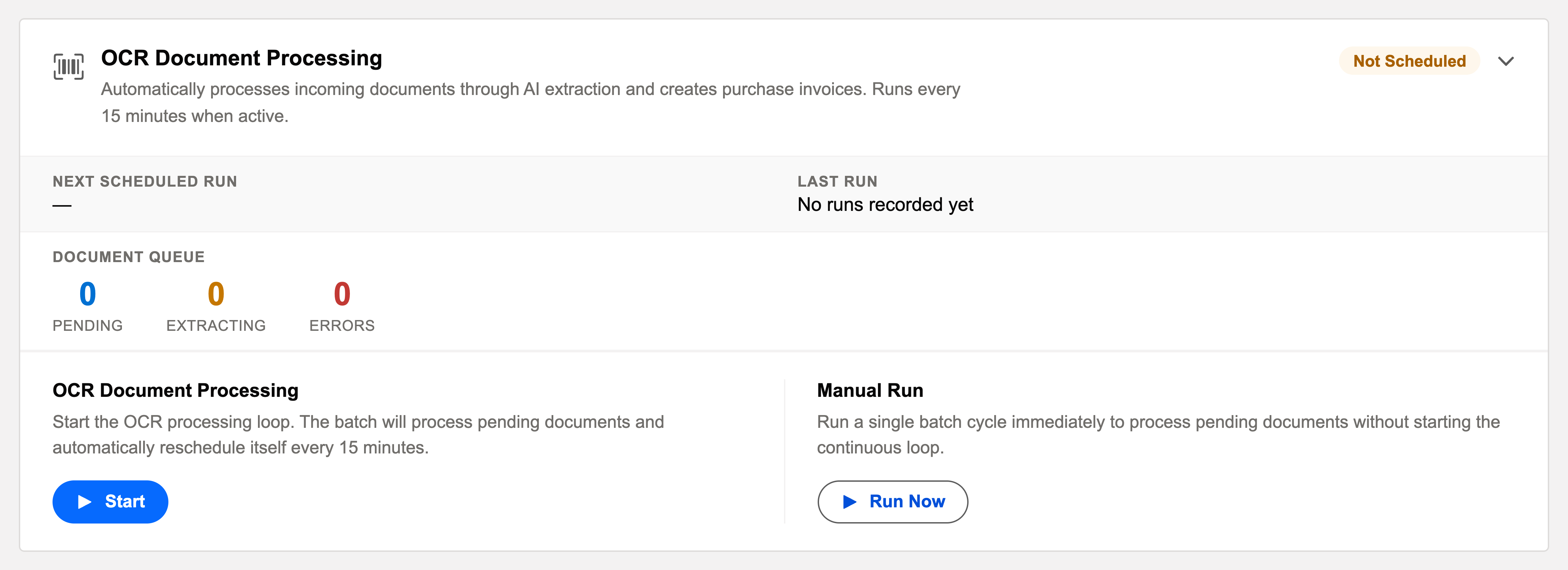
The conveyor belt behind document intake. The card: "Automatically processes incoming documents through AI extraction and creates purchase invoices. Runs every 15 minutes when active."
Access you'll need. Starting and stopping batch jobs requires the Accounting Admin v2 permission set. The Accounting Controller v2 and Read Only v2 sets can open the console to view outcomes; the Accounts Payable v2 and Accounts Receivable v2 sets cannot see it, though they work the draft invoices the loop produces from the OCR Inbox.
The essentials
- A queue processor, not a nightly job: this card works differently — you Start it and it cycles every 15 minutes, draining the OCR Inbox; Stop pauses new cycles (work in flight finishes).
- What each cycle does: takes pending inbox documents through AI extraction (vendor, dates, amounts, lines), matches them to your master data, and creates draft purchase invoices for review.
- Queue visibility: the card shows the pipeline — pending, extracting, errored — so a glance tells you whether intake is flowing.
- Uses AI document credits: each processed document draws on your plan’s monthly allowance (visible on the Subscription tab).
What the loop moves — the document lifecycle
Every document the loop touches lives on an OCR Inbox record whose Status says exactly where it is. The system’s own definitions:
| Status | Meaning | Who acts |
|---|---|---|
| Pending | Received (usually via email), awaiting the next 15-minute cycle | Nobody — the loop picks it up |
| Processing / Extracting | AI at work — first read done, full extraction underway | Nobody |
| Extracted | Data ready; confidence below the auto-create bar — awaiting a human | AP reviews via Create Invoice |
| Created | A draft Purchase Invoice exists, linked on the record | Normal AP flow takes over |
| Error | Processing failed; the reason is stored on the record | Fix the cause, Reprocess |
| Reviewed / Rejected | Bookkeeping marks for human-verified and deliberately discarded items | Your team’s convention |
The loop works the queue oldest-first, one document at a time — a document that fails is marked Error with its reason, and the loop carries on with the next one. One bad scan never jams the queue.
Reading the card’s queue counters
The card’s Document Queue counters — pending | extracting | errored — are the queue’s dashboard-at-a-distance: an administrator sees work waiting and failures accumulating without opening the OCR Inbox tab. Pending steadily draining is healthy. Stopping is safe, and the button says so: "Stop the OCR processing loop. Pending documents will remain in the queue until processing is restarted." — nothing is lost; the queue just waits.
Troubleshooting the loop
| Symptom | Likely cause → action |
|---|---|
| Queue growing, nothing processing | The processor is stopped — press Start. If started and stuck, check the last audit entry for the error. |
| Everything erroring at once | Usually the document cap: the monthly AI allowance is exhausted — "Monthly AI document processing limit has been reached. Please contact your administrator." Confirm on the Subscription tab. |
| Errors like "AI service is temporarily rate-limited. Please try again in a few moments." | Transient conditions on the AI service — nothing is wrong with your documents. Reprocess after a short wait. |
| "AI API key is not configured. Please activate your REDA Financials AI license." | The org has no active AI licence — an administrator activates the key in the Subscription tab. |
Common mistakes to avoid
| Mistake | Why it hurts | Do this instead |
|---|---|---|
| Waiting for Pending records to move while the loop is stopped | Nothing processes itself — the queue grows silently and vendors start chasing | Check the card; press Start — it re-schedules itself every 15 minutes |
| Lowering the auto-create threshold to shrink the review queue | Low-confidence extractions become draft invoices unreviewed — errors move downstream into AP | Keep the review bar meaningful; Awaiting Review exists so doubtful reads get human eyes |
| Ignoring the errored counter for weeks | Most errors are one-click retries when fresh; stale ones become archaeology while real bills sit unpaid | Glance at the Errors view (or the card’s counter) daily — see Reprocessing Failed Extractions |
| Routing statements and receipts through the intake address | They consume monthly allowance and are refused at extraction — only vendor bills travel the pipeline today | Send vendor bills; keep general correspondence out of the intake mailbox |
| Treating extraction as posting | Nobody reviews, errors reach the ledger late, trust in the feature erodes | Every created invoice is a Draft on purpose — verify against the document before posting |
Operating it
Most orgs start it and leave it running — 15-minute freshness means an emailed invoice becomes a reviewable draft before the coffee’s done. Errored documents stay visible in the inbox with reasons, ready for reprocessing after fixes. Run Now forces an immediate cycle.
Where to go next
- OCR Overview — the pipeline end to end.
- Creating an Invoice from OCR — the reviewer’s workflow.
- Operations Scheduler Overview — the console.
Frequently asked questions
The processing loop isn’t running. It’s a Start/Stop loop, not a daily-time job — press Start on the card and the queue drains on the 15-minute cycle. A Pending item is normal for a few minutes; a pile of them means the loop is stopped.
No — the button’s own text explains: "Stop the OCR processing loop. Pending documents will remain in the queue until processing is restarted." Work in flight finishes, nothing is lost, and Start resumes exactly where it left off.
Never — created invoices are always drafts, and the normal posting gates (periods, approvals, your click) stand between extraction and the ledger. The AI types; you decide.
No — it runs as a system context, consuming no seat. What the AI plan meters is document volume: each processed document counts against the org-wide monthly allowance, visible on the Subscription tab.
Its extraction confidence met the territory’s OCR Auto-Create Threshold (default 80%), so a draft Purchase Invoice was created automatically and the record went straight to Created. The invoice is still a draft — review it there before posting.
Vendor bills → Purchase Invoices, today. The intake record reserves other types (Expense Receipt, Bank Statement) for future phases — treat those as roadmap, not features. Non-invoices are refused at extraction: "The uploaded document does not appear to be an invoice."
Was this article helpful?