
Permission Set Assignment
A permission set decides which parts of REDA Financials a user can see and work with — whether they handle receivables, payables, the general ledger, or simply review reports. REDA Financials ships with a small set of ready-made permission sets built around common accounting roles, so you can give each person exactly the access their job needs and nothing more. This article explains what each permission set grants, which one to choose for each role, and how to assign it.
Access you'll need. Assigning permission sets is a Salesforce System Administrator task (the “Assign Permission Sets” / “Manage Users” permission) — a platform-admin action, separate from the REDA Financials permission sets it grants.
The REDA Financials permission sets
REDA Financials provides five role-based permission sets. They are designed around the natural separation of duties in an accounting team, so most people in your organisation map cleanly to one of them. Assign the v2 set in each row — that is the one that works for every user licence type.
| Permission set | What it grants | Typical role |
|---|---|---|
| REDA Financials Accounting Admin v2 | Full access to every REDA Financials object, field, and feature — including setup of entities, the general ledger, tax, territories, periods, and application settings. | System administrators who configure and maintain the application. |
| REDA Financials Accounting Controller v2 | Full access to the General Ledger, Journal Entries, Banking, Reconciliation, Budgets, Assets, Aging, and master data. Read access to Receivables and Payables. | Financial controllers and accounting managers who own the books. |
| REDA Financials Accounts Receivable v2 | Full access to Sales Invoices, Credit Memos, Cash Receipts, and their applications. Read access to all other modules. | AR clerks and AR managers who bill customers and apply receipts. |
| REDA Financials Accounts Payable v2 | Full access to Purchase Invoices, Vendor Memos, Cash Disbursements, Purchase Orders, the OCR Inbox, and Expense Allocations. Read access to all other modules. | AP clerks and AP managers who process bills and pay vendors. |
| REDA Financials Read Only v2 | Read-only access to every REDA Financials object and field. No create, edit, or delete anywhere. | CFOs, directors, external auditors, and compliance officers who review but never change records. |
Which permission set should each user have?
Match the permission set to the person’s job. Using Meridian Industries (a company running both a US and an India entity) as an example:
- The billing clerk who raises customer invoices and records receipts gets Accounts Receivable.
- The accounts payable clerk who enters vendor bills and runs payments gets Accounts Payable.
- The financial controller who manages the ledger, reconciles the bank, runs depreciation, and closes the period gets Accounting Controller.
- The Salesforce administrator who sets up entities, tax rules, and periods gets Accounting Admin.
- The CFO and the company’s external auditors get Read Only — full visibility, no ability to change anything.
How to assign a permission set
Permission sets are assigned by a Salesforce administrator on the user record:
- Go to Setup in Salesforce.
- In the Quick Find box, type Users and select Users.
- Click the name of the user you want to give access to.
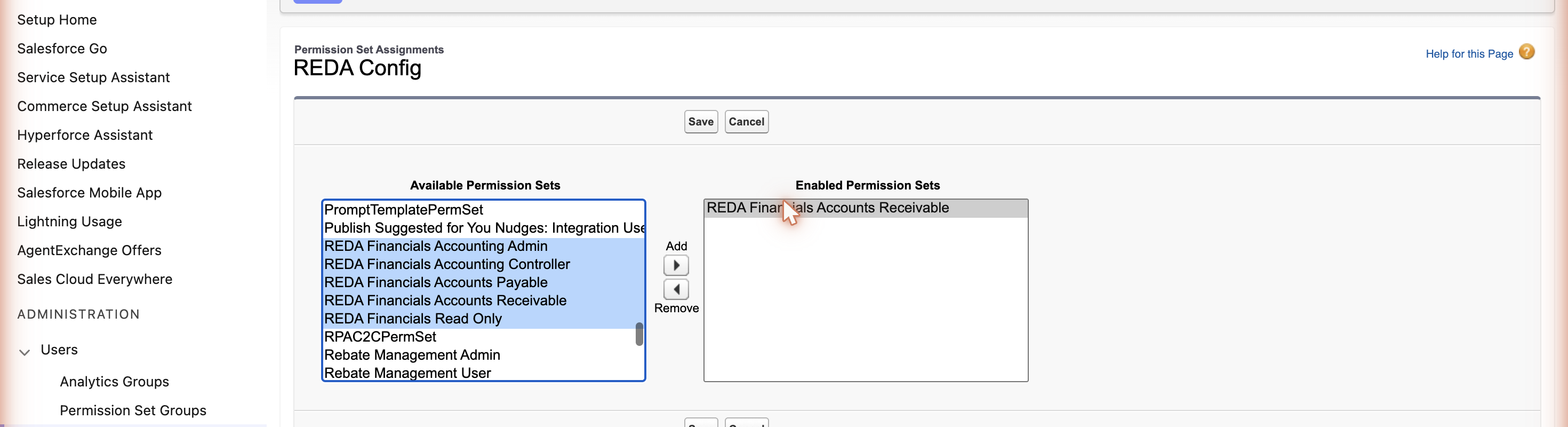
- On the user record, find the Permission Set Assignments related list and click Edit Assignments.
- From the Available Permission Sets list, select the v2 REDA Financials permission set for the user’s role — for example REDA Financials Accounts Receivable v2 — and click Add to move it to Enabled Permission Sets.
- Click Save.
The access takes effect immediately. The next time the user opens REDA Financials, they will see the tabs and records their role allows.
Migrating to the v2 permission sets
Version 1.610 introduced five replacement permission sets, each named with a v2 suffix. If your organisation was using REDA Financials before that version, this is a one-off migration you need to complete — it is not optional and it is not only for organisations using electronic invoicing.
Why they were replaced
Every Salesforce permission set is tied to a user licence when it is created, and that binding can never be changed afterwards. The five original REDA Financials permission sets were tied to the Salesforce user licence. That meant any user on a Salesforce Platform licence — the licence most accounting users are given, because it is cheaper and covers everything they need — simply could not be assigned them, and the error message did not explain why.
Because the binding is immutable, the only possible fix was to ship replacements. The five v2 sets grant exactly the same access as their originals. The only difference is that they are not tied to any user licence, so they can be assigned to anyone.
| Assign this | Instead of this |
|---|---|
| REDA Financials Accounting Admin v2 | REDA Financials Accounting Admin |
| REDA Financials Accounting Controller v2 | REDA Financials Accounting Controller |
| REDA Financials Accounts Receivable v2 | REDA Financials Accounts Receivable |
| REDA Financials Accounts Payable v2 | REDA Financials Accounts Payable |
| REDA Financials Read Only v2 | REDA Financials Read Only |
How to migrate, without anyone losing access
Do it in this order. Adding the new set before removing the old one means nobody is left without access at any point, even if you are interrupted halfway through.
- Go to Setup → Permission Sets and open the v2 set for one role — start with a small role rather than Accounting Admin.
- Click Manage Assignments → Add Assignments, tick everyone who currently holds the matching original set, and click Assign.
- Check one user before going further. Ask someone in that role to open REDA Financials and do something ordinary for their job — open an invoice, post a journal entry. If it works, the v2 set is doing its job.
- Now open the original set, click Manage Assignments, tick the same people and click Remove Assignments.
- Repeat for the other four roles.
The five original sets remain installed. A permission set cannot be deleted from a released managed package, so they cannot be removed for you. Treat them as deprecated: keep them, stop assigning them, and assign only the v2 sets to anyone new.
Removing or changing access
To change what a user can do, edit their permission set assignments the same way:
- To change a role — remove the old permission set and add the new one. For example, when a clerk moves from receivables to payables, swap Accounts Receivable for Accounts Payable.
- To revoke access — remove the REDA Financials permission set from the user. They will no longer see the application’s tabs or records.
Next steps
Assign licences
Make sure each user who posts transactions also holds a licence — see License Assignment.
Complete your setup
Configure entities, the ledger, tax, and periods in Post-Installation Setup.
Review your subscription
Check used and available licences on the Subscription tab — see Subscription & Plans.
Where to go next
- License Assignment — license users before assigning access.
- Segregation of Duties & Security — split access across roles.
- Post-Installation Setup — configure the app from the Admin Console.
- Your Setup Roadmap — the next configuration steps, in order.
- Audit Logging — track who did what.
Frequently asked questions
A permission set decides what a user can see and work with — the modules and records for their role. A licence decides whether they can post accounting transactions. Most users need both. See License Assignment for licences.
The Accounts Receivable permission set. It gives full access to Sales Invoices, Credit Memos, Cash Receipts, and their applications, with read access to the rest of the application so they have the context they need.
Yes — assign both the Accounts Receivable and Accounts Payable permission sets to the same user. For stronger internal control, though, most organisations keep these duties separated between different people.
The Read Only permission set. It provides full visibility into every record with no ability to create, edit, or delete — ideal for reviewers, directors, external auditors, and compliance officers.
The user most likely has not been assigned a REDA Financials permission set yet. Open their user record, go to Permission Set Assignments, and add the permission set for their role. The tabs appear immediately afterward.
No. Removing a permission set only removes access — it never deletes data. Any records the user created remain intact. Note that removing a permission set does not free their licence; to do that, uncheck the licence or deactivate the user.
Was this article helpful?