
Installation & Upgrades
REDA Financials AI is delivered as a Salesforce managed package. Your REDA Account Executive will provide you with an installation link and assist you through the process. If you need help at any point, contact support@reda.one. This article walks through the installation steps, explains how upgrades are delivered, and covers best practices for testing changes in a sandbox before production.
Access you'll need. Installing or upgrading a managed package is a Salesforce System Administrator task (it needs the “Download AppExchange Packages” permission) — it is not governed by the REDA Financials permission sets, which only take effect after the package is in place.
Installation steps
Step 1: Receive the installation link
Your REDA Account Executive will send you a secure installation URL. This link is specific to your Salesforce org.
Step 2: Log in as System Administrator
Open the installation link while logged in to Salesforce with a System Administrator profile. The link will take you to the standard Salesforce package installation page.
Step 3: Choose the installation scope
Salesforce will ask you to choose who should have access to the package:
- Install for Admins Only (recommended)
- Install for All Users
- Install for Specific Profiles
We recommend selecting “Install for Admins Only” during the initial installation. This gives your administrator time to complete the Post-Installation Setup (subscription activation, chart of accounts seeding, permission set assignment) before other users access the application. Once setup is complete, user access is controlled entirely through Permission Sets.
Step 4: Install the package
Click Install. The installation typically takes 5–10 minutes. Salesforce will send you an email when the installation is complete.
Step 5: Verify the installation
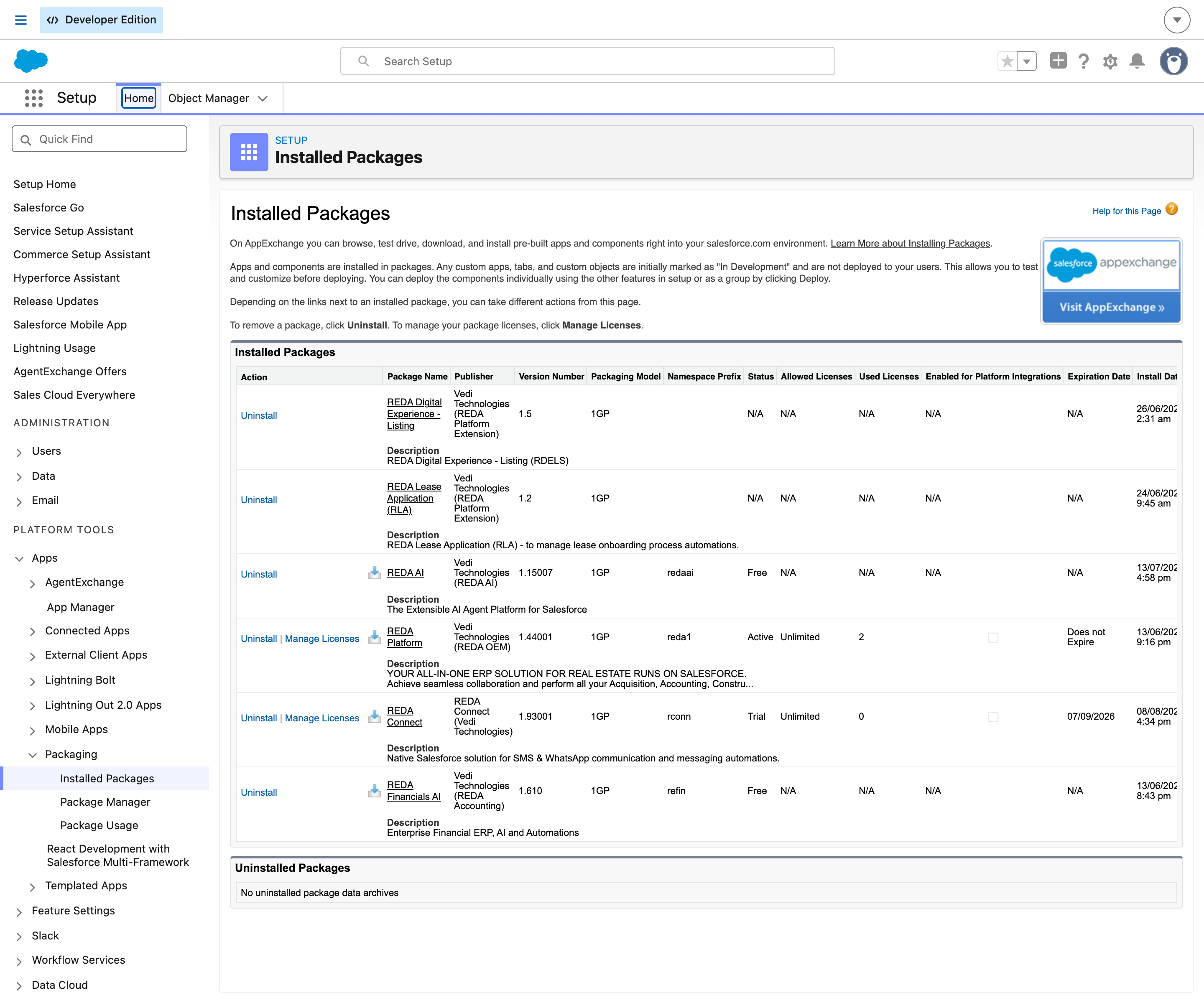
Once you receive the confirmation email, verify the installation by navigating to Setup → Installed Packages. You should see “REDA Financials” listed with its version number and installation date.
Step 6: Activate your subscription
Your REDA Account Executive will configure the licence key for your org, which activates the application features based on your subscription plan. See Subscription & Plans for details on what each plan includes.
What is installed
The managed package installs everything your organisation needs to run REDA Financials AI:
| Component | What it includes |
|---|---|
| Lightning App | The “REDA Financials” app appears in your App Launcher with a pre-configured navigation bar covering all modules |
| Custom Objects & Fields | All accounting objects (Entities, GL Accounts, Invoices, Receipts, Journal Entries, Fixed Assets, Budgets, and more) with their fields, relationships, and validation rules |
| Business Logic | The Posting Engine, Tax Engine, Withholding Tax Engine, Depreciation Engine, and all supporting automation |
| User Interface | Lightning Record Pages, source document forms, the Admin Console, financial reports, and all custom Lightning components |
| Permission Sets | Five role-based permission sets that control access to different areas of the application |
| Reports & Dashboards | Pre-built reports across all modules and persona-based dashboards (Executive, AR, AP) |
| Admin Console | A centralised setup interface for configuring your subscription, chart of accounts, territories, accounting periods, and batch operations |
Prerequisites
Before the REDA team initiates the installation, confirm the following with your Salesforce administrator:
- Salesforce Edition — REDA Financials AI requires Enterprise Edition, Unlimited Edition, or Performance Edition. It is not compatible with Essentials or Professional Edition.
- System Administrator access — the person installing the package must be logged in with a System Administrator profile.
- My Domain enabled — Salesforce My Domain must be deployed (this is a standard requirement for Lightning components and is enabled by default on all new orgs).
How upgrades work
REDA regularly releases new versions of the managed package to deliver new features, enhancements, and bug fixes. Your organisation controls when upgrades are applied to production — REDA never pushes updates directly to your production org.
What upgrades include
- New features — new modules, objects, fields, reports, and UI components
- Enhancements — improvements to existing features (performance, usability, additional options)
- Bug fixes — corrections to known issues
- Compliance updates — changes driven by accounting standard updates, tax regulation changes, or Salesforce platform updates
The upgrade process
When a new version is available:
- REDA notifies your administrator — you will receive a communication from the REDA team describing what is included in the release, along with an upgrade installation link.
- Install in your sandbox first — use the upgrade link to install the new version in your sandbox environment. Test the upgrade thoroughly before applying it to production.
- Verify in sandbox — confirm that your accounting workflows, custom reports, integrations, and any custom code that references REDA Financials objects continue to work correctly.
- Install in production — once you are satisfied with the sandbox testing, use the same upgrade link to install the new version in your production org. This step is entirely in your control.
- Verify in production — after the upgrade completes, confirm that the application is functioning normally.
Sandbox best practices
A sandbox is a copy of your production Salesforce org used for testing and development. Here are the best practices for using sandboxes with REDA Financials AI:
- Maintain at least one Full or Partial Copy sandbox — this gives you a realistic environment that includes your accounting data for testing upgrades and new configurations.
- Refresh your sandbox regularly — after major production changes, refresh the sandbox to keep it in sync. REDA Financials data (entities, GL accounts, invoices, etc.) is included in the refresh.
- Test the upgrade end-to-end —
after REDA pushes an upgrade to your sandbox, verify the
following:
- Post a journal entry and confirm Accounting Transactions are created correctly
- Create and post a sales invoice and a purchase invoice
- Run any custom reports or integrations that reference REDA Financials objects
- Verify that the Admin Console opens and all tabs load
- Report any issues immediately — if you encounter anything unexpected during sandbox testing, contact support@reda.one before approving the production upgrade.
Uninstallation
If you ever need to remove REDA Financials from your org, the standard Salesforce package uninstallation process applies. Navigate to Setup → Installed Packages, find “REDA Financials”, and click Uninstall. Salesforce will remove all managed components.
Next steps
Review your subscription
Understand what your plan includes in Subscription & Plans.
Assign user licences
Enable individual users for REDA Financials in License Assignment.
Assign permission sets
Give each user the right level of access in Permission Set Assignment.
Complete post-installation setup
Walk through the Admin Console in Post-Installation Setup.
Where to go next
- License Assignment — license users so they can post transactions.
- Permission Set Assignment — grant access to the right modules.
- Post-Installation Setup — configure the app from the Admin Console.
- Sandbox Testing Guide — test upgrades safely first.
- Your Setup Roadmap — what to configure next, in order.
Frequently asked questions
Not at this time. REDA Financials AI is installed directly by the REDA team as part of your onboarding. You will receive a secure installation link from your REDA account team. Contact sales@reda.one to get started.
The Salesforce package installation itself typically takes a few minutes. End-to-end onboarding — including subscription activation, permission set assignment, and initial setup — can usually be completed within an hour with guidance from the REDA team.
No. Managed package upgrades add new components and update existing managed code, but they do not modify your custom configurations. Your custom fields, Flows, reports, page layout customisations, and any extension package components are preserved. However, if you have custom Apex or Flows that reference REDA Financials objects, it is always best to test the upgrade in a sandbox first to confirm compatibility.
No. Salesforce managed package upgrades are applied without downtime. Users can continue working during the upgrade. However, it is good practice to avoid running large batch operations (such as period-end closures or bulk posting) while a package upgrade is in progress.
The REDA team will notify your designated administrator when a new version is available. You can also check your current package version in Salesforce under Setup → Installed Packages. For release notes and announcements, contact support@reda.one.
REDA Financials AI is supported on Enterprise Edition, Unlimited Edition, and Performance Edition. It is not compatible with Essentials or Professional Edition due to platform feature requirements (custom objects, Apex triggers, and permission sets).
Was this article helpful?