
Licence Key Architecture
Your REDA Financials subscription arrives as a single licence key — one string that carries everything the system needs to know about your contract. This article explains how the key works from your side of the fence: what it encodes, why it only works in your org, and what its lifecycle looks like.
What the key carries
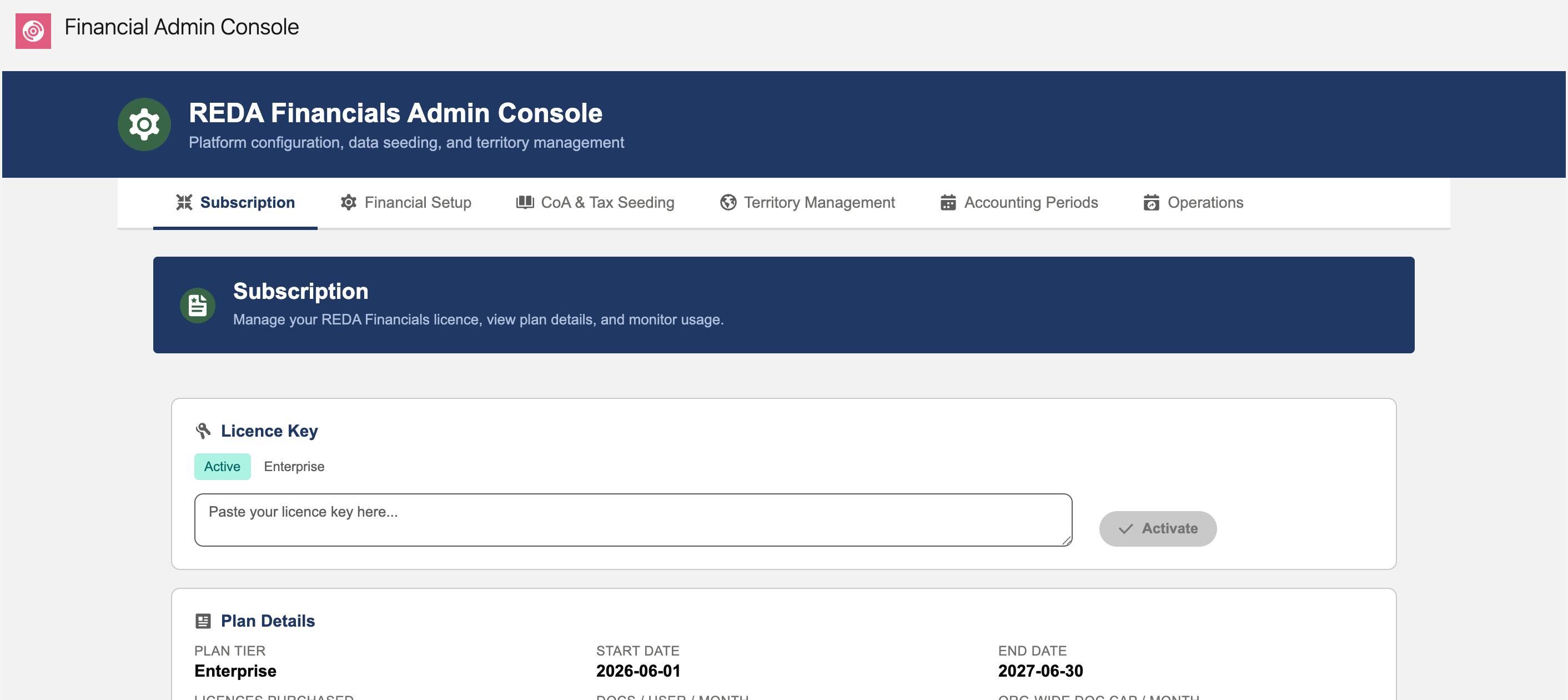
Activating the key (on the Subscription tab) unlocks and displays your plan’s facts: the plan tier, the start and end dates, how many user licences you purchased, and your AI document allowances — per user per month, and the org-wide monthly cap. One key, the whole contract; there’s nothing else to configure.
Org-locked, by design
Every key is issued for one specific Salesforce org and refuses to activate anywhere else. That protects you as much as REDA: a leaked key is useless outside your org, and your sandbox gets its own key so testing never burns production entitlements. When requesting keys, tell REDA which org each is for.
The lifecycle
| Moment | What happens |
|---|---|
| Fresh install | A free evaluation tier self-provisions: org-wide access, a modest monthly AI allowance, time-limited. You can evaluate everything before any purchase. |
| Activation | Paste the purchased key, click Activate, badge turns Active, plan details display. Effective immediately. |
| Renewal / upgrade | A new key with new dates or limits — activate it the same way; it replaces the old one in place. No downtime, no reinstallation. |
| Expiry | Posting and AI features stop with a clear message; reading, reporting and exports continue. Your data is never hostage — activation of a renewal resumes work instantly. |
The three badge states
The Licence Key card on the Subscription tab reduces the whole architecture to one badge:
| Badge | What it means | What to do |
|---|---|---|
| Active | The key is valid for this org and today falls inside its start–end window. Everything works. | Nothing — glance at the end date now and then. |
| Expired | The end date has passed. Posting and AI features are blocked; reading and reporting continue. | Activate the renewal key — work resumes instantly. |
| Not Active | No purchased key is active — a fresh install on the evaluation tier shows this, and so does a key whose start date hasn’t arrived yet. | Nothing is broken. Activate your purchased key when it arrives, or wait for its start date. |
The messages, decoded
When the licence has something to say, it says it in plain words. The two you may actually meet:
| Message (verbatim) | What it means | The fix |
|---|---|---|
| "Invalid licence key. Please contact REDA support." | The pasted string isn’t a key the system recognises — usually a copy-paste that trimmed or added characters | Re-paste the key whole; if it still refuses, send REDA support your org ID |
| "Your REDA Financials licence has expired. Contact your administrator." | What every user sees when they try to post under a lapsed subscription | The administrator activates the renewal key on the Subscription tab |
A key can also refuse because it was issued for a different org — the org-lock working as designed. The message names the problem; the cure is requesting a key for the right org (sandbox keys for sandboxes, production keys for production).
Common mistakes to avoid
| Mistake | Why it hurts | Do this instead |
|---|---|---|
| Activating the production key in a sandbox (or vice versa) | Keys are org-locked — it simply refuses, and meanwhile the right org still isn’t licensed | Request one key per org and label them; tell REDA which org each key is for |
| Letting the end date arrive unwatched | Expiry stops posting and the overnight batches — the books stop writing themselves mid-close | Note the end date from the Plan Details card and renew ahead of it |
| Pasting the key from an email with characters trimmed | The invalid-key message, and ten minutes of head-scratching | Copy the entire string in one selection; paste, then Activate |
| Treating expiry as a data emergency | Panic exports and workarounds — for nothing, since reading, reporting and exports all still work | Renew calmly; activation resumes posting exactly where it stopped, no data touched |
| Forgetting the sandbox after a refresh | A refreshed sandbox is a different org to the licence — testing halts with licensing errors nobody expects | Make "request a fresh sandbox key" part of the refresh routine |
Where to go next
- Subscription Tab — where activation happens.
- User-Level Licensing — distributing the seats.
- Plan Tiers — what tiers unlock.
Frequently asked questions
The key is stored in protected configuration that isn’t user-visible after activation — and even a copied key activates nowhere else, because it’s bound to your org.
A refreshed sandbox is effectively a different org, so the old sandbox key no longer matches. Request a fresh sandbox key from REDA after each refresh — standard practice.
The Plan Details card on the Subscription tab shows the start and end dates alongside everything else the key encodes. Diarise the end date — renewal is painless when it isn’t a surprise.
No. A renewal or upgrade is just a new key activated in place — the badge and Plan Details update, and nobody else notices anything happened. There is no downtime and nothing to reinstall.
Check the start date on the Plan Details card first: a key whose start date hasn’t arrived is valid but not yet in force. If the dates look right and the badge still disagrees, contact REDA support with your org ID.
Was this article helpful?