
Expense Allocation Batch
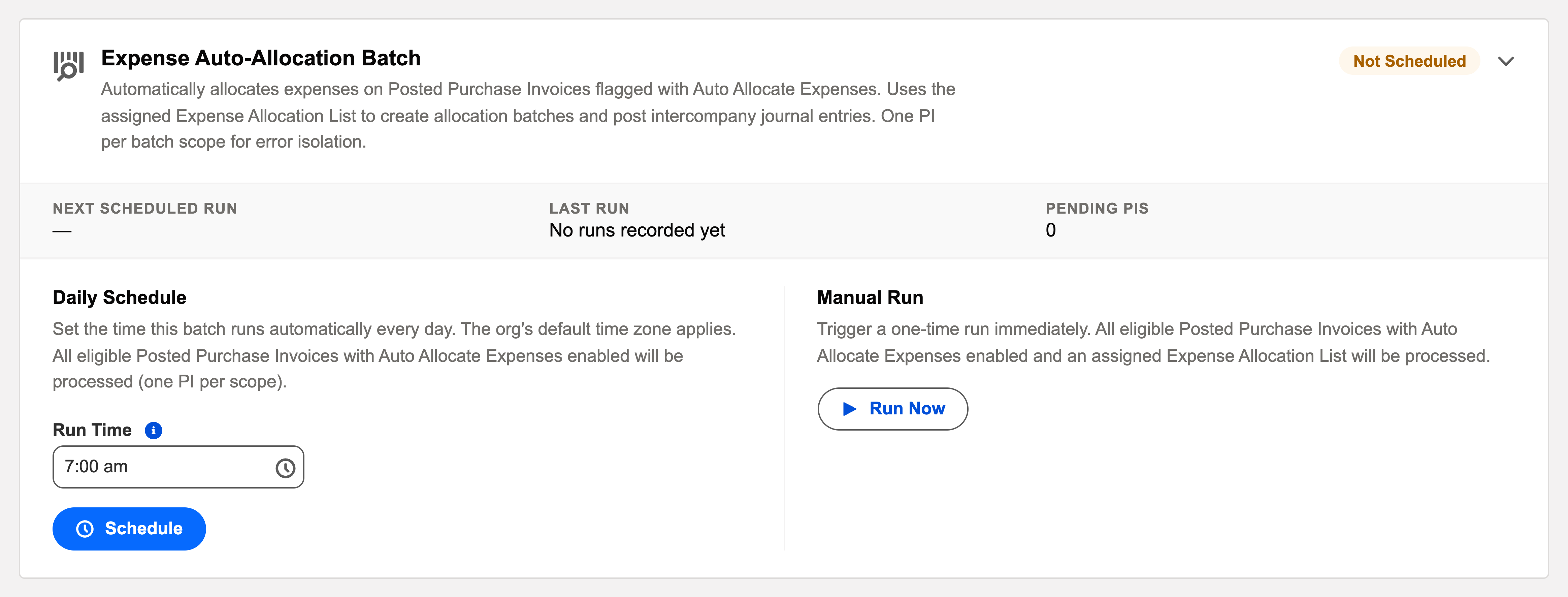
The Operations-console face of auto-allocation. Its card: "Automatically allocates expenses on Posted Purchase Invoices flagged with Auto Allocate Expenses. Uses the assigned Expense Allocation List to create allocation batches and post intercompany journal entries. One PI per batch scope for error isolation."
Access you'll need. Scheduling and running batch jobs requires the Accounting Admin v2 permission set. The Accounting Controller v2 and Read Only v2 sets can open the console to view outcomes; the Accounts Payable v2 and Accounts Receivable v2 sets cannot see it. (The allocation lists the batch applies are maintained separately, by the Accounts Payable v2 or Accounting Admin v2 sets.)
The essentials
- Opt-in: posted invoices flagged Auto Allocate Expenses, with an Expense Allocation List assigned, are in scope; everything else is ignored.
- What it creates: a posted allocation batch per invoice, and the intercompany journal entry that moves the cost — identical to a manual Allocate Expenses run.
- Error isolation: one invoice per processing scope — a failure on one shared bill never touches the next. Each processed invoice is stamped so it’s never auto-allocated twice.
How the batch decides — the eligibility checklist
On each run, the batch selects invoice lines that meet all three conditions. When a line you expected to be allocated wasn’t, walk these in order:
| Condition | Where to check | If it fails |
|---|---|---|
| The invoice is flagged Auto Allocate Expenses with an Expense Allocation List assigned | The invoice and its line details | Attach the list and tick the flag — ideally on the recurring template, so every future invoice inherits both |
| The invoice is Posted | The invoice’s status | Post it; the batch picks the line up on its next run |
| The line carries no completion stamp yet | Whether a previous run already processed it | Already allocated — deliberately, once, forever; further changes are manual |
What each run leaves behind
Nothing the batch creates is a special, hidden object — every run produces the same records a person clicking Allocate Expenses would:
| Record | What it is |
|---|---|
| An allocation batch per processed invoice | Posted, built from the list’s entities and percentages — on the invoice’s Allocations tab, like any manual batch. |
| One system journal entry per batch | Typed Expense Allocation: each receiving entity debited its share, the origin accounts credited, and the intercompany receivable/payable pair recorded. See Understanding Expense Allocation for the anatomy. |
| The completion stamp | Each processed line’s permanent "done" mark — the guarantee against double allocation. |
| A logged outcome | The run’s Audit Log entry — processed counts and any failures with reasons, linked from the Operations card. |
The hands-free pipeline, end to end
At Meridian Properties Group, the monthly shared costs — head-office insurance, IT subscriptions — flow without a click: the recurring template line carries the allocation list, the Recurring Transactions batch generates and posts the invoice on schedule, and this batch then allocates it and posts the intercompany journal entry. Once wired, a shared cost travels from bill to every entity’s books hands-free — your only job is reading the run’s outcome. Manual and automatic coexist happily: lines without a list are simply ignored by the batch (allocate those by hand), and a line allocated manually before the batch reached it is protected by capacity checks and the completion stamp.
Operating it
Schedule a daily time on the card, or Run Now after posting a wave of shared bills. Outcomes land in the audit log; the invoice’s Allocations tab shows what was created. Setup lives with the data, not the console: attach the right list to the recurring shared costs (ideally on their recurring templates) and flag them, once.
In the overnight order, schedule it after the recurring batch (the shared bills it processes are usually template-generated) and before the aging snapshot. One-invoice-per-scope isolation means a single bad bill never stalls the queue — its failure is logged, and the run continues.
Troubleshooting the run
| Symptom | Likely cause → action |
|---|---|
| An invoice is skipped every night | It isn’t flagged Auto Allocate Expenses, has no list assigned, or already carries its completion stamp. All three are visible on the invoice. |
| Intercompany account errors in the log | A receiving entity lacks its Default IC Payable/Receivable accounts — set them on the entity, then Run Now. |
| A failure names one invoice, others processed fine | That’s the one-PI-per-scope isolation working. Fix the named cause; the line never got its completion stamp, so the next run picks it up. |
Common mistakes to avoid
| Mistake | Why it hurts | Do this instead |
|---|---|---|
| Attaching lists to invoices by hand, every month | Someone forgets one line in month three, and that cost quietly stays un-shared | Attach the list on the recurring template line — every generated invoice inherits it |
| Assuming the batch re-runs corrections | The completion stamp is permanent — corrected invoices are not re-allocated automatically | After reopening and re-posting, re-allocate manually via Allocate Expenses |
| Never reading the run’s outcome | Failures are skipped by design — silently, until someone looks | Review the card’s last-run outcome at month-end; read what failed, not what worked |
| Editing list percentages mid-month expecting restatement | Runs read the list as it stands that day — history never restates | Change ratios effective-forward, deliberately; document when and why |
Where to go next
- Running Auto-Allocation — full behavior and FAQs.
- Configuring Allocation Rules — the lists it applies.
- Operations Scheduler Overview — the console.
Frequently asked questions
Effectively yes: any posted invoice line with a list attached and no completion stamp is in scope. A list view on invoice lines filtered that way is your preview.
No — one PI per batch scope means failures are logged and skipped while the run continues. Fix the cause (an inactive account, a missing intercompany default) and the invoice is picked up on the next pass; it never got its completion stamp.
Each run reads the list as it stands that day — new ratios apply from the next allocation onward. History is never restated automatically (and shouldn’t be).
Yes — it’s an ordinary allocation batch. Reopen it to Draft (its journal entry is removed automatically), adjust, and repost; or void it with a reason. The original invoice is untouched either way.
Scheduling lives in the Admin Console’s Operations tab, so it’s an administrator’s job; the allocation lists themselves are maintained by the Accounts Payable or Accounting Admin permission sets — see Configuring Allocation Rules.
Was this article helpful?