
Admin Console Overview
Everything an administrator configures in REDA Financials lives behind one door: the Financial Admin Console — its own tab in the REDA Financials Admin app, subtitled exactly as it behaves: platform configuration, data seeding, and territory management. Six tabs cover the whole administrative surface; this article is your map.
Access you'll need. Opening the console requires the Accounting Admin v2 permission set (the tab is visible to admins); the Accounting Controller v2 can reach it too. The Accounts Payable v2 and Accounts Receivable v2 sets cannot see it — it is administrator-only.
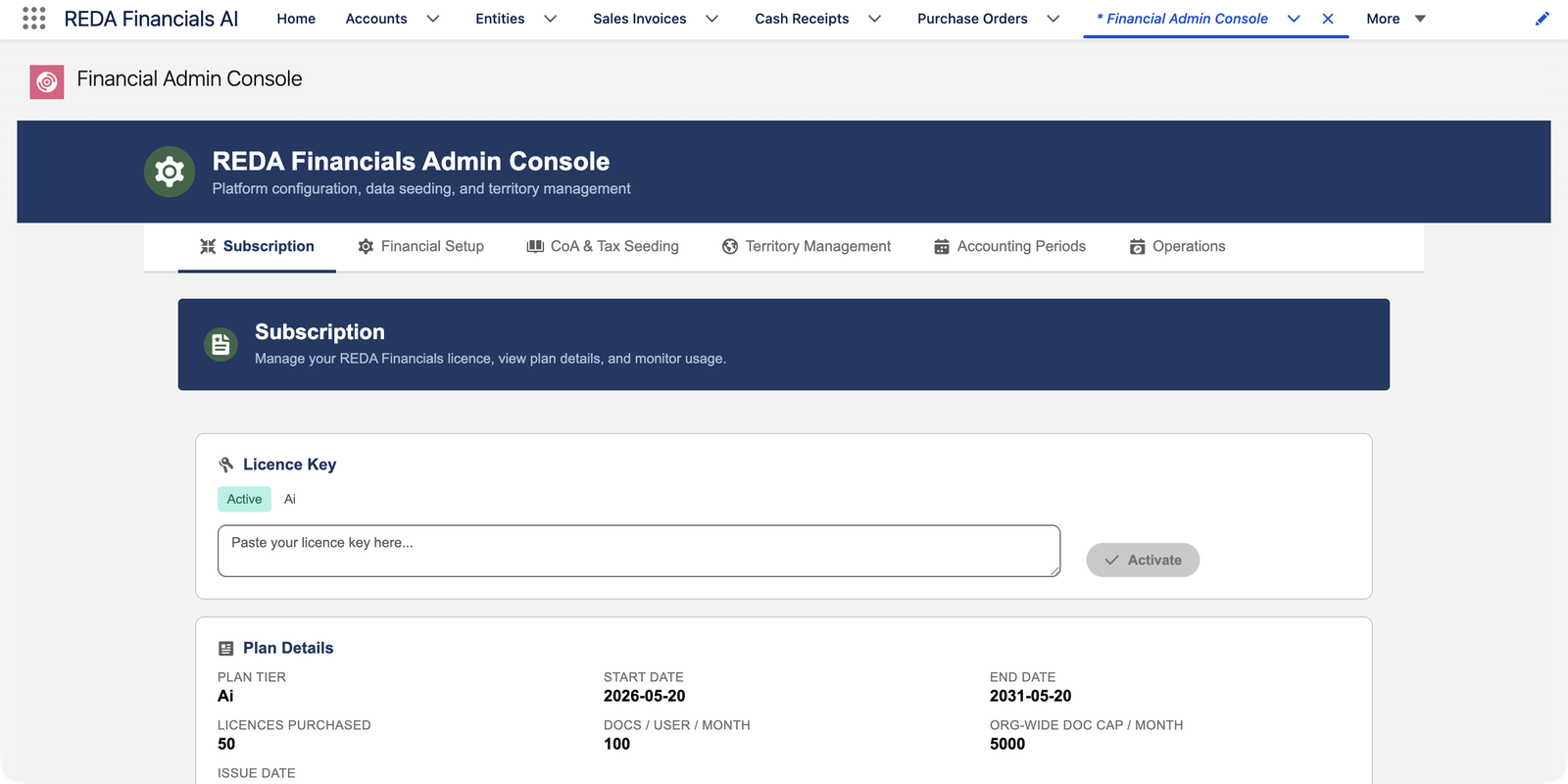
The six tabs
| Tab | What you do there | Guide |
|---|---|---|
| Subscription | Activate your licence key, see plan details, monitor user licences and AI document consumption. | Subscription Tab |
| Financial Setup | Global Accounting Defaults (the GL accounts, ledger and framework every new entity inherits) and REDA Application Settings — currently a single org-wide switch, Multi-Currency. | Financial Setup Tab |
| CoA & Tax Seeding | Seed the global chart of accounts and per-country tax packs — the fastest route from empty org to working books. | CoA & Tax Seeding Tab |
| Territory Management | The 2-level territory hierarchy behind data access and hierarchical defaults. | Territory Management Tab |
| Accounting Periods | Generate each territory’s 12-period fiscal calendar. | Accounting Periods Tab |
| Operations | Schedule and monitor every automated batch job. | Operations Tab |
A quick finder — task to tab
When you know what you need to do but not where, use this table. Each row is a job an administrator actually does, mapped to the tab (and the card or section inside it) where it happens:
| You need to… | Go to | What you'll use |
|---|---|---|
| Activate or renew the licence key | Subscription | The Licence Key card — paste the key, click Activate, watch the status badge turn Active |
| Check how many user licences are left | Subscription | The User Licences card — Used / Available / Total with a usage bar |
| See how much of the monthly AI document allowance is used | Subscription | The Document Consumption card — used, remaining, and the monthly cap |
| Change a default GL account (Default AR, Default Revenue…) | Financial Setup | The Global Accounting Defaults section — a single-record editor of the org-wide defaults |
| Turn an application setting on or off | Financial Setup | The REDA Settings section — toggle, text and number editors, saved within a few seconds |
| Load the chart of accounts or a country tax pack | CoA & Tax Seeding | The seeding wizard — pick a country, preview what will be created, then seed |
| Add a country or region to the hierarchy | Territory Management | The territory hierarchy manager |
| Open a new fiscal year | Accounting Periods | The period generator — territory + year + calendar-or-custom fiscal choice → 12 periods |
| Schedule nightly automation, or run a batch right now | Operations | The scheduler cards — Schedule, Unschedule, Run Now |
| Check what last night's automation did | Operations | Each card's Last Run line and its View Audit Log link |
A closer look at each tab
Subscription is the commercial picture in four cards: Licence Key (paste-and-activate, with an Active / Expired / Not Active badge and your plan tier), Plan Details (tier, start and end dates, licences purchased, documents per user per month, and the org-wide monthly document cap), User Licences (Used / Available / Total with a bar — it reads Unlimited on org-wide plans), and Document Consumption (on AI plans: used, remaining, and the monthly cap).
Financial Setup has two halves. Global Accounting Defaults is one record edited in place: the Default AR, AP, Cash, Unapplied Cash, Unapplied Payments, Revenue, Expense, Retained Earnings and FX Gain/Loss accounts, the intercompany receivable and payable accounts, the Default Ledger and the Reporting Framework. REDA Settings below it lists the application settings as rows — each a toggle, text box or number — and saves your change asynchronously within a few seconds.
CoA & Tax Seeding is a wizard, not a form: choose a country, see a preview of exactly what will be created, then seed. Territory Management draws the hierarchy your data access and defaults hang from. Accounting Periods asks for just a territory, a year, and whether the fiscal year follows the calendar or a custom start — and generates the 12 periods.
Operations introduces itself in one sentence on the tab itself: “Operations — Monitor and control automated batch jobs. Schedule the Recurring Transactions and Journal Entry Auto-Reversal batches to run daily at configured times, view last run outcomes, and trigger one-time manual runs.” Eleven cards cover recurring transactions, journal-entry auto-reversal, four auto-apply batches, expense allocation, aging snapshots, OCR processing, FX rate sync and asset depreciation. Every batch writes an entry to the Audit Log, and each card reads it back as its Last Run line.
First-time setup order
The tabs read left to right for a reason — it’s the natural install sequence:
- Subscription — activate the licence, assign user licences.
- CoA & Tax Seeding — seed the Global CoA pack first, then each operating country.
- Territory Management — create your countries/regions.
- Financial Setup — confirm the global defaults the seeding created; tune application settings.
- Accounting Periods — generate each territory’s fiscal year.
- Operations — schedule the overnight automation.
Then leave the console — entities, products, customers and vendors are created in the apps themselves. The Your Setup Roadmap carries the full journey.
A worked example — Meridian's first hour in the console
Meridian Properties Group installs REDA Financials on 20 May 2026 and opens the console. Here is how their administrator's first hour maps onto the tabs:
Subscription — activate
She pastes the licence key and clicks Activate. The badge flips to Active and Plan Details fills in: Plan Tier Ai, Start Date 2026-05-20, End Date 2031-05-20, 50 licences purchased, 100 documents per user per month, and a 5,000 org-wide monthly document cap.
CoA & Tax Seeding — load the books' skeleton
She seeds the Global CoA pack first, then the tax packs for each country Meridian operates in — the wizard previews every record before creating anything.
Territory Management — draw the map
Territories for the United States, United Kingdom, India and Brazil go into the hierarchy — the structure entities, periods and data access will hang from.
Financial Setup — confirm the defaults
She reviews the Global Accounting Defaults the seeding created — Default AR, Default Revenue, Retained Earnings and the rest — and walks the REDA Settings rows, watching each save confirm within a few seconds.
Accounting Periods — open the year
One run of the generator per territory: territory + 2026 + the fiscal-year choice, and 12 periods appear for each.
Operations — switch on the automation
She schedules the batches Meridian needs to run daily, each with its own time, and leaves the rest showing Not Scheduled until the books need them.
Common mistakes to avoid
| Mistake | Why it hurts | Do this instead |
|---|---|---|
| Generating periods before creating territories | The period generator works per territory — with no territories, there is nothing to generate for | Territory Management first, then Accounting Periods |
| Skipping the Financial Setup review after seeding | A missing global default (say, no Default AR account) surfaces later as a posting failure, at the worst possible moment | Walk every field of Global Accounting Defaults once seeding finishes |
| Assigning more user licences than you purchased | The assignment is blocked with “Cannot enable REDA Financials for this user. All 25 licences are in use.” (your purchased count in place of 25) — and the person waiting can't work | Check the User Licences card's Used / Available / Total before onboarding a batch of users |
| Leaving every Operations card on Not Scheduled | Recurring documents never generate, auto-reversals never post, snapshots go stale — silently | Schedule the batches your books rely on as the last step of setup |
| Configuring by editing raw records instead of using the console | You bypass the validation, previews and idempotent seeding that make configuration safe | Do it in the console; that's what it's for |
Who sees it
The console lives in the Admin app and does administrator work — licence activation, org-wide defaults, seeding. It belongs with the Accounting Admin permission set; day-to-day accounting roles never need it.
Where to go next
- Subscription Tab — start where the console starts.
- Post-Installation Setup — the console in the install story.
Frequently asked questions
Switch to the REDA Financials AI – Admin app (App Launcher) and check you hold the Accounting Admin permission set. The console is deliberately invisible to non-admin roles.
It’s the intended one — everything in it can technically be reached through raw record editing, but the console adds the guardrails (validation, previews, idempotent seeding) that make configuration safe. Use the console.
Effectively, yes. REDA Settings rows save asynchronously and confirm within a few seconds; licence activation updates the status badge as soon as you click Activate. Nothing in the console requires a deployment or a wait.
No. Scheduled batch jobs run under the platform's automated process context and do not consume a seat — every licence you purchased stays available for a person.
Two places, one source. Each Operations card shows its Last Run and outcome, and its View Audit Log link opens the underlying entry — every batch writes one, with a summary like “Processed X | Success Y | Failed Z”. See Audit Logging.
Yes — seeding is idempotent, and the wizard shows a preview of what a run will create before it does anything. Re-running doesn't duplicate what already exists. See the CoA & Tax Seeding Tab guide.
Was this article helpful?