
Operations Tab
The automation control room. The tab’s banner is its job description: "Monitor and control automated batch jobs. Schedule the Recurring Transactions and Journal Entry Auto-Reversal batches to run daily at configured times, view last run outcomes, and trigger one-time manual runs." One card per batch — from recurring generation to depreciation posting — each with the same four controls: schedule, unschedule, run now, and the last run’s outcome.
Access you'll need. Scheduling and running these batches requires the Accounting Admin v2 permission set; the Accounting Controller v2 can reach the console too. The Accounts Payable v2 and Accounts Receivable v2 sets cannot see it — everyone else meets only the results.
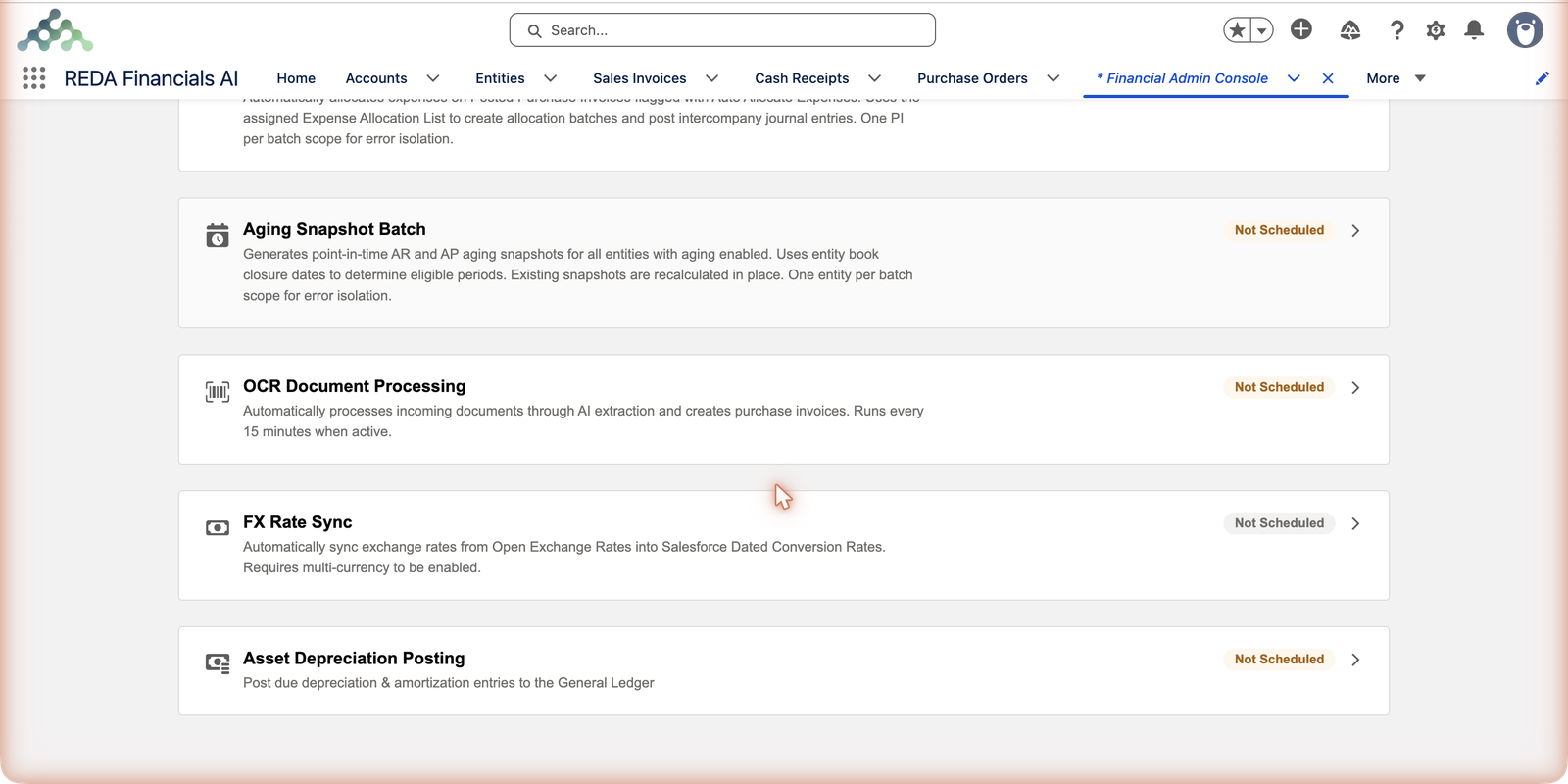
The anatomy of a card
Every card follows the same layout, so once you can read one you can read them all:
| Element | What it tells you / does |
|---|---|
| Status chip | Scheduled or Not Scheduled — whether the job will run without you. |
| Next Scheduled Run | When the next automatic pass happens. |
| Last Run | When the job last ran and how it went — an Info (clean), Warning (partial success) or Critical (the run failed) outcome. |
| View Audit Log | Opens the run's full record: processed / succeeded / failed counts with per-item reasons. |
| Schedule (or Reschedule) | Pick the daily run time. Once scheduled, the button reads Reschedule so you can move the slot. |
| Unschedule | Pause the automation — nothing runs until you schedule it again. |
| Run Now | An immediate one-off pass, independent of the schedule — ideal after fixing data or before a close. |
Each card expands (the › arrow) to reveal the schedule and run controls; collapsed, it still shows the chip and the last-run summary — enough for monitoring without a single click.
The twelve jobs, in their own words
Each card carries a one-sentence description on screen. They are worth reading verbatim, because they encode the rules each batch follows — what it selects, in what order, and what it respects:
| Card | On-screen description |
|---|---|
| Recurring Transactions Batch | "Processes all active recurring templates due on the run date and generates the corresponding Sales Invoices, Purchase Invoices, Purchase Orders, or Journal Entries." |
| Journal Entry Auto-Reversal Batch | "Creates and posts auto-reversal Journal Entries for posted JEs whose Reversing Date has arrived. Runs daily at the scheduled time. Idempotent — never duplicates an already-reversed JE." |
| Cash Receipt Auto-Apply Batch | "Automatically applies Cash Receipts flagged with Auto Apply Receipt to outstanding invoices for the same customer and entity. Uses FIFO by invoice date (or dimension-matched FIFO when Enforce Dimension Match on Apply is checked). Respects book closure dates." |
| Cash Disbursement Auto-Apply Batch | "Automatically applies Cash Disbursements with unapplied amounts to outstanding Purchase Invoices for the same vendor and entity. Uses FIFO by invoice date. Respects book closure dates and dimension matching." |
| Vendor Memo Auto-Apply Batch | "Automatically applies Vendor Memos flagged with Auto Apply Memo to outstanding Purchase Invoices for the same vendor and entity. Uses FIFO by invoice date. Respects book closure dates and dimension matching." |
| Credit Memo Auto-Apply Batch | Applies flagged credit memos to the customer's outstanding invoices, oldest first — the receivables mirror of the vendor memo batch. |
| Expense Auto-Allocation Batch | "Automatically allocates expenses on Posted Purchase Invoices flagged with Auto Allocate Expenses. Uses the assigned Expense Allocation List to create allocation batches and post intercompany journal entries. One PI per batch scope for error isolation." |
| Aging Snapshot Batch | "Generates point-in-time AR and AP aging snapshots for all entities with aging enabled. Uses entity book closure dates to determine eligible periods. Existing snapshots are recalculated in place. One entity per batch scope for error isolation." |
| OCR Document Processing | "Automatically processes incoming documents through AI extraction and creates purchase invoices. Runs every 15 minutes when active." |
| FX Rate Sync | "Automatically sync exchange rates from Open Exchange Rates into Salesforce Dated Conversion Rates. Requires multi-currency to be enabled." |
| Asset Depreciation Posting | "Post due depreciation & amortization entries to the General Ledger" |
| E-Invoice Status Poll | "Send queued e-invoices and advance them to Accepted or Rejected" |
The cards, and where each is documented
The full walkthrough of this console — every card, the shared controls, the audit trail, and a sensible overnight schedule — lives in Operations Scheduler Overview. The per-batch runbooks:
| Card | Runbook |
|---|---|
| Recurring Transactions Batch | Recurring Transaction Scheduler |
| Journal Entry Auto-Reversal Batch | JE Reversal Batch |
| Auto-Apply (CR / CM / CD / VM) | Auto-Apply Batches |
| Expense Auto-Allocation Batch | Expense Allocation Batch |
| Aging Snapshot Batch | Aging Snapshot Batch |
| OCR Document Processing | OCR Processing Batch |
| FX Rate Sync | FX Sync (Exchange Rates) |
| Asset Depreciation Posting | Depreciation Batch |
| E-Invoice Status Poll | E-Invoice Status Poll |
A worked schedule — Meridian's overnight
Meridian Properties Group runs entities in four countries, so its administrator staggers the batches in dependency order — rates before documents, documents before matching, posting and reporting last:
| Overnight slot | Jobs | Why this order |
|---|---|---|
| Early night | FX Rate Sync | Fresh rates in the currency tables before anything posts. |
| Then | Recurring Transactions · Journal Entry Auto-Reversal | Generate the day's documents and post the due reversals next. |
| Then | The four Auto-Apply batches · Expense Auto-Allocation | Match and distribute what now exists — receipts to invoices, memos to invoices, shared costs to entities. |
| Then | Asset Depreciation Posting · Aging Snapshot | Posting and reporting last, on settled data. |
| All day | OCR Document Processing | Started once and left active — it cycles every 15 minutes on its own queue. |
Next morning the administrator opens the tab: every card shows Scheduled, every Last Run stamps overnight, every outcome reads Info. If the Aging Snapshot card instead showed a Warning, one click on View Audit Log would name the entity that failed and why — one entity per batch scope means one problem entity never blocks the others.
The morning glance
Healthy operations read at a glance: every card Scheduled, last-run timestamps overnight, outcomes green. Anything else — a Warning outcome, a stale timestamp — has its story one click away via View Audit Log, which opens the run’s processed/succeeded/failed record with per-item reasons. That’s the whole monitoring discipline.
Common mistakes to avoid
| Mistake | Why it hurts | Do this instead |
|---|---|---|
| Scheduling every job at the same time | Matching jobs run before the documents they should match exist — the auto-apply pass finds nothing, and tonight's work waits until tomorrow | Stagger in dependency order: rates → documents → matching → posting and snapshots |
| Treating a Warning outcome as "it ran, so we're fine" | Warning means partial success — some records failed, each for a reason that will still be there tomorrow | Open View Audit Log, fix the causes, then Run Now to catch up |
| Unscheduling a job "temporarily" and forgetting it | The card sits at Not Scheduled indefinitely; recurring documents or reversals silently stop | Use the chip as your checklist — anything Not Scheduled should be a deliberate choice |
| Expecting the OCR card to take a daily time | It's the one card that doesn't — it's a Start/Stop queue processor cycling every 15 minutes | Start it and leave it active; watch its pending / extracting / errored counts |
| Scheduling FX Rate Sync in a single-currency org | The batch requires multi-currency; the card shows a banner telling you so | Leave it Not Scheduled until multi-currency is enabled |
Frequently asked questions
Administrators — the Operations tab lives in the Admin Console. Everyone else sees only the results: generated documents, applied payments, posted depreciation.
No. Scheduled automation runs under the platform's automated process context and does not consume one of your purchased seats.
Info is a clean run. Warning is partial success — most records processed, some failed, each with a reason in the audit entry. Critical means the run itself failed. The diagnosis path is the same: View Audit Log, read the reasons, fix, Run Now.
No — the batches are built to fail small. Expense allocation processes one purchase invoice per batch scope and aging one entity per scope, precisely so a single bad record is isolated and everything else completes. The failures are itemised in the audit entry.
Run Now plus the nightly schedule can mean two passes — and that's safe by design for the jobs where it matters most: the JE Auto-Reversal batch is explicitly idempotent ("never duplicates an already-reversed JE"), and the auto-apply batches only touch documents that still have unapplied amounts.
In the Audit Log. Every batch writes an entry with Action "Batch Run", a severity, and a "Processed X | Success Y | Failed Z" summary — the cards' Last Run line is read straight from it.
Where to go next
- Operations Scheduler Overview — the full console guide.
- Audit Logging — reading run history like a pro.
Was this article helpful?