
Creating a Cash Disbursement
Time to pay a bill. This walkthrough follows the fastest route — starting from the invoice itself — using a real example: Meridian Properties US LLC paying CityClean Services' $2,200 June bill by bank transfer. You'll also see the from-scratch route and what to check before posting. Concepts first? Read Understanding Cash Disbursements.
Access you'll need. Creating, editing, and posting these requires the Accounts Payable v2 permission set (AP clerks & managers) or Accounting Admin v2 (system administrators). The Accounting Controller v2, Accounts Receivable v2, and Read Only v2 sets can view but not create or post.
The fast route: start from the invoice
Open the unpaid invoice and click New Disbursement
On any posted invoice with a balance due, the New Disbursement button sits right in the header. Click it, and REDA Financials opens the payment form pre-filled from the invoice:
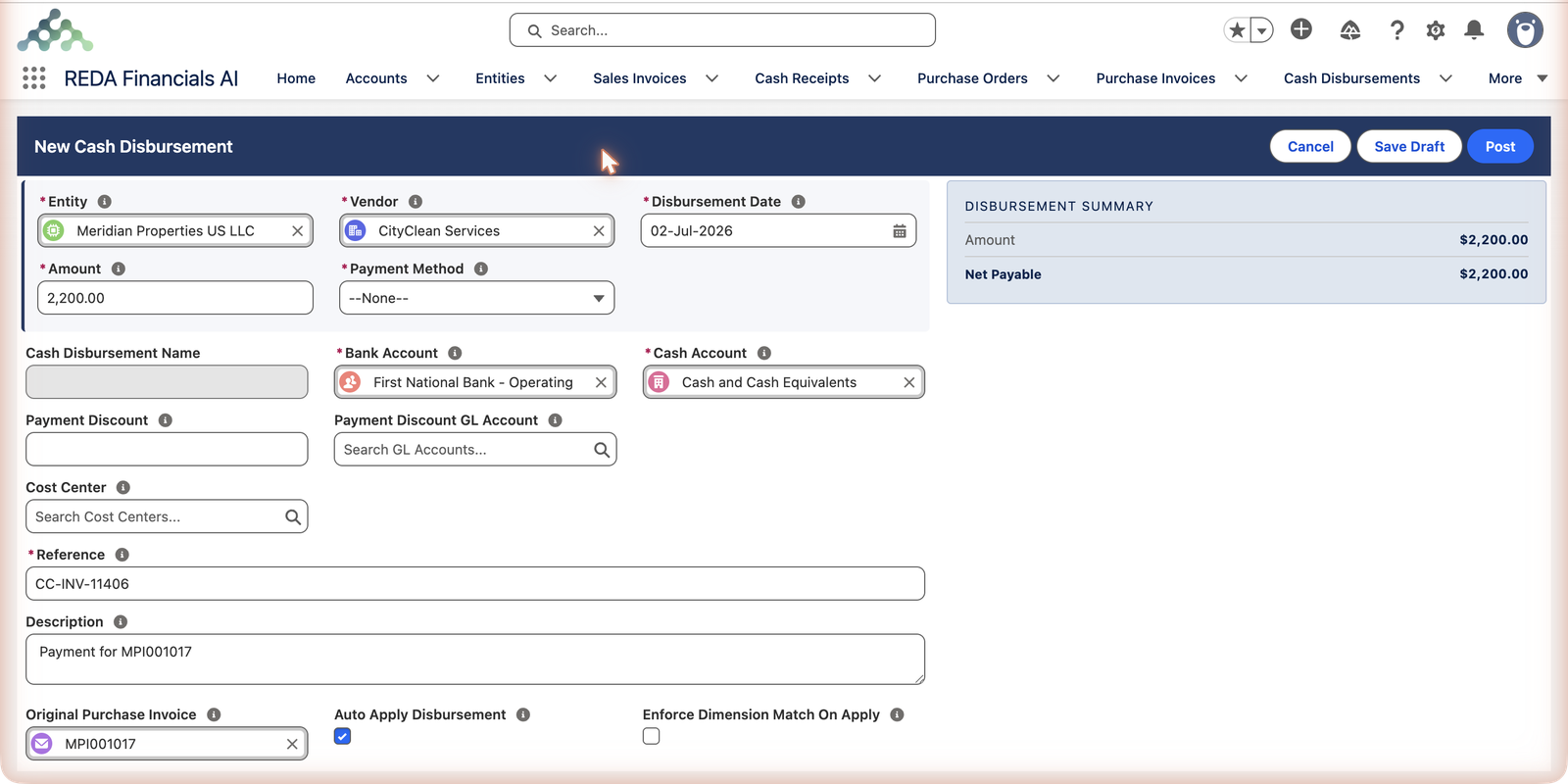
Choose the Payment Method
Check, Wire, ACH, Card or Cash. Meridian pays CityClean by ACH. If you choose Check, the check number is assigned automatically from the bank account's check stock when you post.
Review what's pre-filled
Adjust anything that differs from reality: pay a partial amount by lowering Amount, switch Bank Account if paying from another account, tag a Cost Center, or record an early-payment discount in Payment Discount (see Settlement Discounts & Terms). The Disbursement Summary panel keeps a running Net Payable.
Post — or Save Draft
Post records the payment in your books immediately; with Auto Apply ticked, it also settles the invoice. Save Draft parks it — nothing is booked until someone posts, which is handy when payment approval is a separate step in your team.
Here's the result of clicking Post:
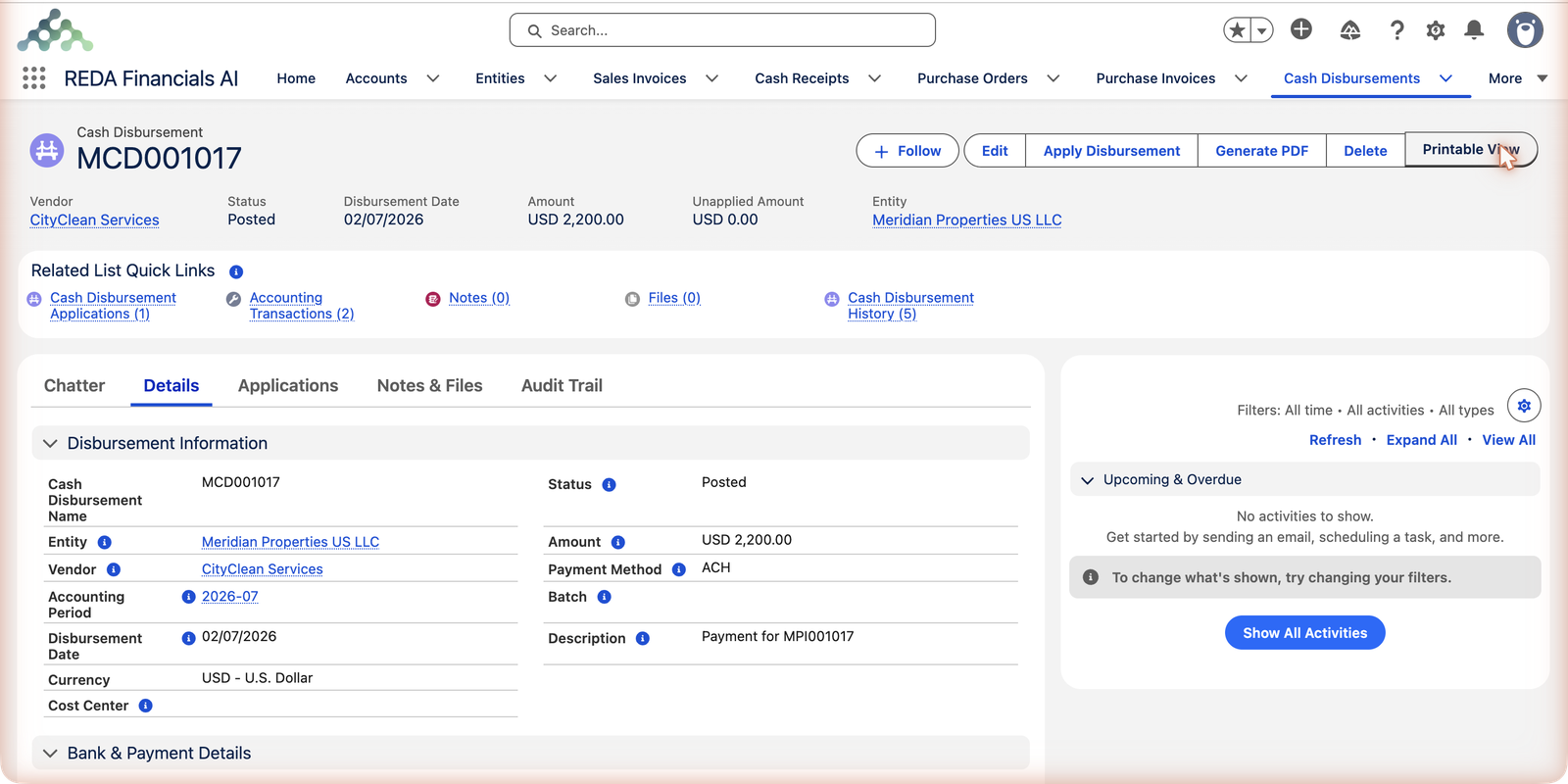
What posting writes in the books
Behind that one click, REDA Financials records the payment in two moves. First, posting the payment itself says money left the bank — the amount lands in a holding account for vendor money, Supplier Prepayments (your entity's configured account for unapplied payments):
| Account | Debit | Credit |
|---|---|---|
| Supplier Prepayments | $2,200.00 | |
| Cash and Cash Equivalents | $2,200.00 |
Then each application moves that money off the holding account and onto the bill it settles:
| Account | Debit | Credit |
|---|---|---|
| Accounts Payable — Trade | $2,200.00 | |
| Supplier Prepayments | $2,200.00 |
That's why a payment's Unapplied Amount matters: it's exactly the money still sitting in the holding account, not yet matched to any bill. With Auto Apply ticked, both moves happen in the same posting and Unapplied Amount goes straight to zero. (Organizations that balance their ledger by cost center will see an additional pair of Dimension Clearing lines on the application — automatic.)
The from-scratch route
Paying without starting from a specific bill — an advance, a deposit, or just your preferred workflow? Go to the Cash Disbursements tab and click New. The same form opens, empty. You'll fill in entity, vendor, date, amount, payment method, bank account and a reference yourself. Two tips:
- Leave Auto Apply Disbursement ticked to settle the vendor's open bills oldest-first on posting — or untick it to keep the payment unapplied (that's how you record a deposit or advance; the amount sits in Supplier Prepayments until matched later).
- Reference — always fill it: use the wire confirmation, check stub or bank transaction ID so the payment can always be traced and matched during bank reconciliation.
Every field on the form — the reference
| Field | Required? | What it does |
|---|---|---|
| Entity | Yes | Whose books the payment leaves — and which bank accounts and vendors are offered |
| Vendor | Yes | Who's being paid; the payment can only ever be applied to this vendor's invoices |
| Disbursement Date | Yes | When the money left; it selects the Accounting Period automatically |
| Amount | Yes | What actually left the bank — pre-filled with the invoice's balance due when you start from an invoice |
| Payment Method | Yes | Check · Wire · ACH · Card · Cash. Check triggers automatic check numbering at post |
| Bank Account | Yes | Where the money came from — must be one of the entity's bank accounts. Pre-filled from the entity's expense bank (see note below) |
| Cash Account | Yes | The bank account's ledger twin — follows the Bank Account automatically |
| Reference | Recommended — always fill it | The real-world identifier (wire confirmation, check stub, transaction ID) that bank reconciliation matches on |
| Description | No | The human note — what this payment is for |
| Cost Center | No | Dimension stamp for organizations that slice cash by cost center |
| Payment Discount | No | An early-payment discount you're taking — see Settlement Discounts & Terms |
| Original Purchase Invoice | No | The specific bill this payment belongs to — pre-filled when you start from the invoice; auto-apply settles it first |
| Auto Apply Disbursement | No (ticked by default) | Apply to the vendor's open invoices the moment it posts, oldest first |
| Enforce Dimension Match On Apply | No | Restrict applications to invoices carrying the same cost dimensions |
The rules that keep payments clean
| The rule | Why it exists |
|---|---|
| The Cash Account follows the Bank Account | The ledger's cash figure and the real bank account must move together — pick the bank, and its ledger account comes with it. |
| The Accounting Period comes from the Disbursement Date | Payments land in the period the money actually moved — no manual period-picking, no drift. |
| Check numbers are assigned at post, from the bank's check stock, in sequence | A gapless, traceable check register. Once stamped, the number never changes — and it's never reused, even if the payment is later voided. |
| A draft with a check number can't be deleted | The number is already consumed from the stock; the record must stay to account for it. Drafts without check numbers delete freely. |
| Posted payments can't be edited | Their facts are in the ledger. Reopen to Draft to correct, or void if the payment must be cancelled. |
Common mistakes to avoid
| Mistake | Why it hurts | Do this instead |
|---|---|---|
| Typing a placeholder Reference ("payment", "misc") | Bank reconciliation has nothing to match on; tracing the payment later means archaeology | Copy the real identifier — wire confirmation, check stub, bank transaction ID |
| Unticking Auto Apply "to be safe" on ordinary bill payments | The bill stays open, the money sits unapplied, and AP aging overstates what you owe | Leave it ticked for normal payments; untick only for advances and deposits |
| Recording an advance with Auto Apply still ticked | The advance immediately settles old bills it was never meant for | Untick Auto Apply — the amount stays as Unapplied Amount until you match it deliberately |
| Paying the gross amount when a discount was earned | You give away money the terms said you could keep | Check the discount window and record it in Payment Discount — see Settlement Discounts & Terms |
| One payment covering two vendors' bills | Impossible by design — a payment belongs to one vendor | Two vendors, two payments; or let a payment batch create both in one pass |
Paying several bills — or several vendors
- One vendor, several bills: create one payment for the total and apply it across the open invoices — automatically (auto-apply works oldest-first) or by hand. See Applying Disbursements.
- Many vendors at once: that's a payment run — the batch wizard selects the bills, groups payments per vendor, suggests discounts, and posts everything in one pass. See Creating a Payment Batch.
Paying by check?
Choose Check as the payment method and make sure the bank account has check stock configured. At posting, the next check number is stamped on the payment permanently — see Check Stock & Check Printing for setup and printing.
Where to go next
- Applying Disbursements — matching payments to bills in detail.
- Settlement Discounts & Terms — pay early, pay less.
- Batch Payment Run — the month-end payment machine.
- Voiding a Disbursement — when a payment must be cancelled.
Frequently asked questions
It defaults to the invoice's balance due — the most common payment. Change it freely: a lower amount makes a partial payment (the invoice keeps the remainder as balance due); a higher amount leaves the excess unapplied on the payment.
On posting, it applies the payment to the vendor's open invoices without you doing anything — starting from the invoice you launched from (or oldest-first when paying from scratch). Untick it if you want to decide the matching yourself afterwards, or if the payment is an advance that shouldn't settle anything yet.
The Disbursement Date — it selects the accounting period automatically (our example posted into 2026-07). Backdate it if the money actually left earlier, as long as that period is still open for AP.
From the bank account you're paying out of — each bank account is linked to the ledger account that represents it. Change the Bank Account and the Cash Account follows.
Usually yes — drafts have no accounting effect, so deleting them is harmless. The one exception is a draft that already carries a check number: the number is consumed from the bank's check stock and must remain traceable, so that record can only be voided, never deleted.
The part of the payment not yet matched to any invoice — money sitting in the Supplier Prepayments holding account in your books. It's zero when a payment fully settled its bills, and deliberately non-zero for advances and deposits waiting for bills to arrive.
No — the invoice clears in full and the excess stays as Unapplied Amount on the payment. Apply it to the vendor's next bill (or let auto-apply pick it up when new invoices post). Nothing is lost; the books show exactly how much of your money the vendor is holding.
Was this article helpful?