
License Assignment
A REDA Financials AI licence is what allows a user to post accounting transactions — create invoices, receipts, journal entries, and everything else that writes to the General Ledger. This article explains how to assign a licence to a user, how the licence limit works, and how to free up a licence when someone no longer needs it.
Access you'll need. Editing user records is a Salesforce System Administrator task (the “Manage Users” permission) — it is a platform-admin action, separate from the REDA Financials permission sets that govern the app itself.
The licence field
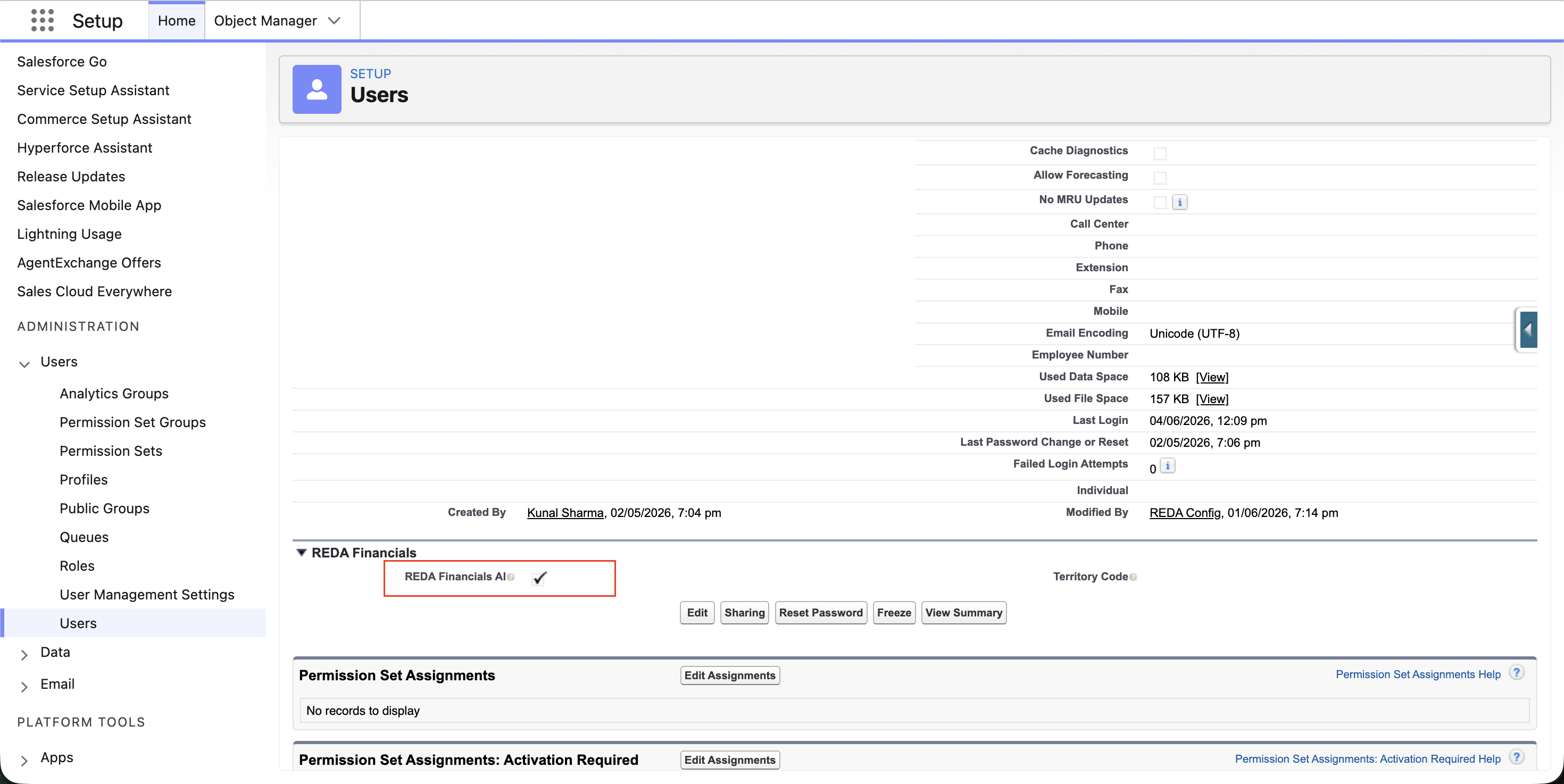
Each Salesforce user record has a REDA Financials AI checkbox. When this box is checked, the user holds a licence and can post accounting transactions and use AI features (on plans that include them). When it is unchecked, the user can still view records and create drafts — but cannot post.
The checkbox appears in the REDA Financials section of the user record. Each licence you check uses one of the user licences included in your subscription.

Before you begin: make the field visible
The REDA Financials AI field ships with the managed package, but Salesforce does not automatically add custom fields to the standard User page layout. If you open a user record and do not see the REDA Financials AI checkbox, your administrator needs to add it to the User page layout first. This is a one-time setup step.
To add the field to the User page layout:
- Go to Setup in Salesforce.
- In the Quick Find box, type User and, under Users, select User Page Layouts (or open the page layout editor for the User object).
- Click Edit next to the active User layout.
- From the field palette, drag the REDA Financials AI field (and, if you wish, the related REDA fields) onto a section of the layout.
- Click Save.
How to assign a licence
Once the field is visible on the layout, licences are assigned by a Salesforce administrator on the user record:
- Go to Setup in Salesforce.
- In the Quick Find box, type Users and select Users.
- Click Edit next to the user you want to license (or open the user record and click Edit).
- Find the REDA Financials section and check the REDA Financials AI box.
- Click Save.
The user can now post accounting transactions. The change takes effect immediately.
The licence limit
Your subscription includes a set number of user licences. You can assign licences up to that number, but no further. If you try to license a user when all of your licences are already in use, the save is blocked with a clear message — for a 25-seat subscription: “Cannot enable REDA Financials for this user. All 25 licences are in use.” Free a seat first, or add licences to your subscription.
To check how many licences you have used and how many remain, open the Subscription tab of the Admin Console. It shows your used, available, and total licences at a glance. See Subscription & Plans for more on reading these figures.
Freeing up a licence
A licence is only counted while it is held by an active user. There are two ways to free up a licence so it can be reassigned to someone else:
- Uncheck the licence — edit the user record and uncheck the REDA Financials AI box. The licence is released immediately and becomes available for another user.
- Deactivate the user — when a user leaves your organisation and their Salesforce account is deactivated, their licence is automatically freed. Inactive users do not count against your licence limit.
In both cases, the freed licence becomes available to assign to a different user right away.
Licensing during the free trial
During the free trial, you do not need to assign licences at all. Every user in your organisation is automatically licensed to post transactions, so your whole team can evaluate the platform straight away. The REDA Financials AI checkbox only becomes relevant when you move to a paid subscription, where licences are counted against your plan.
Automated jobs and integrations
REDA Financials runs several background processes — such as recurring invoices, batch depreciation posting, and auto-reversals. These run under a special Salesforce system user and are automatically covered while your subscription is active. You do not need to assign a licence to this system user, and it never counts against your licence limit.
Next steps
Assign permission sets
Give each licensed user the right role-based access in Permission Set Assignment. Assign the v2 set for their role — from version 1.610 those are the ones to use, and they are the only ones that can be assigned to a user on a Salesforce Platform licence. If you are upgrading, migrate existing users to the v2 sets as well.
Check your licence usage
Review used and available licences on the Subscription tab — see Subscription & Plans.
Complete your setup
Configure your organisation in Post-Installation Setup.
Where to go next
- Permission Set Assignment — grant module access after licensing.
- Post-Installation Setup — configure the app once users are licensed.
- Subscription & Plans — how licensing fits the plan tiers.
- Segregation of Duties & Security — split access across roles.
- Your Setup Roadmap — the next configuration steps, in order.
Frequently asked questions
It is on the Salesforce user record, in the REDA Financials section. Go to Setup → Users, edit the user, and you will find the REDA Financials AI checkbox there. If you cannot see it, the field has not yet been added to the User page layout — see Before you begin: make the field visible above for the one-time setup step.
This usually means all of your licences are already in use. The system prevents you from assigning more licences than your subscription includes. Check the Subscription tab to see your used and available licences. To add more, contact support@reda.one.
No. Only users with the REDA Financials AI box checked and an active Salesforce account count against your licence limit. Unchecking the box or deactivating the user frees the licence immediately.
No. Removing a licence never deletes data. The user’s records and any transactions they posted remain intact. The only effect is that they can no longer post new transactions — they retain view access subject to their permission set.
No. During the free trial, all users are automatically licensed to post transactions — you do not need to assign licences individually. The licence checkbox becomes relevant only when you move to a paid subscription.
No. Posting accounting transactions requires a valid licence. This is a core data-integrity control — the system blocks the posting and never creates the underlying records without a licence. Unlicensed users can still view data and prepare draft documents.
Was this article helpful?