
Completing a Reconciliation
The queues are nearly empty and one stubborn line remains: MONTHLY ACCOUNT SERVICE FEE, −$45.00. No document will ever match it — the bank invented it. The last mile of reconciliation is booking exactly these, proving the difference to zero, and sealing the month with two signatures. Meridian's July close, step by step.
Access you'll need. Booking adjustments, completing and approving requires the Accounting Admin v2 or Accounting Controller v2 permission set — and the approver must be a different user from whoever completed it. The Accounts Payable v2, Accounts Receivable v2, and Read Only v2 sets can view the reconciliation but not change it.
Adjustments: booking what only the bank knew
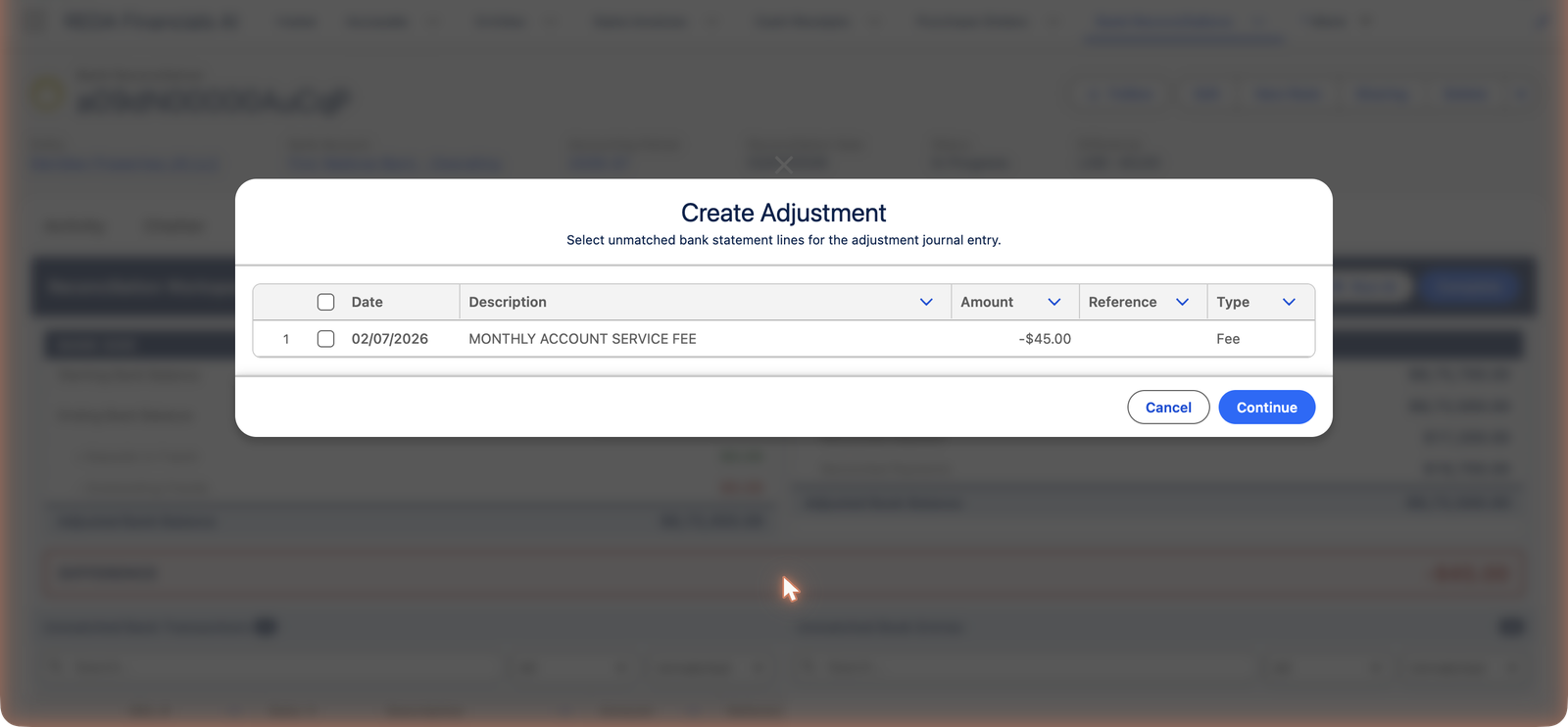
Create Adjustment → pick the lines
The button opens a picker of unmatched statement lines ("Select unmatched bank statement lines for the adjustment journal entry."). Meridian ticks the $45 fee.
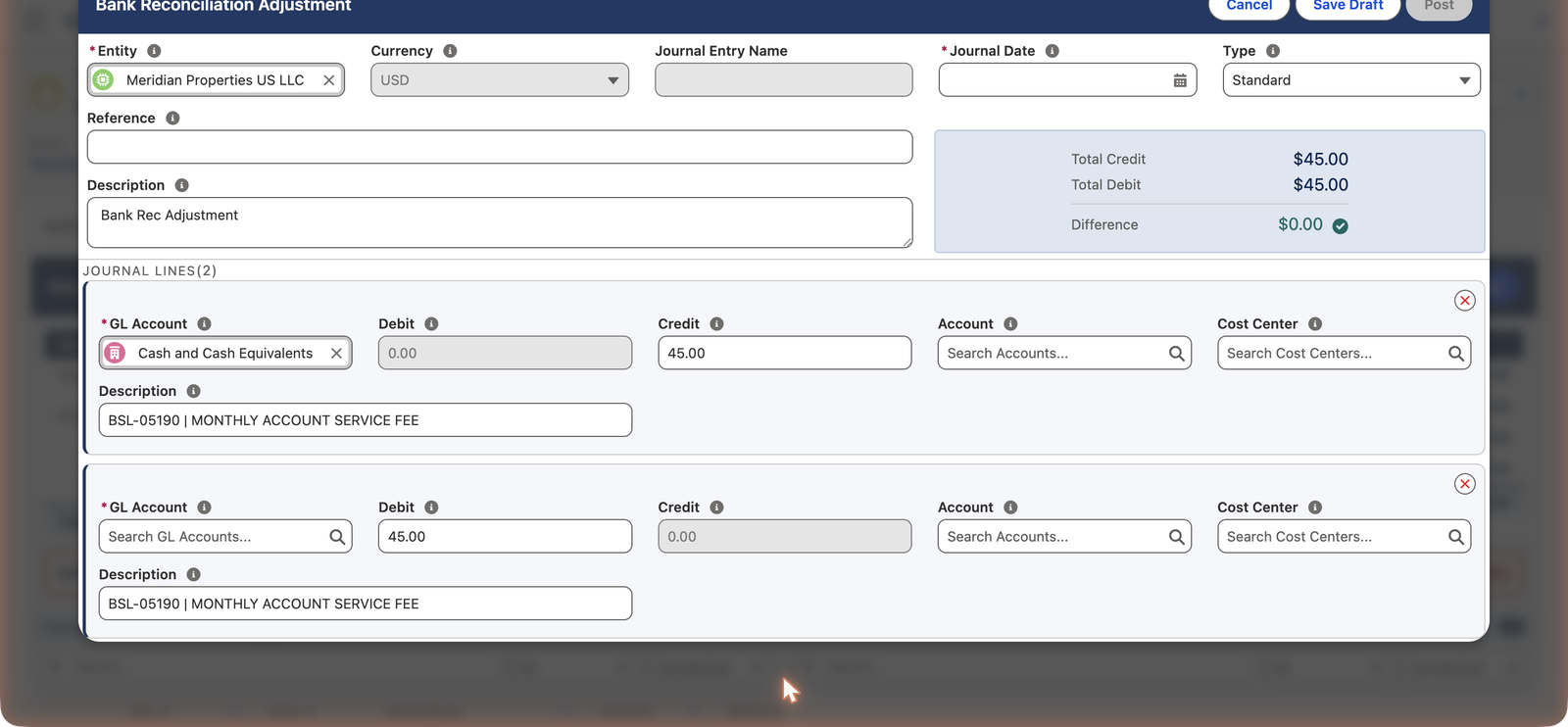
Review the pre-built journal
A journal entry form opens already balanced: the bank-side line (credit Cash $45 — money left the bank) tied to the statement line, and the offset line pre-filled with the account's Adjustment GL (Meridian's Bank Charges and Fees). Set the date, confirm, Post.
The line matches itself
On posting, the statement line is stamped reconciled (Adjustment) and linked to the journal — "Adjustment Journal Entry created and matched successfully." Books now know what the bank knew; the Difference bar turns green: $0.00.
July's proof, in numbers
The whole month reduces to one small table — before and after the $45 adjustment:
| Balance | Before the adjustment | After posting it |
|---|---|---|
| Ending Bank Balance (typed from the statement) | $872,455.00 | $872,455.00 |
| Deposits in Transit / Outstanding Checks | $0.00 / $0.00 — every document matched its line | $0.00 / $0.00 |
| Adjusted Bank Balance | $872,455.00 | $872,455.00 |
| Ending GL Balance (the books) | $872,500.00 — the books hadn't heard about the fee | $872,455.00 — the $45 credit to cash lands |
| Difference | −$45.00 | $0.00 — the gate opens |
Notice what the adjustment did not do: it didn't bend the bank's number, and it didn't "write off a difference." It recorded a real event — the bank charged $45 — that the books were missing. That's the only honest way through the gate.
Complete: the zero gate
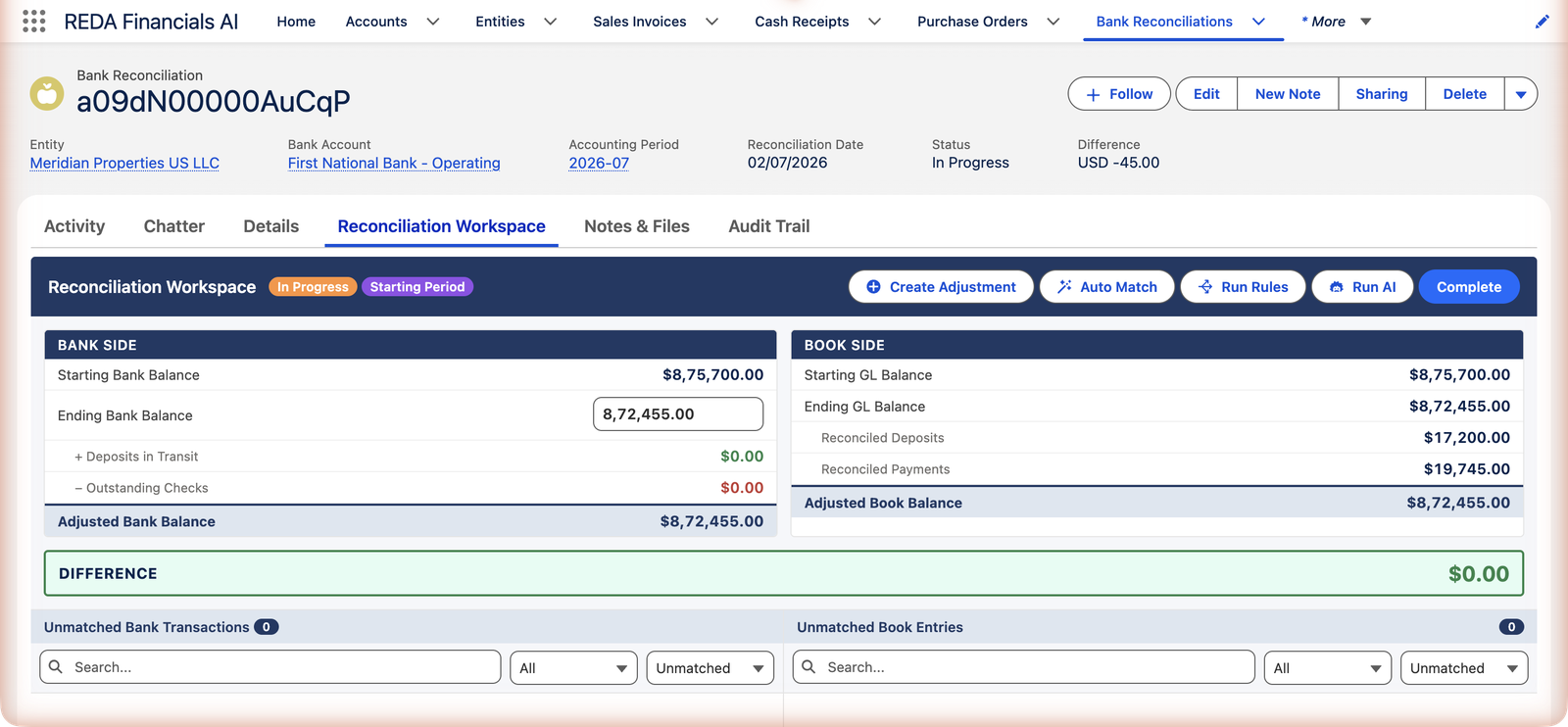
Complete recalculates everything fresh and enforces the only rule that matters: "Cannot complete reconciliation: balance difference is not zero." At zero, the reconciliation turns Completed — stamped with who and when — and the bank account's Last Reconciled Date and Current Balance update. Matching freezes (reopen deliberately if something surfaces).
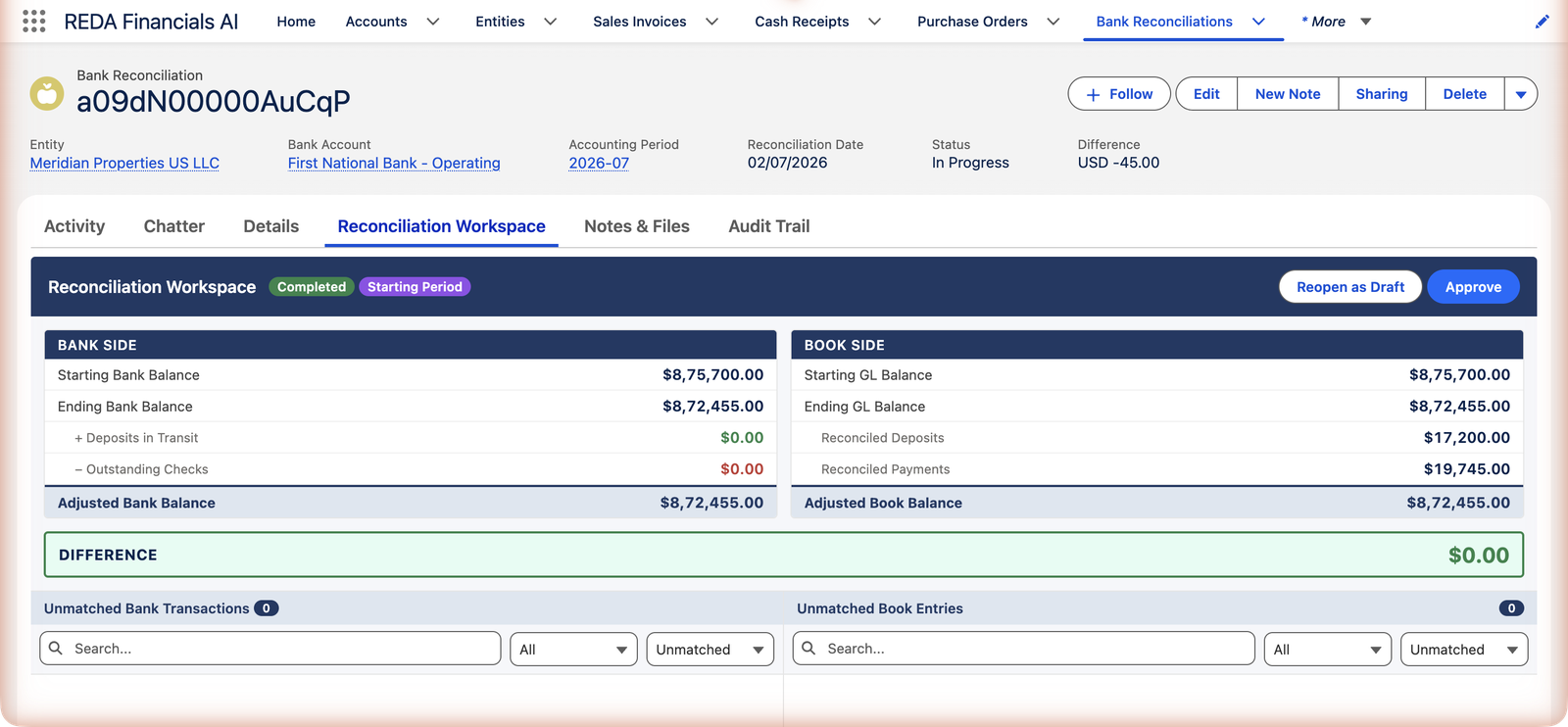
Approve: the second signature
Approve is the sign-off — and it must come from someone else: "The approver cannot be the same user who completed the reconciliation. Segregation of duties requires a different user to approve." Approval seals the period into the chain (next month starts from this ending balance), and — with Auto-Create Reconciliations on — next month's draft appears by itself.
What sealing protects
- Reconciled receipts, payments and journals refuse unposting/voiding until unmatched — cash history can't quietly rewrite.
- The statement's balances and reconciled lines lock.
- Reopening an approved period is barred once any later period is approved — corrections belong in the open month, as documented adjustments.
The rules that guard the last mile
Every gate on the way out of the month, verbatim, with what it's telling you:
| The message | What it means / what to do |
|---|---|
| "Select at least one unmatched bank statement line to create an adjustment." | The adjustment builder starts from statement lines — tick the ones being booked before continuing. |
| "Reconciliation must be In Progress." | Completing (like matching and adjusting) only works on an open reconciliation — a Draft needs opening, a Completed one is already through. |
| "Bank Balance and GL Balance are required before completing a reconciliation." | The Ending Bank Balance was never entered — type the statement's closing figure in the workspace first. |
| "Cannot complete reconciliation: balance difference is not zero." | The gate itself. Balances are recalculated fresh at this moment, so the difference shown is the truth — something remains unmatched or unbooked. |
| "Reconciliation must be Completed before approval." | The signatures go in order: prove zero first, then sign off. |
| "The approver cannot be the same user who completed the reconciliation. Segregation of duties requires a different user to approve." | Two people on cash, enforced — see the FAQ for small teams. |
| "Cannot edit a completed reconciliation. Reopen it first to make changes." | Completed freezes matching and edits; reopening is available and recorded ("Reconciliation reopened for editing."). |
| "This reconciliation cannot be reopened because a later period has already been approved for this bank account." | History behind the chain is sealed — correct in the current period instead. |
| "This Cash Receipt cannot be unposted or voided because it is reconciled. Remove the reconciliation first." | The seal reaching into the subledgers — the same wording protects Cash Disbursements, and journals refuse unposting while they have reconciled lines. |
| "Cannot delete a completed or approved reconciliation." | A proven month is a record, not a scratchpad. |
Common mistakes to avoid
| Mistake | Why it hurts | Do this instead |
|---|---|---|
| Booking an adjustment for a line that has a real document | The event lands in the books twice — once as the document, once as your adjustment — and next month's Difference inherits the double | Adjustments are only for bank-generated lines (fees, interest). If a document exists or should exist, match or post it |
| Sweeping an unexplained difference into one "reconciling adjustment" | The zero becomes fiction and the real error — a missing receipt, a duplicated payment — survives, hidden under a journal | Chase the difference to its line. The number itself is a search term: look for that exact amount in both panes |
| Completing with the Ending Bank Balance still blank or estimated | Blank is refused outright; estimated is worse — a "zero" proven against a guess proves nothing | Type the closing balance from the statement, to the cent, before anything else |
| Treating Reopen as an undo button | Every reopen clears the completion stamps — a reconciliation reopened five times reads like a month nobody stood behind | Reopen for genuine discoveries; casual second thoughts belong before Complete, not after |
| Leaving months at Completed, never approved | The next period can't start — its gate demands an approved predecessor — and the segregation-of-duties control never actually fires | Make approval part of the monthly rhythm: complete, hand to the approver, done |
Where to go next
- Bank Account Rules — turn this month's adjustment into next month's automation.
- Understanding Reconciliation — the arithmetic behind the gate.
- Closing the Books — the period-end this feeds.
Frequently asked questions
Divide and conquer: (1) both queues truly empty? (2) Ending Bank Balance typed exactly as the statement prints it? (3) the difference's amount — search both panes for it; a single unmatched item of that size is the culprit nine times in ten. (4) Half the amount matched to the wrong direction? A deposit matched as a withdrawal doubles its error.
The completer genuinely cannot approve — that's the control working. Have a second licensed user (the owner, the outside accountant) do the approvals; if that's truly impossible this period, the reconciliation standing at Completed is still a proven zero — approve when the second person exists.
If no later period is approved yet: reopen, fix, re-complete, re-approve — the trail shows it all. Otherwise: book the correction in the current period with a clear description referencing the original. Never force history; document the discovery.
Yes — the picker is multi-select. Each ticked line gets its own balanced pair inside one journal, each bank-side line tied to its statement line, and posting stamps them all reconciled at once. A month's fee, interest and card charges can close in a single adjustment.
Balances are recalculated fresh (no stale numbers can slip through), the zero gate checks the Difference, the status flips to Completed with your name and timestamp, and the bank account's Last Reconciled Date and Current Balance update. The toast confirms: "Reconciliation completed successfully."
Two things: it stamps the approver and timestamp ("Reconciliation approved."), making this month the anchor the next period chains from — and on accounts with Auto-Create Reconciliations switched on, it creates next period's Draft reconciliation by itself.
Was this article helpful?