
Creating a Purchase Order
This walkthrough raises a real Purchase Order start to finish: Meridian Properties US LLC ordering a quarterly facade deep-clean programme from Sterling Facility Services — two visits at $4,800 each. You'll see what the form asks, what fills itself in, how the budget check reacts, and what a freshly posted order looks like. Concepts first? Read Understanding Purchase Orders.
Access you'll need. Creating, editing, and posting these requires the Accounts Payable v2 permission set (AP clerks & managers) or Accounting Admin v2 (system administrators). The Accounting Controller v2, Accounts Receivable v2, and Read Only v2 sets can view but not create or post.
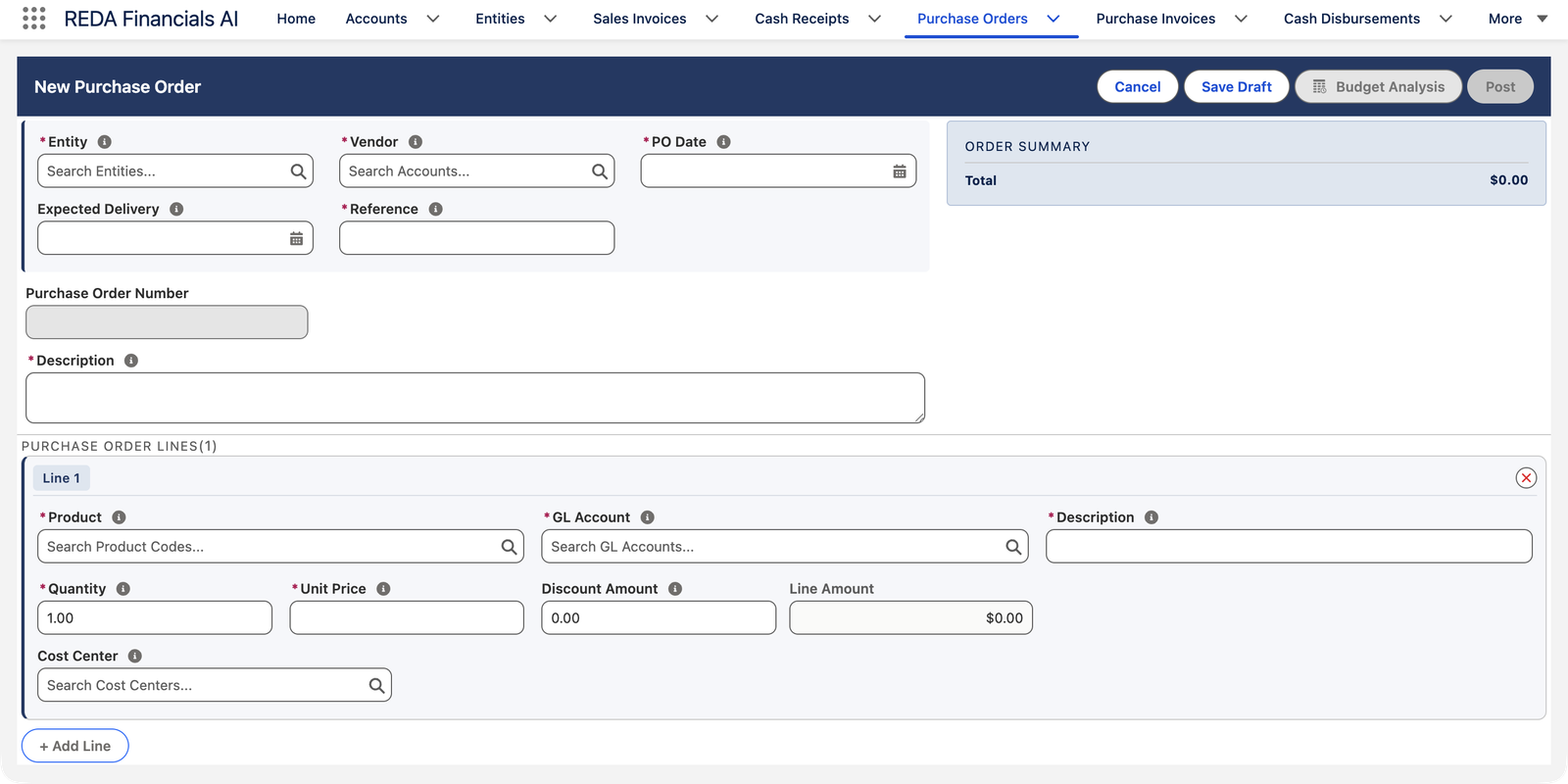
Step 1 — Open the form
On the New Purchase Order form, four buttons live in the header: Cancel, Save Draft, Budget Analysis (it activates once the order has budget-relevant content) and Post.
Step 2 — The header: who, from whom, by when
Entity and Vendor
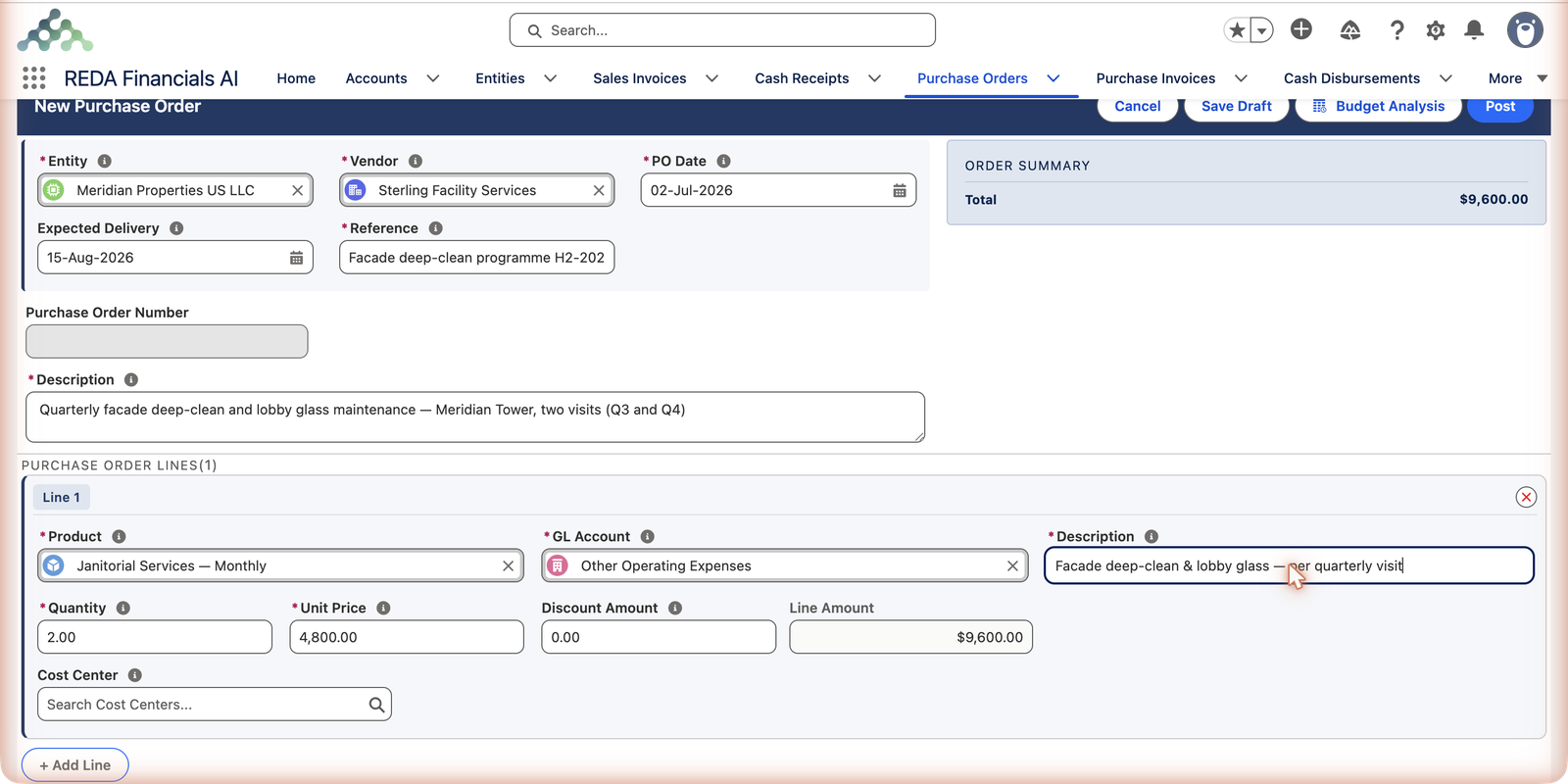
The company placing the order, and the supplier receiving it — Meridian Properties US LLC ordering from Sterling Facility Services.
PO Date and Expected Delivery
The order date drives the accounting period; the expected delivery date gives receiving something to chase. Meridian dates the order today and expects the first visit by mid-August.
Reference and Description
The Reference is the order's short name in lists — "Facade deep-clean programme H2-2026". The Description says what's actually being bought: "Quarterly facade deep-clean and lobby glass maintenance — Meridian Tower, two visits (Q3 and Q4)".
Step 3 — Lines: what, how many, at what price
Same pattern as invoice lines: pick the Product (its default GL account and description fill in), set Quantity and the agreed Unit Price, optionally tag a Cost Center. Meridian ordered quantity 2 (two visits) at $4,800:
Every field on the form — the reference
| Field | Required? | What it does |
|---|---|---|
| Entity | Yes | The company placing the order — its budgets take the commitment, and its numbering sequence names the document |
| Vendor | Yes | The supplier the order is issued to; Generate PDF later produces the copy you send them |
| PO Date | Yes | Drives the accounting period; when a budget is linked, this date must fall within the budget's range |
| Expected Delivery | No | The date receiving will chase — leave it honest, not optimistic |
| Reference | Yes | The order's short name in lists — put the programme and period in it |
| Description | Yes | What is actually being bought; an order is a commitment, so it must say what it's for |
| Purchase Order Number | Auto | Greyed out on the form — assigned from the entity's numbering sequence when the record saves |
| Budget | No | Links the order to a posted budget so posting commits the amounts and runs the Budget Check — see PO Budget Analysis |
| Bypass Budget Controls | No | An administrator's override: lets an over-budget order post anyway, for genuinely exceptional cases |
| Approval Status | Set by your sign-off flow | Posting requires Approved or Not Required; Submit for Approval starts the process |
| Line fields | — | Product, GL Account, Description, Quantity, Unit Price, Discount Amount, Cost Center — each has its own entry in PO Lines & Products |
Step 4 — Check the budget, then post
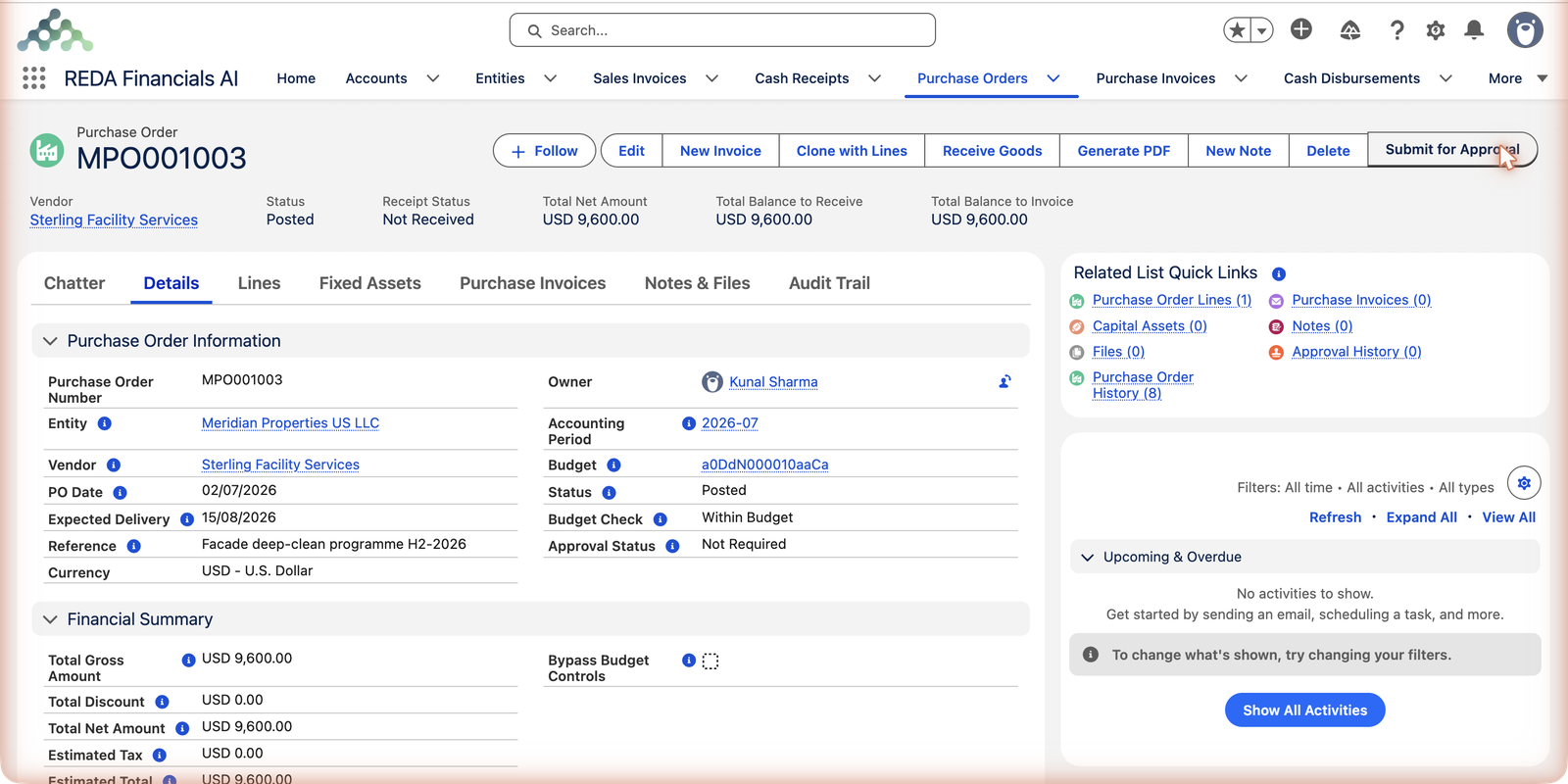
Before committing, Budget Analysis shows how this order lands against your budget — what's budgeted, already committed, spent, and what this order would leave (see PO Budget Analysis). Then Post. Posting locks the order, assigns its number, and — where a matching budget exists — commits the amounts:
What can stop the post — and what to do
Posting is where the order's promises get checked. These are the gates:
| The gate | What it means / what to do |
|---|---|
| Approval — the order posts only with Approval Status Approved or Not Required | Use Submit for Approval and wait for sign-off; your administrator configures who approves what. |
| Budget block — a line that would push spending over the available budget stops the post | Re-scope the order, or have an administrator tick Bypass Budget Controls for a genuine exception. Budget Analysis before posting shows this coming. |
| Budget eligibility — a linked budget must belong to the same entity, and the PO date must fall inside the budget's range and inside an accounting period | Check the PO date against the budget you picked; a January order can't consume last year's budget. |
| "Cannot modify lines on a non-Draft Purchase Order." | You tried to change lines after posting — the order is an issued commitment. Reopen it to Draft, edit, and post again (see Posting & Voiding a PO). |
Common mistakes to avoid
| Mistake | Why it hurts | Do this instead |
|---|---|---|
| Quantity 1 for a multi-part programme | Receiving and billing become all-or-nothing — nothing can be confirmed until everything is done | One unit per deliverable: Meridian ordered 2 visits at $4,800, not 1 at $9,600 |
| Guessing the unit price | The PO price is the benchmark every invoice is checked against — a wrong guess blocks matching later | Enter the price you actually agreed; if it's renegotiated, reopen the draft and correct the line |
| A vague Reference ("cleaning PO") | The Reference is the order's name in every list — vagueness makes it unfindable | Programme plus period: "Facade deep-clean programme H2-2026" |
| Skipping Budget Analysis before Post | You discover the budget block only at posting — or bypass it casually and lose the control | Click Budget Analysis first and read what the order would leave |
| Leaving the product's GL Account unchecked | The commitment consumes the wrong budget allocation, and the eventual cost lands in the wrong account | Glance at each line's GL Account; override it when the same product serves a different purpose |
Where to go next
- Receiving PO Lines (Assets) — record the deliveries as they arrive.
- Creating PI from a PO — turn the order into the vendor's bill.
- PO Budget Analysis — the budget check in depth.
- PO Lines & Products — line options including asset creation.
Frequently asked questions
The account where the cost will land when the bill posts. The order itself writes nothing to the ledger; its GL account flows to the matched invoice line (and drives which budget line the commitment hits).
REDA Financials matches the order's entity, dates and line GL accounts against your posted budgets — Meridian's janitorial line matched the FY2026 Operating Budget's operating-expense allocation, so the check ran automatically and reported Within Budget.
Reopen it to Draft, change, and post again — as long as nothing received or invoiced contradicts the change. If approval applies, the amended order goes through sign-off again.
No — a purchase order creates no ledger entries, because no cost exists yet, only a promise. What posting does affect is budget commitment. The expense reaches your books when the matched vendor bill posts — see Creating PI from a PO.
When a matched invoice posts, the committed amount converts into actual spending — accountants call it liquidation. The budget never double-counts: committed becomes actual, and the available balance stays honest throughout.
Two honest routes: trim the order to fit what's available (Budget Analysis shows the gap), or — for a genuine exception — have an administrator tick Bypass Budget Controls and post deliberately. The bypass exists so the block never forces bad data; it shouldn't become a habit.
Was this article helpful?