
Bulk Updates Overview
Month-end rarely means one document — it means forty drafts to post, a dozen stale quotes to void, a batch of entries to release. Bulk Status Update is REDA Financials’ one tool for all of it: select the records in any list view, choose the target status, and let each record process itself — with an honest, per-record report of what happened.
Access you'll need. There's no separate permission for bulk update — you need whatever set already lets you make that change on that document one at a time: Accounts Payable v2 or Accounting Admin v2 for Purchase Invoices, Purchase Orders and Cash Disbursements; Accounts Receivable v2 or Accounting Admin v2 for Sales Invoices and Cash Receipts; Accounting Admin v2 or Accounting Controller v2 for Journal Entries and Asset Ledger entries. If you can't post one record, the run refuses all of them the same way.
The flow, end to end
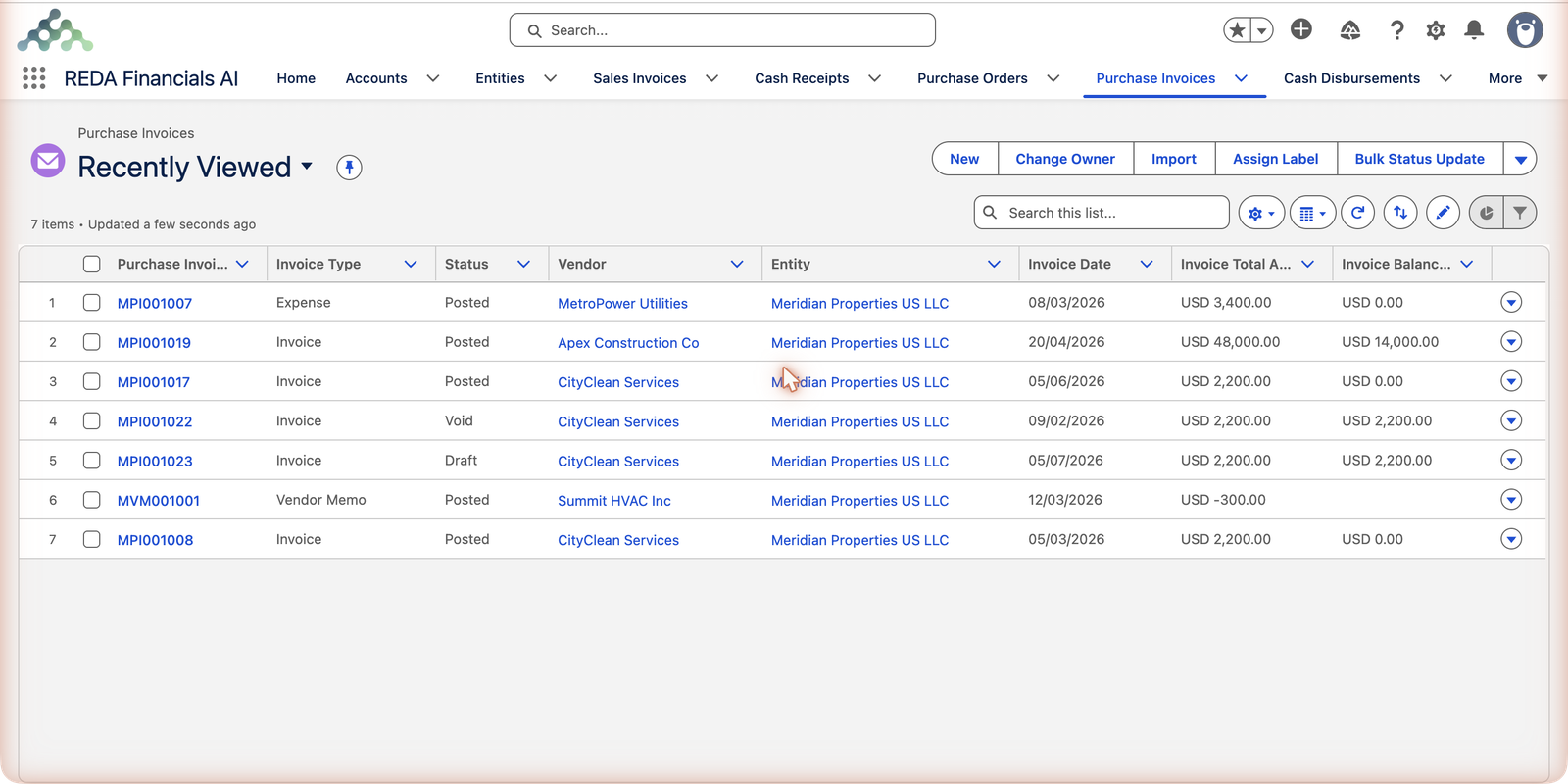
Select records in a list view
Any list view of a supported document works. Filtered views are your friend: the shipped Draft views give you exactly the month’s unposted work, ready to tick.
Review the summary and pick the target status
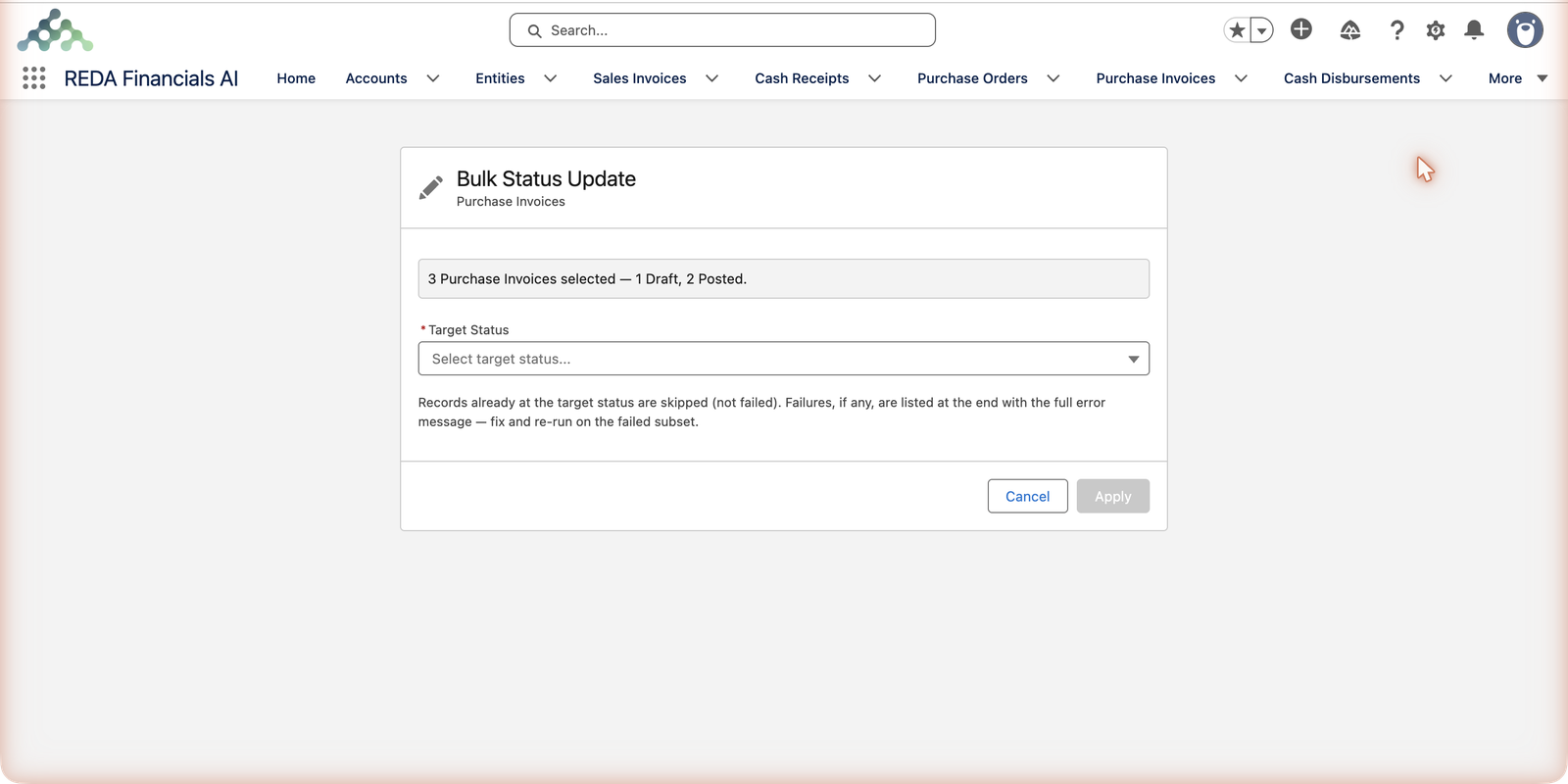
The tool opens with a plain-language recap of what you selected and where it currently stands:
Apply — and read the results
The result screen totals it up — updated · already at target · failed — with a table of any failures: each record linked, each error message verbatim. Fix the cause, reselect just the failures, run again.
The screen, control by control
The Bulk Status Update screen is deliberately small — four things to read, one decision to make:
| Control | What it does |
|---|---|
| Summary line | A plain-language recap of the selection and where it currently stands — "12 selected: 8 Draft, 3 Posted, 1 Void". Read it before anything else: if the counts surprise you, your list view filter (or your ticking) needs another look. |
| Target Status (required) | A picklist of the statuses this document type supports — each object offers its own lifecycle, so a Journal Entry list shows journal statuses, an Asset Ledger list shows asset-entry statuses. Apply stays disabled until you choose. |
| Void Reason | A text box that appears only when the target is Void, on documents that record one — sales and purchase invoices, including their credit-memo and vendor-memo types. One reason for the whole run, stamped on every document it voids, along with the void date. |
| Apply | Starts the run. Each record processes independently from here — there is no "abort halfway" because there is no halfway: every record either completes its own change or reports why it couldn’t. |
| Cancel | Closes the screen; nothing changes. The selection in the list view survives, so you can adjust and relaunch. |
Reading the result screen
When the run finishes you get a headline — "{X} updated · {Y} already at target · {Z} failed" — backed by three tiles (Updated, Already at Target, Failed) and, when anything failed, a failures table listing each record as a link with its exact error message, duplicates collapsed so twenty identical closed-period failures read as one line, not twenty. The screen’s own help text states the philosophy in one sentence: "Each record is processed independently; partial success is possible."
A worked run from Meridian Properties Group’s AP desk: three Purchase Invoices selected — the summary reads "3 Purchase Invoices selected — 1 Draft, 2 Posted" — with Target Status set to Posted. The draft posts; the two already-posted invoices are skipped untouched; the result reads 1 updated · 2 already at target · 0 failed. Nothing was double-posted, nothing errored, and running the identical selection again would simply report 0 updated · 3 already at target.
The messages you’ll meet in the failures table
Failures quote the same messages the document would give you one at a time — the bulk tool adds nothing and hides nothing. The most common, with their fixes:
| The message | What it means / what to do |
|---|---|
| "This document requires approval before posting. Approval Status must be Approved or Not Required." | The approval gate applies in bulk exactly as it does singly — chase the approval, then re-run on that record. |
| "Invoice Date must fall within the selected Accounting Period." | Date and period disagree on that document — open it, fix the date or the period, re-run. |
| "GL Account is inactive and cannot receive new postings. Select an active account or reactivate this one." | A line references a deactivated account — re-code the line or reactivate the account. |
| "Credit Memo/Vendor Memo must have a negative total." | A memo-type document in the selection isn’t shaped like a memo — complete it as its type demands. |
| "Cannot void a Sales Invoice with applied payments or credits. Reverse the applications first." | Voiding respects dependencies: unwind the applications, then re-run the void on that record. |
| "Please provide a reason for voiding this invoice." | The run targeted Void on documents that record a reason, but the Void Reason box was left empty — write one and re-run. |
Every change leaves a paper trail
A bulk run isn’t a special kind of change — it’s many ordinary changes, so each one is recorded the ordinary way. Every posting and void lands in the Audit Log as its own entry (the log records the action, who performed it, when, and the record concerned), and each document’s own history shows the status change exactly as if you’d clicked it there. An auditor reviewing one invoice sees its posting; an administrator reviewing your afternoon sees all forty.
The design principle: every record stands alone
Bulk updating is not a shortcut around the rules. Each selected record runs its complete, normal lifecycle logic — the same validations, the same accounting entries, the same locks as a one-at-a-time change:
- A draft that would fail posting on its own (closed period, missing approval, inactive account) fails in bulk too — with the same message.
- One record’s failure never blocks the others: partial success is by design. Thirty-eight post; two come back with reasons; nothing is half-done.
- Records already at the target are skipped untouched — running the same batch twice is harmless.
Where it works
The button appears on list views of every major document: Sales Invoices (including credit memos), Purchase Invoices (including vendor memos and expense invoices), Cash Receipts, Cash Disbursements, Journal Entries, Purchase Orders, PI Allocation Batches and Asset Ledger entries. Details per object: Supported Objects.
Common mistakes to avoid
| Mistake | Why it hurts | Do this instead |
|---|---|---|
| Skipping the summary line and clicking straight to Apply | The recap — "12 selected: 8 Draft, 3 Posted, 1 Void" — exists to catch a wrong filter before it becomes forty wrong postings | Read the counts; if they don’t match your intent, Cancel and fix the selection |
| Treating the failures table as bad news to dismiss | Each failure is a record that still needs the change — closing the screen loses your to-do list | Work the table: every row is linked, every reason is the fix instruction |
| Re-keying huge unfiltered runs to "catch everything" | Result reports become unreadable, and the platform’s processing window is finite | Slice by entity or month — smaller runs, readable reports, same total speed |
| Expecting bulk update to edit fields | It changes status (plus the void reason that belongs with a void) — nothing else | Use standard list-view editing for field changes; it respects the same posted-record locks |
| Assuming bulk bypasses the rules "because it’s admin-ish" | Someone plans a run that the validations will (rightly) refuse, and month-end slips | Plan runs knowing every record faces its full normal checks — sweep approvals and periods first |
Where to go next
- Bulk Posting — the month-end posting run, step by step.
- Bulk Voiding — cancelling many documents, with reasons.
- Supported Objects — the per-document specifics.
Frequently asked questions
The practical limit is your list view selection and the platform’s processing window. For very large runs (hundreds+), work in filtered slices — by entity or by month — which also keeps the result reports readable.
No — they were simply already where you asked them to go, so the tool left them alone and told you so. It’s what makes re-running after a partial failure safe.
No separate permission — your normal document rights apply. If you can post an invoice one at a time, you can post forty; if you can’t, the bulk tool refuses them identically, one reason per record.
Never. Each record runs its complete lifecycle logic — approval gates, period checks, account validations, the lot. A document that would refuse to post on its own refuses in bulk too, with the same message in the failures table.
In the same places any change shows: each posting or void is logged in the Audit Log as its own entry, and each document’s history shows its status change. The run is simply its records — look them up the way you would any posting or void.
No Target Status chosen yet — the picklist still reads "Select target status...". Apply enables the moment you pick one; if you picked Void on invoices, also write the Void Reason before applying.
No — one run, one target status for everything selected. Mixed intentions mean two runs: filter to the set that should post, run; filter to the set that should void, run again. Each takes seconds.
Was this article helpful?