
Creating & Managing Territories
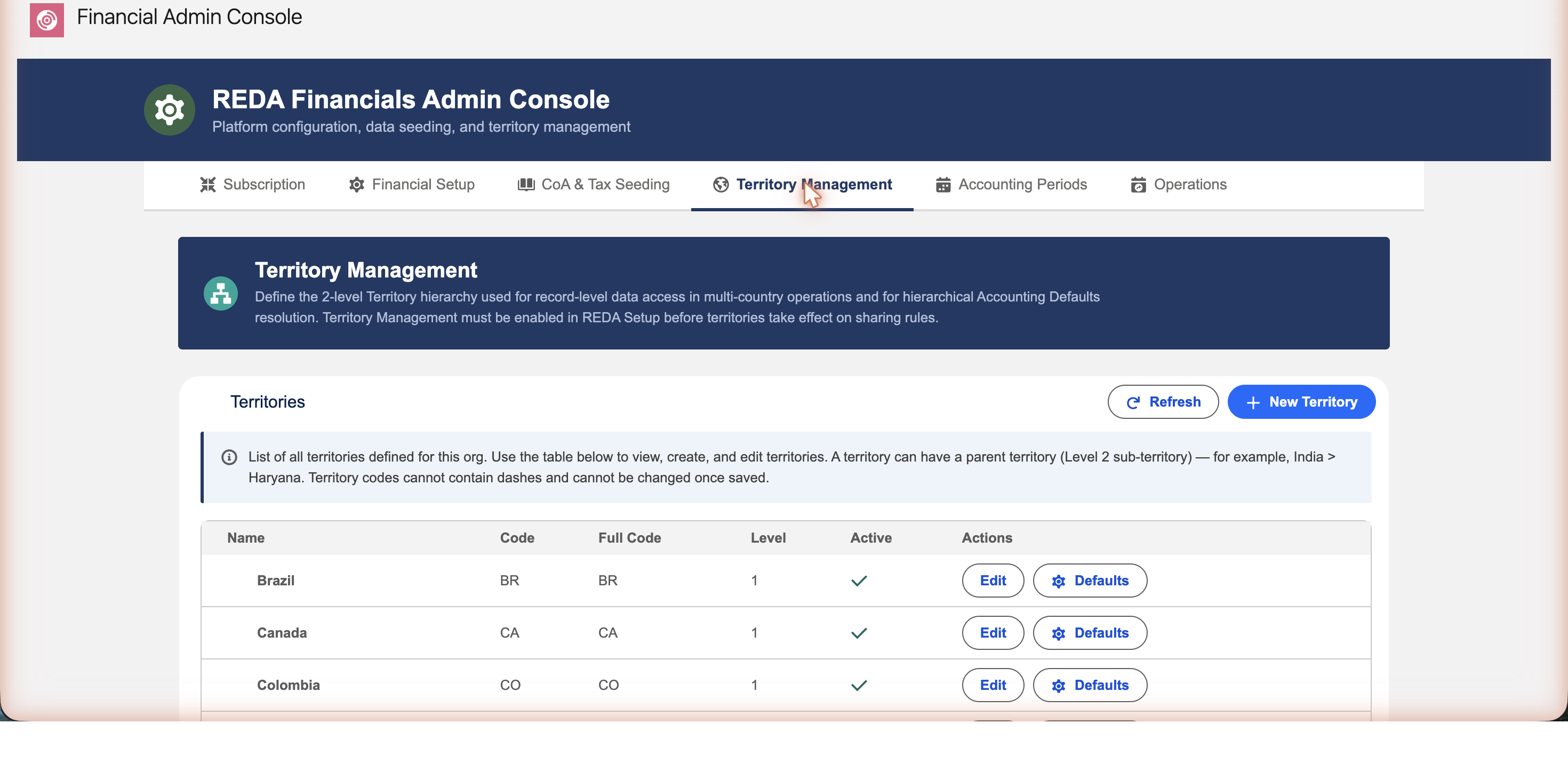
Territories are created and maintained on the Territory Management tab of the Financial Admin Console. The tab lists every territory you have defined — with its code, full code, level, and status — and lets you add new ones, edit them, and set their accounting defaults. New to the concept? Start with Understanding Territories.
Access you’ll need. Creating and editing territories requires the Accounting Admin v2 or Accounting Controller v2 permission set. The Accounts Payable v2, Accounts Receivable v2, and Read Only v2 sets can view territories but not change them.
Creating a territory
Click New Territory and fill in:
- Name — the territory’s display name, for example United States.
- Territory Code — a short code (up to 10
characters), for example
US. This becomes the basis of the full code that gets stamped on every record. - Parent Territory — leave this blank for a top-level territory. To create a sub-territory, pick its parent (for example, set California’s parent to United States).
- Description — optional notes for your own reference.
Click Create. REDA fills in the rest for you: the
Level (1 for top-level, 2 for a child) and the
Full Code (US for a parent, or
US-CA for a child) are calculated automatically.
The tab’s own guidance sums the model up: “A territory can have a parent territory (Level 2 sub-territory) — for example, India > Haryana. Territory codes cannot contain dashes and cannot be changed once saved.”
A worked example
Meridian Property Group operates companies in four countries, so its administrator creates four top-level territories — one per regulatory regime — before creating any entities:
| Name | Territory Code | Parent Territory | Level | Full Code |
|---|---|---|---|---|
| United States | US | — | 1 | US |
| United Kingdom | GB | — | 1 | GB |
| India | IN | — | 1 | IN |
| Brazil | BR | — | 1 | BR |
Later, when the Indian business needs state-level separation, a
child territory Haryana (code HR, parent
India) is added — its full code becomes
IN-HR automatically. Each of Meridian’s entities
is then created inside its country’s territory, and every
document those entities produce carries the right code from day
one.
The rules to know
A few rules keep your territory structure clean and your stamped codes stable. The system enforces all of them:
- The code can’t change once saved. Because the code is stamped onto records across the application, REDA locks it after the first save. Choose it carefully.
- No dashes in the code. The dash is reserved as
the separator between a parent and child in the full code (e.g.,
US-CA), so a territory code itself can’t contain one. - Two levels maximum. A parent can have many children, but a child can’t have its own children. REDA blocks a third level.
- The parent can’t change once saved. A territory’s place in the hierarchy is fixed after it’s created, which keeps full codes and data access stable.
- The parent must be active, and can’t be itself. You can only nest under an active territory, and a territory can’t be its own parent.
If you run into one of these rules, the message tells you exactly what happened — and what to do instead:
| The message | What it means / what to do |
|---|---|
| “Territory Code cannot be changed once set. Create a new territory and reassign records if a code change is needed.” | The code is permanent by design. If it’s truly wrong and the territory is unused, deactivate it and create a replacement. |
| “Territory Code cannot contain a dash (-). Dash is reserved for the parent-child separator in the Full Code path.” | Pick a code without dashes — use letters and numbers (e.g. USCA or CA, not US-CA). |
| “Maximum 2 levels of territory hierarchy are allowed. The selected parent already has its own parent — choose a top-level territory as the parent instead.” | You picked a child territory as a parent. Only Level 1 territories can have children. |
| “Parent Territory cannot be changed once set. Create a new territory under the desired parent and reassign records if needed.” | A territory’s place in the hierarchy is fixed at creation — the same permanence rule as the code. |
| “Parent Territory must be active and cannot reference this territory itself (territory hierarchies have no self-loops).” | Re-activate the intended parent first, or pick a different one. |
Setting a territory’s policies
Each territory carries a set of business policies that control how the application behaves for everything inside it — how transactions post (grouped vs. line-level), whether payments enforce dimension matching, aging-snapshot eligibility, the OCR auto-create confidence threshold, and how PDFs are shared. You set these by opening the territory’s record — from the Territories tab, or the Edit action on the Territory Management tab. Each field and exactly what it controls is documented in Understanding Territories → Every field explained.
Territory-level accounting defaults
Each row also has a Defaults action. This is where you set the default GL accounts, ledger, and reporting framework for that territory — the accounts new entities in the territory inherit. Territory defaults override the global defaults, and a child territory’s defaults override its parent’s. See Understanding Accounting Defaults for how the resolution works.
Don’t forget the fiscal calendar
Each top-level territory also needs accounting periods before its entities can post. On the Accounting Periods tab of the same console, pick the territory and fiscal year and click Generate Periods — REDA creates the 12 periods, following the calendar year or a custom fiscal year start you choose. Only Level 1 territories carry periods; entities in sub-territories inherit the parent’s calendar automatically. See Post-Installation Setup for the full sequence.
Editing and deactivating
- Edit — use the per-row Edit action to update a territory’s Name, Description, or Active flag — those are the only fields the edit dialog offers, because the code and parent are locked once saved. To change the business policies, open the territory’s record from the Territories tab instead.
- Deactivate — uncheck Active to retire a territory. Inactive territories can’t be assigned to new entities or ledgers, but records that already reference them keep working — so deactivating is safe and reversible.
Where to go next
- Understanding Territories — the concepts behind territories.
- Territory Codes & Full Codes — how codes are constructed.
- Configuring Accounting Defaults — set defaults per territory.
- How Defaults Flow to Entities — trace defaults onto records.
Frequently asked questions
No — the code is locked after the first save, because it’s stamped onto records throughout the application and changing it would break that link. If you haven’t used the territory yet, deactivate it and create a new one with the correct code.
No. REDA supports exactly two levels — a parent and its direct children. If you need finer regions, model them as additional children of the same parent rather than a deeper nest.
No — both are calculated automatically. The Level follows from whether you set a parent (1 = top-level, 2 = child), and the Full Code is built from the code and the parent’s code (e.g., US or US-CA).
Nothing breaks. Existing records keep their territory reference and their stamped code. You just can’t assign the territory to new entities or ledgers while it’s inactive. Re-activate it any time by checking Active again.
At least one — every entity must live in a territory. Beyond that, create one top-level territory per country (or regulatory regime) you operate in, and add child territories only where a region genuinely needs its own accounting defaults or its own data-access boundary. Fewer, well-chosen territories beat a speculative deep structure you can’t change later.
On the territory record — open the Territories tab in the REDA Financials AI - Admin app and edit the territory there. The Territory Management tab’s Edit dialog covers just the basics (Name, Description, Active); the record page exposes every policy field.
Was this article helpful?