
Understanding Sales Invoices
A Sales Invoice is how you bill a customer — and in REDA Financials it's the starting point of the whole "money coming in" side of your accounts, known as Accounts Receivable (AR). This article explains what a sales invoice is, the three forms it can take, what happens to your books when you post one, and how it quietly pulls together your customer, your company, your products and your tax rules. No accounting background is assumed — we'll define the terms as we go.
Access you'll need. Any REDA Financials permission set can view Sales Invoices. Creating, editing, and posting them requires the Accounts Receivable v2 permission set (AR clerks & managers) or Accounting Admin v2 (system administrators); the Accounting Controller v2, Accounts Payable v2, and Read Only v2 sets can view but not change them.
What a Sales Invoice does
On the surface a sales invoice is a bill: who the customer is, what they bought, how much it costs, the tax, and when payment is due. Underneath, when you post it, REDA turns that bill into proper double-entry bookkeeping entries automatically — so your financial statements stay correct without you touching the general ledger. (More on posting below.)
One sales invoice ties together five things, each of which you set up once and reuse:
| It uses… | …to supply |
|---|---|
| The Customer | Payment terms (which set the due date) and the tax treatment that applies |
| The Entity (your company) | Currency, the receivables account, the ledger, accrual-vs-cash basis |
| The Products on the lines | The revenue account, the price, the description |
| The Tax engine | The right VAT/GST/sales tax for each line |
| Document numbering | A unique, sequential invoice number |
That's the payoff of all the earlier setup: by the time you raise an invoice, you barely type anything — the document fills itself in.
The three types of Sales Invoice
In REDA, "Sales Invoice" is really a family of three document types, chosen with the Invoice Type field. They look similar but do different things to your books. (To keep the jargon honest: a "journal entry" below means the pair of bookkeeping lines that always balance — every debit has an equal credit.)
| Type | Use it when… | What posting does |
|---|---|---|
| Invoice | You bill now and get paid later (sell on credit) | Creates a receivable: DR Accounts Receivable / CR Revenue / CR Tax |
| Receipt | It's a cash sale — paid on the spot, no credit | Books the sale exactly like an invoice, then settles it instantly: REDA auto-creates an already-posted Cash Receipt (Payment Method Cash) and applies it, so nothing is left owing |
| Credit Memo | You need to reduce what a customer owes (a return, an over-charge, a goodwill credit) | The reverse of an invoice: DR Revenue / CR Accounts Receivable — it gives the customer credit |
The lifecycle: Draft → Posted → Void
An invoice's Status field has exactly three values — Draft, Posted and Void. They tell you what you can and can't do with it at each point:
| Status | What it means | Can you edit it? | In the GL? |
|---|---|---|---|
| Draft | A work-in-progress — you're still building it | Yes, freely | No — no accounting impact yet |
| Posted | Committed to the books — the accounting entries exist and the customer owes the balance | Not in place — first Reopen as Draft to correct it, or Void to cancel it | Yes |
| Void | Cancelled — the accounting entries are removed and the record is locked as a cancelled invoice | No — it's locked (though a void done in error can itself be reopened as a Draft) | Removed |
What "posting" actually does
Posting is the moment a draft document becomes real accounting. Before posting, an invoice is just a form — it has no effect on your profit or your balance sheet. When you post it, REDA writes the Accounting Transactions (the GL entries) behind the scenes, using the accounts from the customer, entity and products. From that point the invoice shows up in your reports, your customer's balance, and your aging.
For a normal Invoice selling £1,000 of goods at 20% VAT, posting creates:
| Account | Debit | Credit |
|---|---|---|
| Accounts Receivable (the customer owes this) | 1,200 | |
| Revenue (you earned this) | 1,000 | |
| VAT Payable (you owe this to the tax authority) | 200 |
You didn't choose a single account or rate — they came from the product (revenue), the entity (receivables) and the tax engine. That's the whole idea.
The totals look after themselves
You enter quantities and prices on the lines; REDA computes the rest live. The header shows a Subtotal (the lines before tax), a Tax Amount, the Total, and — once payments come in — the Balance Due (what's still outstanding). These update instantly as lines and payments change, with no manual re-tallying. One nuance worth knowing: while the invoice is a Draft, the tax you see is a live preview — the tax figures are written to the record permanently when you post (see Tax on Sales Invoices).
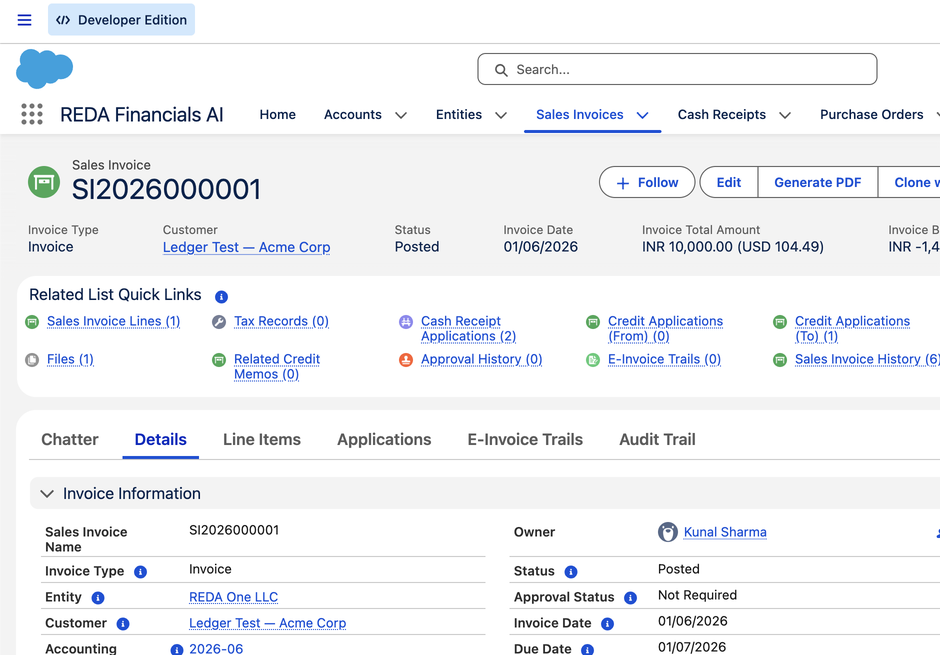
Two ideas that change the journal
- Accrual vs cash basis. The entity's accounting basis decides when the revenue counts as income — at the invoice (accrual) or when you're paid (cash). On a cash-basis company, posting parks the revenue in Deferred Revenue until payment. See Posting a Sales Invoice.
- Currency. The invoice is in the entity's currency by default, but in a multi-currency setup you can bill in a foreign currency — REDA stamps the exchange rate at posting and records any FX gain or loss when the payment settles.
How the Sales Invoice is configured: configurable field lists
REDA is a packaged product, but no two businesses track exactly the same things. So rather than hard-code every field, the Sales Invoice is made configurable through two named lists of fields that an administrator (or an extension package) can change without any code. They shape how the Sales Invoice behaves, and they do two very different jobs.
The on-screen field list — what you see on the form
The on-screen field list controls which fields the Sales Invoice form displays. The form reads this list and renders exactly those fields — so adding a field to it makes the field appear on the new/edit screen automatically, with no development. It works in two places:
- On the invoice (header) — the essentials (Entity, Customer, Type, the dates, Bank Account, Reference, Description) are always shown; the list is where everything extra comes from. Ready-made optional fields — Accounting Period, Ledger, Payment Term, Approval Status, Exchange Rate, Fiscal Operation, PDF Template, Recurring Template — sit waiting to be switched on, alongside any extra field you add.
- On the line — the standard columns (Product, Description, Quantity, Unit Price, Line Amount, Tax Profile, Tax Amount, Total, GL Account) are always shown; the line's own list adds extra columns. Out of the box it adds a Cost Center column.
Want a project code or a custom reference on every invoice? Add it to the on-screen field list and it shows up on the form — that is the whole mechanism behind "the form adapts to your setup".
The posting map — dimensions that flow to the ledger
The posting map controls which fields are copied onto the accounting entries when the invoice posts. These are your accounting dimensions — the extra ways you want to slice your numbers: by Cost Center, Project, Property, Department, and so on.
When you add a field to the posting map, the posting engine stamps that field's value onto every accounting entry it creates for the invoice. Your ledger then carries the dimension, so you can report revenue by project, by property, by whatever you track — again, no code. The posting map works on both the header and the lines: a dimension set on the header flows to the entries for the whole document, while a line's own value overrides the header's for that line's entries. The header map ships empty on purpose — REDA never presumes your dimensions — and the line map carries Cost Center out of the box.
Where to go next
- Creating a Sales Invoice — the guided form, step by step.
- Sales Invoice Lines — products, prices, discounts, credit lines.
- Tax on Sales Invoices — how the right tax is applied.
- Posting a Sales Invoice — accrual, cash basis and the journals in full.
Frequently asked questions
An Invoice is billed now and paid later, so it creates a receivable (the customer owes you). A Receipt is a cash sale — already paid — so when it posts, REDA also auto-creates an already-posted Cash Receipt (Payment Method Cash) and applies it to the invoice. The invoice is settled the moment it posts; there's nothing to chase.
No — it's a Sales Invoice with the Type set to Credit Memo. That keeps everything about a customer's billing in one place. It does the reverse of an invoice: it credits the customer. See Understanding Credit Memos.
Not in place — a posted invoice is part of your official books. You have two deliberate choices: Reopen as Draft (which removes its accounting entries and returns it to an editable Draft with the same number, to fix and re-post), or Void it (which removes its entries and locks it as a cancelled invoice). If the books for that date are already closed, you instead issue a credit memo in an open period. See Creating a Sales Invoice for the full walkthrough.
No. You can keep an invoice in Draft as long as you like — it has no accounting effect. Post it when it's ready (and approved, if your organisation requires sign-off).
Was this article helpful?